JANETS_INM.pdf - 第104页
JaNets Instr ucti on Man ual 3. Launcher 3-9 Setting the Environmen t Select the [ Shared ] com mand, and then t he [Set Environm ents] comm and on the “ Shared ” menu. Figure 3.5 -1 [Set Environments ] menu command Perf…
JaNets Instruction Manual 3. Launcher
3-8
Changing a User
When you log in the JaNets Launcher again, you can change the user who logged in the JaNets
Launcher at start-up to another one.
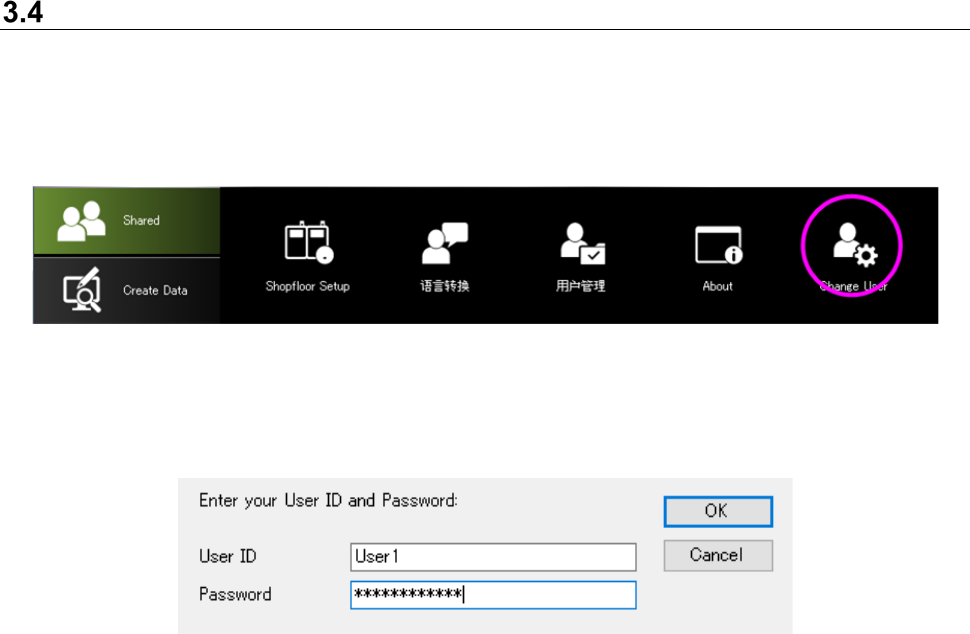
Click the [Shared] command, and then the [Change User] command on the “User Management”
menu.
Figure 3.4-1 Menu for changing the user
The “Login” dialog box appears on the screen. Enter the user ID and the password.
Figure 3.4-2 “Login” dialog box
* While an application program (except for the tool for switching the language) is being
executed, you cannot change the user.
JaNets Instruction Manual 3. Launcher
3-9
Setting the Environment
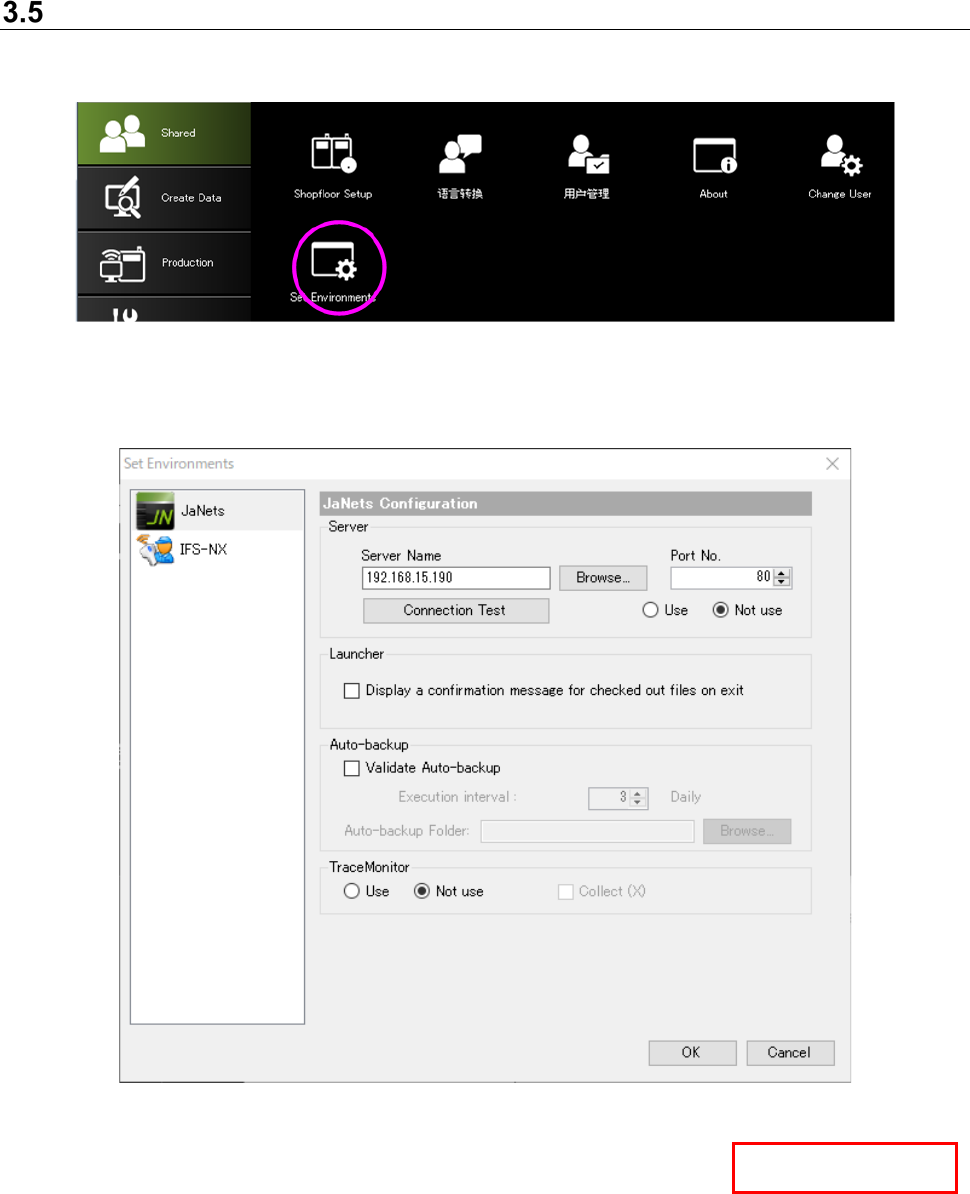
Select the [Shared] command, and then the [Set Environments] command on the “Shared” menu.
Figure 3.5-1 [Set Environments] menu command
Perform environment settings of JaNets by selecting JaNets.
Figure 3.5-2 “Set Environments” dialog box (for setting the IFS-NX)
Server
Use/Not use:
Specify whether to use the Data Manager or not with the corresponding button.
* To reflect your change of this setting, you have to restart the launcher.
* In case of changed the setting from “Not Use” to “Use”, it is overwritten to the data status of
Data Manager.
* In case of changed the setting from “Use” to “Not Use”, perform this action after “Monitor
Releasing” and “Check-in” because the line monitoring state and the check-out state by
JaNets operation at your own PC will remain reflected to Data Manager.
Data Manager
JaNets Instruction Manual 3. Launcher
3-10
Server Name:
Enter the host name or the IP address of the Data Manager to which the system is to be
connected or click the <Browse> button to select the connecting destination PC.
Port No.:
Enter the port number of the Data Manager to which the system is to be connected.
Normally use the default number (80).
Connection Test:
Runs a connection test for the Data Manager.
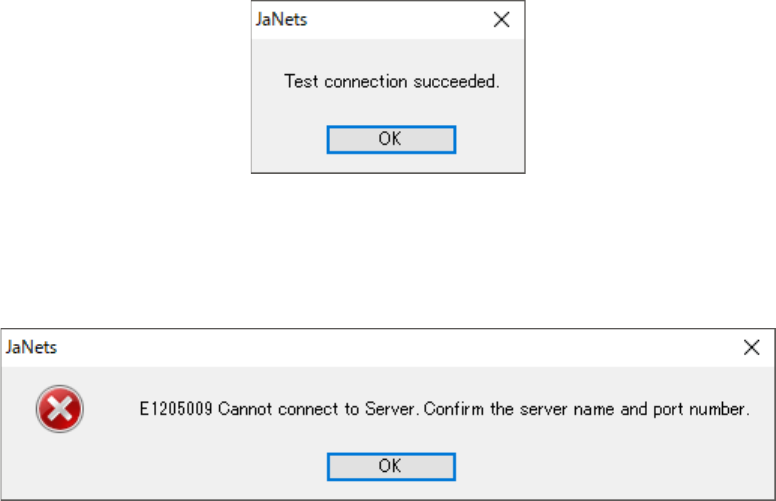
When the connection test finishes successfully, the following screen appears.
Figure 3.5-3 When the test connection succeeded
If the connection test fails, the following screen appears.
Check the server name, the port number and the network settings of the PC.
Figure 3.5-4 When the connection test failed