JANETS_INM.pdf - 第579页
JaNets Instr ucti on Man ual 13 . Program D ownloa der 13 - 83 13.18.2 Precautions 13.18.2.1 Usable files Only a product ion pro gram ( .iss file) is sup ported with produ ctio n conducted accord ing to an instruct ion f…
JaNets Instruction Manual 13. Program Downloader
13-82
13.18.1.1 To switch the operation mode from “Operator Controlled Production” to
“External System Directed Production”
<Note>
When you switch the operation mode from “Operator Controlled Production” to “External System
Directed Production,” loading of a reservation file is canceled in the production line that has loaded
the reservation file.
When you switch the operation mode from “Operator Controlled Production” to “External System
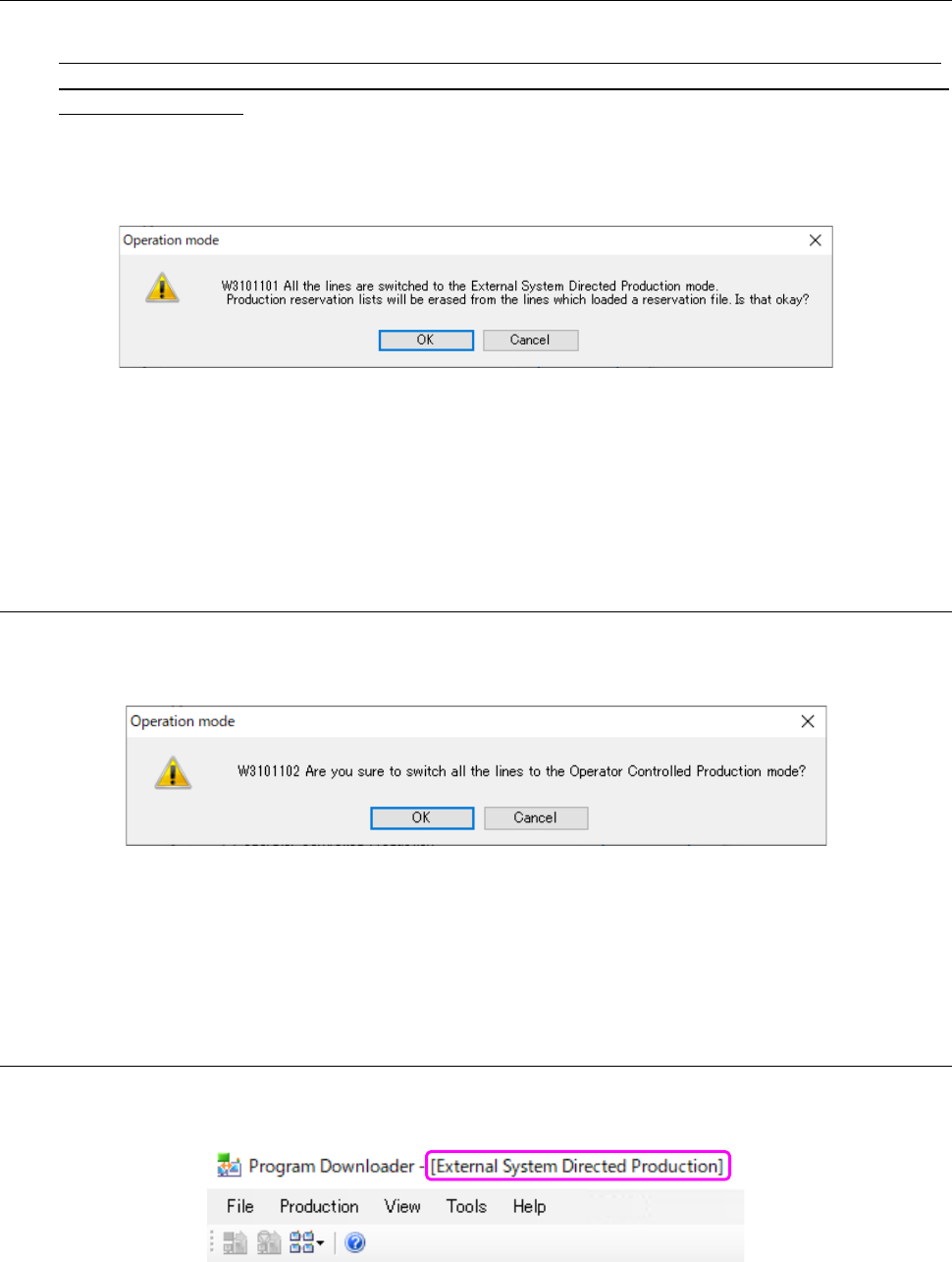
Directed Production,” the following dialog box for confirming change of the operation mode
appears on the screen.
Figure 13.18-3 Confirmation dialog box for switching the operation mode to
“External System Directed Production”
When you click the <OK> button, the operation mode is switched to “External System Directed
Production.” When you click the <Cancel> button, the system does not switch the operation
mode.
13.18.1.2 To switch the operation mode from “External System Directed Production” to
“Operator Controlled Production”
When you switch the operation mode from “External System Directed Production” to “Operator
Controlled Production,” the following dialog box for confirming change of the operation mode
appears on the screen.
Figure 13.18-4 Confirmation dialog box for switching the operation mode to
“Operator Controlled Production”
When you click the <OK> button, the operation mode is switched to “Operator Controlled
Production.” When you click the <Cancel> button, the system does not switch the operation
mode.
13.18.1.3 Display of the operation mode
When the system is operating in “External System Directed Production” mode, the operation mode
is displayed on the title bar.
Figure 13.18-5 Displayed operation mode
JaNets Instruction Manual 13. Program Downloader
13-83
13.18.2 Precautions
13.18.2.1 Usable files
Only a production program (.iss file) is supported with production conducted according to an
instruction from an external system. Any reservation file cannot be used.
13.18.2.2 Menu items
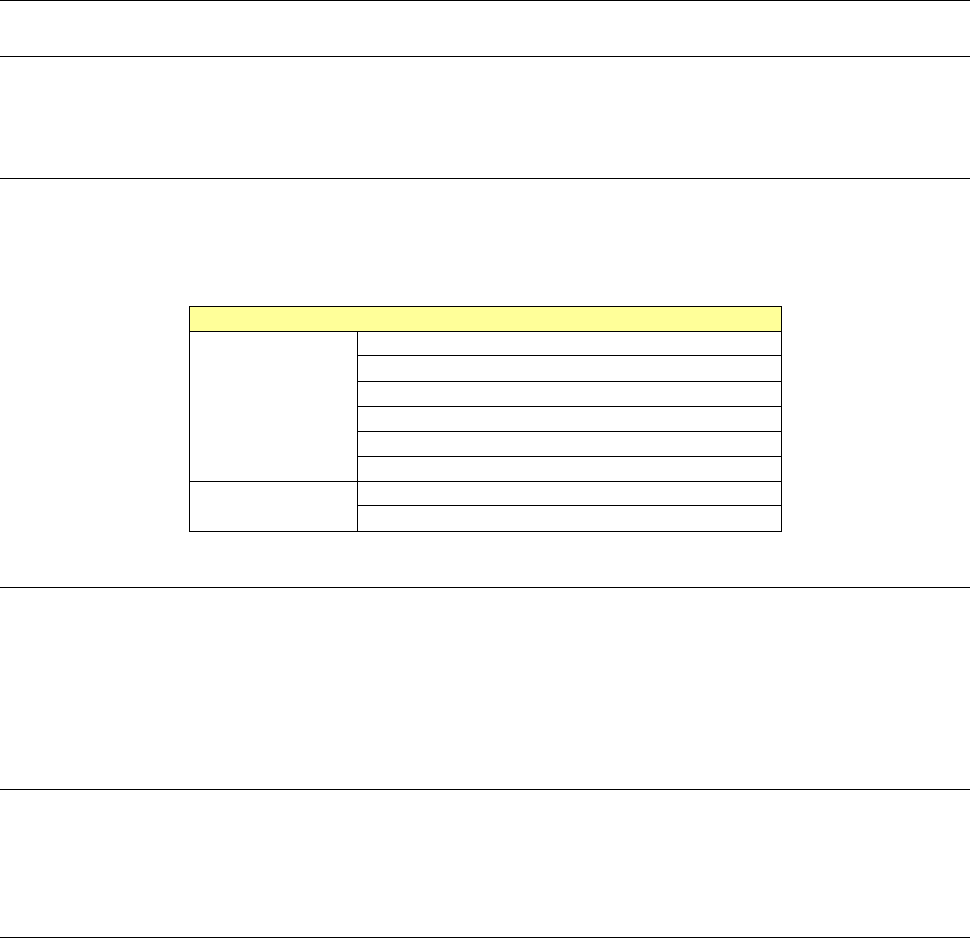
When you switch the operation mode to “External System Directed Production,” the menu items
described in the table below are deactivated, and you cannot use any of them.
Table 13.18-1 List of disactivated menu items
Menu items
File (F)
Open (O)
Open with a Serial code (S)
Clear the production schedule list (C)
Change Planned No. of PWBs (E)
Reservation of the next production program (N)
Register the next reservation file (R)
Production (P)
Download data for teaching (T)
Upload data for teaching (U)
13.18.2.3 Data check processing during downloading
When you enable the functions “Check unit conditions” and “Check production program,” the
system decides that downloading failed if an error occurs or a warning is issued as a result of the
check of a production program to be downloaded.
When you enable the function “Check production program at destination,” the system forcibly
downloads a production program even though it has loaded any program already.
13.18.2.4 Forced termination of production
Although the function for terminating production forcibly (see Section 13.9.5) can be used even
when the operation mode is set to “External System Directed Production,” the check box
“Download next production program reserved.” is disabled.
13.18.2.5 If an error occurs during downloading/uploading
If an error occurs during uploading or during automatic downloading of the next program, the error
dialog box continues to be displayed in the same manner as in “Operator Controlled Production”
mode. In this case, operate the Program Downloader to close the error dialog box, and then
forcibly terminate production (see Section 13.9.5) or download/upload a program with each
machine individually (see Section 13.9.6) so that a program can be downloaded/uploaded again.
Note that the download dialog box is automatically closed if an error occurs while the download
request from an external system is being processed.
JaNets Instruction Manual 14. Snapshot Tool
14-1
14. Snapshot Tool
What is the Snapshot Tool?
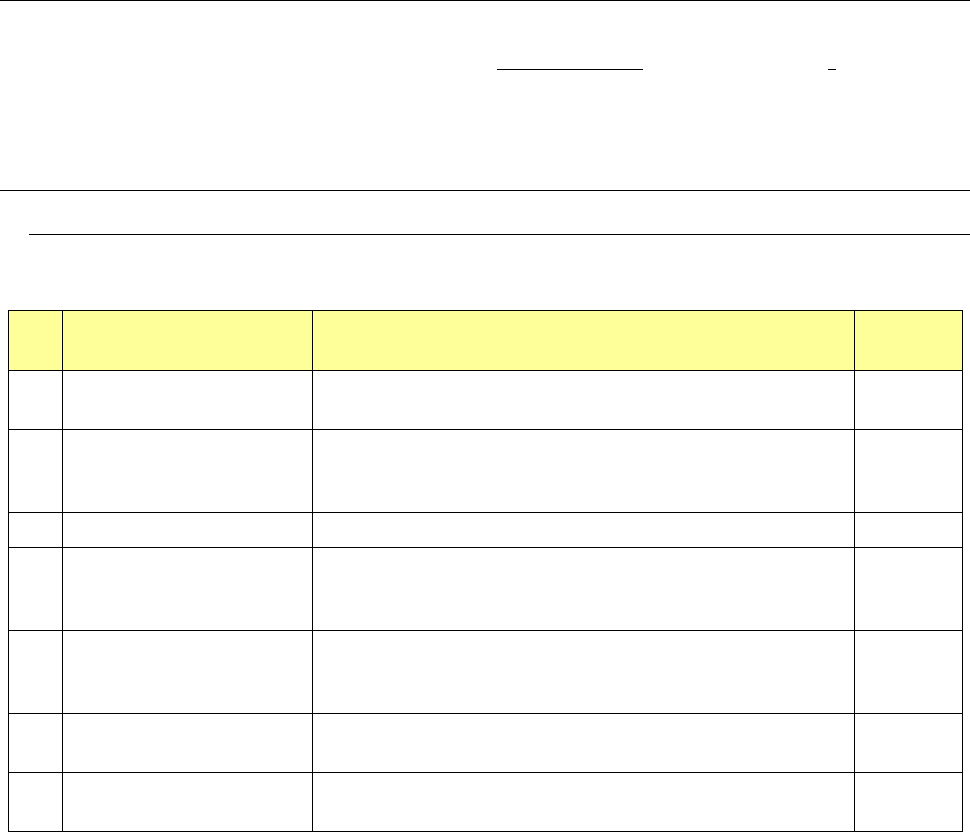
This application collects the items described in Section 14.1.1 “Files to be collected” such as
JaNets screen images (*.bmp format).
14.1 What Is To Be Operated With the Snapshot Tool?
14.1.1 Files to be collected
Table 14.1-1 List of files to be collected
No. Screen items Description Display
(*)
① Screen shot
Saves in the bmp format a screen shot displayed when the
Snapshot Tool starts up.
② JaNets environment file
Various types of environment files required for each JaNets
application to operate (such as a file whose extension is xml,
log, txt, prof, prom, ini and xsd)
③ User-specified file Files added to the list of files specified to be collected by a user ○
④
Files whose extension is set
on the “Set Environments”
dialog box
Files whose extension is the same as one set on the “Set
Environments dialog box and that is located under the JaNets
install folder.
○
⑤
Production program file
used with the Program
Editor last time
A production program file used with the Program Editor last time ○
⑦ System information
Collects information on the CPU, RAM, HDD size, a user and an
operating application and saves it in the txt (text) format
⑧
Component/feeder set/mark
database file
Component/feeder set/mark database file used by JaNets (MDS
file)
○
* When a circle (○) is put in the “Display” column, a file is always displayed on the list of files to
be collected. Other files are displayed only when you select the [Show all] command on the
“View” menu.