JANETS_INM.pdf - 第659页
JaNets In structio n Manual 17 Program Expl orer 17 -7 17.1.5.1 Operati on menu items The pop - up m enu disp layed wh en you cl ick the righ t butt on of a mouse on the “ Reserv ation Fi le ” screen is sho wn below . O …
JaNets Instruction Manual 17 Program Explorer
17-6
17.1.4.4 “Production Program” – Operation menu items
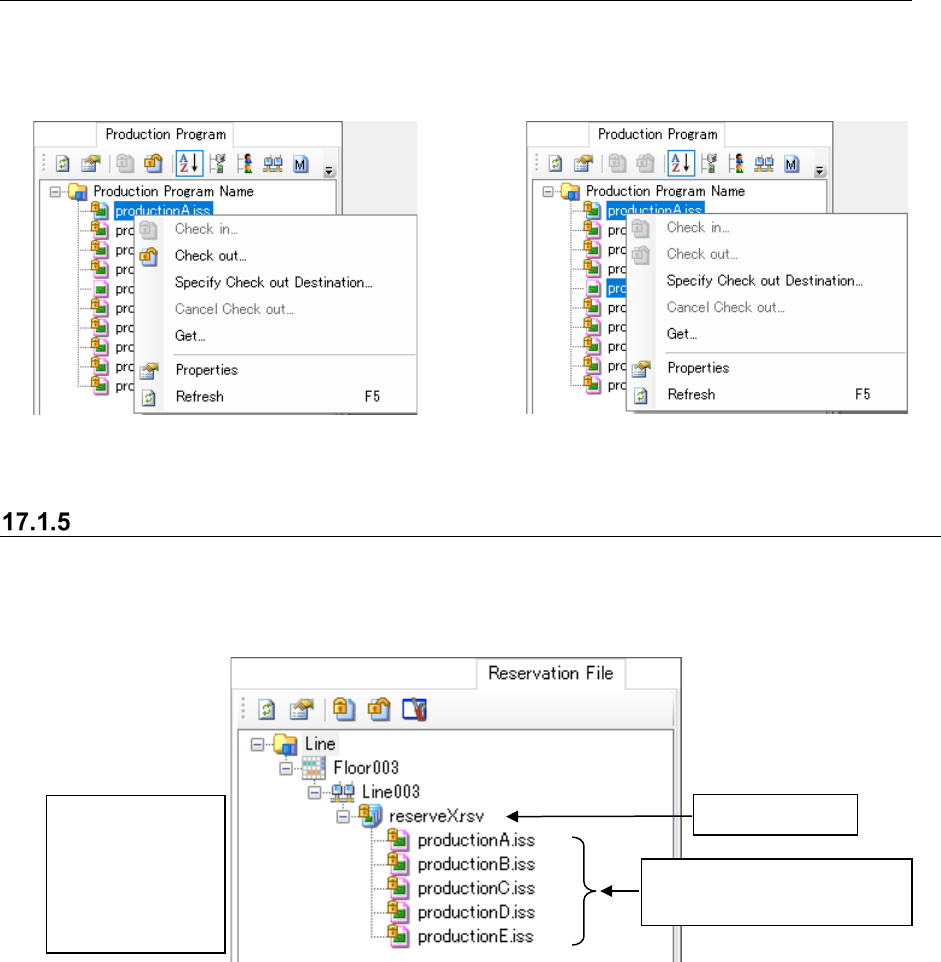
When you click the right button of a mouse on the “Production Program” screen, the pop-up menu
appears on the screen. Even though you select two or more production programs, the items that
satisfy the display conditions are displayed on this pop-up menu.
Figure 17.1-9 Pop-up menu (displayed when
one production program is selected)
Figure 17.1-10 Pop-up menu (displayed when two or
more production programs are selected)
“Reservation File” screen
This screen displays the list of reservation files controlled with the database. Production
programs are displayed in order of reservation as the hierarchy of reservation files. Note that you
can only obtain a production program on this screen.
Figure 17.1-11 “Reservation File” screen
Reservation file
Production programs included
in a reservation file
You can neither
select two or more
items nor drag
and drop an item
to sort displayed
items.
JaNets Instruction Manual 17 Program Explorer
17-7
17.1.5.1 Operation menu items
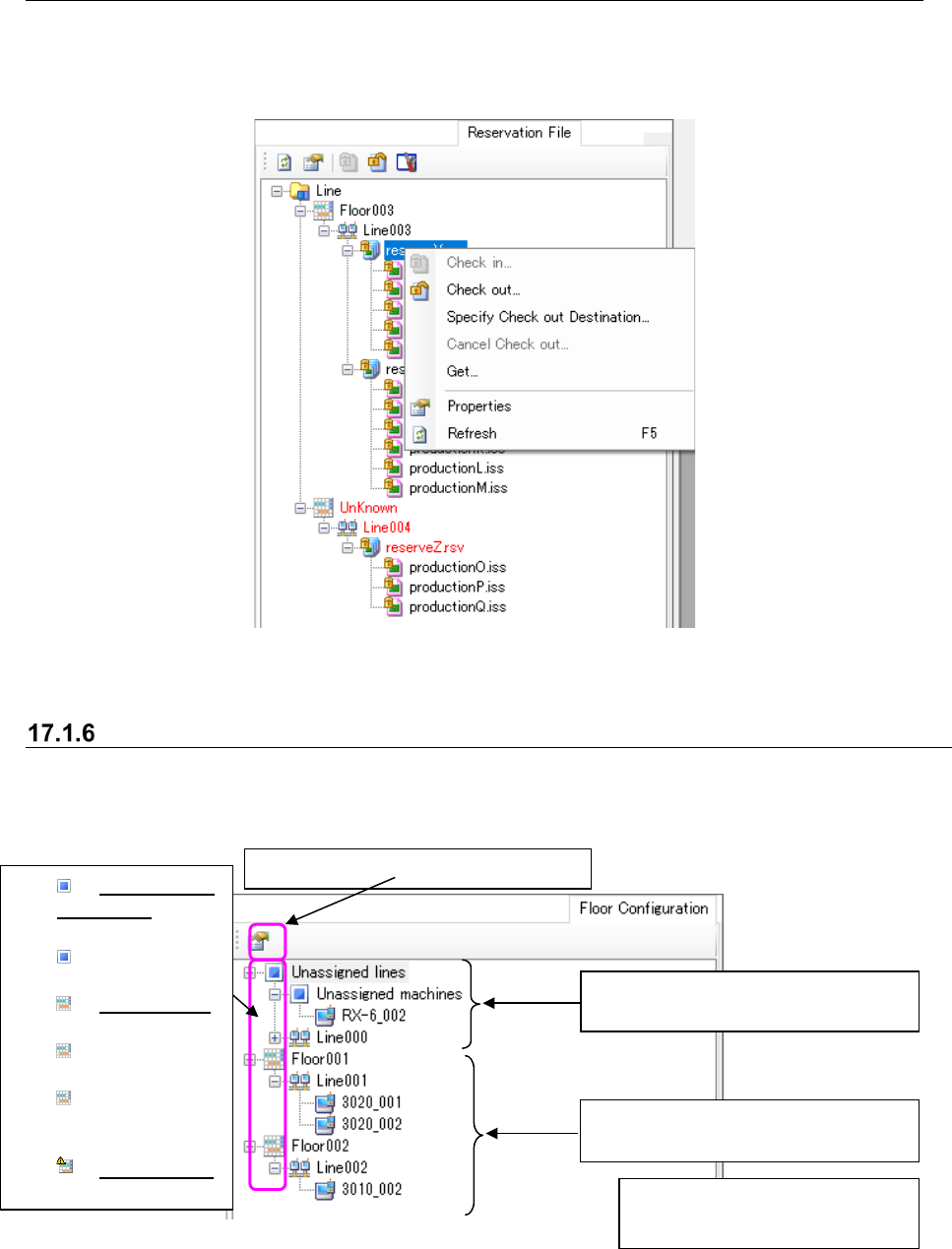
The pop-up menu displayed when you click the right button of a mouse on the “Reservation File”
screen is shown below. Only the menu items that satisfy the display conditions are displayed on
this pop-up menu.
Figure 17.1-12 Pop-up menu (displayed when you select one reservation file only)
“Floor Configuration” screen
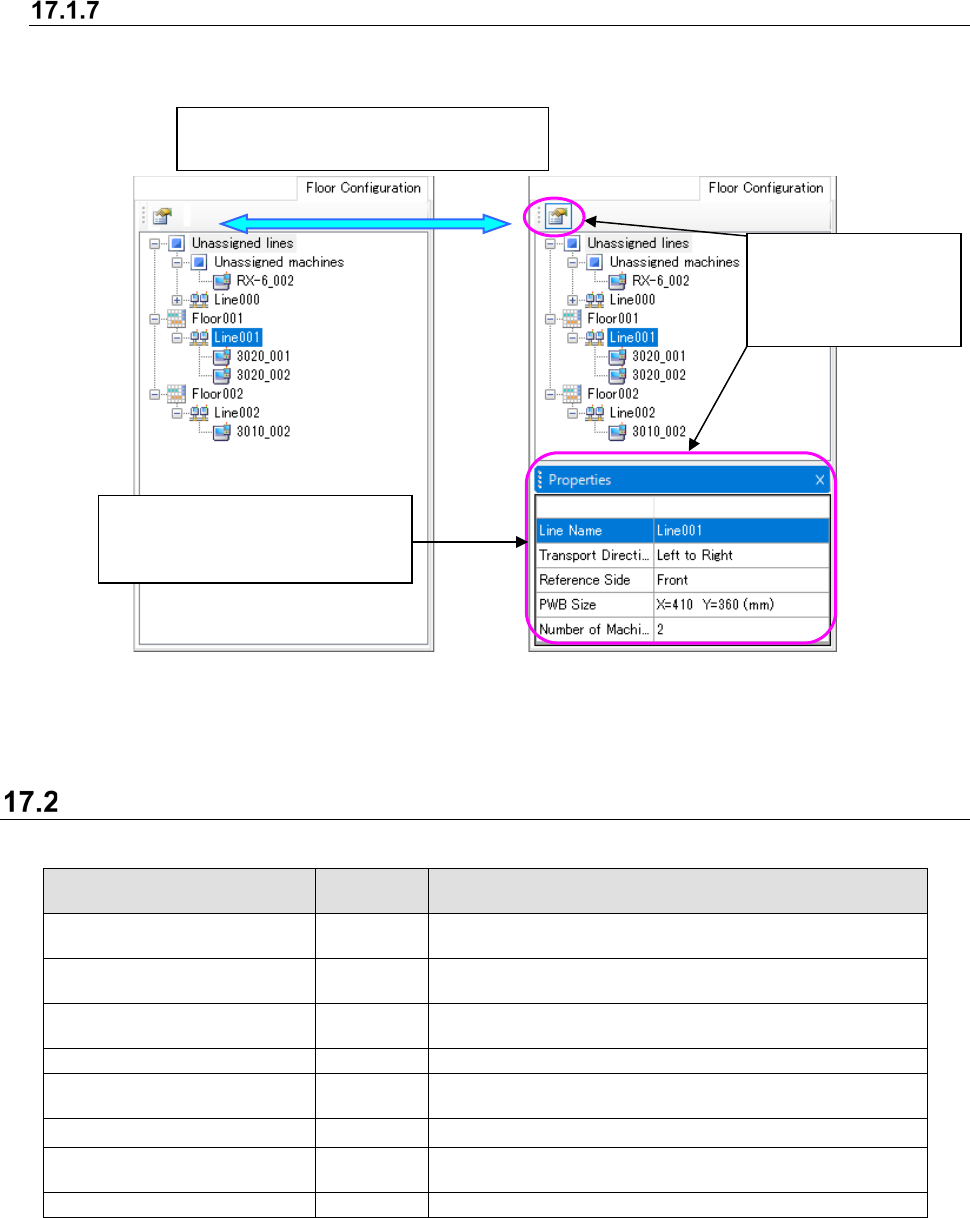
This screen displays the list of floors, production lines and machines. When you operate the
Shopfloor Setup application, you can change the production line or machine assignment. Note
that no properties icon is displayed with the Shopfloor Setup application.
Figure 17.1-13 “Floor Configuration” screen
Category of an item to which no
production line/machine is assigned
Category of the assigned
floor/production line/machine
You cannot select two or more
items at the same time.
Displays/hides the “Properties” screen.
Unassignede
quipment:
equipment not
assigned to
the floor
Normal floor:
Displays a floor
where no
maintenance wa
rning is output
to assigned
equipment.
Warned floor:
Displays a floor
JaNets Instruction Manual 17 Program Explorer
17-8
“Properties” screen
The “Properties” screen is displayed on the “Manage,” “Production Program,” “Reservation File”
and “Floor Configuration” screens.
Figure 17.1-14 Icon status (Left: not selected Right: selected)
* You can also display or hide the “Properties” screen with the [Properties] command on the
pop-up men displayed when you click the right button of a mouse.
Controlled with the database
Table 17.2-1 Data controlled with the database
Data name
Controlled
or not
Description
Production program (created
with the JaNets)
○
Production program created with the JaNets (Not added to
a reservation file yet)
Production program (added to
a reservation file)
△ Production program added to a reservation file
Production program (created
with the HLC or a mounter)
×
Production program created with the HLC or a mounter.
They cannot be stored in the database.
Divided file
△
File created when a production program is optimized (*2)
Reservation file
○
File on which reservation information of a production
program is described
Floor
☆
Information such as an assigned production line
Production line
☆
Information such as the board transporting direction and the
number of the connected machines
Machine
☆
Machine information
○: A user can specify whether a file is to be checked in or out.
△: A file is checked in/out together with the related file (*).
☆: The data is automatically obtained from the database when the Launcher starts up, and then
stored into the database when it is edited and saved with the Shopfloor Setup.
*1 A “related file” is one of the files related with each other in the following cases:
•
An optimized “production file” and a “divided file” created with the Optimization function
•
A “reservation file” and a “production program” registered in the reservation file
*2 A divided file is not displayed on the tree of the Program Explorer.
When this icon is
selected, the
“Properties” screen is
displayed.
When you click the following icon, the
“Properties” screen is displayed or hidden.
The information such as selected
programs, reservation file or
production line are displayed here.