JANETS_INM.pdf - 第399页
JaNets Instr ucti on Man ual 8. Job Optim izer 8- 14 Forma t t ing a n ord er fi le The content of the order f ile is sho wn belo w : The first line a nd the seco nd line are indispens able. The second line sho ws the ar…
JaNets Instruction Manual 8. Job Optimizer
8-13
8.3.7.3 The order file is opened.
In the Job Optimizer, the order file can be opened besides the reservation file.
The extension of the order file is csv or txt.
To open the order file, select the order file in the "Open the file" dialog box, or select the order file
in the Windows Explorer, and drag and drop it to the reservation list.
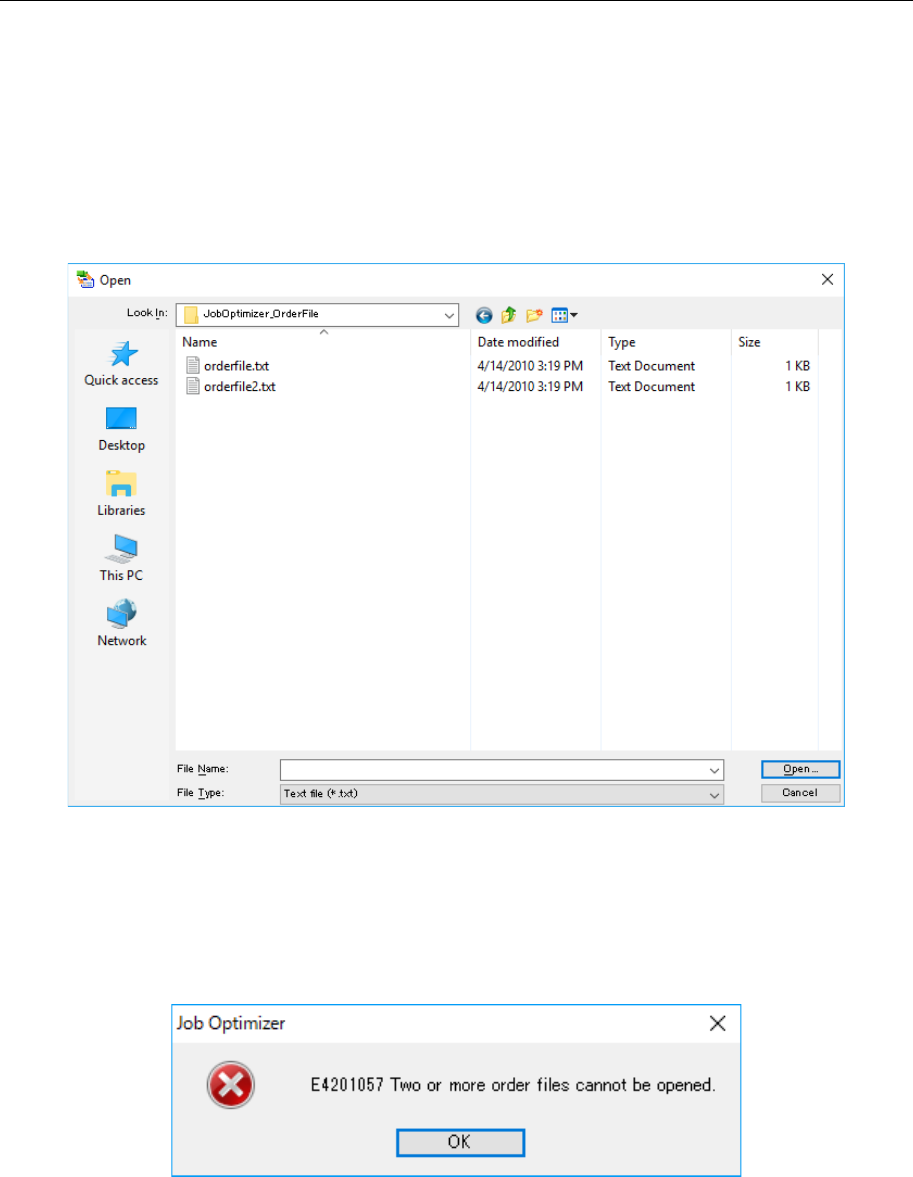
When displaying "Open " dialog box, select the "Text file (*.txt)" or "CSV file (*.csv)" in the file type,
and select the order file. At this time, two or more order files cannot be selected.
Figure 8.3-19 “Open the file” dialog
When selecting two or more order files in the Windows Explorer and dragging and dropping it to
the reservation list, "Check the number of order files" message is displayed, and the order file
cannot be opened.
Figure 8.3-20 “Check the number of order files” message
When opening the order file, the content of the selected order files is displayed in the reservation
list. At this time, the first line of the production program is automatically selected.
JaNets Instruction Manual 8. Job Optimizer
8-14
Formatting an order file
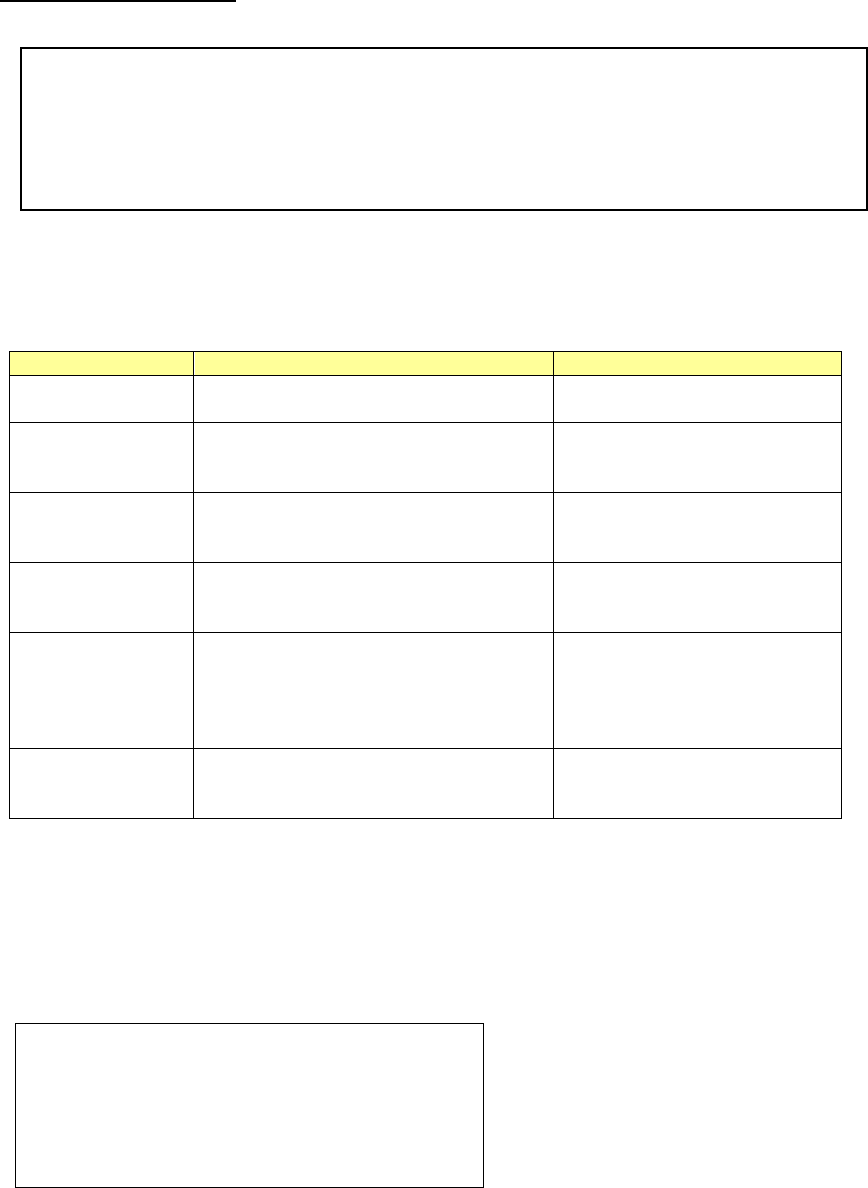
The content of the order file is shown below:
The first line and the second line are indispensable. The second line shows the arrangement of
data. The data in the third line or later is displayed in the reservation list.
Table 8.3-2 Date item of Order file
Item
Description
Remarks
Order
Number. Specify the numbers running
from 1 between 1 and 100 inclusive.
Cannot be omitted.
program-name
Production program. Specify the
absolute path. The production
program in the IS format is intended.
Cannot be omitted.
PWB-ID
PWB ID. PWB ID in the production
program is displayed in the
reservation list.
Can be omitted.
No. planned
The number of sheets of planned
PWB production. Specify the number
of 1 to 99999.
Can be omitted.
Default is set to 1.
start-time
Planned date of starting production.
It makes a format that shows the date
such as "2009/08/27 10:00" or
"09/08/27 10:00."
Can be omitted.
The date when the order file is
read for only the first
production program is
displayed by default.
end-time
Planned date of ending production.
The format of the date is the same as
planned date of starting production.
Can be omitted.
There is no default.
The numbers should be running between 1 and 100 inclusive. When, for instance, the numbers
are #1, #2, #4, and #5, only the production programs of #1 and #2 are displayed in the reservation
list because there is no #3.
The example of the order file that describes only the production program is displayed as follows:
[Reservation]
Order=program-name
#1=C:\Data\Line-1\Prg\sample1.iss
#2=C:\Data\Line-1\Prg\sample2.iss
#3=C:\Data\Line-1\Prg\sample3.iss
[Reservation]
Order=program-name,PWB-ID,No.planned,start-time,end-time
#1=C:\Data\Line-1\Prg\sample1.iss,SampleProgram1,100,2009/08/27 10:00,2009/08/27 12:00
#2=C:\Data\Line-1\Prg\sample2.iss,SampleProgram2,200,,
#3=C:\Data\Line-1\Prg\sample3.iss,SampleProgram3,300,,
JaNets Instruction Manual 8. Job Optimizer
8-15
Adding a production program
8.3.8.1 Adding a production program from the local
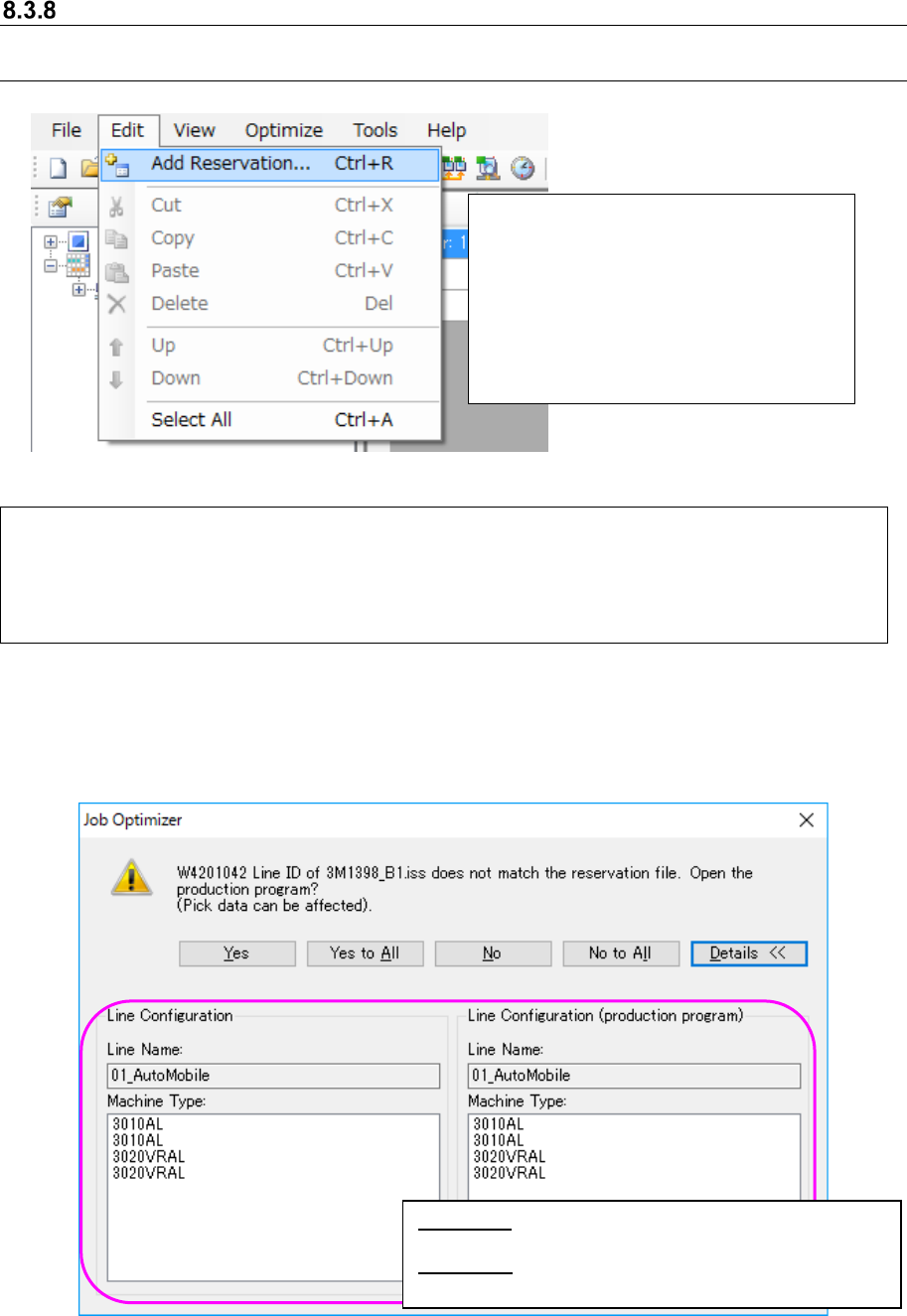
Figure 8.3-21 [Edit] – [Add Reservation]
If the line ID of a production program is not the same as that of the reservation file, the following
message appears on the screen.
Figure 8.3-22 “Line ID confirmation” message (display of the Line Configuration)
Select the [Edit] command, and then the [Add Reservation] command. → The “Add Reservation”
dialog box appears on the screen.
* As the initial folder of the “Add Reservation” dialog box, the “production program folder of the
selected line (to be set with “Shop Floor Setup”)” opens.
Example: C:
\
Juki
\
JaNets
\
Data
\
Line001
\
Prg
\
Select a production program to be
added on the “Add Reservation” dialog
box (or select two or more production
programs with the “Ctrl” key and the
“Shift” key) held, and then press the
<OK> button. The selected production
program(s) is (are) added to the end of
the reservation list.
<Yes> : Opens a production program on the line
currently selected.
<Details>: Displays the line configuration of the
database and that of the production