JANETS_INM.pdf - 第414页
JaNets Instr ucti on Man ual 8. Job Optim izer 8- 29 Feeder L ayout When you se lect the co mmands, [V iew] - [ Feeder L ayout ], the layo ut screen a ppears. Figure 8.3 - 50 Main scr een – [V iew] – [Feeder Layout] The …
JaNets Instruction Manual 8. Job Optimizer
8-28
The contents to be output by reservation list, component histogram or feeder setup information are
items set in the display item of the dialog display item setting of “8.3.27 Set Environments.”
Each item can be selected in the above dialog box under the condition described in the table
below.
Table 8.3-3 Conditions under which each of the items of
the “Specify Saving Items” group can be selected
Item
Condition under which each item can be selected
Reservation List/Component Histogram
After a production program is added
Optimization Options
After a production program is added
Feeder/Nozzle Layout
After optimization is completed
Component Count/Divided Placement
Data
After optimization is completed
Feeder Setup Information
After optimization is completed, and either of the feeder
arrangement options “Common feeder is fixed” or “No
feeders are replaced on the cluster” is selected.
Number of Feeders
After optimization is completed
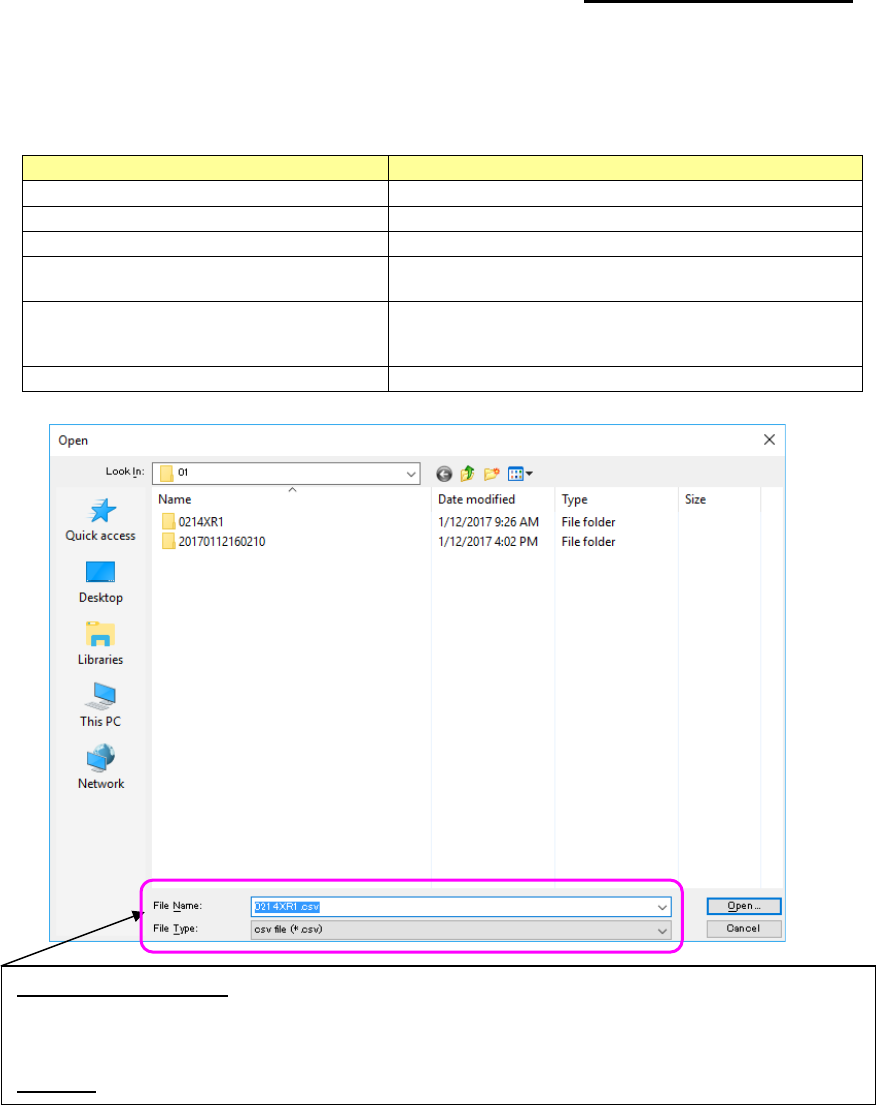
Figure 8.3-49 “Save as Text” dialog box (Browse) – “Selecting a file”
Default output file name:
set as the “Reservation file folder of the selected line (to be set with the Shop
Floor Setup) + Year (4 digits) folder + Month (2 digits) folder + Reservation file name.csv.” The path of a
reservation file and the reservation file name format are to be set with the Shop Floor Setup.
Example: C:\Juki\JaNets\Data\Line001\2014\05\20140505170930.csv
File type: The text file (*.csv) format it selected.
JaNets Instruction Manual 8. Job Optimizer
8-29
Feeder Layout
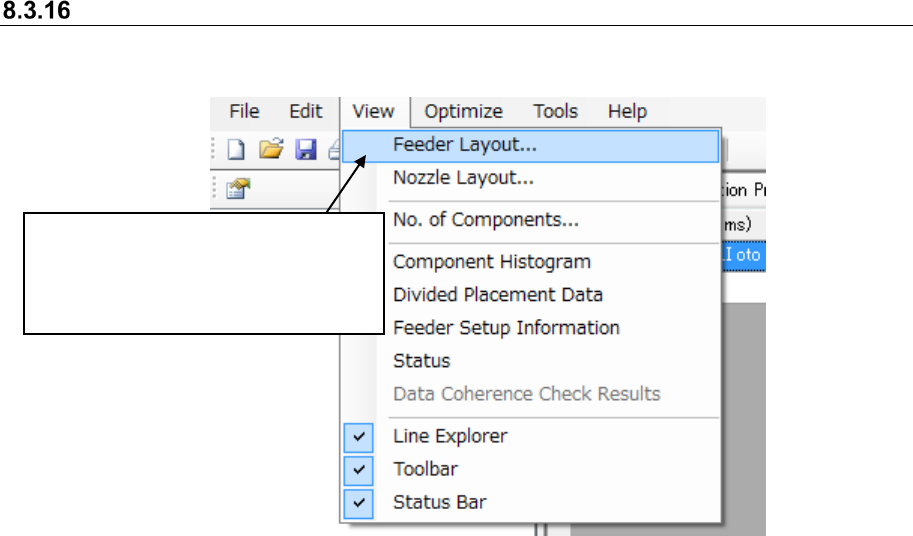
When you select the commands, [View]-[Feeder Layout], the layout screen appears.
Figure 8.3-50 Main screen – [View] – [Feeder Layout]
The Job Optimizer allows you to move a cluster of feeders.
Note that a feeder can be moved only if the following requirements are satisfied:
- A reservation file is optimized when the radio button “Fix all feeder positions within a cluster” is
selected on the “Multi-optimize Options” screen invoked from “Optimize” command.
- A cluster is selected on the “Feeder Layout” screen, and “ALL” is selected for the menu item
“Specify Production Program.”
To move a feeder to a different machine, the cluster number should be the same. After you change
the feeder layout (that is, quit the “Feeder Layout” screen), this layout information is stored in the
production program.
Therefore, the program is put in the not-optimized state (the cluster information is cleared also), so
you have to execute the optimization function again.
Note that any reference feeder is not considered.
* When optimization is not executed or
the production program is changed after
optimization, any selection cannot be
made.
JaNets Instruction Manual 8. Job Optimizer
8-30
No. of Components
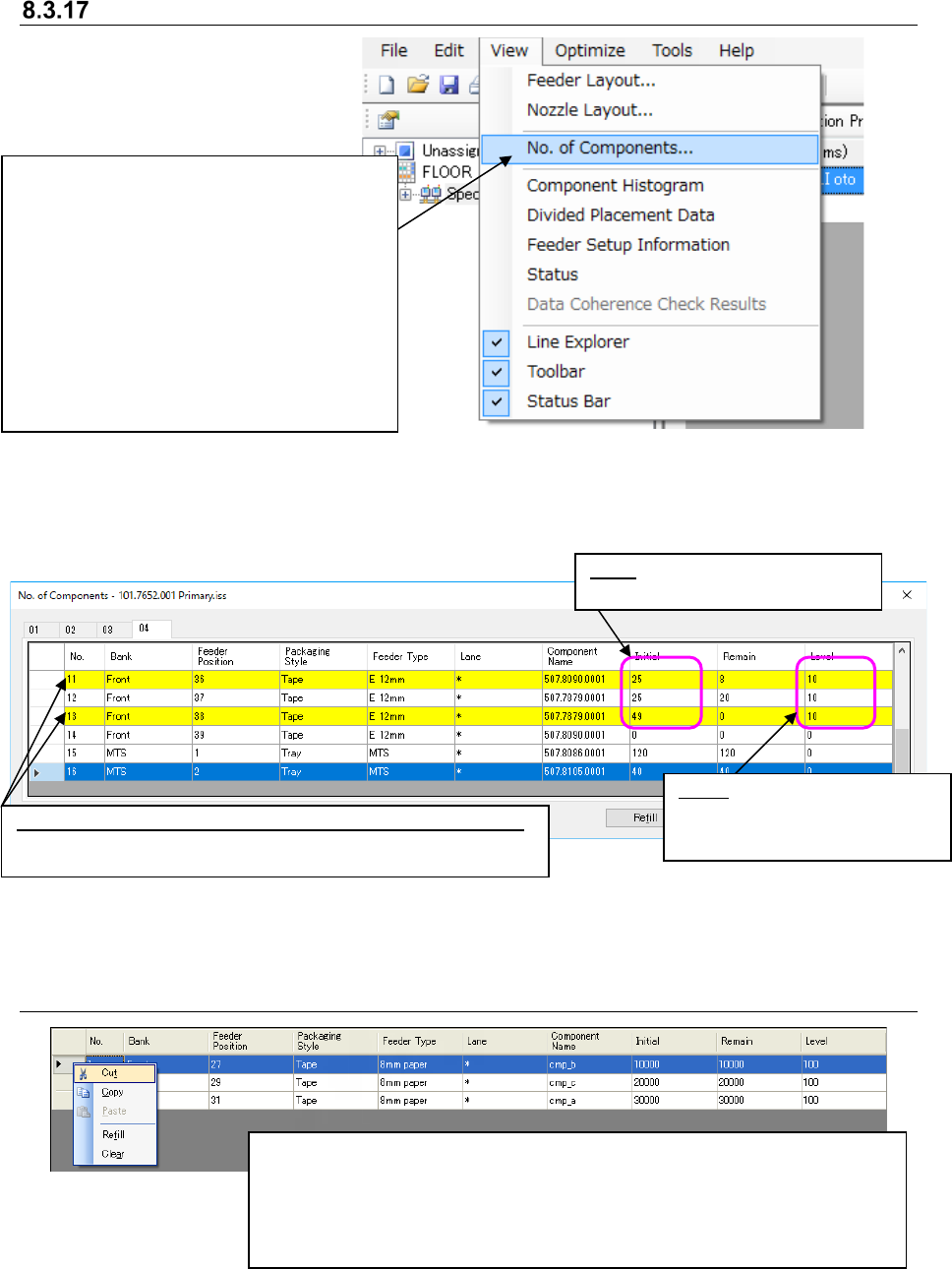
Figure 8.3-51 Main screen – [View] – [No. of Components]
* In the case of RX-7 series, a display is made but the editing function cannot be used.
When you enter the initial value or change it, the entered value is copied to the “Remain” field.
Figure 8.3-52 “No. of Components” dialog box
(If the warning of a component run-out error is issued)
8.3.17.1 Cutting the number of components data
Figure 8.3-53 “No. of Components”
(Cutting values in the “Initial,” “Remain” and “Level” fields)
Select a line from the “No. of Components” dialog box, and click the selected line
with the right button. Select the [Cut] command on the displayed menu to cut the
data in the “Initial,” “Remain” and “Level” fields. The values in the “Initial,”
“Remain” and “Level” fields of the selected line are copied to the clipboard, and
“0” is entered in the “Initial,” “Remain” and “Level” fields.
Initial: number of components supplied
before PWB production starts
Level: When a number other than
“0” is entered, the system warns you
that the components are going to run
out by changing the color.
Warning for a component run-out error (background color of a line):
When the number of remaining components becomes smaller than the
value set in the “Level” field, the background color becomes yellow.
After selecting a line on the Reservation list,
select the [View] command, and then the [No.
of Components] command.
The “No. of Components” dialog box for the
selected production program appears on the
screen.
* You cannot select this command if
optimization is not performed, if a
production program is changed after
optimization is performed, or if no line is
selected in the Reservation list.