JANETS_INM.pdf - 第309页
JaNets In structio n Manual 7. Program Editor 7- 102 A dhesi ve data When an adhesive disp enser is used in the selected product ion line, enter inf ormation on adhes ive points on the “ Adhesiv e Data ” screen. * If the…
JaNets Instruction Manual 7. Program Editor
7-101
7.4.4 Editing adhesive data
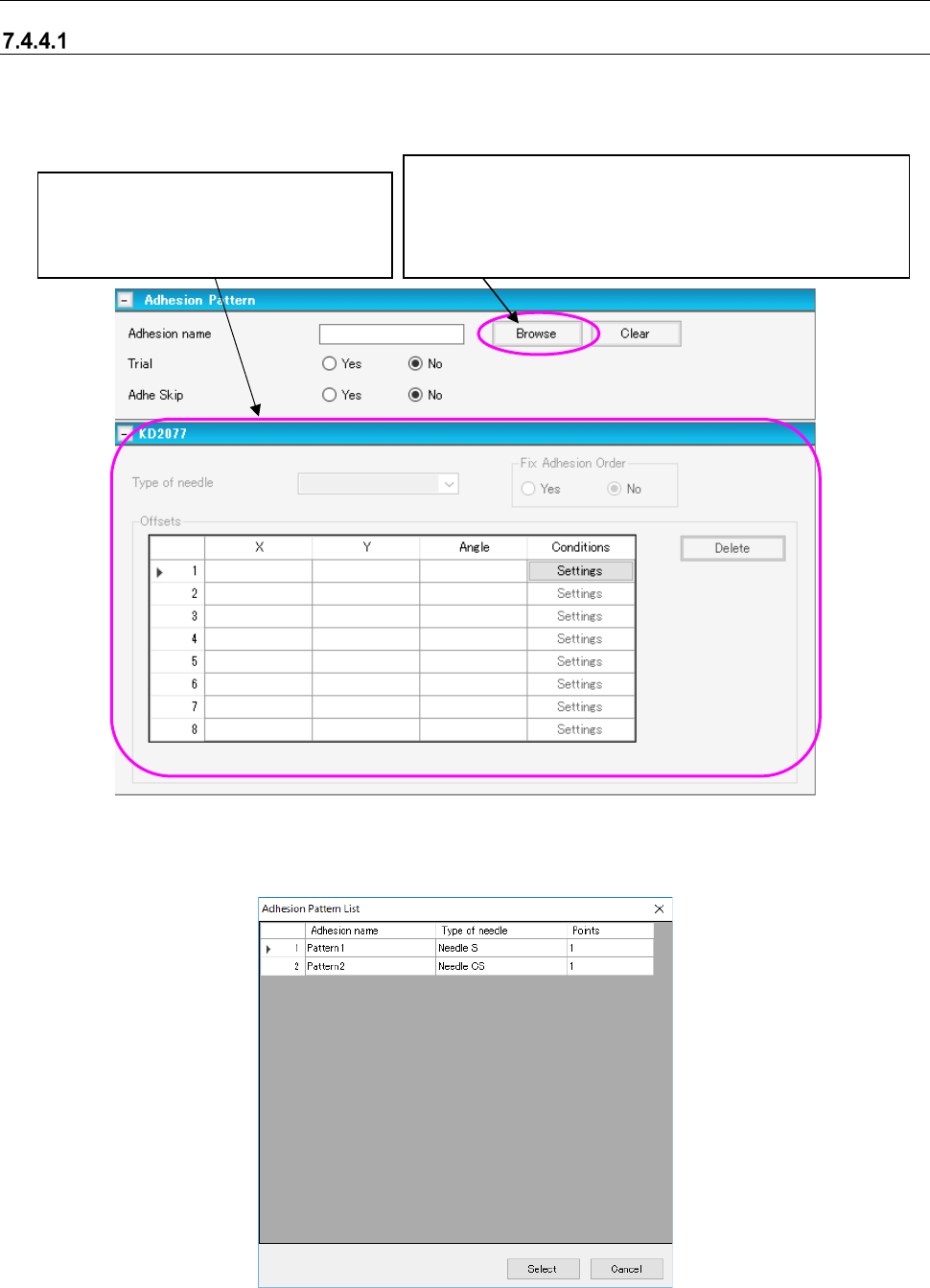
“Adhesive Pattern” screen
This screen allows you to set the adhesive information to be used for the corresponding compo-
nent. When you select “Component Data” from the tree view, and then the “Dispensing,” this
screen appears.
Figure 7.4-138 “Adhesive Pattern” screen
When you select the <Browse> button on the screen above, the “Adhesive Pattern List” appears
as shown below.
Figure 7.4-139 “Adhesive Pattern List”
This button displays the “Adhesive Pattern List,” which shows
the adhesive data created on the “Adhesive Data” screen. You
can select an adhesive pattern to be used to dispense adhe-
sive on the “Adhesive Pattern List.” When you select a pattern,
its name is displayed on the screen.
When you enter the “Adhesion name”
field, you can edit data displayed in this
area. See Section “
7.4.4.2
Adhesive data” for how to enter data.
JaNets Instruction Manual 7. Program Editor
7-102
Adhesive data
When an adhesive dispenser is used in the selected production line, enter information on adhesive
points on the “Adhesive Data” screen.
* If there is not any adhesive dispenser in the selected production line, you do not have to make
any setting on this screen.
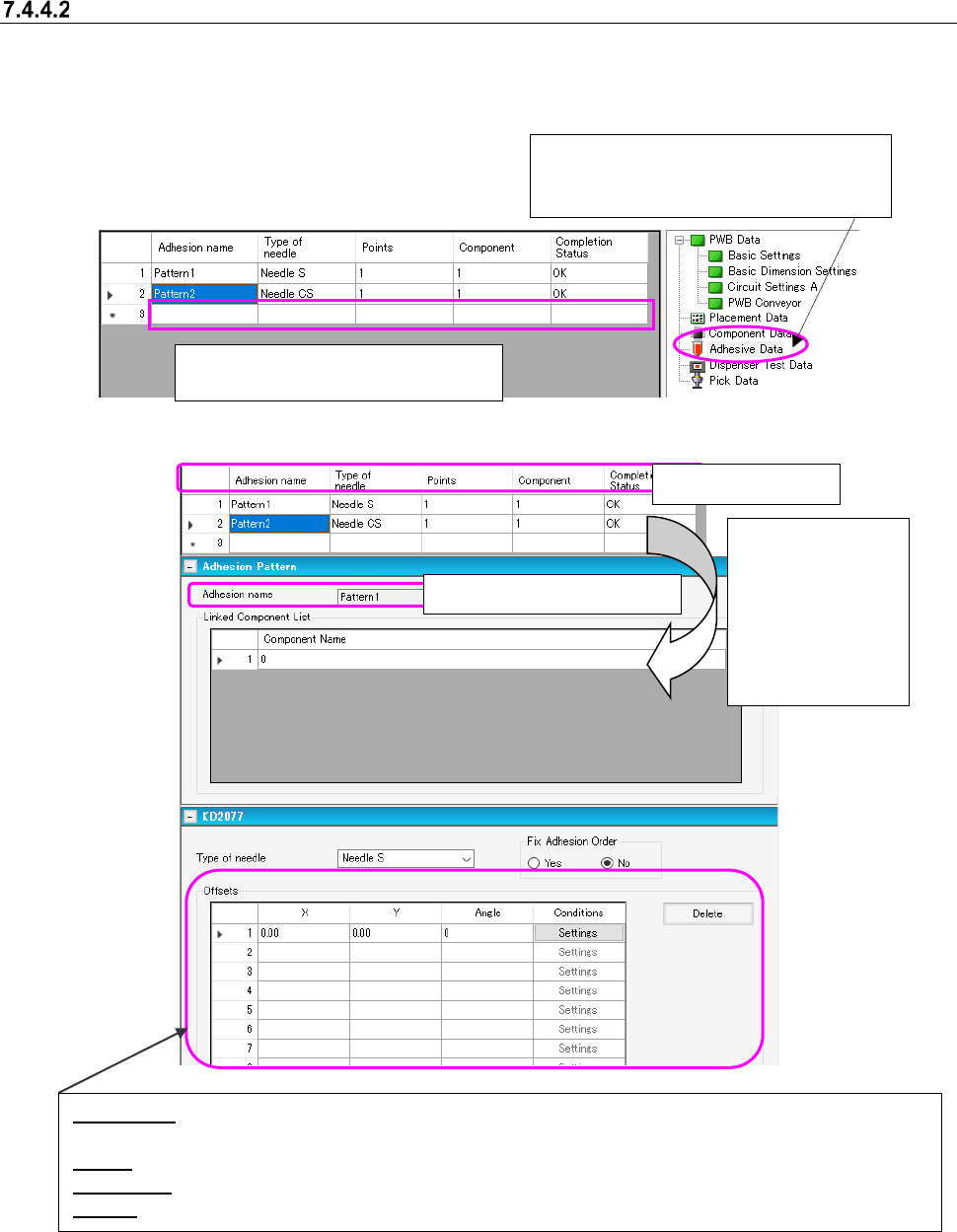
Figure 7.4-140 “Adhesive Data” screen
Figure 7.4-141 Adhesive data form screen
Adhesive data list
When you dou-
ble-click the de-
sired line on the
“Adhesive data list”
above, the “Adhe-
sive data form”
screen appears.
Offset (X,Y): Specify an offset from the component placement coordinates to the adhesive point if the angle
of the component is 0 degrees when it is placed on a board.
Angle: Specify the angle of a needle against the angle of a component when adhesive is dispensed.
Conditions: When you select the <Settings> button, the “Dispensing Condition” screen appears.
Delete: Deletes the offset data on the specified adhesive dispensing point.
When you create new adhesive data,
enter data in a blank cell of the grid.
When you select “Adhesive Data” from the
tree view, the following Adhesive data list
appears on the screen.
Display only: You cannot edit it.
JaNets Instruction Manual 7. Program Editor
7-103
* The drop-down list of the “Type of needle” combo box shows needles described below according
to the condition of the selected production line.
When an adhesive dispenser is assigned to a production line:
A needle set with the Shopfloor Setup application is displayed in the text color. A needle not
set with the Shopfloor Setup application is dimmed, and you cannot select it.
When any adhesive dispenser is not assigned to a production line:
All needles are displayed in the text color, and you can select any of them.
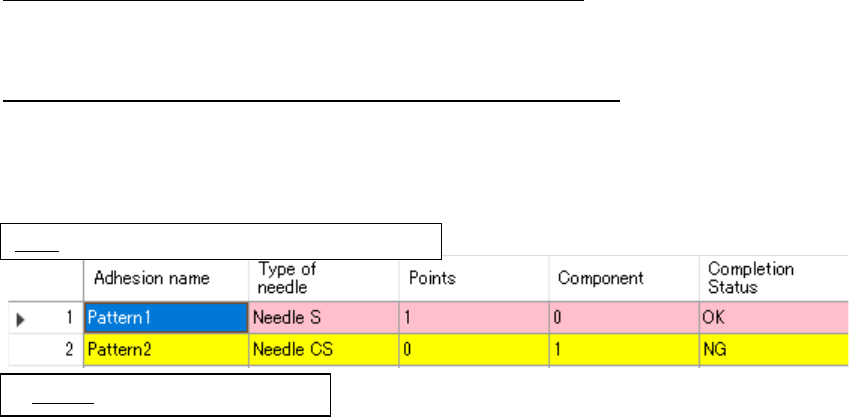
The state of the adhesive data is indicted in specific color.
Figure 7.4-142 The state of adhesive data indicated in specific color
Pink: Data is not linked with component data.
Yellow: Data is not completed.