JANETS_INM.pdf - 第397页
JaNets Instr ucti on Man ual 8. Job Optim izer 8- 12 8.3.7 .2 Opening a r eservation file from a database Select a r eservat ion file o n the “M anag e” tab or t he “Reservat ion Fi le” tab of the Pr ogram Ex plorer , an…
JaNets Instruction Manual 8. Job Optimizer
8-11
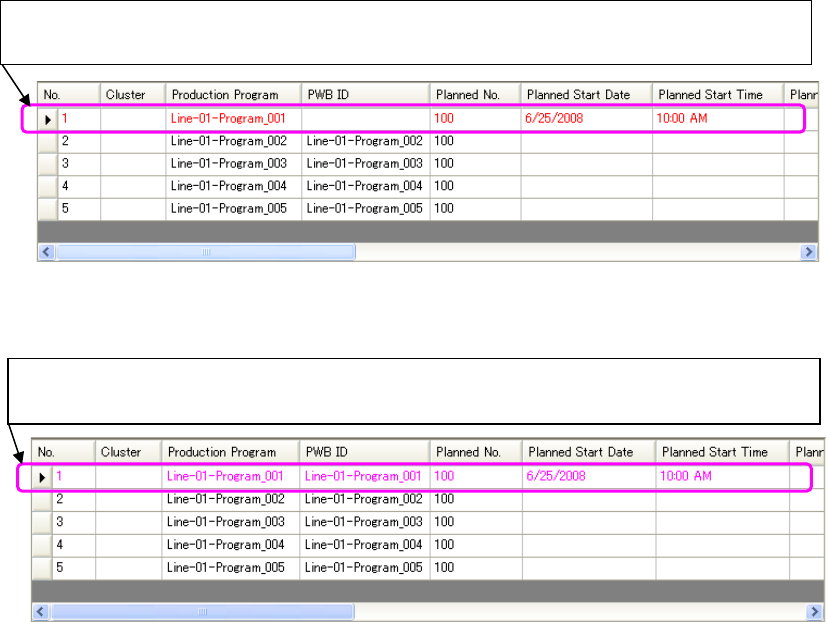
Figure 8.3-16 Main screen – Reservation list
(when there is a production program that does not exist)
Figure 8.3-17 Main screen – Reservation list
(when there is a production program whose data has not been completely created)
* You can neither save nor optimize a Reservation list that contains a production program whose
data has not been completely created or that does not exist. Cancel your editing of the
reservation file, or delete a production program(s) that does (do) not exist before saving or
optimizing such a Reservation list.
A production program whose data has not been completely created is displayed in pink
in the Reservation list.
A production program that does not exist in the Reservation list is displayed in red. Since
the PWB ID is obtained from a production program, it is not displayed on the screen.
JaNets Instruction Manual 8. Job Optimizer
8-12
8.3.7.2 Opening a reservation file from a database
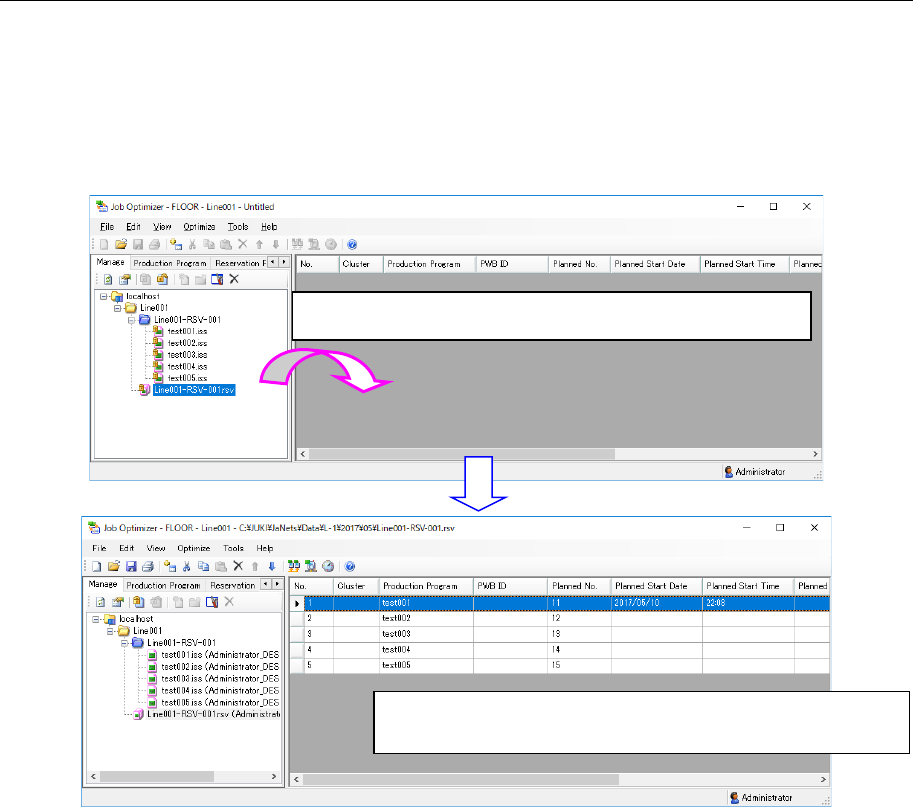
Select a reservation file on the “Manage” tab or the “Reservation File” tab of the Program Explorer,
and then drag and drop it to the reservation list.
The Program Explore checks out or gets the selected reservation file, and then displays it in the
reservation list.
When you open the reservation file, the production line used when the reservation file was created
is automatically selected.
Figure 8.3-18 [File] – [New]
Drag & drop a reservation file from the Explorer area.
The Program Explorer checks out or gets the reservation file
dragged & dropped to display it.
JaNets Instruction Manual 8. Job Optimizer
8-13
8.3.7.3 The order file is opened.
In the Job Optimizer, the order file can be opened besides the reservation file.
The extension of the order file is csv or txt.
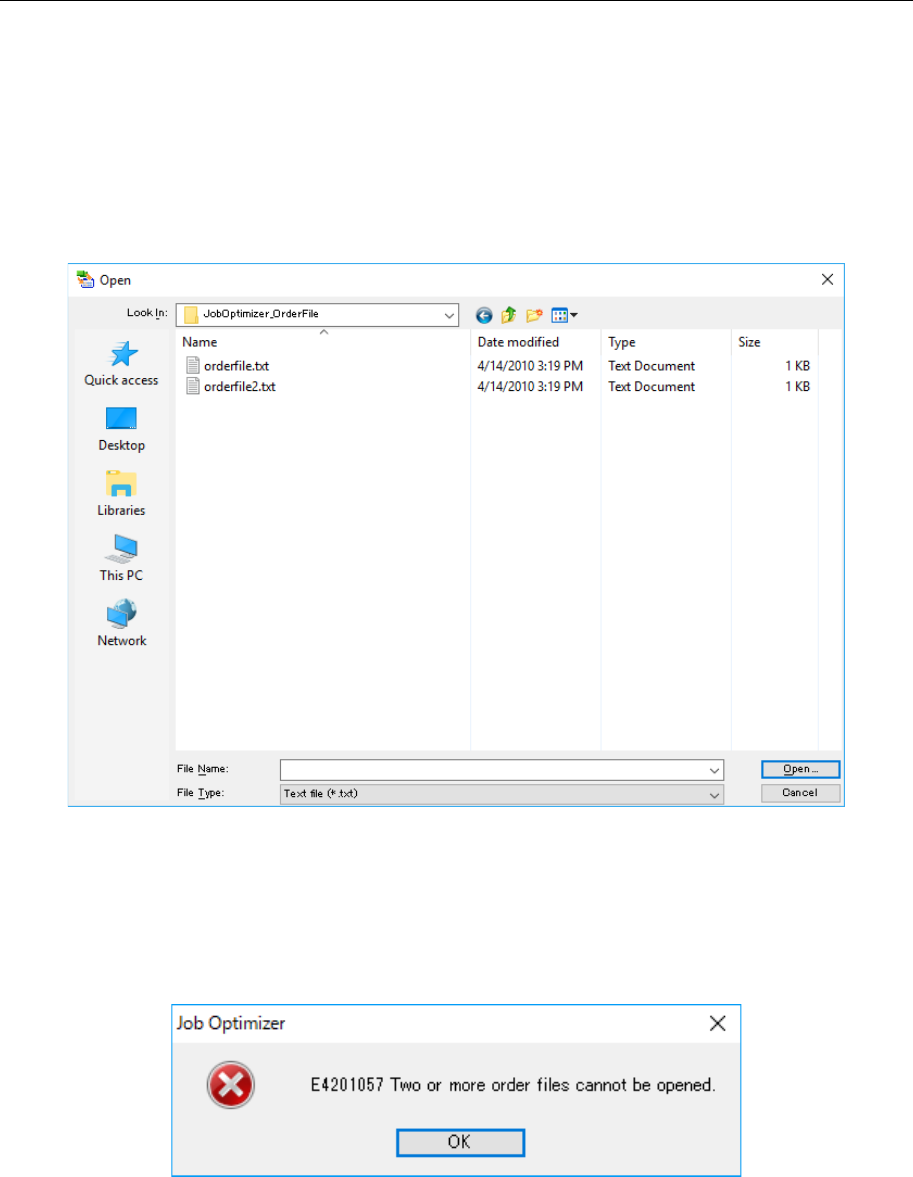
To open the order file, select the order file in the "Open the file" dialog box, or select the order file
in the Windows Explorer, and drag and drop it to the reservation list.
When displaying "Open " dialog box, select the "Text file (*.txt)" or "CSV file (*.csv)" in the file type,
and select the order file. At this time, two or more order files cannot be selected.
Figure 8.3-19 “Open the file” dialog
When selecting two or more order files in the Windows Explorer and dragging and dropping it to
the reservation list, "Check the number of order files" message is displayed, and the order file
cannot be opened.
Figure 8.3-20 “Check the number of order files” message
When opening the order file, the content of the selected order files is displayed in the reservation
list. At this time, the first line of the production program is automatically selected.