JANETS_INM.pdf - 第310页
JaNets In structio n Manual 7. Program Editor 7- 103 * The drop - down list of t he “ T ype of need le ” co mbo box shows needl es descr ibed bel ow accord in g to the cond ition of the se lected produ ction li ne. When …
JaNets Instruction Manual 7. Program Editor
7-102
Adhesive data
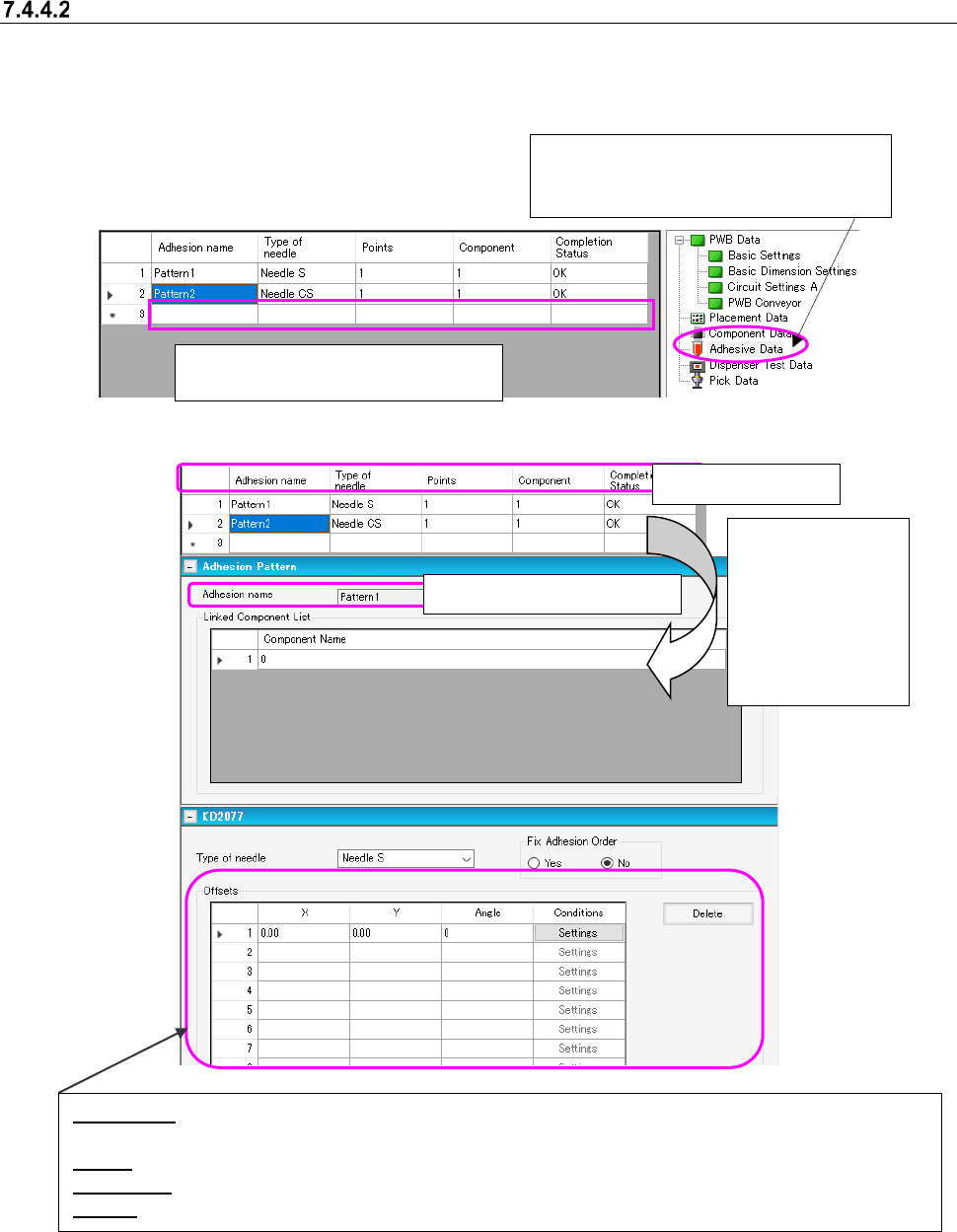
When an adhesive dispenser is used in the selected production line, enter information on adhesive
points on the “Adhesive Data” screen.
* If there is not any adhesive dispenser in the selected production line, you do not have to make
any setting on this screen.
Figure 7.4-140 “Adhesive Data” screen
Figure 7.4-141 Adhesive data form screen
Adhesive data list
When you dou-
ble-click the de-
sired line on the
“Adhesive data list”
above, the “Adhe-
sive data form”
screen appears.
Offset (X,Y): Specify an offset from the component placement coordinates to the adhesive point if the angle
of the component is 0 degrees when it is placed on a board.
Angle: Specify the angle of a needle against the angle of a component when adhesive is dispensed.
Conditions: When you select the <Settings> button, the “Dispensing Condition” screen appears.
Delete: Deletes the offset data on the specified adhesive dispensing point.
When you create new adhesive data,
enter data in a blank cell of the grid.
When you select “Adhesive Data” from the
tree view, the following Adhesive data list
appears on the screen.
Display only: You cannot edit it.
JaNets Instruction Manual 7. Program Editor
7-103
* The drop-down list of the “Type of needle” combo box shows needles described below according
to the condition of the selected production line.
When an adhesive dispenser is assigned to a production line:
A needle set with the Shopfloor Setup application is displayed in the text color. A needle not
set with the Shopfloor Setup application is dimmed, and you cannot select it.
When any adhesive dispenser is not assigned to a production line:
All needles are displayed in the text color, and you can select any of them.
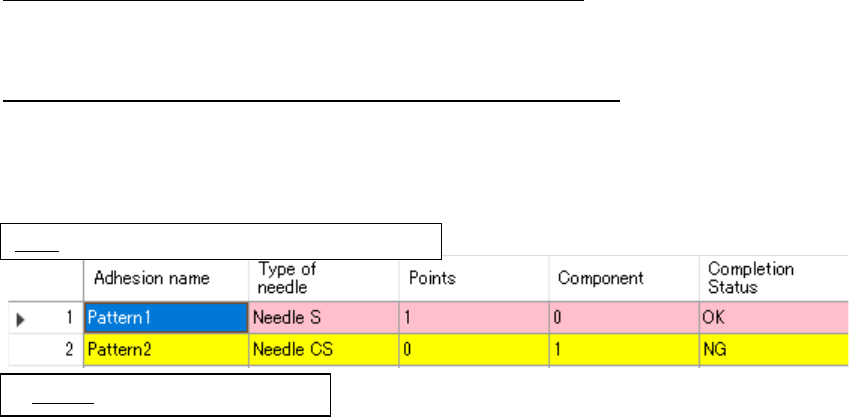
The state of the adhesive data is indicted in specific color.
Figure 7.4-142 The state of adhesive data indicated in specific color
Pink: Data is not linked with component data.
Yellow: Data is not completed.
JaNets Instruction Manual 7. Program Editor
7-104
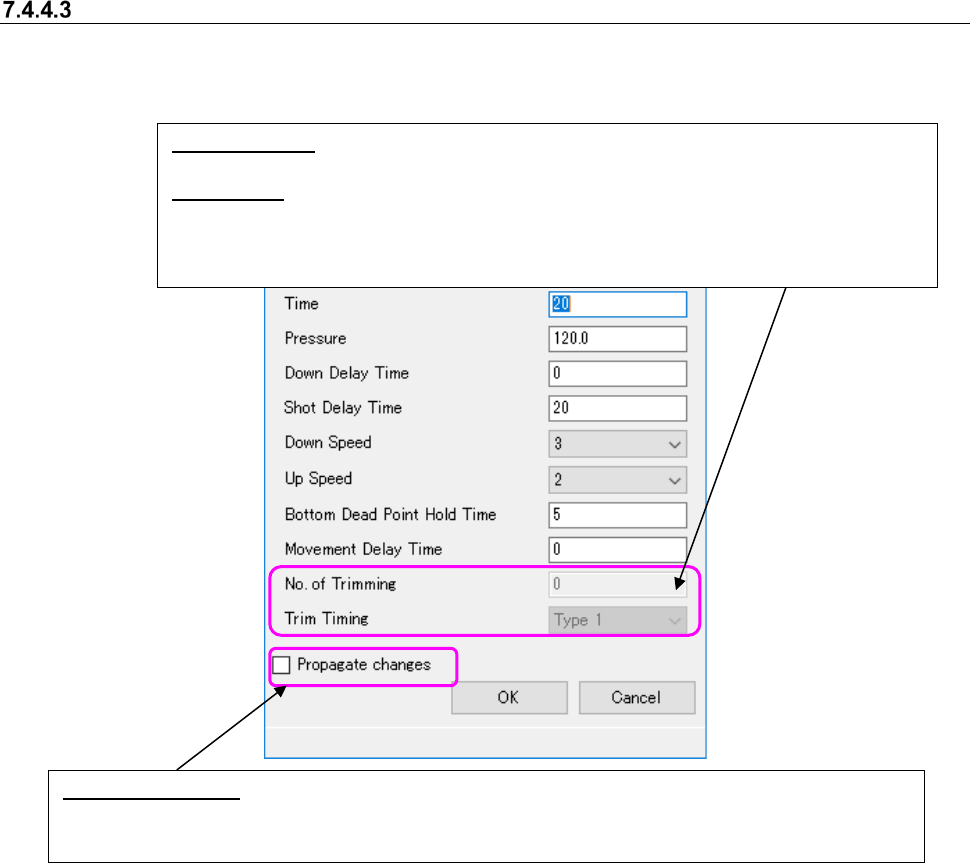
Adhesive dispensing conditions
When you select the <Settings> button on the Adhesive data form screen, you can set the condi-
tions of each adhesive dispensing point.
Figure 7.4-143 “Dispensing Condition” screen
*1 When you change the setting of the menu item “Pressure”
The values set in the “Pressure” menu item on the “Dispensing Condition” screen of all ad-
hesive dispensing points of adhesive data whose needle types are the same are changed.
This change is made regardless of the setting of the “Propagate changes” check box.
*2 About the default settings made with the Shopfloor Setup application
When an adhesive dispenser is assigned to the selected production line, and a needle set
with the Shopfloor Setup application is selected, the settings made with the Shopfloor Setup
application are enabled. If any adhesive dispenser is not assigned to a production line, the
initial settings with the Program Editor are not changed.
No. of Trimming: Displays the number of times the Z-axis moves up and down to trim dis-
pensed adhesive (0 to 9).
Trim Timing: Displays the timing for trimming the dispensed adhesive (“Type 1” to “Type 3”).
* The menu items above are displayed only. The values set with the Shopfloor Setup appli-
cations are displayed here.
* The default values of other menu items are set with the Shopfloor Setup application.
Propagate changes: Specify whether to change the adhesive dispensing conditions of all adhesive dis-
pensing points of adhesive data whose needle types and adhesive dispensing time are the same as
one another at a time. When you select the <OK> button, your setting of this check box is activated.