JANETS_INM.pdf - 第122页
JaNets In structio n Manual 5. Shopflo or Setu p 5-2 Menu items T able 5.1 -1 Description of each item Menu item Shortcut Description File (F) New (N) Creates a l ine, m achine and/ or equipment . Delete (D) Deletes a li…
JaNets Instruction Manual 5. Shopfloor Setup
5-1
Shopfloor Setup
What is the Shopfloor Setup?
This utility allows you to set the production line assignment, allocate machines or specify whether
each unit is to be used or not.
Starting Up And/Or Quitting the Shopfloor Setup
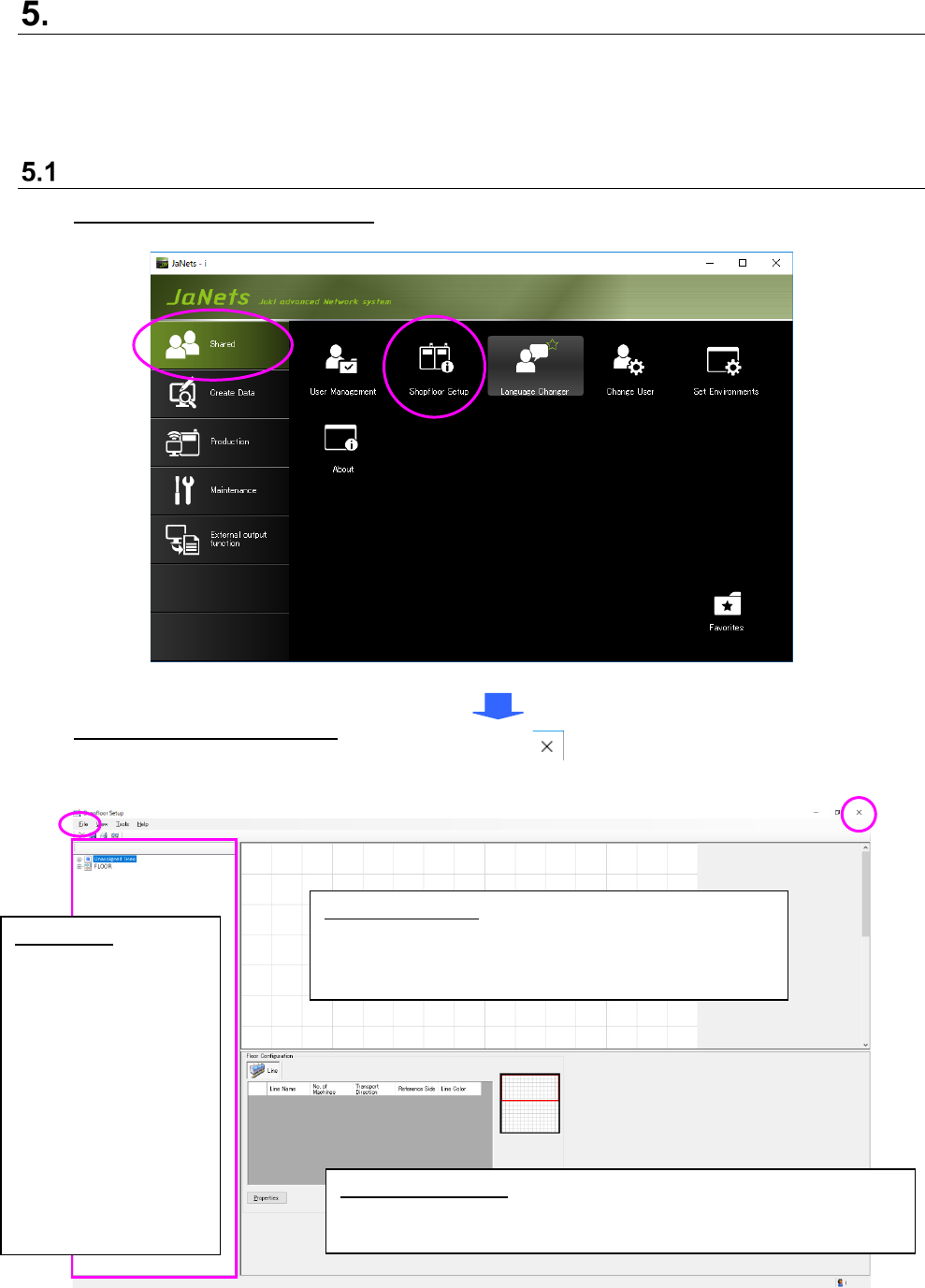
To start up the Shopfloor Setup: Double-click the “Shopfloor Setup” icon on the “Shared”
tab of the JaNets Launcher.
Figure 5.1-1 JaNets Launcher
To quit the Shopfloor Setup: Select the [File] command, and then the [Exit Shopfloor Setup]
command on the “File” menu, or select the close ( ) button on the upper right corner of the
title bar.
Figure 5.1-2 Shopfloor Setup basic screen
View display area:
Displays the equipment list, and displays the floor
assignments, line configurations and device information
of a machine visually.
Details display area: Displays the detailed information on a floor, lines,
machines and banners. While the system is displaying the equipment
list, you cannot display any detailed information.
Tree view:
(Floor configuration tree)
Displays the
configurations of floors,
production lines,
machines and equipment
(facilities) in the tree
format.
(Equipment tree)
Displays equipment in
the entire factory.
*When you switch the
tree type, the right screen
is switched also.
JaNets Instruction Manual 5. Shopfloor Setup
5-2
Menu items
Table 5.1-1 Description of each item
Menu item
Shortcut
Description
File (F)
New (N)
Creates a line, machine and/or equipment.
Delete (D) Deletes a line or machine selected on the floor
configuration tree.
Rename (M)
Changes the name of a floor, line or machine
selected on the floor tree.
Save (S)
Ctrl+S
Saves the setting(s) you made.
Print (P) Ctrl+P Displays the “Print Settings” screen.
Save as Text (T)
Displays the “Save as Text” screen.
Exit Shopfloor Setup (X)
Quits the Shopfloor Setup.
View (V)
Line Explorer (E)
Displays/hides the Line Explorer.
Toolbar (T)
Displays/hides the toolbar.
Status Bar (B)
Displays/hides the status bar.
Tools (T) Permanent Setup (P) Displays the “Permanent Feeders”/”Permanent
Nozzles” setting screen.
Set Environments (E)
Displays the “Set Environments” screen.
Equipment Setup (Q)
Displays the “Equipment Setup” screen.
Adhesive parameter setting
(A)
Display of the adhesive parameter setting screen.
Monitor line setting (L)
Display of the monitor line setting screen. *
Help (H)
Table of Contents (C)
Displays the Help screen.
About (A)
Displays the version information.
* This is displayed only when a Line Manager option is added.
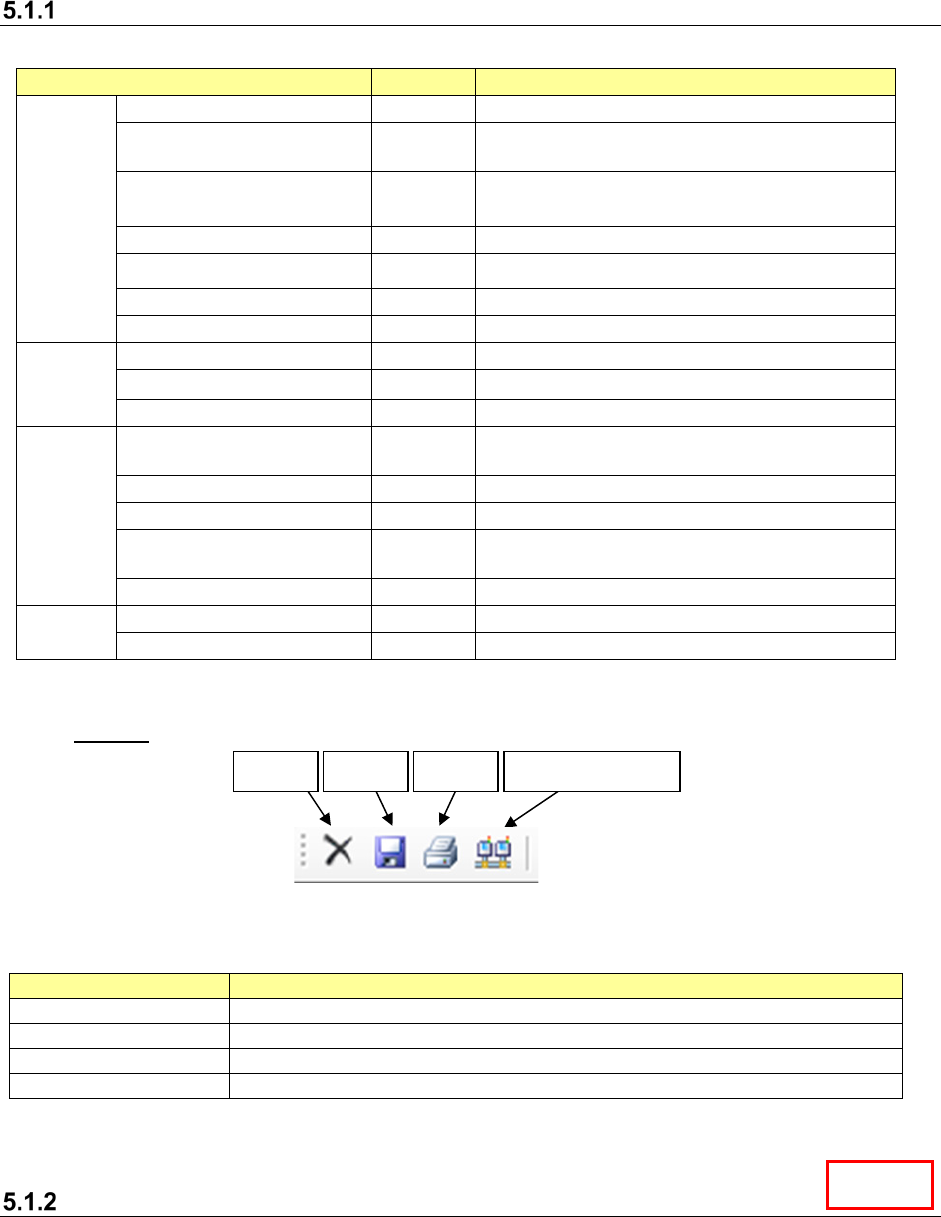
Toolbar
Figure 5.1-3 Toolbar
Table 5.1-2 Description of each tool displayed on the toolbar
Item
Description
Delete
Deletes a line, a machine or equipment selected on the floor configuration tree.
Save
Saves the settings you made onto the PC.
Print
Displays the “Print Settings” screen.
Help Monitor line setting
Display of the monitor line setting screen. *
* This is displayed only when a Line Manager option is added.
Limitations of monitor line editing
1. When the line being monitored exists on the floor …. The floor name cannot be changed or
deleted.
2. Selection of the line being monitored …. The floor arrangement, line name, line configuration,
collective line arrangement clearing cannot be changed.
3. The detail setting of the machine arranged in the line being monitored cannot be changed.
Delete
Save
Print
Monitor line setting
Line
JaNets Instruction Manual 5. Shopfloor Setup
5-3
Floor – How to Operate
Creation of floor
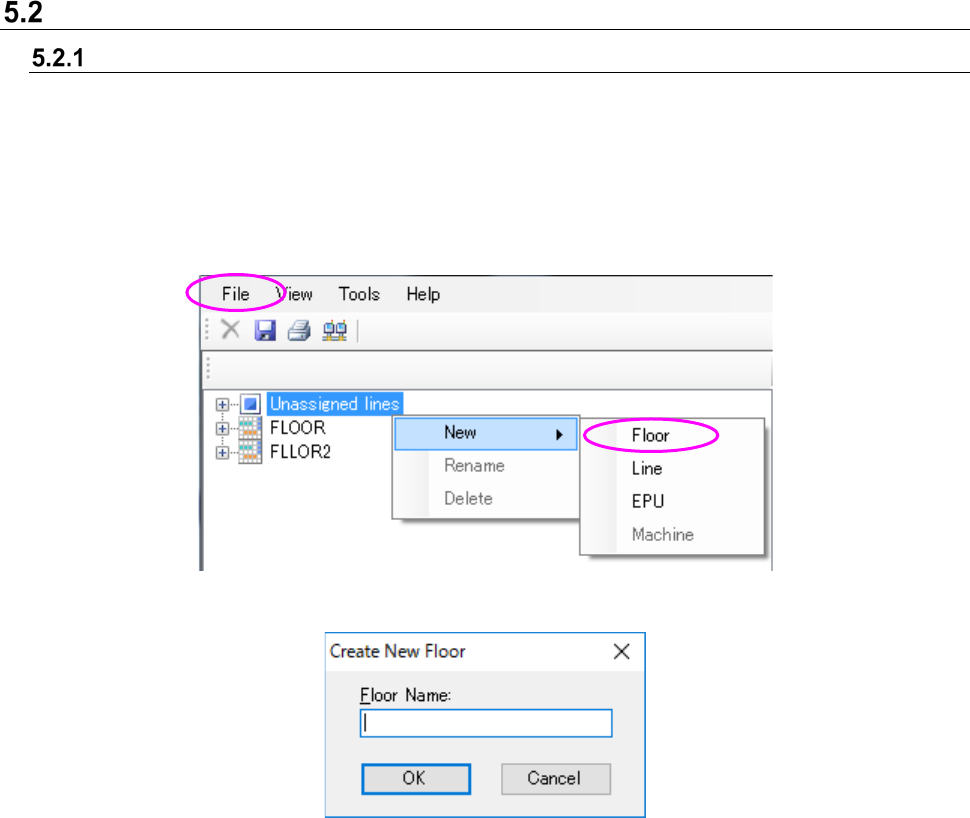
In the status where the unarranged line hierarchy or floor hierarchy of the floor configuration tree is
selected, execute either operation ① or ②.
① Select “File” – “New document” – “Floor.”
② Display the popup menu by clicking the right-button of the mouse, and select “New document”
– “Floor.”
Figure 5.2-1 “Floor” New document (Operation ②)
Figure 5.2-2 “Floor” New document dialog
Floor name: Up to 20 characters can be set. There is no distinction between upper-case
characters and lower-case characters.
Single-byte alphanumeric characters and special characters can be used.
However, the following special characters cannot be used. (“, #, &, ‘, <, >)
A floor name with the same name as line, machine and equipment cannot be
registered.
OK: A new floor is added to the floor configuration tree and put into a selectable status.