00191025-01.pdf - 第109页
SIPLACE 80S/F/G User’s Manual 5 Placement Edition 12/96 from S oftware Version SR.009.xx 5.6 Error Menu s 5 - 33 Set location full In this m enu, loca tions 1- 4 can be se t indivi dually to "full". Here fixed …

5 Placement SIPLACE 80S/F/G User’s Manual
5.6 Error Menus Edition 12/96 from Software Version SR.009.xx
5 - 32
5.6.4.1 Range of Functions for the Operator
Display errors
To obtain a display of all errors which have occurred use the
cursor keys
to select the menu point "Display
errors". Then press the
Return key
. The screen displays the menu "Display errors" described in Section
5.7 (Display functions).
Refilling
Use the
cursor keys
to select the menu item "Refill" in order to refill empty component tracks. Then press
the
Return key
. The screen displays the menu "Refill" described in Section 5.4 (Components Handling).
Abort placement
Use the
cursor keys
to select the menu item "Abort placement" in order to quit the error menu without
placement continuing, and press the
Return key
. The board on the conveyor is transported onto the output
conveyor. Components at the placement head are ejected. The portals are moved into the waiting position.
Continue placement
Use the
cursor keys
to select the menu item "Continue placement" in order for placement to continue and
press the
Return key
. The machine continues placement with the components which were missing before
error handling.
5.6.4.2 Range of Functions for the Line Engineer
After entering the line engineer password, the following additional functions are shown in the fiducial errors
menu:
CRDL
Use the
cursor keys
to select the menu item "CRDL" if the track errors were caused by testing errors of the
CRDL tester, and press the
Return key
. The screen displays the menu "CRDL" described in Section 6.3
(Star Head Functions 80 S). Within this menu you can compensate and check the CRDL tester.
Display star nozzle configuration
Use the
cursor keys
to select the menu item "Star nozzle config." if the track errors were caused by
segments being occupied by the wrong nozzles. Then press the
Return key
.
The screen displays the menu "Star nozzle config." which is described in Section 6.3 (Star Head Functions
80 S). In this menu you can check whether the nozzles occupying the segments are in agreement with the
placement program.
Cycle mode
Using the
cursor keys
position the cursor bar over the menu item "Cycle mode". Then press the
Return
key
. For each step of the placement sequence you will now need to press the start button.
Fill all
After having selected this function with the aid of the cursor keys and launched with the return key all
empty tracks are set full and the corresponding track errors cancelled. For you to be able to implement this
function the refill check in the menu Machine options (see Section 5.3.1) must be switched off.

SIPLACE 80S/F/G User’s Manual 5 Placement
Edition 12/96 from Software Version SR.009.xx 5.6 Error Menus
5 - 33
Set location full
In this menu, locations 1-4 can be set individually to "full".
Here fixed table 1 corresponds to location 1, and fixed table 2 to location 3.
Display set-up
If a set-up exists, in this menu the set-up can be displayed for every location.
Gantry functions
Use the cursor keys to select the menu item "Gantry functions" if the track errors were caused by faults in
the gantry. Then press the return key.
The screen displays the menu described in Section 6.2 "Gantry Functions 80S".
5.6.4.3 Extended Range of Functions with the SIPLACE 80 F
WPC functions
If the track errors are being caused by the wafflepack changer, use the cursor keys to select the menu item
"WPC functions".
Next press the return key. The screen displays the menu "WPC functions" which is described in Section
6.8 "Functions: Wafflepack Changer". In this menu individual functions of the wafflepack changer can be
carried out. The wafflepack changer is described in more detail in Section 8 (components supply).
Select WPC
If more than one wafflepack changer has been configured, a single wafflepack changer can be selected
individually in this menu.
Only operation with a single wafflepack changer has at the present time been implemented.
5 Placement SIPLACE 80S/F/G User’s Manual
5.6 Error Menus Edition 12/96 from Software Version SR.009.xx
5 - 34
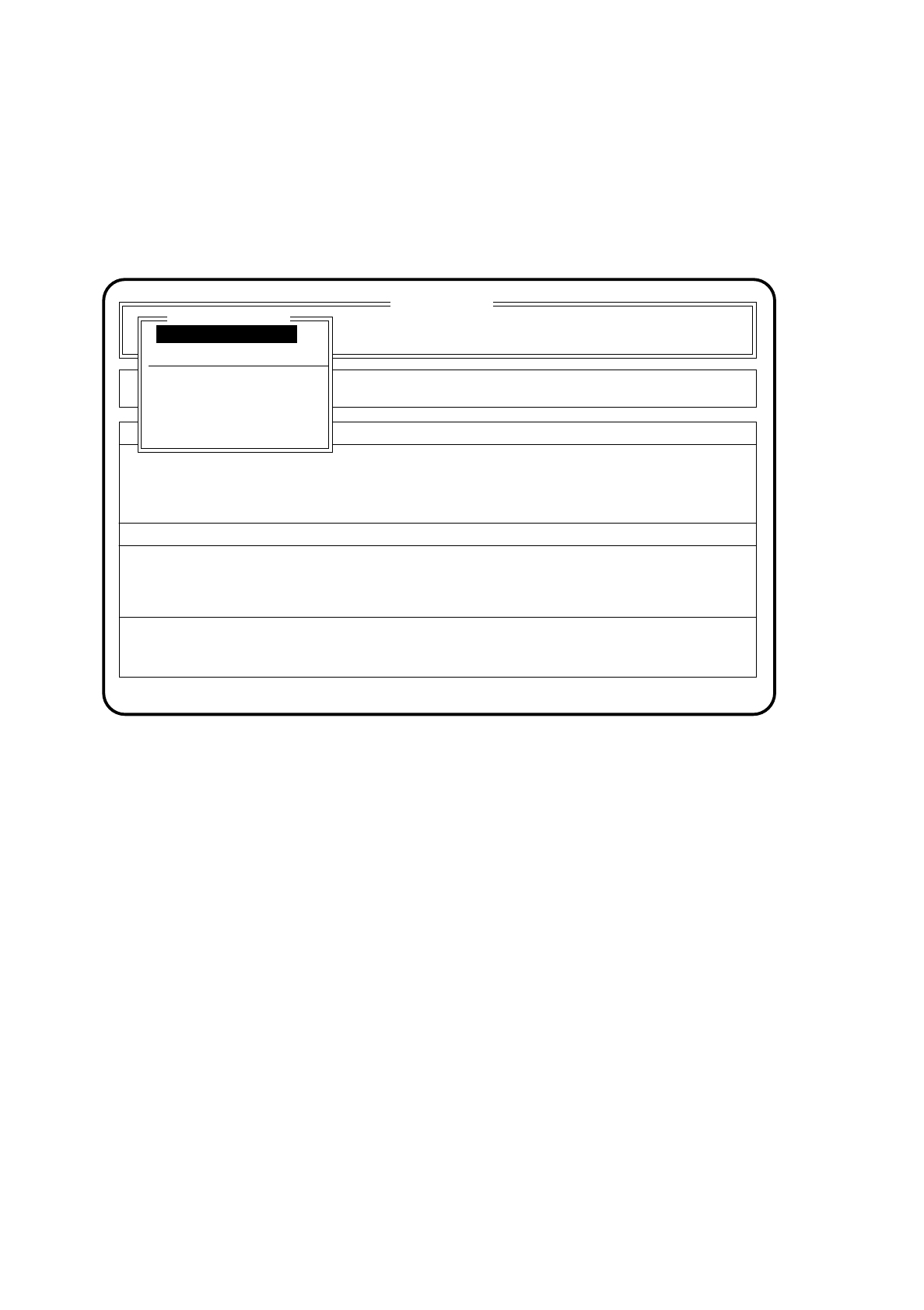
5.6.5 Machine Error Menus 1 and 2
The menu "Machine error" is displayed on the screen if there is a functional error at the machine (e.g. screw-
driver pick-up position is jammed) which results in it not being possible for the machine to continue with place-
ment. When the menu is quit, a head reference run without vacuum test is carried out over the rejects tray.
Fig. 5.6.4
5.6.5.1 Range of Functions: Operator
Display errors
To obtain a display of all errors which have occurred use the
cursor keys
to select the menu point "Display
errors". Then press the
Return key
. The menu "Display errors" described in Section 5.7 (Display functions)
will be displayed on the screen.
Abort placement
To quit the error menu without continuing with placement, use the cursor keys to select the menu item
"Abort placement". Next press the return key. The board which is on the conveyor is moved onwards onto
the output conveyor. The components which are at the placement head are ejected. The gantries are
moved into the waiting position.
Continue placement
To continue with placement use the cursor keys to select the menu item "Continue placement", and then
press the return key. The machine performs a head reference run and then continues with placement.
SI 80 V 9.x
Rüstung :
Display errors
Confirm errors
Machine options
Error
State
Action
:
:
:
Machine error 1
Abort placement
Display errors
Error treatment - machine error gantry 1
Continue placement
Cluster:
Continue placement