SG_FSE_SiplaceHF_HF3_00193901-05_eng.pdf - 第504页
1 - 30 S tudent Guide SIPLACE HF/HF3 1 1 MTC 2 Edition 09/2005 30 Placement functions of the MTC 2 11 ➠ Click on the symbol in the toolbar of the main view to sele ct the "Feeders" menu item. When the "Fee…
1 - 29
Student Guide SIPLACE HF/HF3
Edition 09/2005 11 MTC 2
29
11.2.7 General works before starting the MTC 2
– Setting the basic height
– Installing the intervention guard for the lifting axis
– Docking
– Undocking
– MTC 2 handling , Refilling concept
Note:
see User manual 00193634-01_de.pdf / 00193635-01_eng.pdf.
11.2.8 Placement functions of the MTC 2
11.2.8.1 Main view with MTC 2
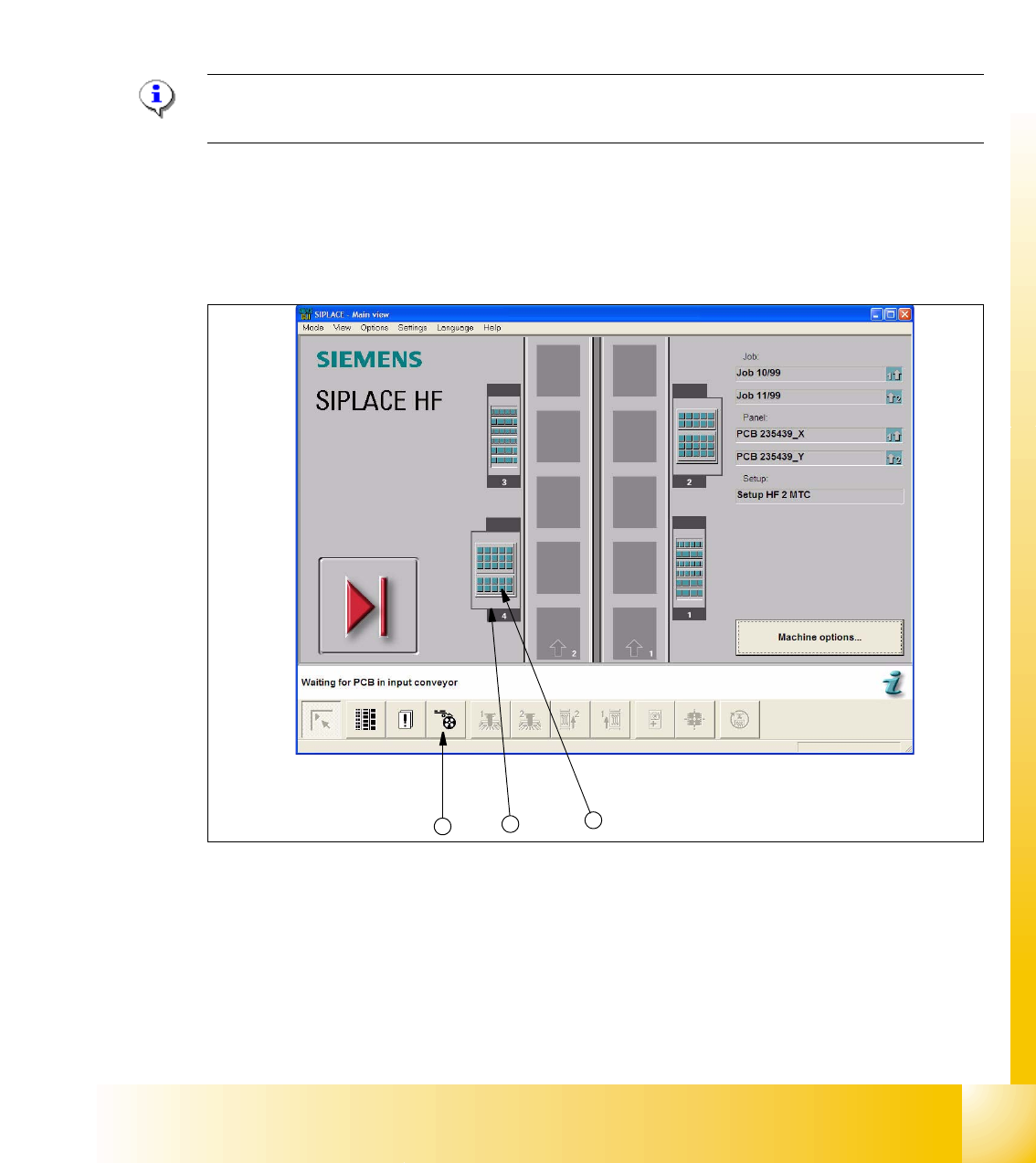
Fig. 11.2 - 8 Main view of the SIPLACE HF with MTCs on locations 2 and 4
Key
1. "Feeders" view
2. MTC 2 at location 4
3. MTC 2 set-up, towers 1 and 2
2
3
1
1 - 30
Student Guide SIPLACE HF/HF3
11 MTC 2 Edition 09/2005
30
Placement functions of the MTC 2 11
➠ Click on the symbol in the toolbar of the main view to select the "Feeders" menu item.
When the
"Feeders" menu command is called for the first time after the station computer soft-
ware is started, the user interface is switched to the
"Empty tracks"view.
➠ Click the button for the MTC 2 at location 2 or the button for the MTC 2 at location 4.
The "Matrix-tray changer" view is displayed for the selected location (see
Fig. 11.2 - 9).
NOTE
The button for the MTC 2 at the relevant location is only displayed if an MTC 2 is available there.
NOTE
If a set-up is available for an MTC 2, it is displayed in the main view (see
Fig. 11.2 - 8) in the representation of for the relevant MTC 2.
If you click on it, the "Matrix-tray changer" view (see
Fig. 11.2 - 9) appears immediately for the
MTC 2 at the selected location.
1 - 31
Student Guide SIPLACE HF/HF3
Edition 09/2005 11 MTC 2
31
11.2.8.2 "Matrix-tray changer" view
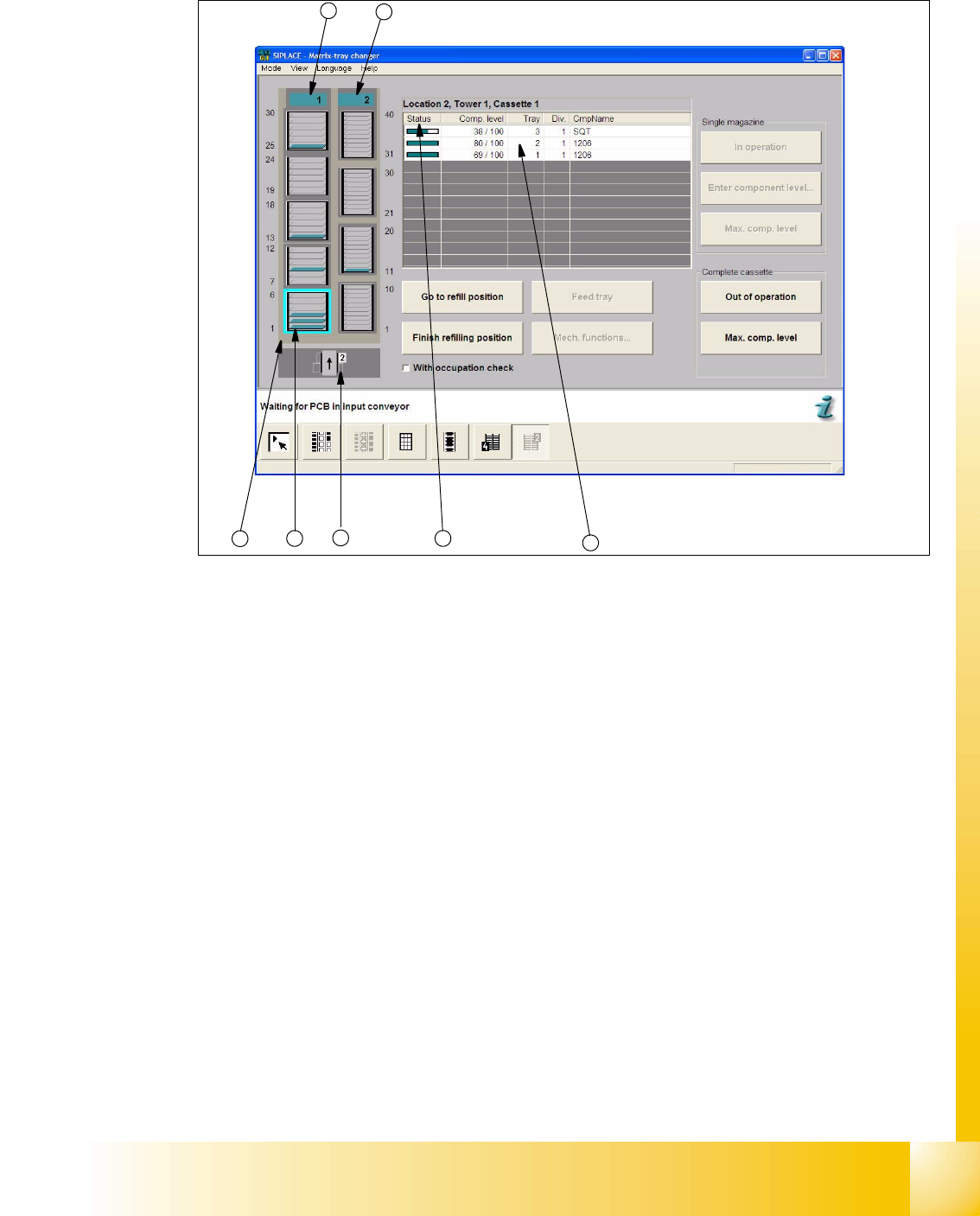
Fig. 11.2 - 9 "Matrix-tray changer" view (Example: location 2)
Key
1. Selected cassette
2. Levels in the cassette
3. View of the location
4. Status indicator for tower 1
5. Status indicator for tower 2
6. Display of component level and occupancy of the selected cassette
7. Selected list entry for a level
Terms used for the occupancy of a cassette 11
– Status
Status indicator for the current component level
–
Component level
Current and maximum component level
(The component level is updated approximately every 30 seconds during placement.)
–
Level
Number of the level (A cassette is subdivided into 6 or 10 levels.)
1
2
3
6
7
4
5