SG_FSE_SiplaceHF_HF3_00193901-05_eng.pdf - 第588页
SIPLACE HF/HF3 Edition 09/2005 Appendix 13 that performed by the oscilloscope. The full size image is displaye d again on the screen and the operator can scroll with the -> B4 ( <- B3) keys. Press <- | Return ag…
Edition 09/2005 SIPLACE HF/HF3
Appendix
12
Display text components
Samples
scans often ’511’ (independent of the scan period setting at ’Time’)
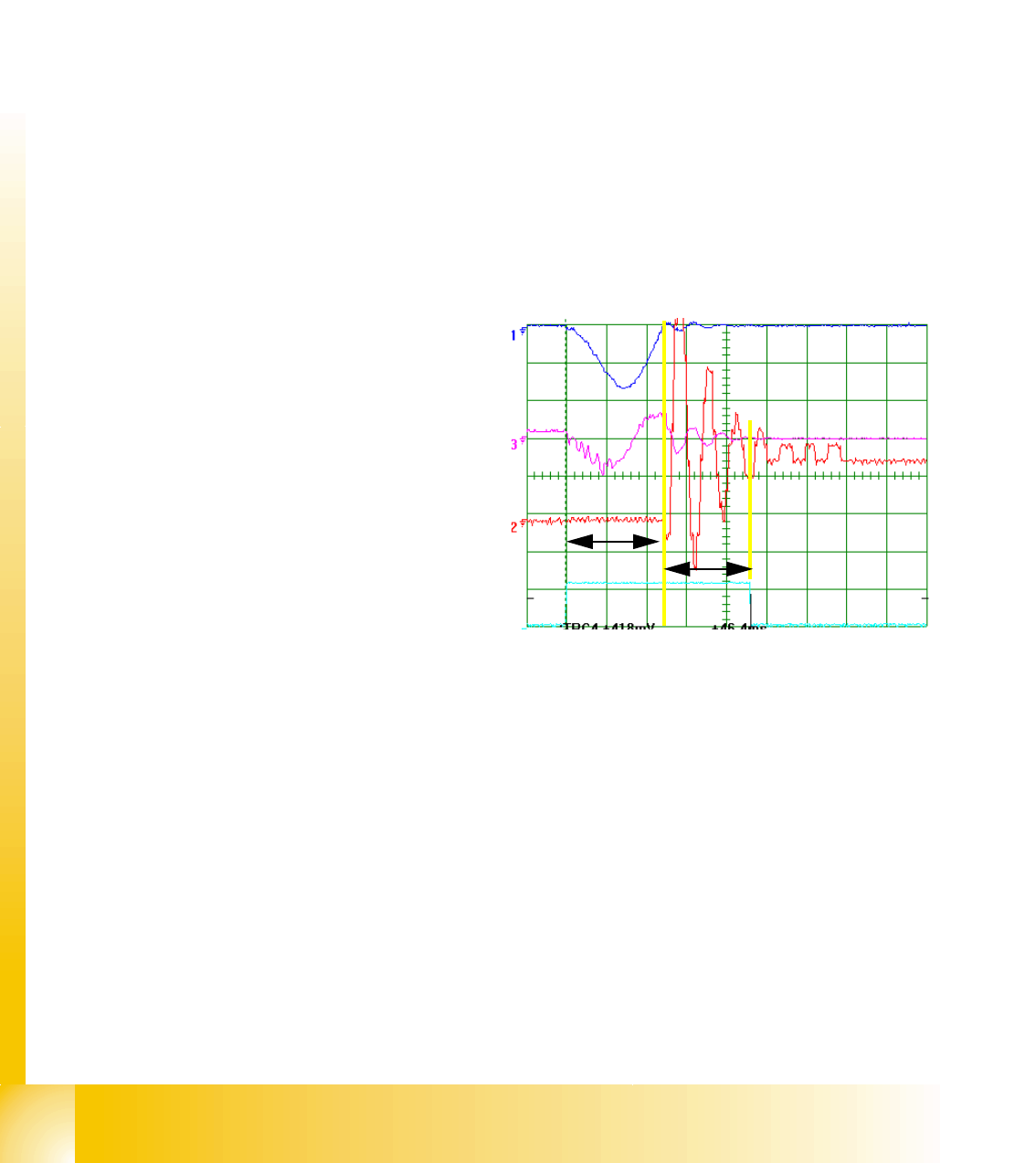
(Closure) Time is the smallest time unit for representation of overshoots (scan period) on the dis-
play. Can be reduced with B1 (display is prolonged and details are enlarged) or increased with B2
(display is shortened and whole picture is visible). Adjustment range 0.1 ms to 5 ms.
Axis type at the display
(Grain) Scale
is the pixel grouping of a sample (scan period) or digit on the display. 3 / 14 means
that scanning - the time unit entered at Time - will always appear on the screen with a length of 3
(fixed) pixels. A digit position deviation is 14 (dynamic) pixels in this case.
Scope the extent of a maximum positive or negative overshoot
(Time) Range is the signal duration as seen on the screen (alters in line with the ’Time’ setting).
Overshoot!! This is the Position of the axis at the moment of the End signal!
This show you how many Digit has the axis to move after End signal to get really
in target position.
Below the signal you will see a combination of numbers from which one can see at which part
of the overshoot scan the display begins
)
(e.g.
250/511 250th scan overshoot of 511
total scans (pos. 511 = pos.0)
Pull off time is the time measured for the
axis controller to correct the overshoot(s).
(2
Ctrl. Control time is the time needed by
the axis to reach the target position for the
first time. (1)
Pos. Positioning time is the time from axis
start to issuance of the end signal at target
position achievement with reliable position
deviation. Add (1) and (2).
20.3.3.3 Positioning Time Submenus
More specific analyses of the positioning sequence can be performed with the aid of these menus.
After recording a positioning procedure, press <-
|
Return to open the submenu.
(PWM mode version 1.0) Oscilloscope mode:
The version 1 designation stems from the pulse amplitude modulation used for the representation
of overshoots. It is switched synchronously to the other position deviation signals for the SAT over-
shoot counter, on the oscilloscope.
Start FFT:
The swivel-in process for a particular position can be analyzed with the aid of a frequency spec-
trum. After a positioning procedure, select ’FFT’ (Fast FourierTransformation) to display the
swivel-in spectrum on the screen.
Start Plot:
This menu facilitates measurement of the position deviation signal on the SAT screen, similar to
a
s
SIPLACE HF/HF3 Edition 09/2005
Appendix
13
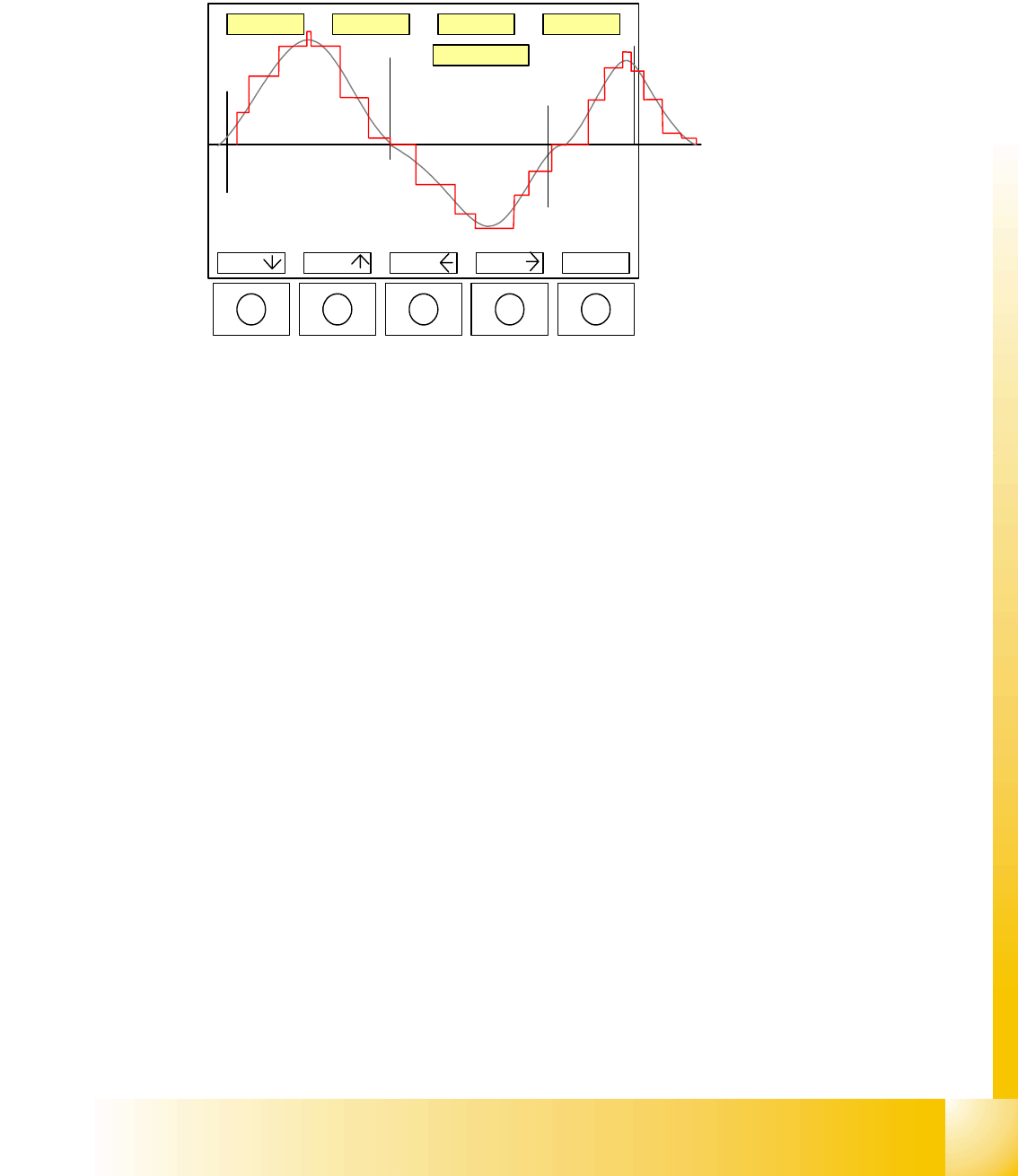
that performed by the oscilloscope. The full size image is displayed again on the screen and the
operator can scroll with the -> B4 (<- B3) keys. Press <-
|
Return again to call up a measurement
menu. Mark 1 is at the position of the trigger signal (standard state) but can be displaced with <-
|
Return, Mark T1 and then B1 or B2. Mark 2 can be positioned at the point to be measured with <-
|
Return, Mark T2, then B1 and B2.
To print the overshoot control
process for documentation pur-
poses, the signal - as seen on
the screen - can be sent via the
CAN BUS output to a LAPTOP.
The B1/ B2 keys are used to
move the selected mark, while
keys B3/B4 move the image to
the left or right. The ’real’ over-
shoot (gray) is represented in
digital format (red)
20.3.3.4 Overspeed Menu for Assessment of Axis Dynamic
In this menu, the SAT tests the traversing axis for excess nominal speed (maximum speed must
be selected) and shows this positioning procedure as positioning quality. ... Positioning quality ==>
overspeed ==> confirm with <
_|
"Waiting for trigger" ==> SAT waits for ’occurance of overspeed’.
20.3.3.5 System Control
A number of system control submenus could be useful for you, as user, while others should be left
at their default settings.
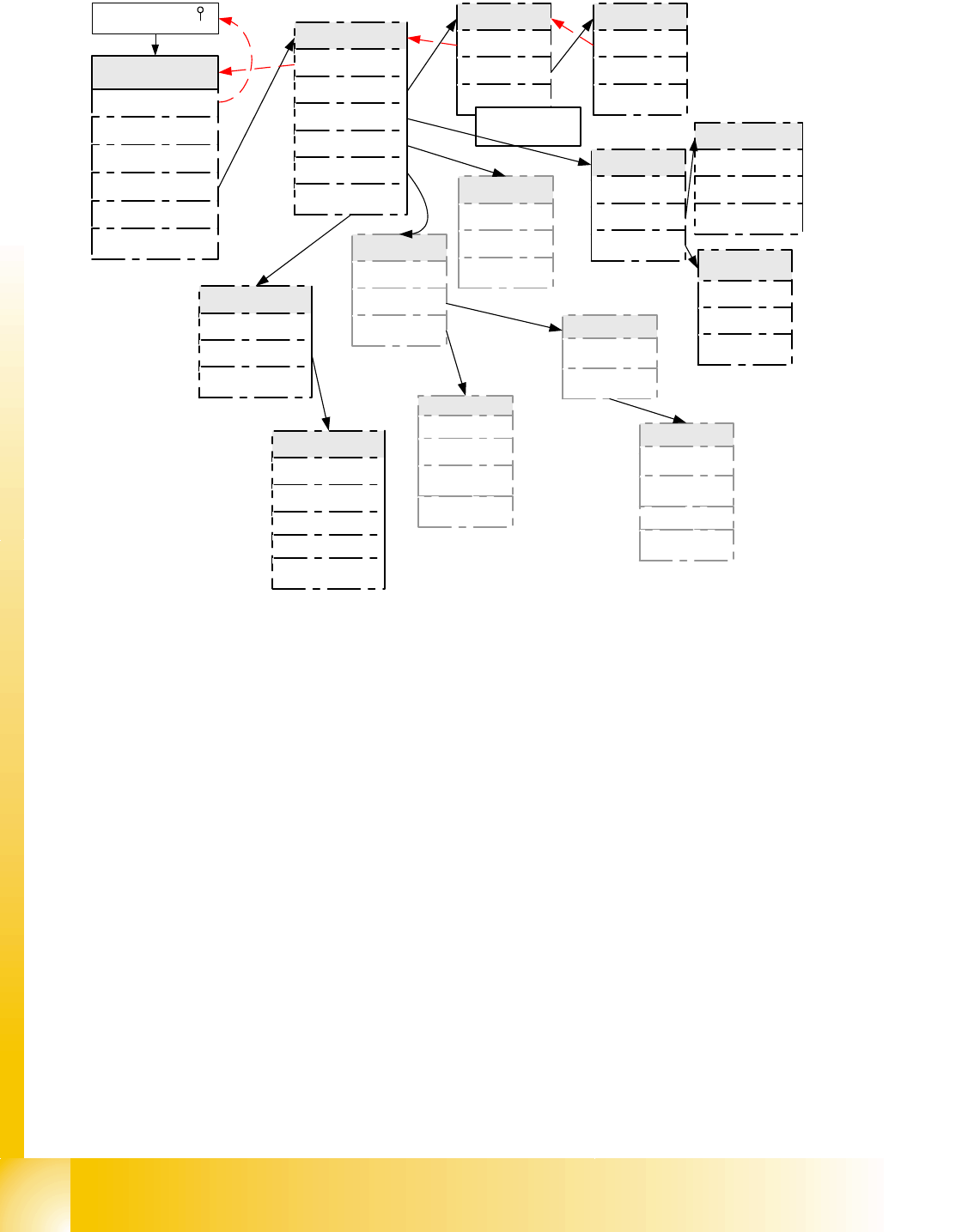
For example, you should know which menus to use when setting the ’Language’ or ’User level’
(see menu path in following diagram Fig. 20.3 - 8).
The menu point "Save Settings" performs the same backup function as Exit (shutdown proce-
dure).
BNC1 BNC2 BNC3 BNC4
B1 B2 B3 B4 <-
|
T
E
T2
T1
12,25ms
25/317
Edition 09/2005 SIPLACE HF/HF3
Appendix
14
20
Fig. 20.3 - 8 Menu function ’System control’ for ’SAT’ (in Expert mode only)
Important to set language and ’user level’
- All other settings keep on SIEMENS-default setting!!!
Important menus for the SIEMENS Service are the Download-menus in submenu ’connector’.
Therefore is a special CAN-HW and SW of a Service-Laptop is necessary.
5.0% 7,5% 10.0% 12,5% .
for power supply test of Axis contoller
System control
Back
Settings
User control
Display
Ports
Internal
Settings
Back
Load ...
Save ...
Load Settings
Back
Default
EEPROM
The settings have
been saved
User
Back
Language
User level
Boot and press ' '
Quit
configuration
machine
System control
Shutdown
About ...
Main menu
Choose language
Back
English
German
Change user
level
Back
Dummy *
* reboot for new user level
confirm Expert with return
Display
Back
Contrast
Screen saver
Ports
Back
CAN-Port
Set ASC Port
Internal
Back
Selftest
Dump EEPROM
Selftest
Back
Enable
Disable
Start
Set Tolerance
Please leave it on
Default
Expert*
CAN Ports
Change ASC port
Back
CAN IDs
Back
BIOS Bootstrap-Download
to axis controller
SAT< ->A36X
SAT<->PC
A36X<->PC
SW-Download to SAT
CAN Ports
Back
sending CT- IDs
sending Event -ID
receiving ID
CAN Menues for SAT
internal tests