SG_FSE_SiplaceHF_HF3_00193901-05_eng.pdf - 第556页
1 - 82 S tudent Guide SIPLACE HF/HF3 1 1 MTC 2 Edition 09/2005 82 ➠ The Installation windo w opens automatically wh en the CD ROM is inserted or start the in stall.bat file under the folder Drive Monitor . ➠ Choose Inst …
1 - 81
Student Guide SIPLACE HF/HF3
Edition 09/2005 11 MTC 2
81
11.4.5 Downloading parameter sets
Requirements: 11
– CD ROM Drive Monitor
– Cables for laptop and master drives (03021720-01)
– Parameter set for lifting axis Tower 1 and Tower 2
– Parameter set for feed axis Tower 1 and Tower 2
– Simovert Masterdrive for the Lifting axis (00354979-01)
– Simovert Masterdrive for the Feed axis (00354980-01)
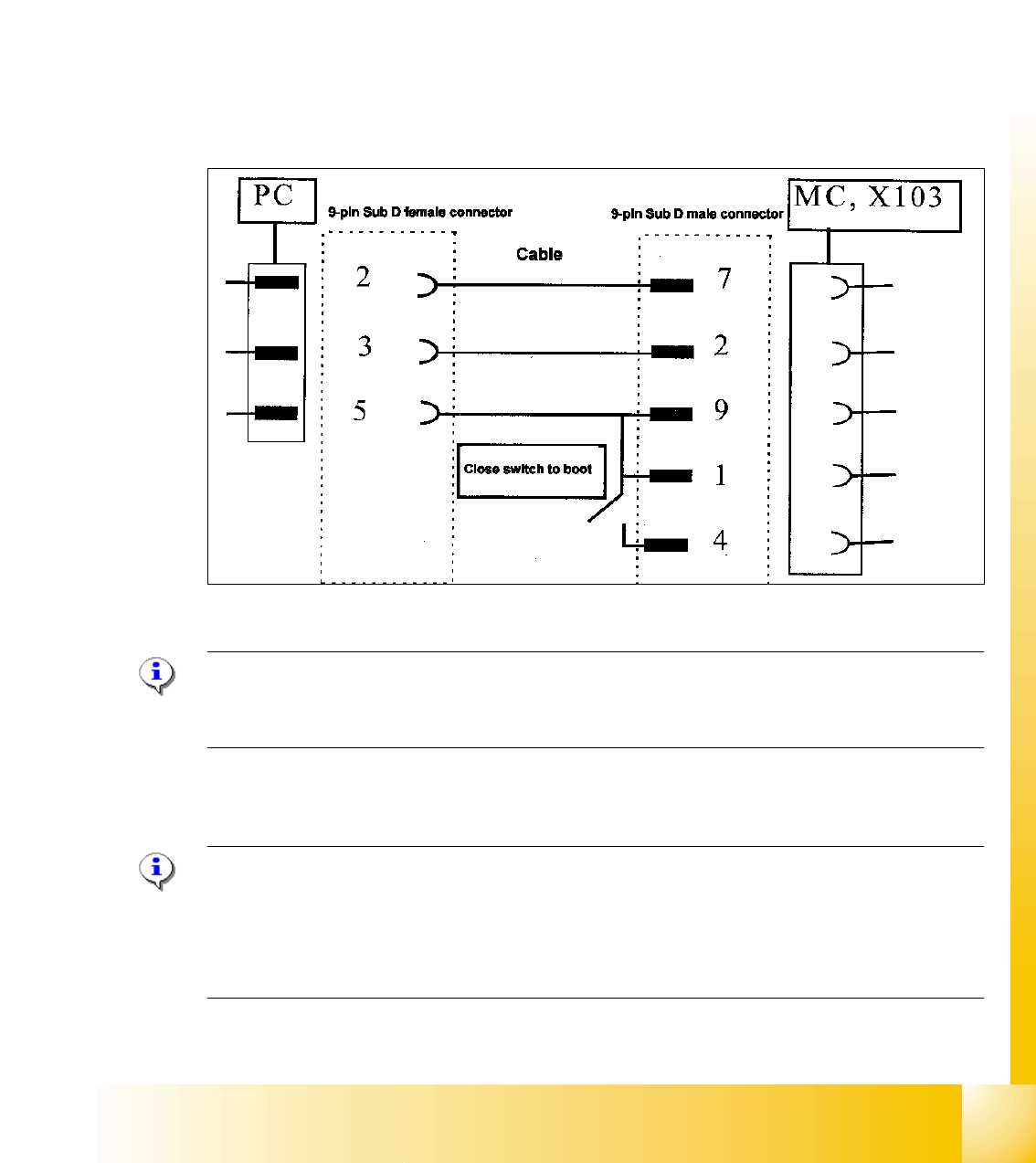
Fig. 11.4 - 4 Cable configuration for the connection between the laptop and the master drive
NOTE
Please don‘t forget the jumper between pin 9 and 1. The switch is not necessary for downloading
the parameter sets.
Installation Drive Monitor 11
Note:
You could use the software "Drive Monitor" for the MTC 1 too. The softwareversion on the MTC 1
is 1.5.
Installation can only be carried out with administrator rights.
Prior to installation, it may be necessary to create a directory with the name "Parameter sets".
1 - 82
Student Guide SIPLACE HF/HF3
11 MTC 2 Edition 09/2005
82
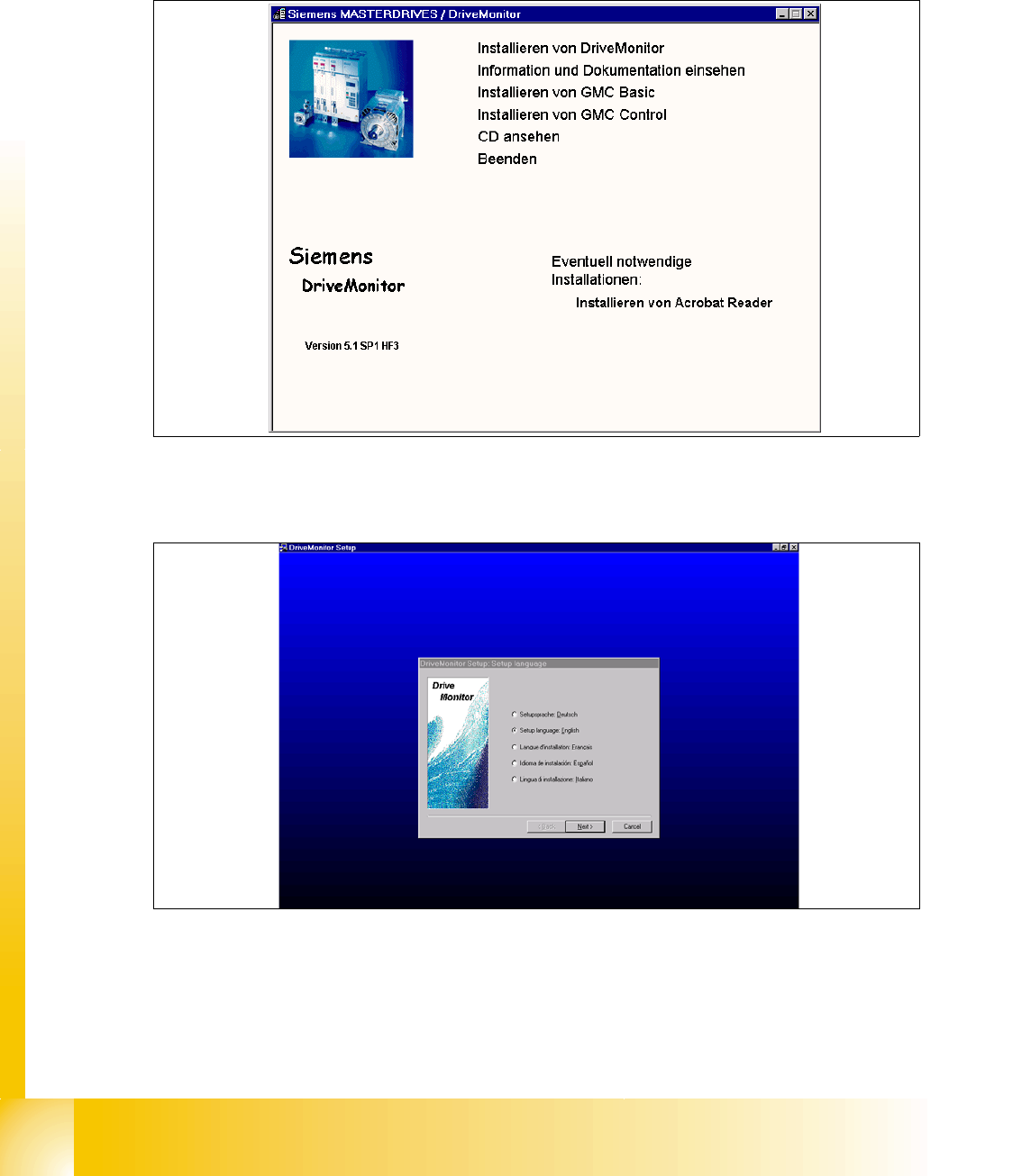
➠ The Installation window opens automatically when the CD ROM is inserted
or start the install.bat file under the folder Drive Monitor.
➠ Choose Install Drive Monitor.
➠ After installation has been completed successfully, a shortcut appears on the desktop.
Fig. 11.4 - 5 Installation Drive Monitor
➠ Select language (D, E, F, I, S)
r
Fig. 11.4 - 6 select language
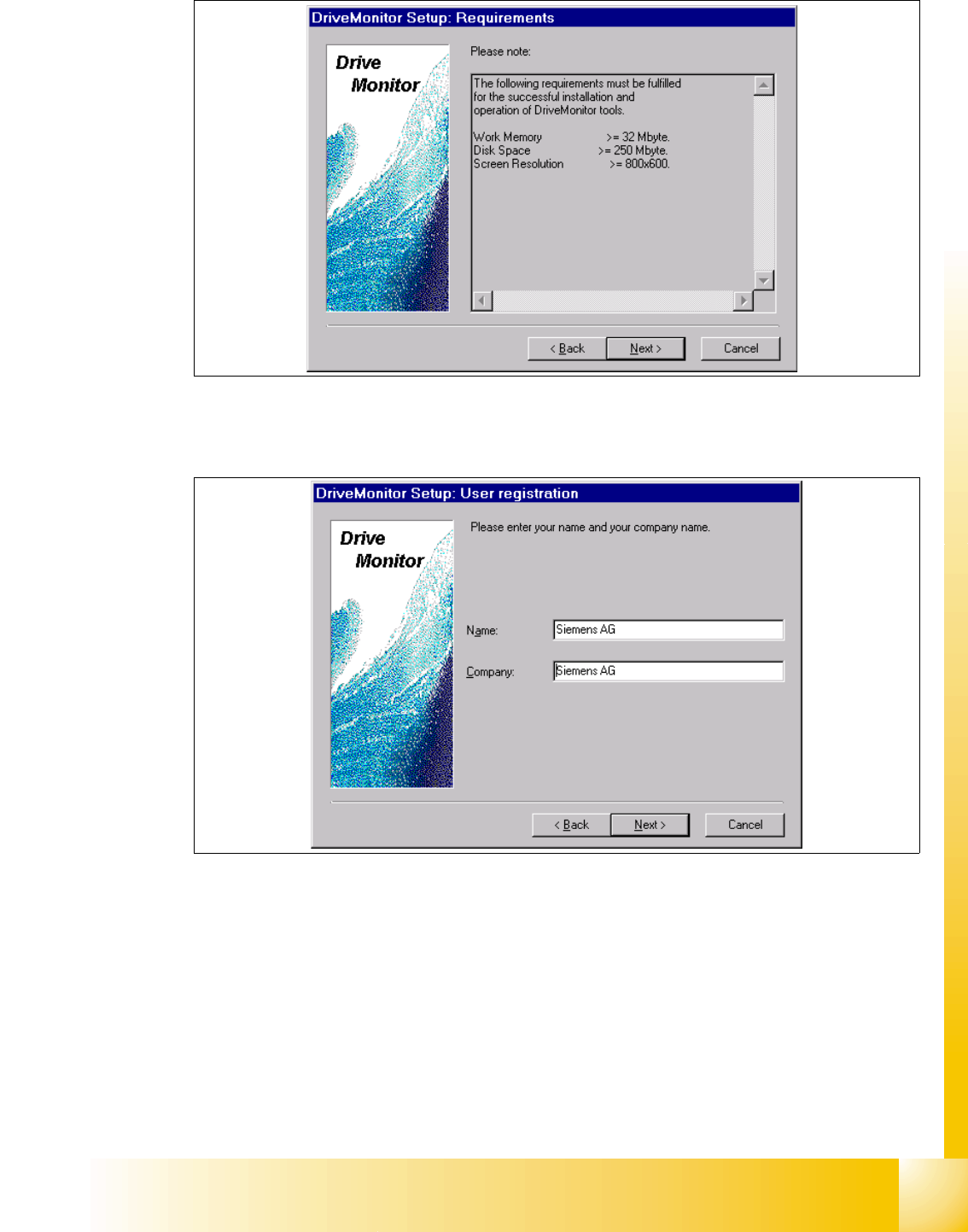
➠ Click the button "Next".
➠ Click the button "Next"again.
➠ agree the software licence "YES" .