00194614-08 Trainingsdoku. SG X-Serie_X4i SW70x (AL2)_EN.pdf - 第58页
Overview Changeover Table Components Overview of C omponents Student Guide SIPLACE X-Serie and X4I SW70x (AL2) 58 communication between the feeder control unit (FCU) and the fee ders is provided via two optoelectronic ch…
Overview
Overview of Components Changeover Table Components
57 Student Guide SIPLACE X-Serie and X4I SW70x (AL2)
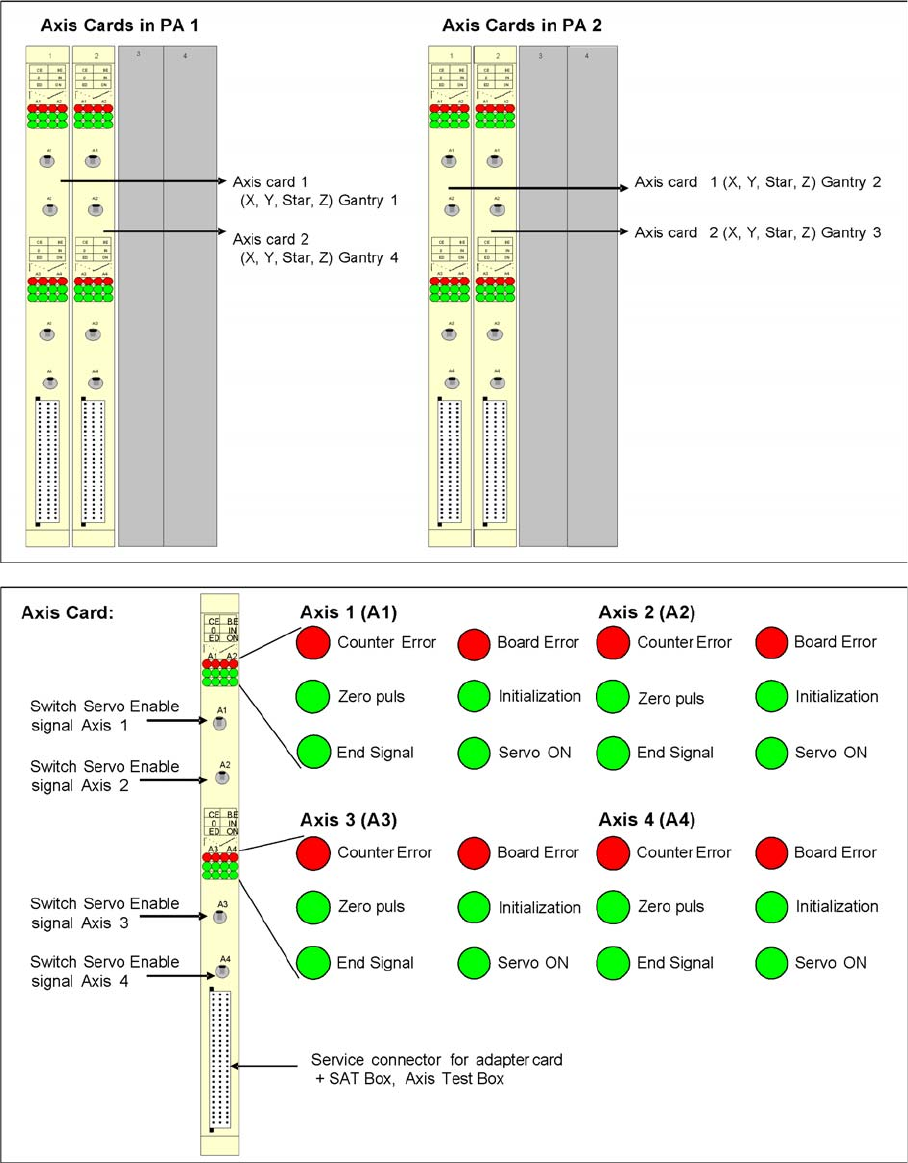
Axis Con troller Board A364
3.2.5.2 Axis Controller Board A364
Changeover Table Components
3.2.6 Changeover Table Components
SIPLACE X machines with SW70x only support the new generation of X feeders and X component
changeover tables. This changeover table does not have any electronic assemblies, such as the
communication unit for feeder supply and control in the previous tables. The power supply for the feeders
is without contact, via an inductive interface on the docking unit, directly to the feeders. Control and
Overview
Changeover Table Components Overview of Components
Student Guide SIPLACE X-Serie and X4I SW70x (AL2) 58
communication between the feeder control unit (FCU) and the feeders is provided via two optoelectronic
channels (light conductors). The FCU is connected to the computer unit in the machine via the machine
CAN Bus. Only X tables can be used on the machines.
Docking and Undocking
3.2.6.1 Docking and Undocking
Each X feeder table has 40 slots for 8 mm X feeders, giving a total capacity of 160 individual tracks on
4 changeover tables.
Setting the Height of the Changeover Table
3.2.6.2 Setting the Height of the Changeover Table
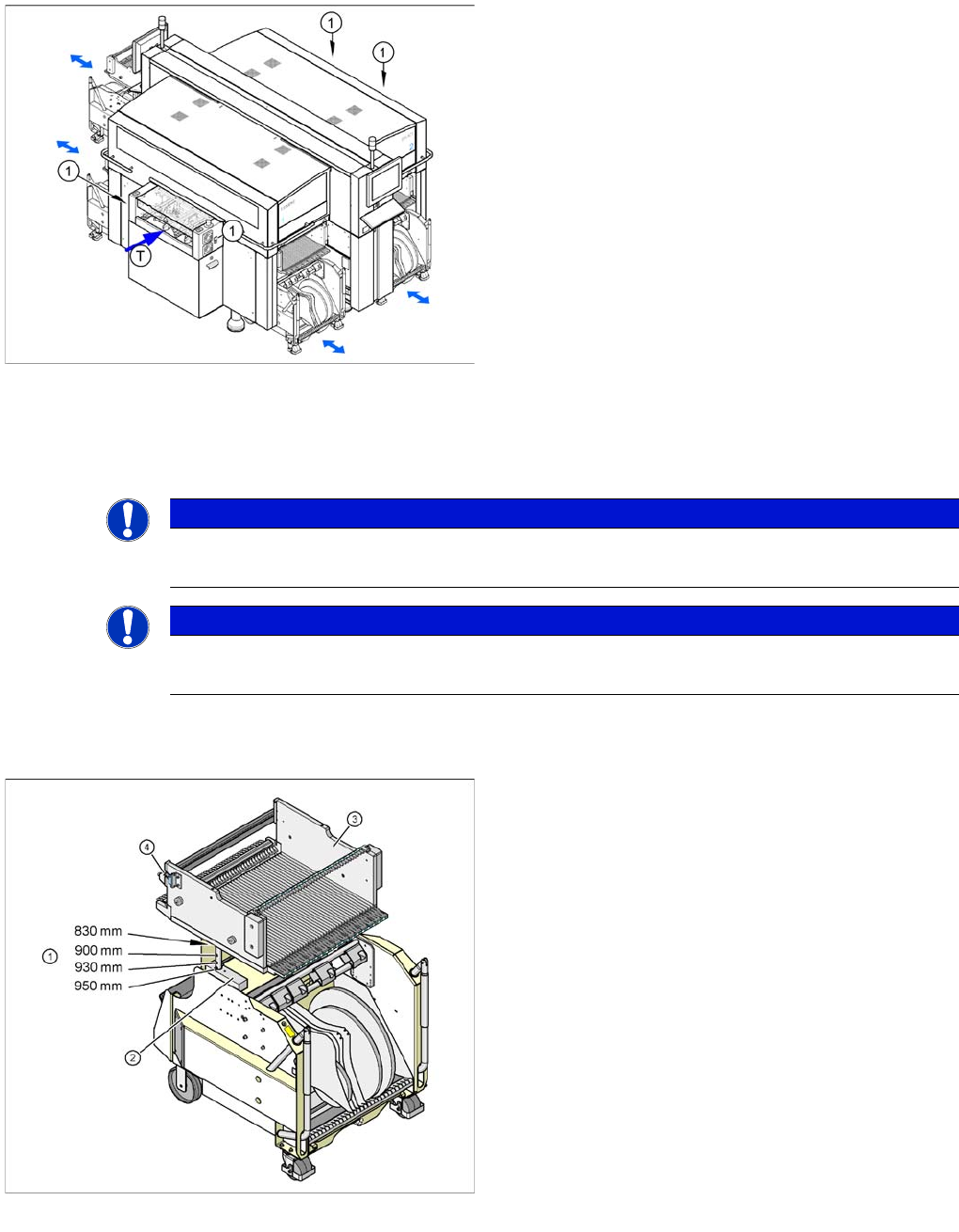
Shows the button for docking and undocking changeover
tables
Legend
1. Button for docking and undocking changeover tables
▪ T = transport direction
The changeover table is automatically docked at the
machine, with two pneumatic cylinders. For docking, the
changeover table is moved up to the docking unit, the
hood is closed and the button is pressed. For undocking,
the cover is opened and the button is pressed again.
NOTICE
From software 70x
X machines from software 70x only support X tables.
NOTICE
X4I
Due to the rotated gantries, there are only 34 tracks available at locations 2 and 4 of the X4I.
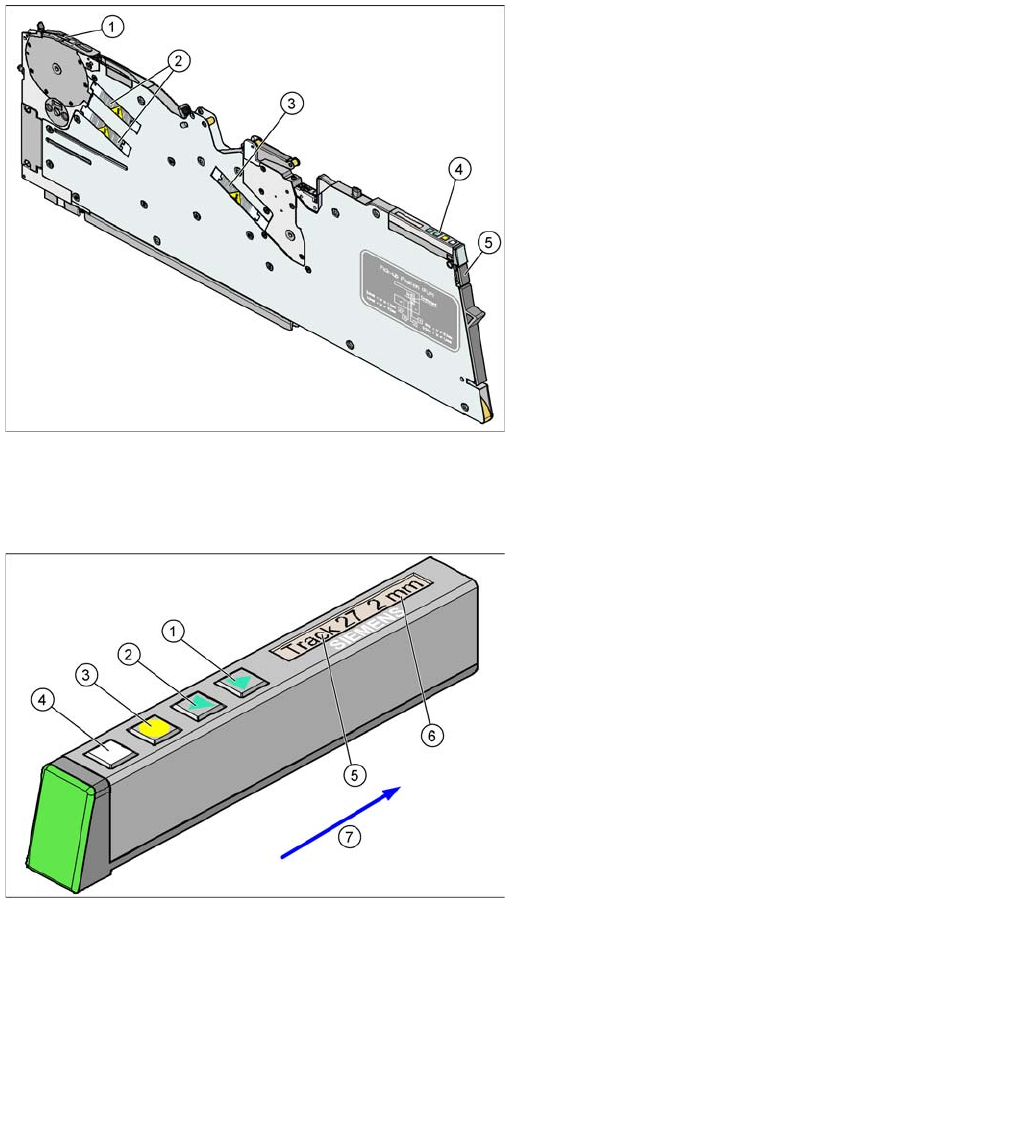
Component table for X feeder
Legend
1. Drillings for the various PCB conveyor heights,
adjustment via insertion of a spring pin.
2. Contact surface (block) for the upper part of the table
3. Changeover table
4. Reed switch for closing the safety circuit to the
docking unit
Overview
Overview of Components Changeover Table Components
59 Student Guide SIPLACE X-Serie and X4I SW70x (AL2)
The changeover table can be manually set to the following PCB conveyor heights
▪ 830 mm ±15 mm standard height
▪ 900 mm ±15 mm SMEMA height
▪ 930 mm ±15 mm SMEMA height
▪ 950 mm ±15 mm SMEMA height
Overview of X Feeders
3.2.6.3 Overview of X Feeders
X Feeder Operator Panel
Example 8 mm X feeder
Legend
1. Pickup position
2. Motors for moving components
3. Motor for cover foil
4. Display, operating panel and status display
5. Mechanical and electrical unlocking function
The new generation of X feeders enables you to set up a
separate feeder for each component used at the
machines (single track feeders). This ensures optimum
use of the machine locations and optimum configuration
of the setups in the placement process.
The X feeders can be logged off should errors occur
during production and can then be replaced by other
feeders, which are logged back into the production run.
As an option, a splice sensor can be directly integrated
into the feeder.
X Feeder Operator Panel
Legend
1. "Forwards" button
Press briefly to move the tape by the set cycle step.
Press for longer to move the tape forwards. Make
sure the cover foil is not clamped in.
2. "Backwards" button
Press briefly and release slowly to move the tape
backwards by the set cycle step
Prolonged pressing moves the tape back. (Both
functions should only be performed without the cover
foil fitted).
3. Press the "Foil" button to start the foil drive motor.
This runs until the foil has been stretched tight and
the motor toggle switch turns off or until the timer has
counted 30 seconds.
4. Briefly press the "SET" button to switch over to the
next menu on the main menu level. Press for longer
to request component verification.
5. Display showing track on location
6. Cycle step
7. Transport direction