2OM-1064-002.pdf - 第114页
4. P A TTERN PROGRAM Display 4.1.2 PROGRAM DELETE Display (1) Select the pattern program to be deleted by pressing the desired “NAME (XX/XX)” key at the “P A TTERN PROGRAM” display (Fig. 2.92). Then, press the [PROGRAM D…
4. PATTERN PROGRAM Display
4.1.1 PROGRAM CHECK Display
(1) Select the pattern program to be checked by pressing the desired “NAME
(XX/XX)” key at the “PATTERN PROGRAM” display (Fig. 2.92). Then,
press the [PROGRAM CHECK] key. The following display appears on
the screen.
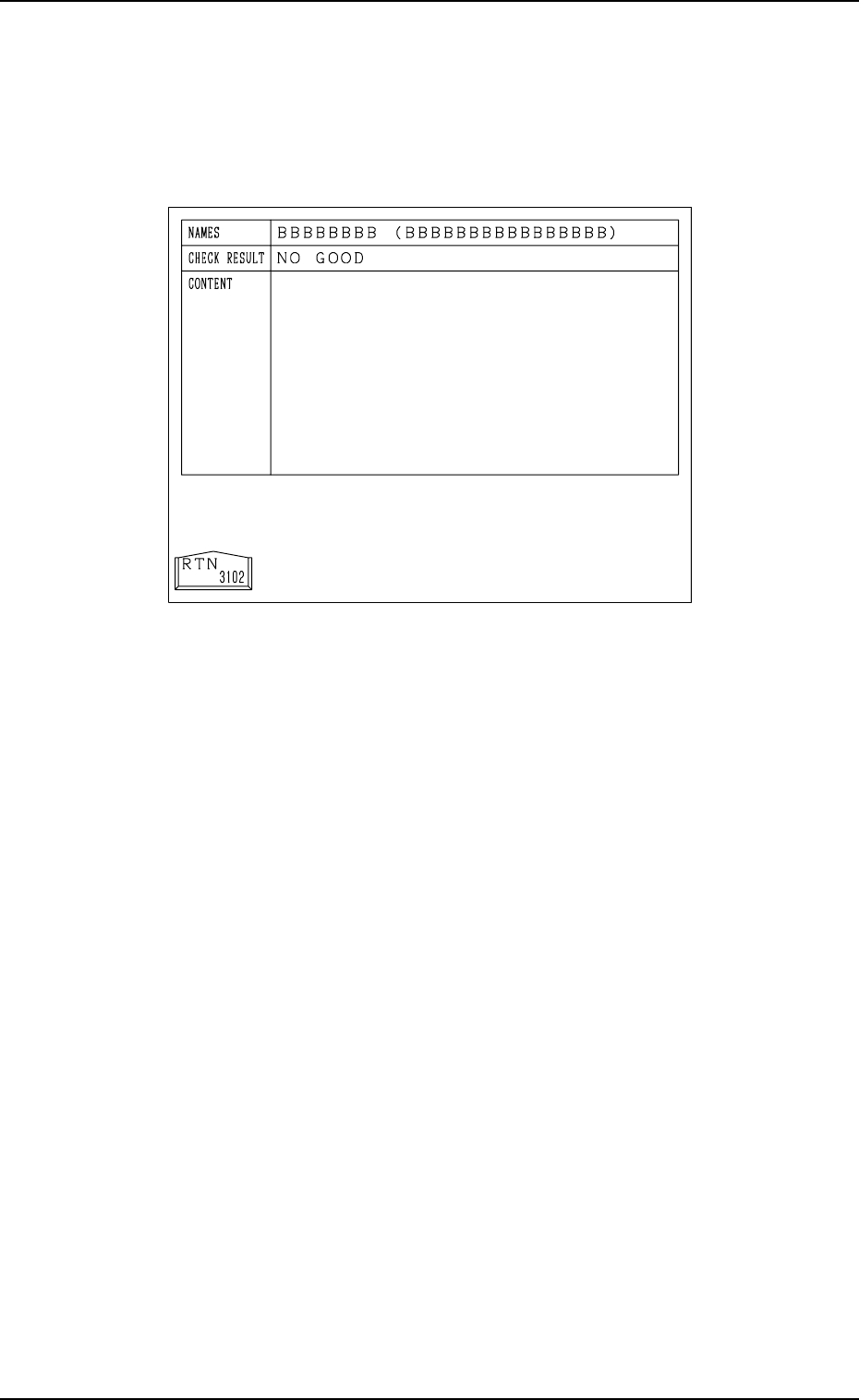
Fig. 2.93
(2) When no error is found after checking, “GOOD” appears at the “CHECK
RESULT” section.
When an error is found, “NO GOOD” appears displaying the contents of
the error at the “CONTENT” section.
(3) Refer to the information and correct the pattern program data. Then, per-
form the program check operation again.
0004-002 2-101 Tg0247-PM-PM
4. PATTERN PROGRAM Display
4.1.2 PROGRAM DELETE Display
(1) Select the pattern program to be deleted by pressing the desired “NAME
(XX/XX)” key at the “PATTERN PROGRAM” display (Fig. 2.92). Then,
press the [PROGRAM DELETE] key.
The following display appears on the screen.
0004-002 2-102 Tg0247-PM-PM
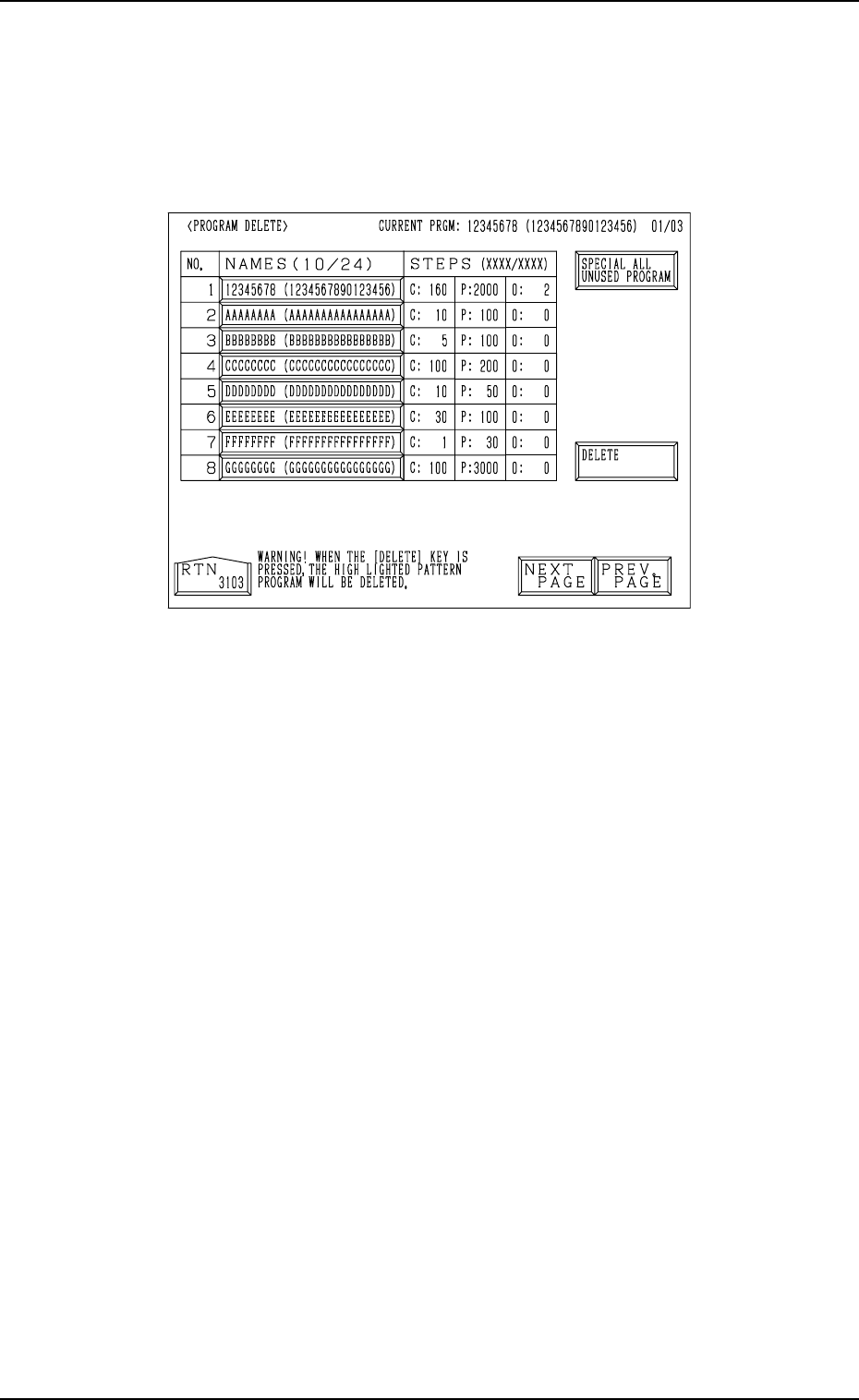
Fig. 2.94
(2) Check that the selected “NAMES (XX/XX)” key of the pattern program
to be deleted has turned blue.
Ref.: The pattern program data to be deleted can also be selected by
pressing the “NAMES (XX/XX)” key after the “PROGRAM DE-
LETE” display has opened.
(3) When the [DELETE] key is pressed, the selected pattern program is de-
leted.
To delete all pattern programs
(1) Press the [SPECIAL ALL UNUSED PROGRAM] key.
The [SPECIAL ALL UNUSED PROGRAM] key turns red and the
“NAMES (XX/XX)” keys turn blue.
(2) When the [DELETE] key is pressed, all pattern program data is deleted
and the program names are changed to “-------- (----------------)”, exclud-
ing the programs for the current production model.
• To cancel the program delete mode, press the [SPECIAL ALL UN-
USED PROGRAM] key again.
4. PATTERN PROGRAM Display
4.1.3 PLACEMENT DATA SORTING Display
(1) Select the [NAME (XX/XX)] key of the program to be sorted and press
the [PROGRAM OPTIMUM] key at the “PATTERN PROGRAM” dis-
play (Fig. 2.92).
The following display appears on the screen.
0004-002 2-103 Tg0247-PM-PM
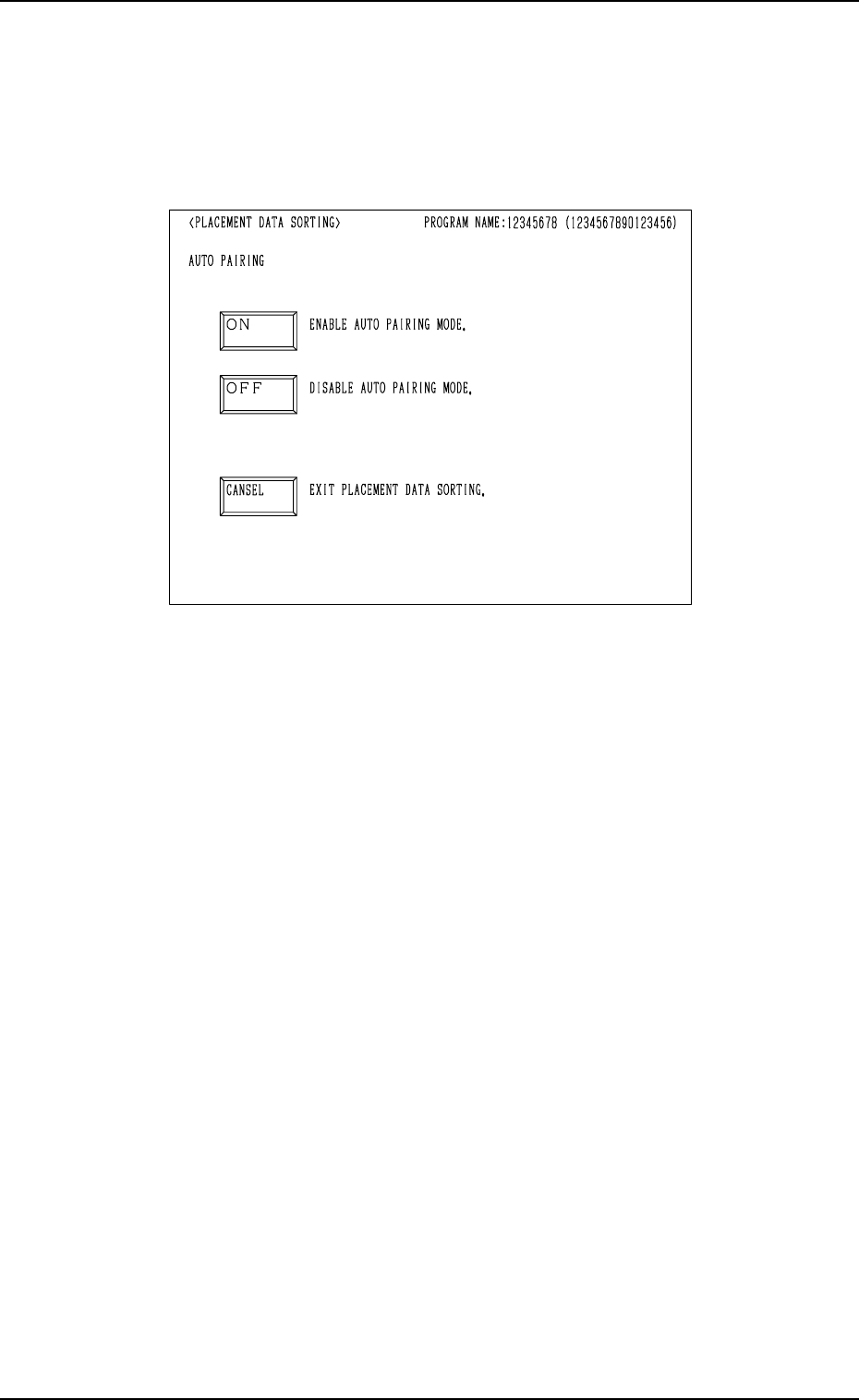
Fig. 2.94-1
(2) Select the desired sorting method.
• When the [ON] key is pressed, the “S-DATA” of the placement data is
initialized and the pairing operations are performed automatically for
the simultaneous pick-up and pick-up priority functions. Then, the place-
ment steps (order) are sorted.
The system proceeds to Step (3).
• When the [OFF] key is pressed, the “S-DATA” of the placement data is
not initialized and the placement steps (order) are sorted.
The system proceeds to Step (3).
• When the [CANCEL] key is pressed, the program sorting function is
canceled.
(3) The program check operation is performed.
• When the program is checked “OK”, the system proceeds to Step (4).
• When the program is checked “NG” (No Good), the system proceeds
to Step (6).
(4) The program is sorted.
• When the program is checked “OK”, the system proceeds to Step (5).
• When the program is checked “NG”, the system proceeds to Step (6).
(5) The program check operation is performed again.
• When the program is checked “OK”, the sorting ends and the “PAT-
TERN PROGRAM EDIT” display appears on the screen.
• When the program is checked “NG”, the system proceeds to Step (6).
(6) The contents of errors are displayed.
Correct the placement data and re-perform the sorting.