2OM-1064-002.pdf - 第246页
*1 Fig. 8.10-2 Fig. 8.10-1 [CHNG] Key 4. SEARCH NOZZLE Display When the [SEARCH NOZZLE] key is pressed at the “NOZZLE LIBRAR Y INFO” display (Fig. 8.1), the following display appears on the screen. Every time the [CHNG] …
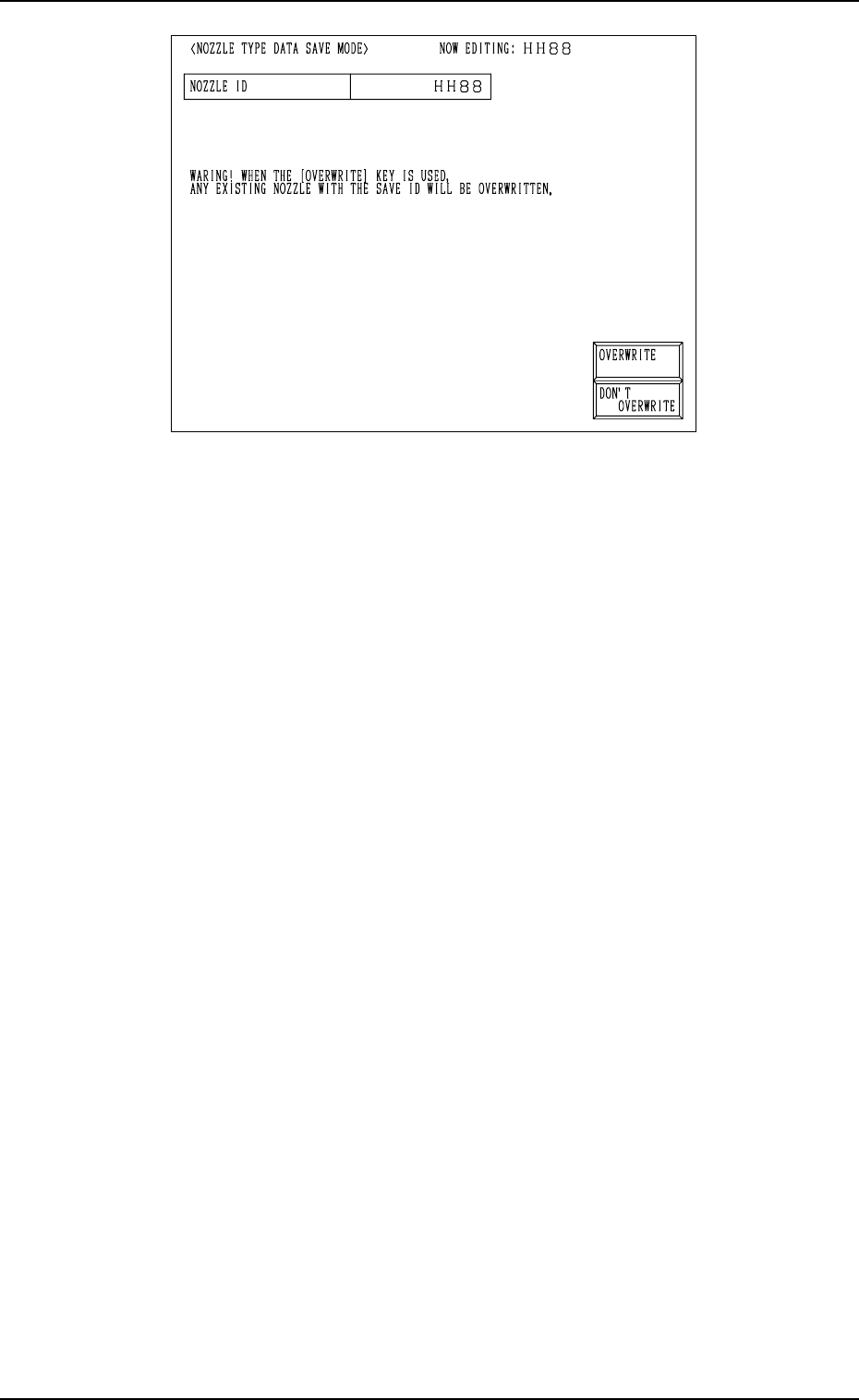
3. NOZZLE TYPE DATA SAVE MODE Display
Fig. 8.9
[OVERWRITE] Key: When this key is pressed, the nozzle type data is re-
placed with the existing one and updated.
[DON’T OVERWRITE] Key: The edited data is not saved.
Operation Procedure
(1) Select the data key *1 in Fig. 8.8-1 and enter a nozzle ID, using the ten-
key pad.
• Not to Save the Data
Press the [DON’T SAVE] key.
The data is not saved and the “NOZZLE TYPE DATA” display (Fig.
8.2-1) appears on the screen.
• To Save the Data
Proceed to Step (2).
(2) Press the [SAVE] key.
• Case: The same nozzle type data does not exist.
The nozzle type data is saved and the “NOZZLE TYPE DATA” dis-
play (Fig. 8.2-1) appears on the screen.
• Case: The same nozzle type data exists.
The “NOZZLE TYPE DATA SAVE MODE” display (Fig. 8.9) ap-
pears on the screen, enabling the selection of whether or not the exist-
ing data should be replaced with the new one.
Proceed to Step (3).
(3) Select the [OVERWRITE] or the [DON’T OVERWRITE] key at the
“NOZZLE TYPE DATA SAVE MODE” display (Fig. 8.9).
• To Replace the Existing Data with the New One
Press the [OVERWRITE] key.
The existing nozzle type data is replaced with the new one and the
“NOZZLE TYPE DATA” display (Fig. 8.2-1) appears on the screen.
• Not to Replace the Existing Data with the New One
Press the [DON’T OVERWRITE] key.
The “NOZZLE TYPE DATA SAVE MODE” display (Fig. 8.8-1) ap-
pears on the screen. Enter a nozzle ID name again with the ten-key pad.
9910-001 8-9 Tg0247-PM-PM
*1
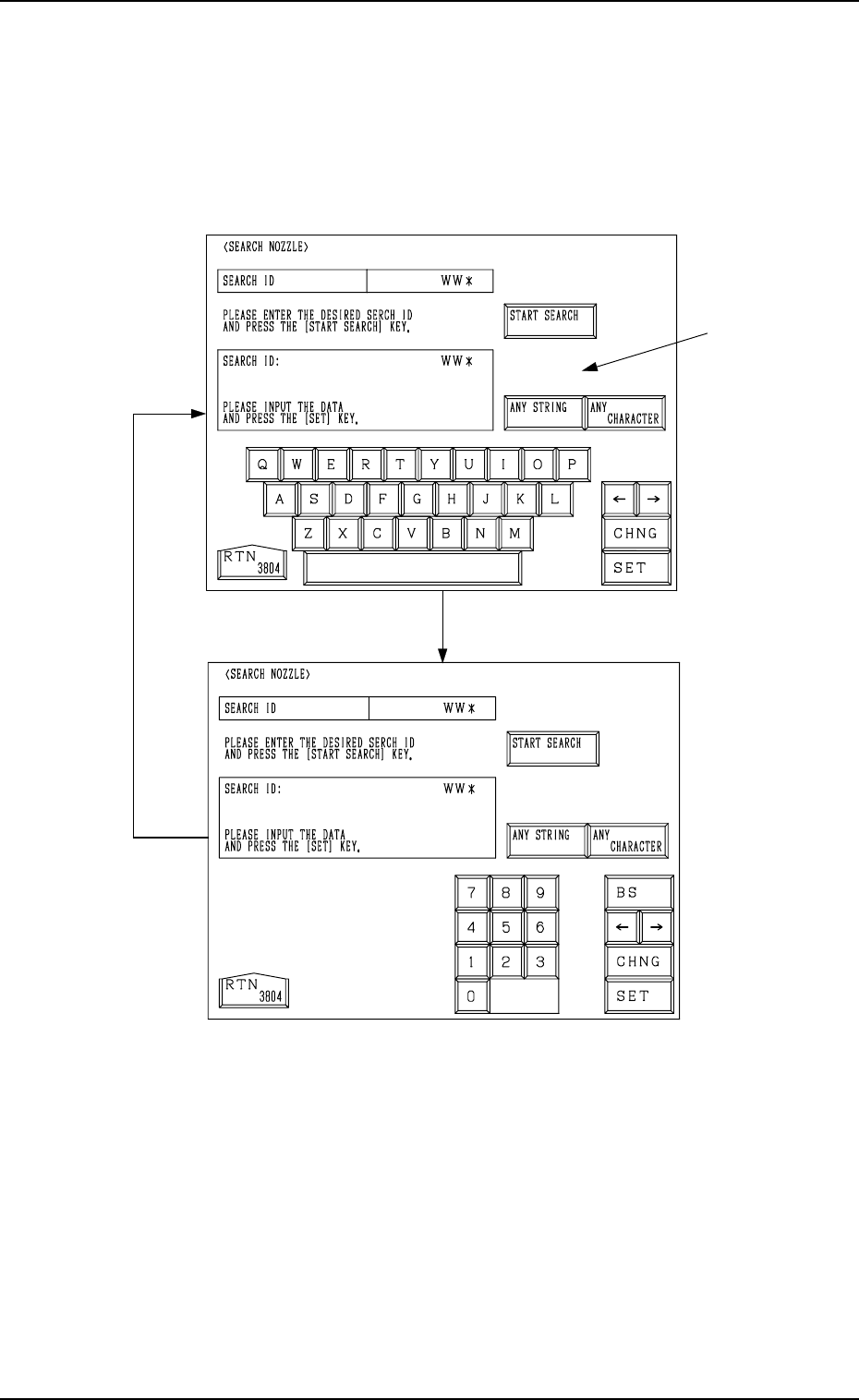
Fig. 8.10-2
Fig. 8.10-1
[CHNG] Key
4. SEARCH NOZZLE Display
When the [SEARCH NOZZLE] key is pressed at the “NOZZLE LIBRARY
INFO” display (Fig. 8.1), the following display appears on the screen.
Every time the [CHNG] key is pressed, the display changes.
4. SEARCH NOZZLE Display
9910-001 8-10 Tg0247-PM-PM
[CHNG] Key

Operation Procedure
(1) Set the nozzle ID name to be searched, using the ten-key pad, the [ANY
STRING], or the [ANY CHARACTER] key. Then, press the [SET] key.
• When the [ANY STRING] key is pressed, “
” can be entered in the
“SEARCH ID” text box.
Example: (a) When “AB*” is entered in the text box, all component
ID names starting with “AB” can be searched.
(b) When “*CD” is entered in the text box, all component
ID names ending with “CD” can be searched.
• When the [ANY CHARACTER] key is pressed, “?” can be entered in
the “SEARCH ID” text box.
Example: When “AB?DE” is entered in the text box, all component ID
names containing any character between “AB” and “DE”
can be searched.
(2) Press the [START SEARCH] key. The result of searching is displayed.
• When the objective component ID is found, the “NOZZLE LIBRARY
INFO” display (Fig. 8.1) appears, showing the searched component ID
on the top of the component IDs in the “COMPONENT ID LIST (XXX/
100)” list field.
• When the objective component ID is not found, “THE SELECTED
COMPONENT ID WAS NOT FOUND.” appears at *1 for about 1.5
seconds.
4. SEARCH NOZZLE Display
9910-001 8-11 Tg0247-PM-PM