2OM-1064-002.pdf - 第141页
0004-002 2-129 Tg0247-PM-PM 4.7.4 Procedure for Placement Data Unit Operation (S-Data Change) • When “1” (designation of pairing for simultaneous pick-up operation) is set in the “S” data field of the placement data, it …
4. PATTERN PROGRAM Display
4.7.3 Placement Data Unit Operation (Block Move)
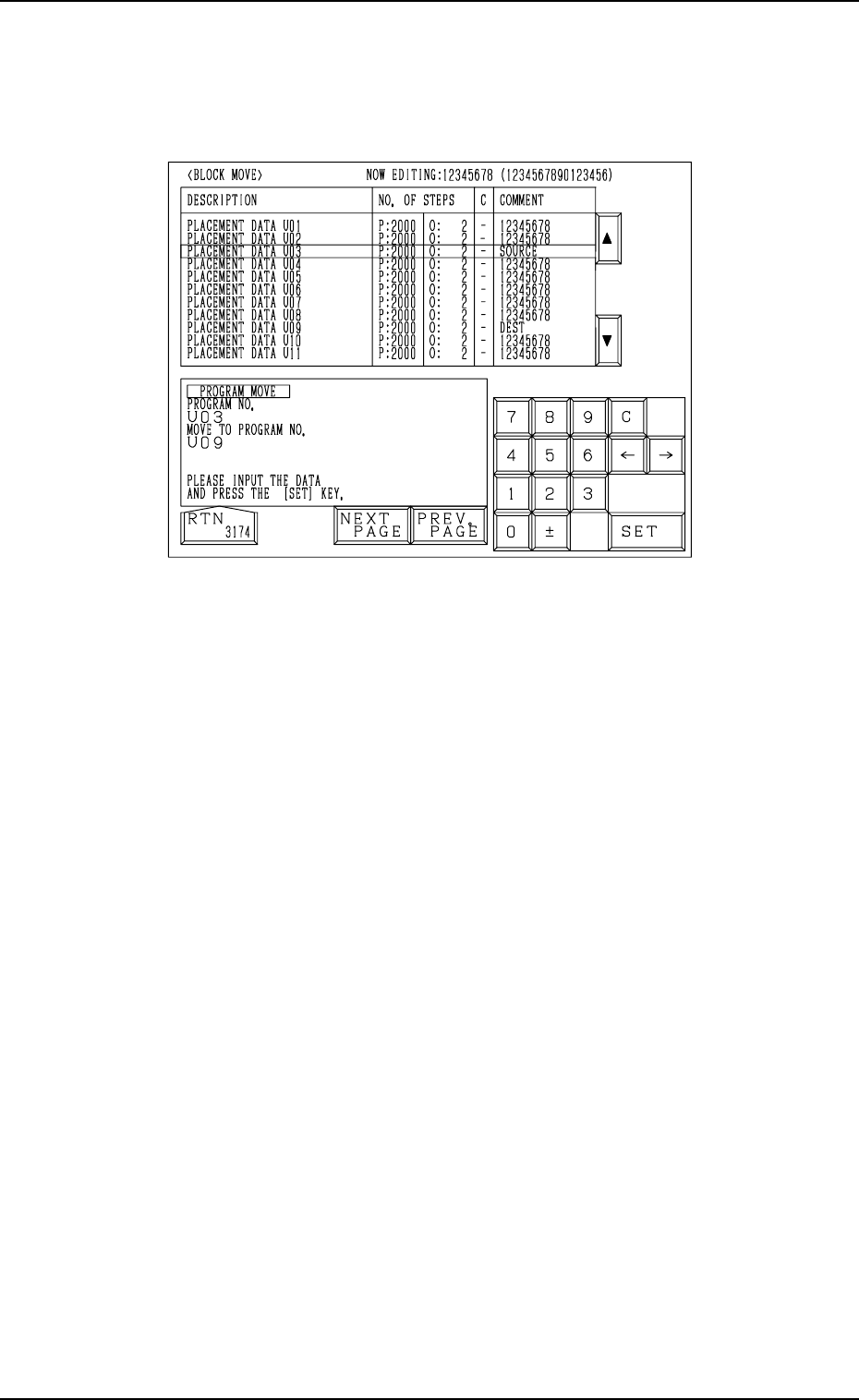
(1) When the [BLOCK MOVE] key is pressed at the “PLACE. DATA UNIT
EDIT” display, the following display appears on the screen.
0004-002 2-128 Tg0247-PM-PM
Fig. 2.118
(2) Move the line cursor to the block No. of the placement data to be moved.
(3) Enter the destination block No., using the ten-key pad and press the [SET]
key.
The parameters of the block No. (selected by the line cursor) are moved
to the text line of the destination block No.
The data is moved and appears first as the data which belongs to the
destination block No.
Example: Moving the data from the U03 block to the U09 block
(1) Open the “BLOCK MOVE” display (Fig. 2.118).
Move the line cursor to the U03 block.
(2) Enter “09”, using the ten-key pad and press the [SET] key.
The data is moved and appears first as the data which belongs to the U09
block.
0004-002 2-129 Tg0247-PM-PM
4.7.4 Procedure for Placement Data Unit Operation (S-Data Change)
• When “1” (designation of pairing for simultaneous pick-up operation) is set
in the “S” data field of the placement data, it can be changed to “2” (desig-
nation of pairing for pick-up priority operation).
The parameter “1” can be changed to “2” one by one for each individual
units (UXX) in the placement data or all parameters specified as “1” can be
changed at a time by selecting all units.
• Use this function when a hindrance is caused at the pick-up position (be-
cause the pick-up priority function works more effectively to adjust the pick-
up position for each individual components) while the right and left heads
are descending simultaneously to pick up components when the chuck posi-
tion automatic follow-up function is used.
• When “1” or “2” is set in the “S” data (the data used to cancel all pairing
designation), it can also be changed to “0”.
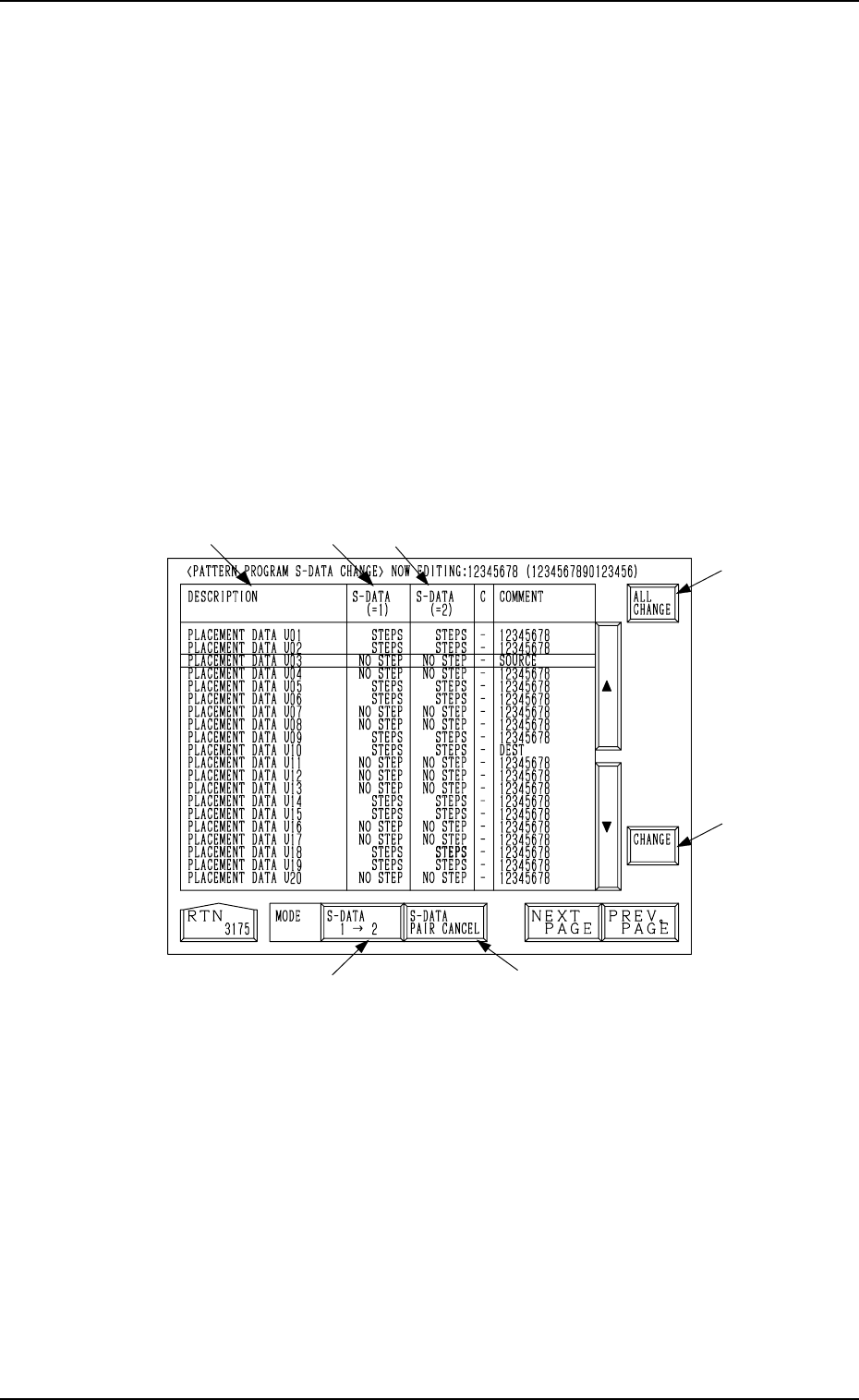
When the [S DATA CHANGE] key is pressed at the “PLACE. DATA UNIT
EDIT” display, the following display appears on the screen.
Fig. 2.119
4. PATTERN PROGRAM Display
*4
*6
*7
*5
*3
*2
*1

*1 DESCRIPTION
Placement Data UXX are displayed in this data field.
*2 S-DATA (=1)
STEPS: This indicates that the placement data UXX contains some steps
for which the simultaneous pick-up function is designated (“1”
is set in the “S” data field of the placement data).
NO STEP: This indicates that the placement data UXX does not contain
any steps for which the simultaneous pick-up function is desig-
nated (“1” is not set in the “S” data field of the placement data).
*3 S-DATA (=2)
STEPS: This indicates that the placement data UXX contains some steps
for which the pick-up priority function is designated (“2” is set
in the “S” data field of the placement data).
NO STEP: This indicates that the placement data UXX does not contain
any steps for which the pick-up priority function is designated
(“2” is not set in the “S” data field of the placement data).
*4 [S-DATA 1 → 2] Key
This key is used to change the pairing for the simultaneous pick-up func-
tion to the pairing for the pick-up priority function.
*5 [S-DATA PAIR CANCEL] Key
This key is used to cancel the designation of the simultaneous pick-up or
the pick-up priority function.
*6 [ALL CHANGE] Key
This key is used to set all units in the selected condition.
*7 [CHANGE] Key
This key is used to change the current functional mode of the selected data
to the other one.
Operation Procedure
• To change the current functional mode one by one for each individual units
(UXX)
(1) Move the line cursor to the data to be changed.
(2) Select the [S-DATA 1 → 2] or the [S-DATA PAIR CANCEL] key.
(3) Press the [CHANGE] key.
When the [S-DATA 1 → 2] key is selected, the parameters in the *2 data
field are changed to “NO STEP” and the parameters in the *3 data field to
“STEPS” in Fig. 2.119.
When the [S-DATA PAIR CANCEL] key is selected, all parameters in
both data fields *2 and *3 are changed to “NO STEP”.
• To change the parameters of all units at a time
(1) Press the [ALL CHANGE] key.
The key turns red, indicating that all placement data is selected.
(2) Select the [S-DATA 1 → 2] or the [S-DATA PAIR CANCEL] key.
(3) Press the [CHANGE] key.
When the [S-DATA 1 → 2] key is selected, the parameters in the data
field *2
are changed to “NO STEP” and the parameters in the data field
*3
to “STEPS” in Fig. 2.119.
When the [S-DATA PAIR CANCEL] key is selected, all parameters in
both data field *2
and *3 are changed to “NO STEP”.
• When the [ALL CHANGE] key is pressed again before the [CHANGE]
key, the selection of all parameters is canceled.
0004-002 2-130 Tg0247-PM-PM
4. PATTERN PROGRAM Display