2OM-1064-002.pdf - 第145页
4. P A TTERN PROGRAM Display When the “W arm Start” function can reboot the computer system, follow the steps below . (1) Press the [SA VE] key at the “P A TTERN PROGRAM SA VE MODE” dis- play (Fig. 2.120-1) The display (…

4. PATTERN PROGRAM Display
How to Save Pattern Program after Creation
(1) Select the [PROGRAM NAME], the [COMMENT #1], or the [COM-
MENT #2] key indicated by *1 and enter a parameter or change the set
parameter using the virtual keyboard *2. After that, press the [SET] key.
(2) When the [SAVE] key *3 is pressed, the entered parameter is saved. Af-
ter that, the “PATTERN PROGRAM” display (Fig. 2.1) appears on the
screen.
Notes: (a) When the same pattern program name exists, the “PATTERN PRO-
GRAM SAVE MODE” display (Fig. 2.120-2) appears on the
screen.
(b) When the created pattern program exceed “7,600 steps” (maxi-
mum memorized number of steps), the data cannot be saved.
An error message is issued in the *7 field.
How to Save Pattern Program after Correction or Modification
(1) When the [SAVE] key *3 is pressed, the “PATTERN PROGRAM SAVE
MODE” display (Fig. 2.120-2) appears on the screen.
(2) When the [OVERWRITE] key *5 is pressed, the existing pattern pro-
gram data is replaced with the new one and the “PATTERN PROGRAM”
display (Fig. 2.1) appears on the screen.
Note: When the corrected or the modified pattern program exceeds “7,600
steps” (maximum memorized number of steps), the data cannot be saved.
An error message is issued in the *8 field.
Not to Replace the Existing Data with New One after the “PAT-
TERN PROGRAM SAVE MODE” Display (Fig. 2.120-2) Opened
(To keep the existing data intact)
(1) When the [DON’T OVERWRITE] key *6 is pressed, the “PATTERN
PROGRAM SAVE MODE” display (Fig. 2.120-1) appears on the screen.
(2) Change the program name and press the [SET] key.
The “PATTERN PROGRAM SAVE MODE” display (Fig. 2.120-2) ap-
pears again on the screen.
(3) Press the [OVERWRITE] key *5. The pattern program data is saved as
new one.
Not to Save the Pattern Program Data
(1) Press the [DON'T SAVE] key *4.
The pattern program data is not saved and the “PATTERN PROGRAM”
display (Fig. 2.1) appears on the screen.
0004-002 2-132 Tg0247-PM-PM

4. PATTERN PROGRAM Display
When the “Warm Start” function can reboot the computer system,
follow the steps below.
(1) Press the [SAVE] key at the “PATTERN PROGRAM SAVE MODE” dis-
play (Fig. 2.120-1)
The display (Fig. 2.120-3) appears on the screen.
(2) Press the [YES] key to replace the existing pattern program data with
new one.
Note: When the current pattern program data is changed with the “Warm
Start” function feasible, the computer system cannot be re-started
without actually turning the computer off and on.
(3) When no error is found during program check operation, the “PATTERN
PROGRAM” display (Fig. 2.1) appears on the screen.
0004-002 2-133 Tg0247-PM-PM
4. PATTERN PROGRAM Display
4.9 Remedial Operation for Error Pattern Program
Data
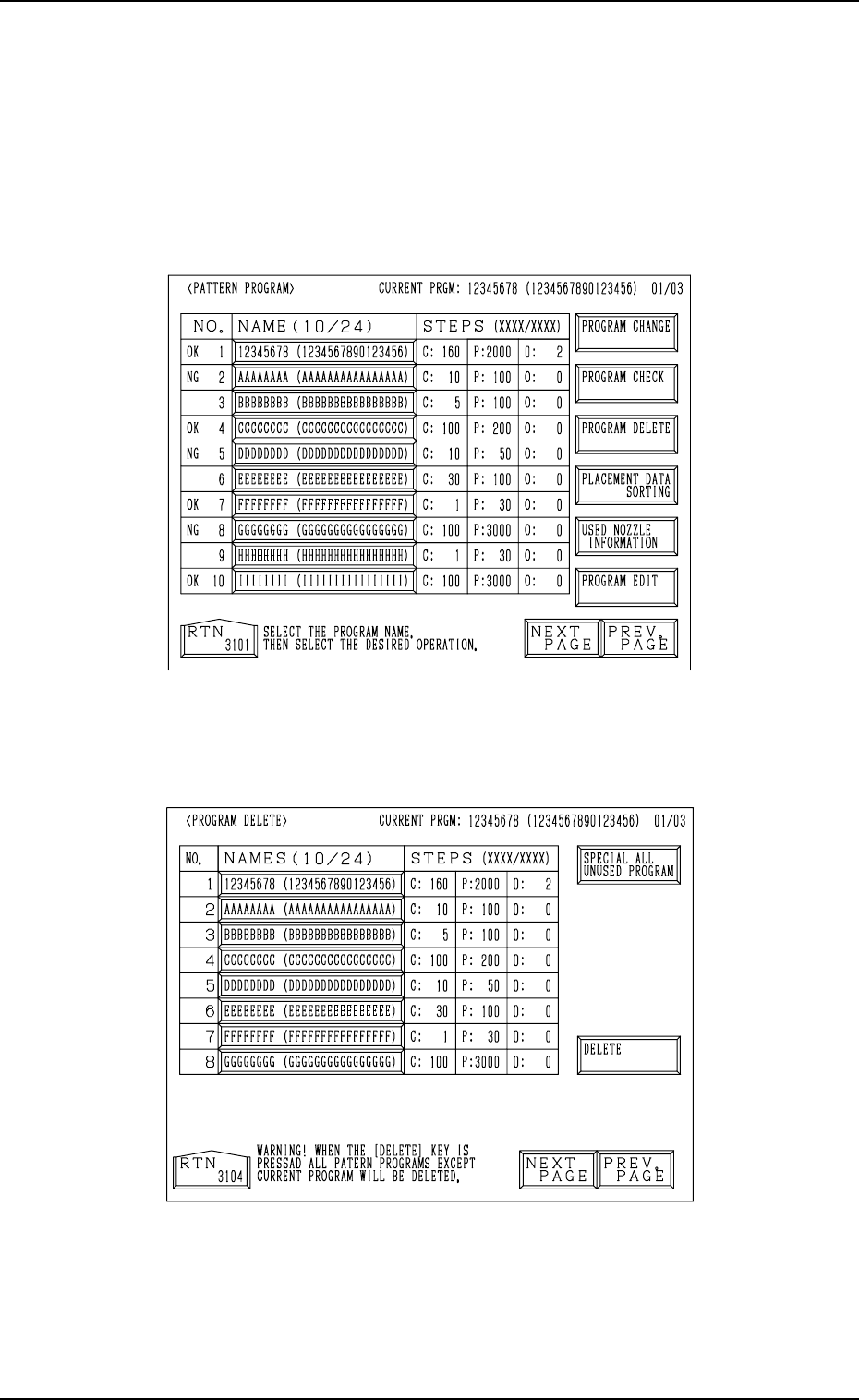
When the backup pattern program data is corrupted due to battery shortage,
etc., all parameters are changed to “*” as shown in Fig. 2.121-1.
(All characters turn red.)
In this case, such parameters cannot be retrieved and must be
deleted. (All Program Delete Operation)
Fig. 2.121-1
(1) When the [PROGRAM DELETE] key is pressed, the following display
appears on the screen.
Fig. 2.121-2
(2) When the [SPECIAL ALL UNUSED PROGRAM] key is pressed, the
key turns red and all pattern program name keys turn blue.
0004-002 2-134 Tg0247-PM-PM