2OM-1064-002.pdf - 第136页
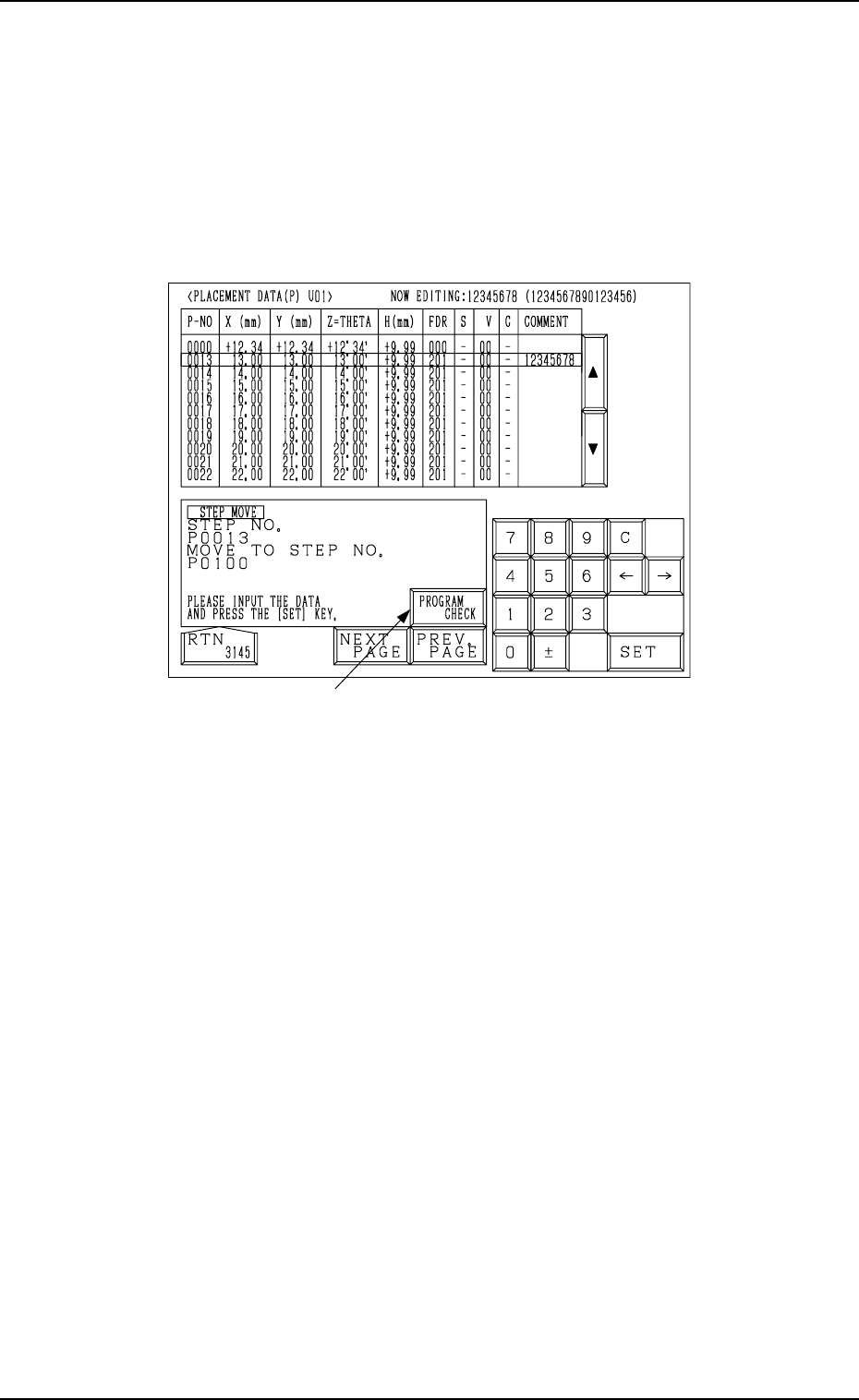
*1 0004-002 2-124 Tg0247-PM-PM 4. P A TTERN PROGRAM Display Example: Moving the data from P0013 step to P0100 step (1) Open the “PLACEMENT DA T A (P) U01” display (Fig. 2.1 14-1). Move the line cursor to the P0013 step. …
*1
4. PATTERN PROGRAM Display
4.6.5 Special Operation (Step Move) for Placement Data
(1) When the [STEP MOVE] key is pressed at the “PLACEMENT DATA
(P) U01” display (Fig. 2.111-1 or Fig. 2.111-2), the following display
appears on the screen.
Pressing the [STEP MOVE] key at the “PLACEMENT DATA (O)
U01” or the “PLACEMENT DATA (V) U01” display follows the
similar hierarchical sequence.
Fig. 2.114-1
(2) Move the line cursor to the step No. of the data to be moved.
(3) Enter the destination step No., using the ten-key pad and press the [SET]
key.
The parameters of the step No. (selected by the line cursor) are moved to
the text line of the destination step No.
The destination step No. appears under step No. 0000 and the subsequent
Nos. follow.
0004-002 2-123 Tg0247-PM-PM
*1
0004-002 2-124 Tg0247-PM-PM
4. PATTERN PROGRAM Display
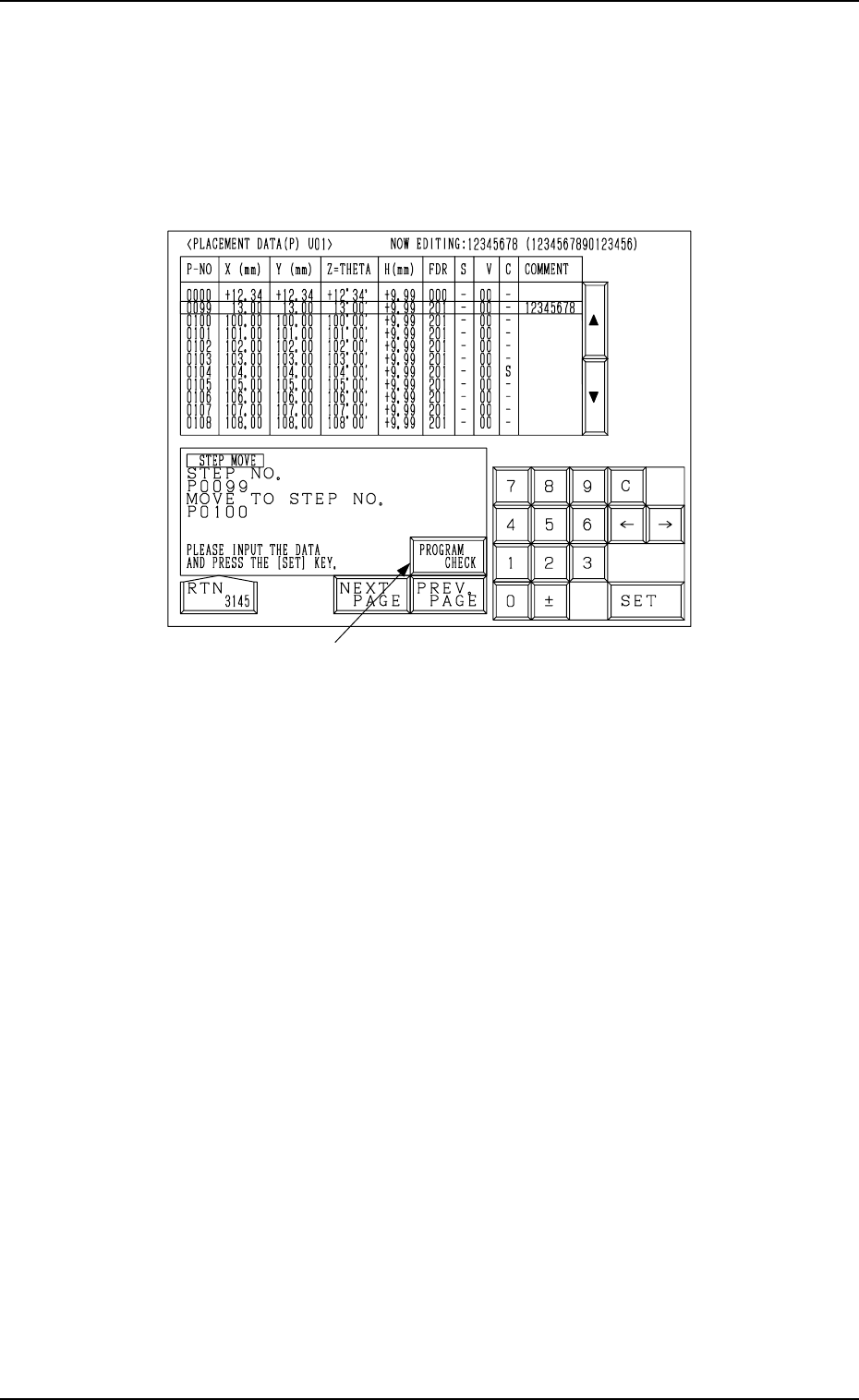
Example: Moving the data from P0013 step to P0100 step
(1) Open the “PLACEMENT DATA (P) U01” display (Fig. 2.114-1).
Move the line cursor to the P0013 step.
(2) Enter “0100”, using the ten-key pad and press the [SET] key.
The data is moved and appears as the parameters in Step No. 0100 under
Step No. 0000 as shown in Fig. 2.114-2.
Fig. 2.114-2
Ref.: When the [PROGRAM CHECK] key *1 is pressed, the current pattern
program is checked.
*1
0004-002 2-125 Tg0247-PM-PM
4.6.6 Editing of Placement Data
(1) When the [DATA EDIT] key is pressed at the “PLACEMENT DATA (P)
U01” display (Fig. 2.111-1 or Fig. 2.111-2), the following display ap-
pears on the screen.
Pressing the [DATA EDIT] key at the “PLACEMENT DATA (O)
U01” or the “PLACEMENT DATA (V) U01” display follows the
similar hierarchical sequence.
4. PATTERN PROGRAM Display
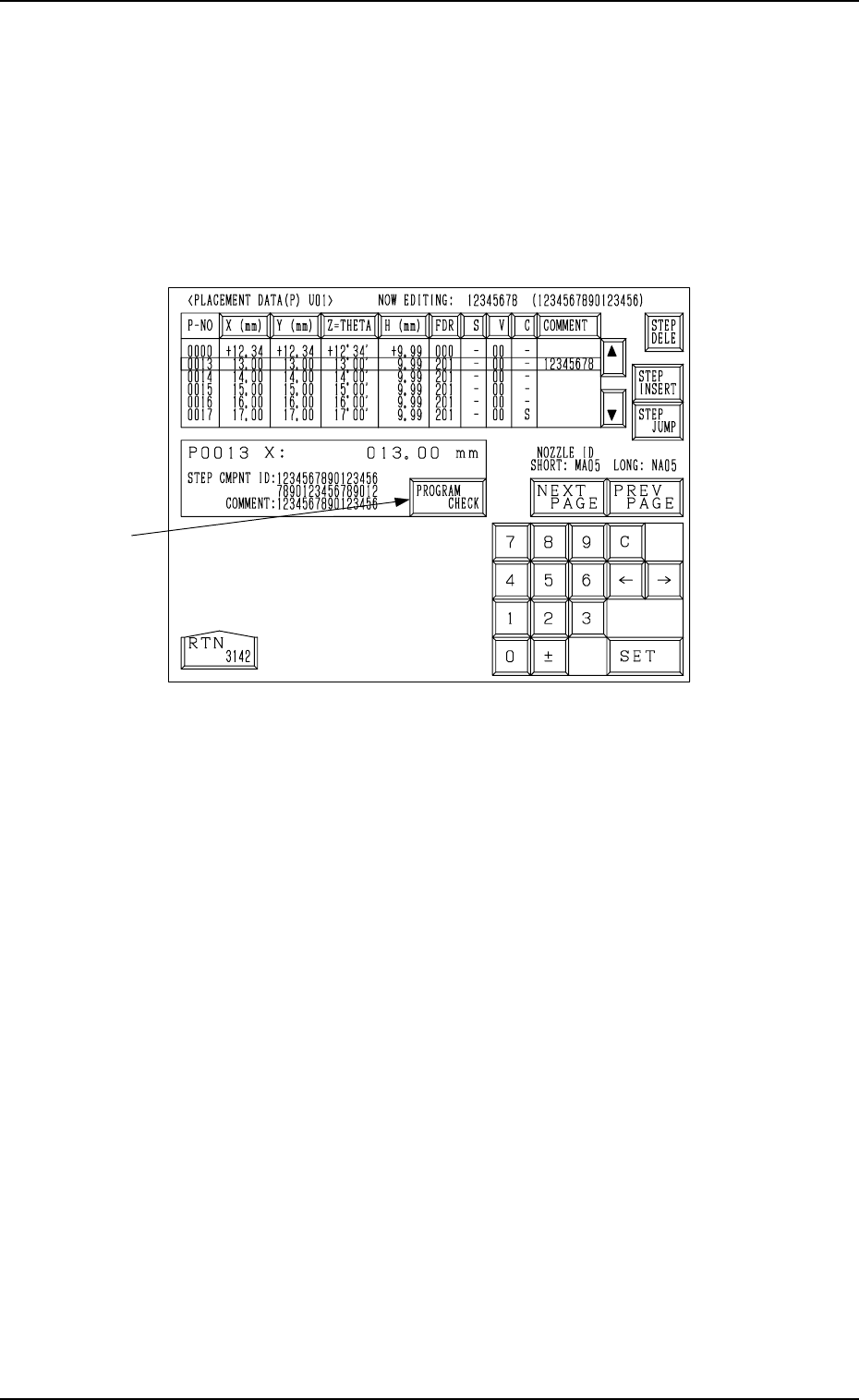
Fig. 2.115
(2) Move the line cursor to the step No. of the data to be edited.
(3) Press the desired key for the data to be edited.
The selected key turns blue.
(4) Enter a parameter, using the ten-key pad or select an option key. Then,
press the [SET] key.
(5) Move the line cursor to the step No. of the data to be edited subsequently
and continue the editing.
• When the [STEP JUMP] key is pressed, an arbitrary step No. appears under
step No. 0000 and the subsequent Nos. follow.
• When the line cursor is moved to the desired step No. and the [STEP IN-
SERT] key is pressed, a new line (step No.) is inserted.
• When the line cursor is moved to the desired step No. and the [STEP DE-
LETE] key is pressed, the data of the step No. is deleted.
(A line of parameters at the line cursor position is deleted and the subse-
quent step Nos. are shifted up.)
• When the [PROGRAM CHECK] key *1 is pressed, the current pattern pro-
gram is checked.