2OM-1064-002.pdf - 第143页
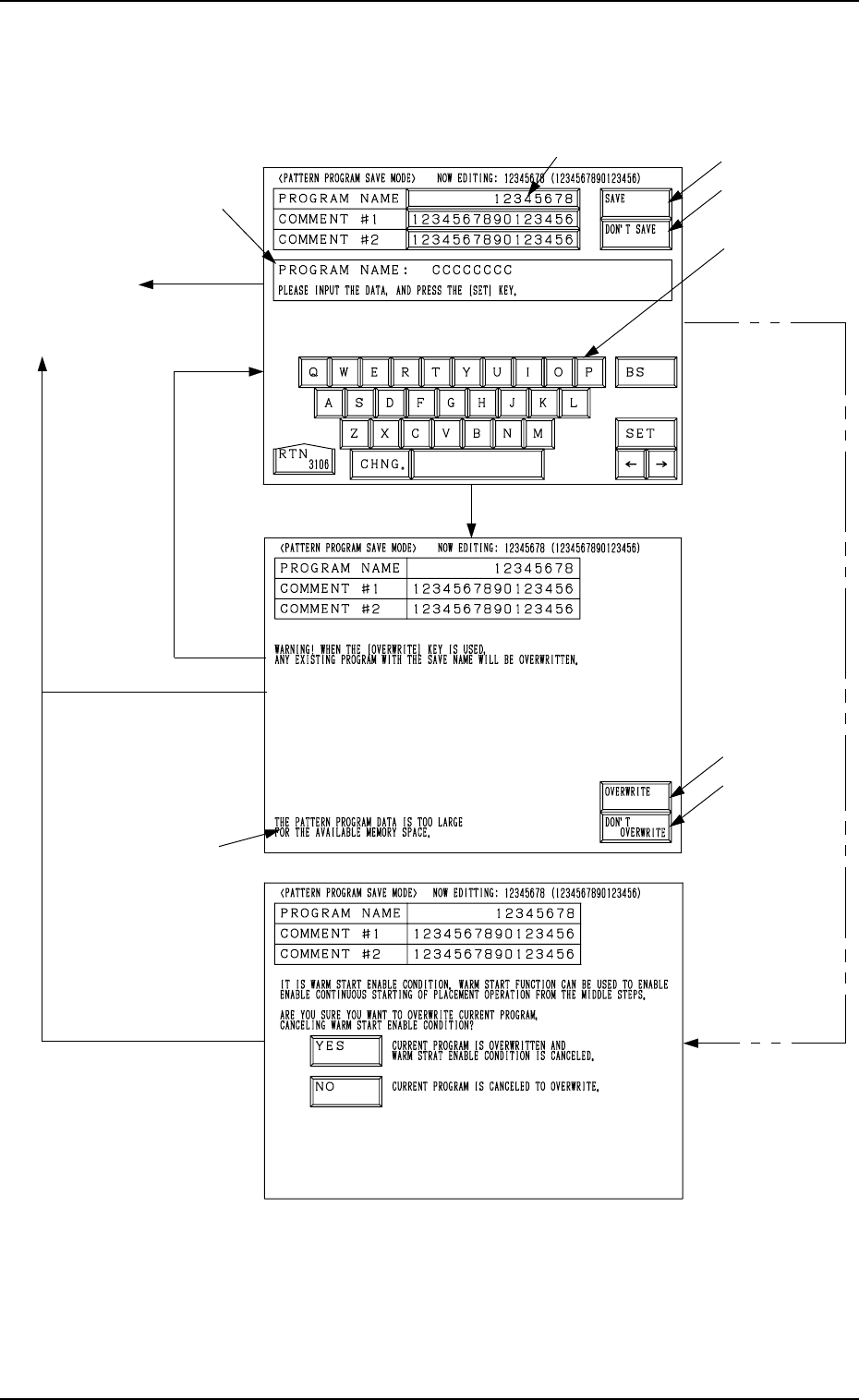
“P A TTERN PROGRAM” Display (Fig. 2.1) Fig. 2.120-1 *1 *3 *4 *2 *7 *5 *6 [DON’T SA VE] Key [SA VE] Key [OVERWRITE] Key [DON’T OVERWRITE] Key [YES] Key *8 [SA VE] Key [SA VE] Key Fig. 2.120-2 Fig. 2.120-3 (Case: “W arm St…

*1 DESCRIPTION
Placement Data UXX are displayed in this data field.
*2 S-DATA (=1)
STEPS: This indicates that the placement data UXX contains some steps
for which the simultaneous pick-up function is designated (“1”
is set in the “S” data field of the placement data).
NO STEP: This indicates that the placement data UXX does not contain
any steps for which the simultaneous pick-up function is desig-
nated (“1” is not set in the “S” data field of the placement data).
*3 S-DATA (=2)
STEPS: This indicates that the placement data UXX contains some steps
for which the pick-up priority function is designated (“2” is set
in the “S” data field of the placement data).
NO STEP: This indicates that the placement data UXX does not contain
any steps for which the pick-up priority function is designated
(“2” is not set in the “S” data field of the placement data).
*4 [S-DATA 1 → 2] Key
This key is used to change the pairing for the simultaneous pick-up func-
tion to the pairing for the pick-up priority function.
*5 [S-DATA PAIR CANCEL] Key
This key is used to cancel the designation of the simultaneous pick-up or
the pick-up priority function.
*6 [ALL CHANGE] Key
This key is used to set all units in the selected condition.
*7 [CHANGE] Key
This key is used to change the current functional mode of the selected data
to the other one.
Operation Procedure
• To change the current functional mode one by one for each individual units
(UXX)
(1) Move the line cursor to the data to be changed.
(2) Select the [S-DATA 1 → 2] or the [S-DATA PAIR CANCEL] key.
(3) Press the [CHANGE] key.
When the [S-DATA 1 → 2] key is selected, the parameters in the *2 data
field are changed to “NO STEP” and the parameters in the *3 data field to
“STEPS” in Fig. 2.119.
When the [S-DATA PAIR CANCEL] key is selected, all parameters in
both data fields *2 and *3 are changed to “NO STEP”.
• To change the parameters of all units at a time
(1) Press the [ALL CHANGE] key.
The key turns red, indicating that all placement data is selected.
(2) Select the [S-DATA 1 → 2] or the [S-DATA PAIR CANCEL] key.
(3) Press the [CHANGE] key.
When the [S-DATA 1 → 2] key is selected, the parameters in the data
field *2
are changed to “NO STEP” and the parameters in the data field
*3
to “STEPS” in Fig. 2.119.
When the [S-DATA PAIR CANCEL] key is selected, all parameters in
both data field *2
and *3 are changed to “NO STEP”.
• When the [ALL CHANGE] key is pressed again before the [CHANGE]
key, the selection of all parameters is canceled.
0004-002 2-130 Tg0247-PM-PM
4. PATTERN PROGRAM Display
“PATTERN
PROGRAM”
Display
(Fig. 2.1)
Fig. 2.120-1
*1
*3
*4
*2
*7
*5
*6
[DON’T SAVE]
Key
[SAVE] Key
[OVERWRITE] Key
[DON’T OVERWRITE] Key
[YES] Key
*8
[SAVE] Key
[SAVE] Key
Fig. 2.120-2
Fig. 2.120-3
(Case: “Warm
Start” Possible)
4. PATTERN PROGRAM Display
0004-002 2-131 Tg0247-PM-PM
4.8 PATTERN PROGRAM SAVE MODE Display
When the [RTN] key is pressed at the “PATTERN PROGRAM EDIT” display
(Fig. 2.5), the following display appears on the screen.

4. PATTERN PROGRAM Display
How to Save Pattern Program after Creation
(1) Select the [PROGRAM NAME], the [COMMENT #1], or the [COM-
MENT #2] key indicated by *1 and enter a parameter or change the set
parameter using the virtual keyboard *2. After that, press the [SET] key.
(2) When the [SAVE] key *3 is pressed, the entered parameter is saved. Af-
ter that, the “PATTERN PROGRAM” display (Fig. 2.1) appears on the
screen.
Notes: (a) When the same pattern program name exists, the “PATTERN PRO-
GRAM SAVE MODE” display (Fig. 2.120-2) appears on the
screen.
(b) When the created pattern program exceed “7,600 steps” (maxi-
mum memorized number of steps), the data cannot be saved.
An error message is issued in the *7 field.
How to Save Pattern Program after Correction or Modification
(1) When the [SAVE] key *3 is pressed, the “PATTERN PROGRAM SAVE
MODE” display (Fig. 2.120-2) appears on the screen.
(2) When the [OVERWRITE] key *5 is pressed, the existing pattern pro-
gram data is replaced with the new one and the “PATTERN PROGRAM”
display (Fig. 2.1) appears on the screen.
Note: When the corrected or the modified pattern program exceeds “7,600
steps” (maximum memorized number of steps), the data cannot be saved.
An error message is issued in the *8 field.
Not to Replace the Existing Data with New One after the “PAT-
TERN PROGRAM SAVE MODE” Display (Fig. 2.120-2) Opened
(To keep the existing data intact)
(1) When the [DON’T OVERWRITE] key *6 is pressed, the “PATTERN
PROGRAM SAVE MODE” display (Fig. 2.120-1) appears on the screen.
(2) Change the program name and press the [SET] key.
The “PATTERN PROGRAM SAVE MODE” display (Fig. 2.120-2) ap-
pears again on the screen.
(3) Press the [OVERWRITE] key *5. The pattern program data is saved as
new one.
Not to Save the Pattern Program Data
(1) Press the [DON'T SAVE] key *4.
The pattern program data is not saved and the “PATTERN PROGRAM”
display (Fig. 2.1) appears on the screen.
0004-002 2-132 Tg0247-PM-PM