YSM20R_YSM20WR_Ope_E.pdf - 第119页
2-16 2 Basic operation 5. [Axis] button Use this button when moving eac h axis manually . Pressing the [Axis] button displays the "Mo ve Axis" screen. Switch tabs on this screen to select the axis to be moved. …
2-15
2
Basic operation
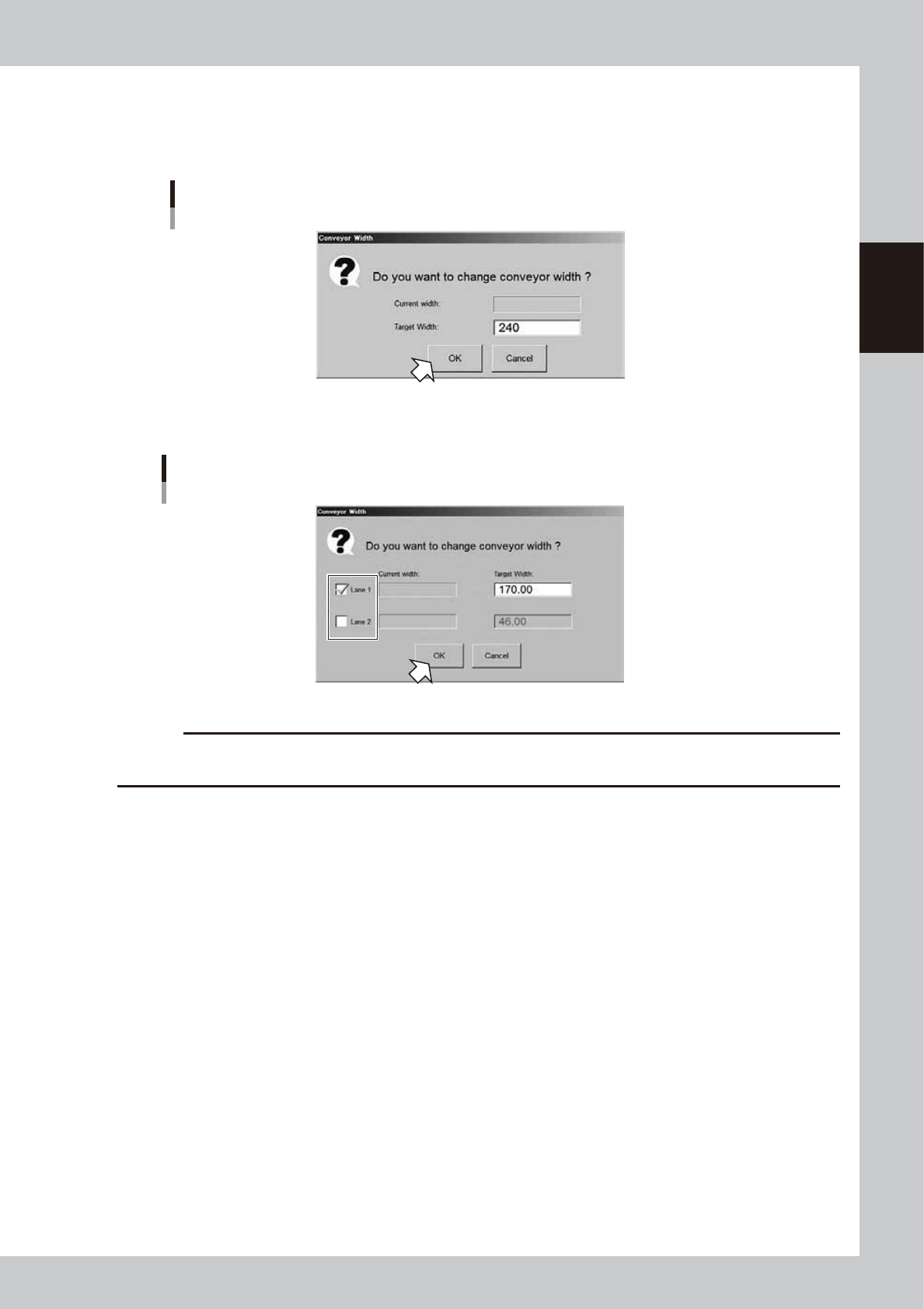
4. [Width] button
Use this button to adjust the conveyor width to match the width of boards to be produced.
Pressing the [Width] button displays the "Conveyor Width" screen. Check the conveyor width and press the [OK] button.
The conveyor width is changed to the specified width. The desired conveyor width can be set by entering the value.
"Conveyor Width" screen
Single-lane
24205-KMK-00
The conveyor width can be specified by lane with YSM20WR Dual-lane machine.
When using one side of lanes only, remove the check mark of lane not to be used and then enter the value.
"Conveyor Width" screen
Dual-lane
24235-KMK-00
c
CAUTION
When changing the conveyor width, check in advance that the conveyor rails do not collide the push-up pins and
other devices.
2-16
2
Basic operation
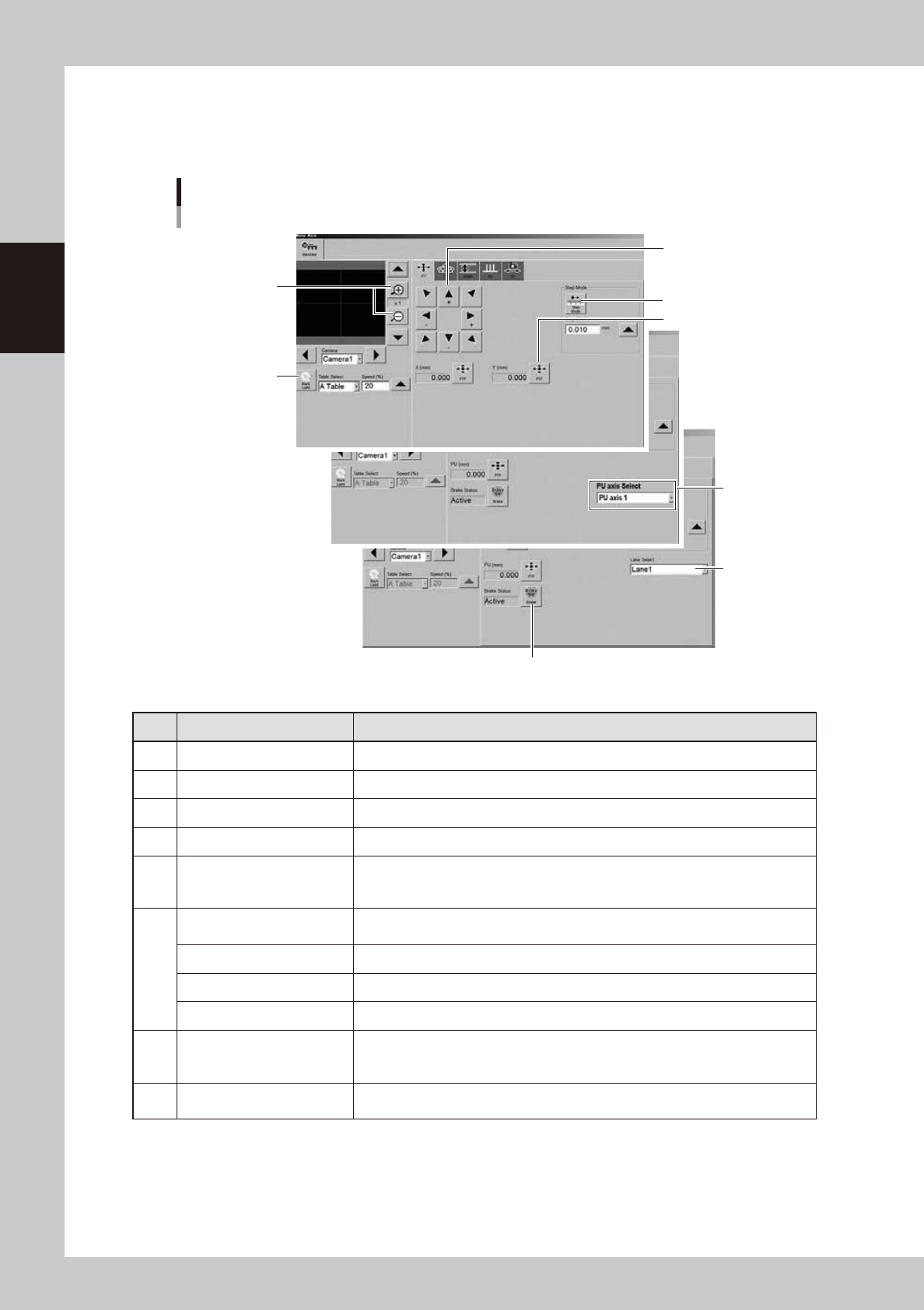
5. [Axis] button
Use this button when moving each axis manually.
Pressing the [Axis] button displays the "Move Axis" screen. Switch tabs on this screen to select the axis to be moved.
Press the [Arrow] buttons or the [PTP] button to move the axis over to the desired position.
"Move Axis" screen
1
2
3
5
4
6
7
8
24206-KMK-10
Button name Function
1 Zoom in/out (+, -) Zooms in or out the image. (16 times to 1/16 times)
2 Mark Light Allows changing mark lighting manually. Using this button does not affect data.
3 PTP The object moves to the numerically input coordinate.
4 Arrow Use these buttons to move the selected axis in the desired direction.
5 Step Mode
The inching stroke defines the distance to move when pressing an arrow button
once. With the [Step Mode] button pressed, pressing and holding an arrow button
does not stroke fast.
6
Head Select
Selects the head to be operated. (Available for operating the Z-axis and R-axis only.
Note that the several heads on the R-axis rotate simultaneously.)
Conveyor Select Selects the conveyor to be operated. (Dual-stage only)
U Axis Select Selects the U axis to be operated. (Dual-stage only)
PU Axis Select Selects the PU axis to be operated. (Dual-stage only).
7 Brake
Use this button when you want to release the brake during emergency stop.
(PU-axis only)
The brake is automatically released when the servo is turned on.
8 Lane Select
Select the lane to be operated when using both lanes of dual-lane.
(Dual-lane: Width-axis and PU-axis only)
2-17
2
Basic operation
n
Manual conveyor operation 2
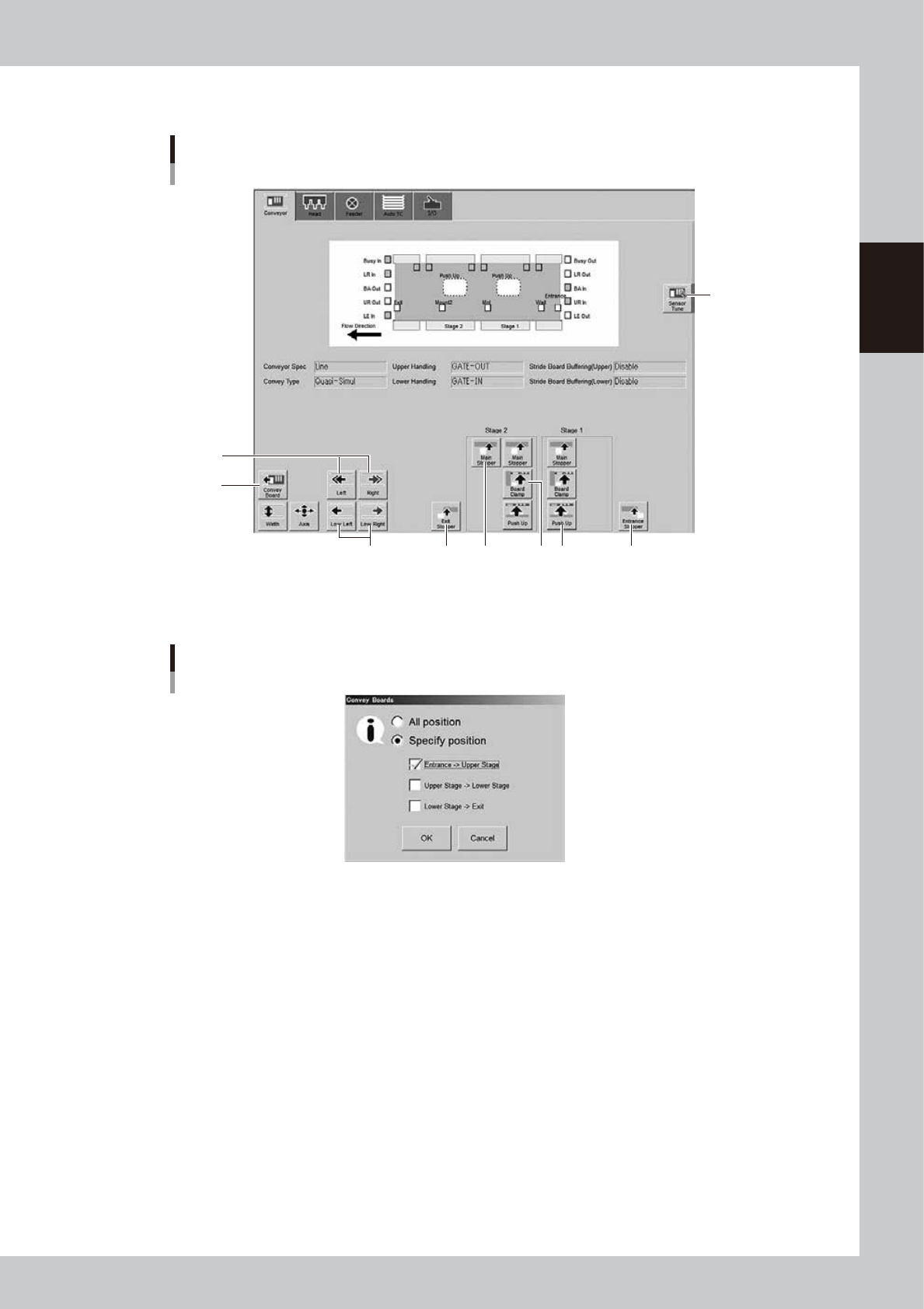
[Unit] - [Conveyor] screen
Conveyor manual buttons : YSM20R Dual-stage screen
6
7
14
8
9 10 11 12 13
24207-KMK-00
6. [Convey Board] button (Dual-stage)
When pressing the [Convey Board] button, the following dialog box will appear.
"Convey Boards" dialog box
24208-KMK-00
· All position
When selecting [All position], the board is transferred "entrance
→
stage on the upstream side", "stage on the upstream
side
→
stage on the downstream side", and "stage on the downstream side
→
exit".
· Specify position
Transfers the board only the route specified in the check box. When all selections are checked on, the operation becomes
the same as that when [All position] is checked on.
7. [Left] button, [Right] button
Rotates the conveyor motor in the left or right direction at high speeds.
8. [Low Left] button, [Low Right] button
Rotates the conveyor motor in the left or right direction at low speeds.
9. [Exit Stopper] button
Raises or lowers the exit stopper.
Raises or lowers the exit stopper that stops a board at the conveyor exit.
10.[Main Stopper] button
Raises or lowers the main stopper.
Use this button to stop the board transferred onto the conveyor at the mounting position.