YSM20R_YSM20WR_Ope_E.pdf - 第142页
2-39 2 Basic operation 3.12 Nozzle health check T his screen appears only when the "Nozzle Health Check" on [Mac hine Information] - [Installation Setting] of the machine setting is set to "Use". T he…
2-38
2
Basic operation
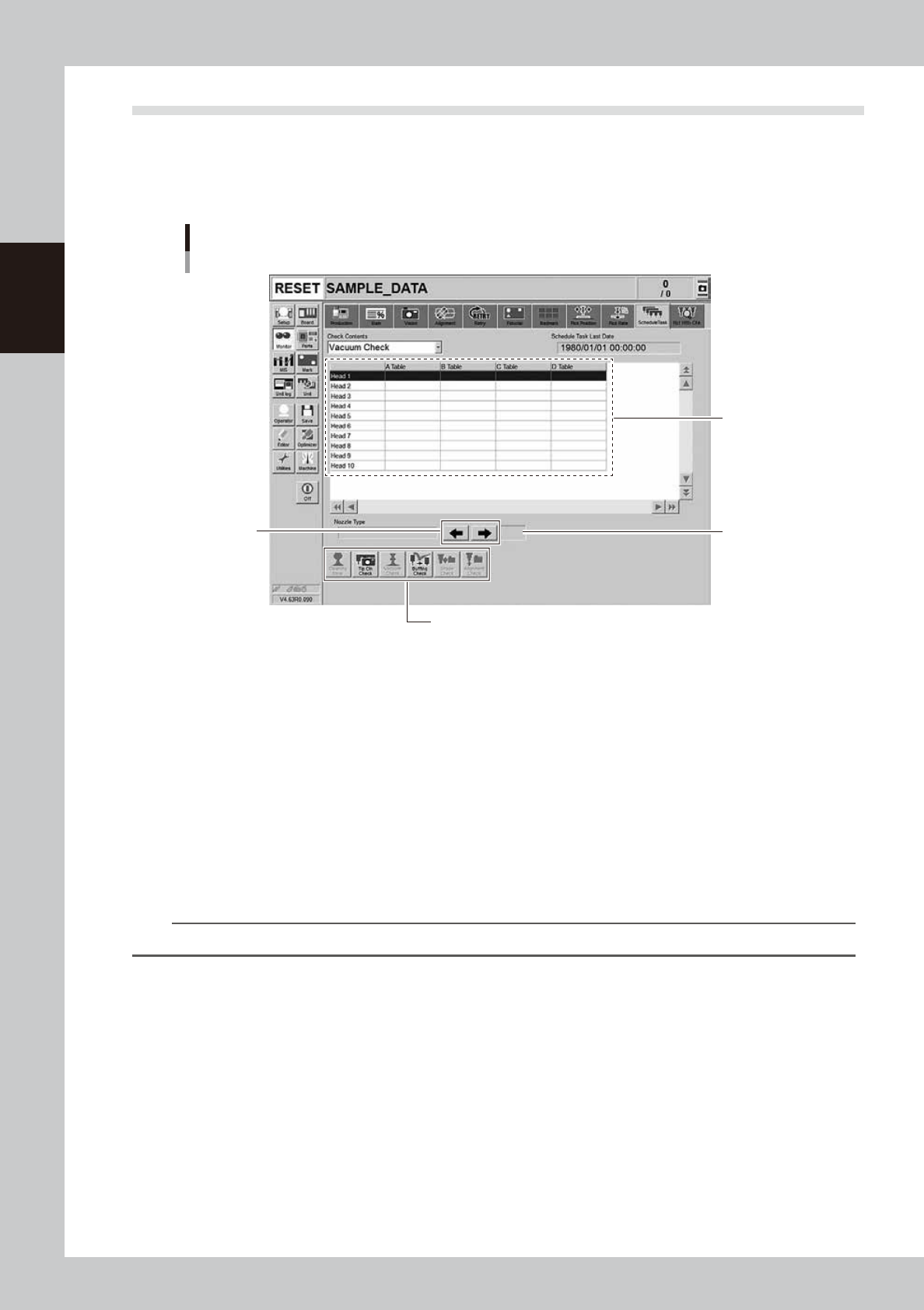
3.11 Schedule task
When executing the schedule tasks such as the “Vacuum Check” or the “Nozzle Tip Cleanliness Check”, this
screen shows the results.
The display contents are updated after each schedule task has been completed. Additionally, the error
information by head and information showing the execution results are recorded into the history.
Monitor : Schedule task
Execution
result list
Arrow mark
Manual operation button
Page number
display
24222-KMK-00
• Check Contents
Change the schedule task type to be displayed from the full-down list.
Target : "Vacuum Check" "Nozzle Tip Dirt Check" "Nozzle Shaft Cleaning Blow" "Nozzle Shape Check"
"Nozzle Alignment Check"
• Schedule Task Last Date
Displays the last date and time when the schedule task was executed.
• Execution result list
Displays the schedule task execution result.
OK : Schedule task is completed successfully.
NG/Error : Schedule task is terminated abnormally.
Blank : Schedule task is not implemented.
TIP
The list shows tables (head units) A through D. However, this machine shows values in A Table and B only.
• Nozzle Type
Displays the nozzle type, for which the schedule task is executed.
• Arrow mark
Change multiple nozzle type displays.
• Page number display
Displays the current page number and maximum page number. This page number is not displayed when there is only one
page.
• Manual operation button
Allows you to manually execute the schedule task, such as “Cleaning Blow (Nozzle shaft cleaning blow)”, “Tip Dirt
Check”, “Vacuum Check”, “Buffing Check”, “Shape Check” and “Alignment Check”.
2-39
2
Basic operation
3.12 Nozzle health check
This screen appears only when the "Nozzle Health Check" on [Machine Information] - [Installation Setting] of
the machine setting is set to "Use".
The nozzle health check is a function that does the tasks individually performed in the previous section "3.11
Schedule task"in a comprehensive, batch manner. The “Nozzle Health Check” screen shows the nozzles in bad
condition.
The nozzle health check goes through a sequence in the order of 1. Vacuum Check
→
2. Nozzle Tip Cleanliness
Check
→
3. Buffing Check
→
4. Shape Check
→
5. Alignment Check. If the nozzle fails any of them (NG), the
machine no longer checks that particular nozzle.
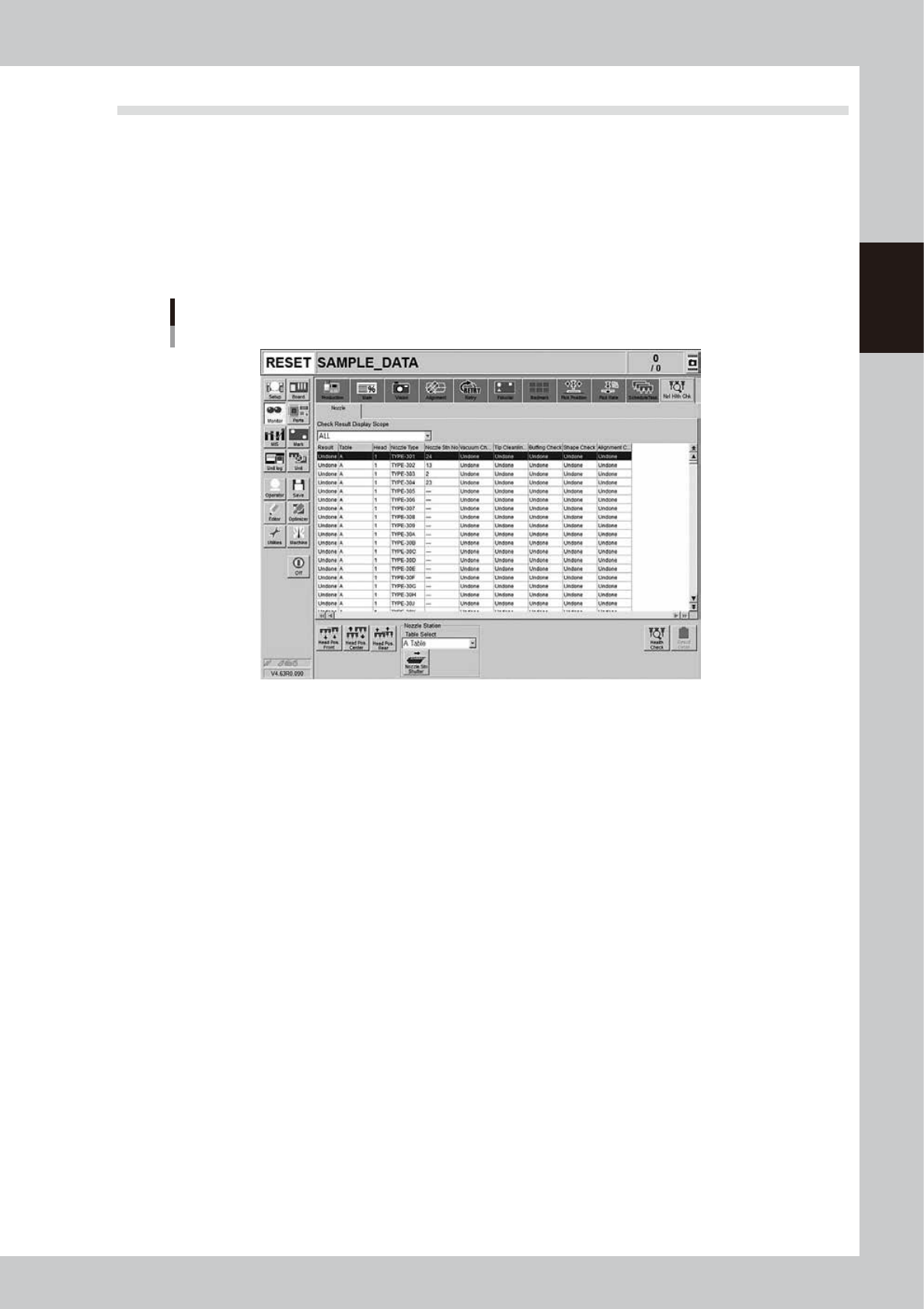
Monitor:Nzl Hlth Chk (Nozzle health check)
24223-KMK-00
• [Health Check] button
Pressing this button calls up the nozzle health check screen. Specify the object table (head unit) and object ranges and
press the [OK] button. The machine goes through the nozzle health check.
The object ranges are “All (all nozzles)”, “Board data (nozzles to be used so designated by the board data)” and “NG (a
nozzle designated to be NG after going through the nozzle health check once)”.
• Check Result Display Scope
This designates the range of nozzle health check results.
Select either “All”, “Board data” or “NG” to have the corresponding results appear on the screen.
• Result
This shows the results of the nozzle health check. If resulting in “NG”, the corresponding row on the screen is displayed
in red.
Note that the result is “NG” if the nozzle fails any one of the check items.
• Table
Select the object table.
• Head
Indicates the head number used.
• Nozzle Type
Indicates the type of nozzle.
• Nozzle Stn No
Indicates the setup position of that particular nozzle on the nozzle station.
• Vacuum Check, Tip Cleanliness Check, Buffing Check, Shape Check, Alignment Check
These indicate the results of the schedule tasks individually.
2-40
2
Basic operation
• [Result Detail] button
Selecting a row with an NG result and pressing the [Result Detail] button shows the details of NG item.
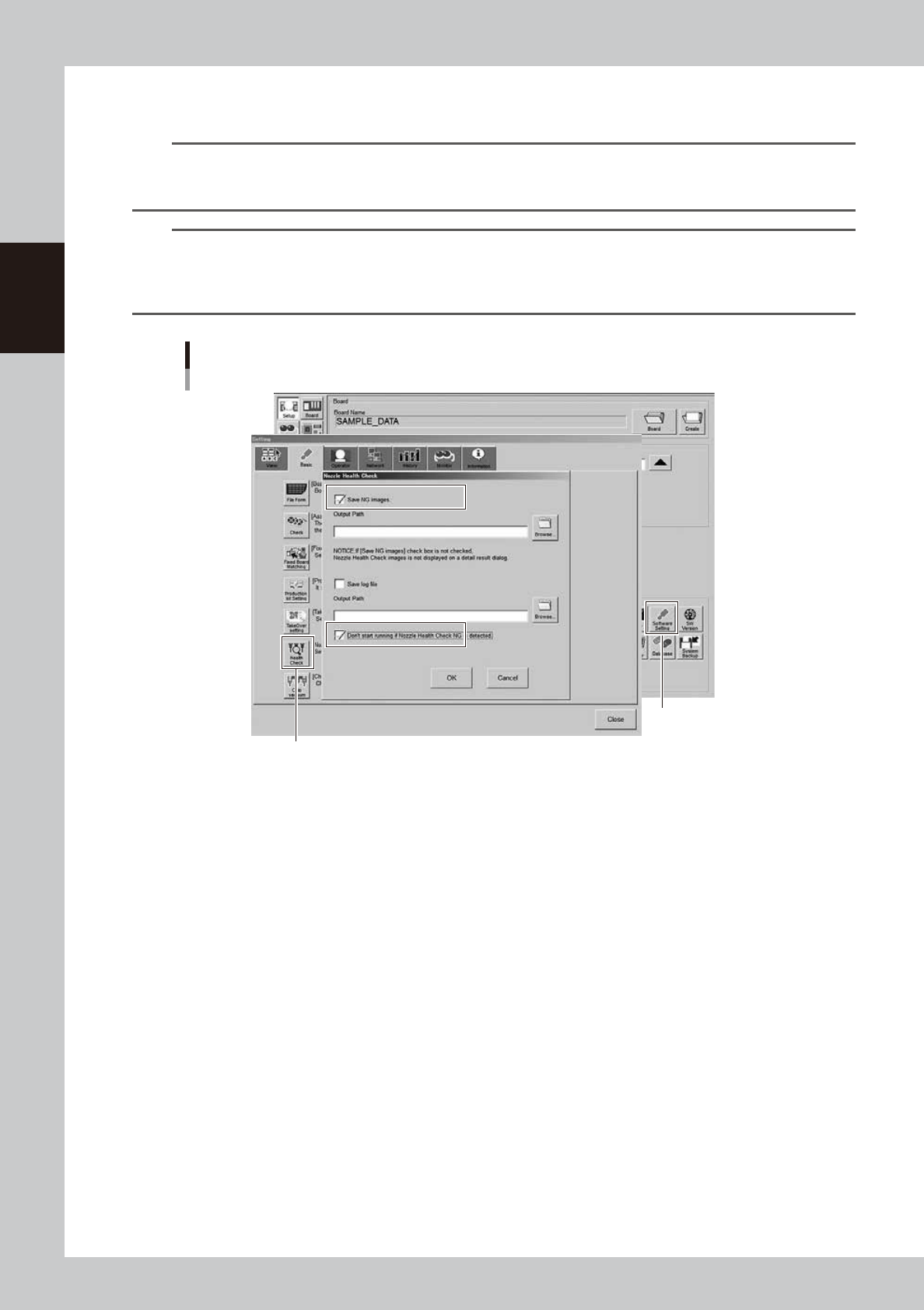
TIP
If the “Save NG images” is enabled on “Setup” screen - “Software Setting” – “Basic” tab –“Nozzle Heath Check” and if
the nozzle failed in the Nozzle Tip Cleanliness Check, Nozzle Shape Check or Nozzle Alignment Check, the image of
that failed nozzle appears.
TIP
If ticking the checkbox of “Don’t start running if Nozzle Health Check NG is detected” on “Setup” screen – “Software
Setting” – “Basic” tab – “Nozzle health check”, an error message appears at the time of starting the operation so as
not to use the “NG” nozzle for the production. If providing this parameter with a check mark, it is necessary to clean or
replace the failed nozzle and once again go through the nozzle health check.
[Health Check] button
[Software Setting] button
“Nozzle Health Check” setup screen
24224-KMK-00