YSM20R_YSM20WR_Ope_E.pdf - 第69页
1-36 1 Unit names and functions Feeder removing conditions : 3. Setting alternative component function 1 Select the source component. 1. Press the [Assistant] button to display the edit panel on the lower area of the scr…

1-35
1
Unit names and functions
Feeder removing conditions : 2. Pressing [Feeder Remove] button
1
Open [Monitor] - [Production] screen.
Select the feeder to be removed from the bottom of the "Production" screen.
Using [Feeder Remove] button
[Monitor] - [Production] screen
[Feeder Remove] button
24113-KMK-00
2
Press the [Feeder Remove] button.
The message "Ready to remove the feeder" appears.
The LED of the feeder that can be detached glows yellow.
Using [Feeder Remove] button
“Ready to remove the feeder” message
24114-KMK-00
1-36
1
Unit names and functions
Feeder removing conditions : 3. Setting alternative component function
1
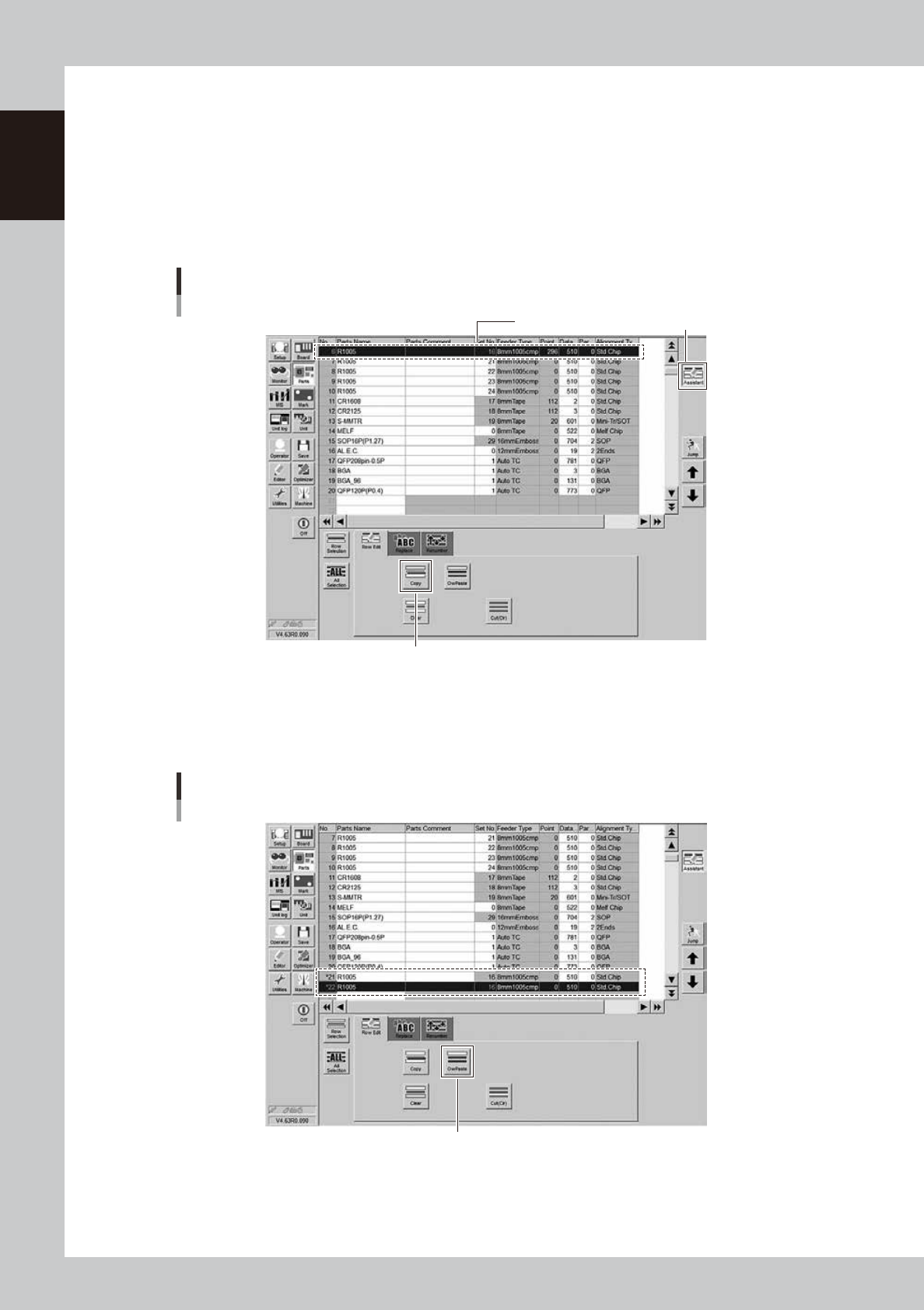
Select the source component.
1. Press the [Assistant] button to display the edit panel on the lower area of the screen.
2. Select the source component from the component data list in the upper grid and press the [Row
Selection] button.
2
Press the [Copy] button.
Selecting alternative component
Copy here. [Assistant] button
[Copy] button
24115-KMK-00
3
Copy and paste the component data.
Select an empty row in the component data list and press the [OwPaste] button. For example, paste
the data onto data rows No. 21 and No. 22 to use 2 feeders as alternative components.
Copy and paste the component data
[OwPaste] button
24116-KMK-00
1-37
1
Unit names and functions
4
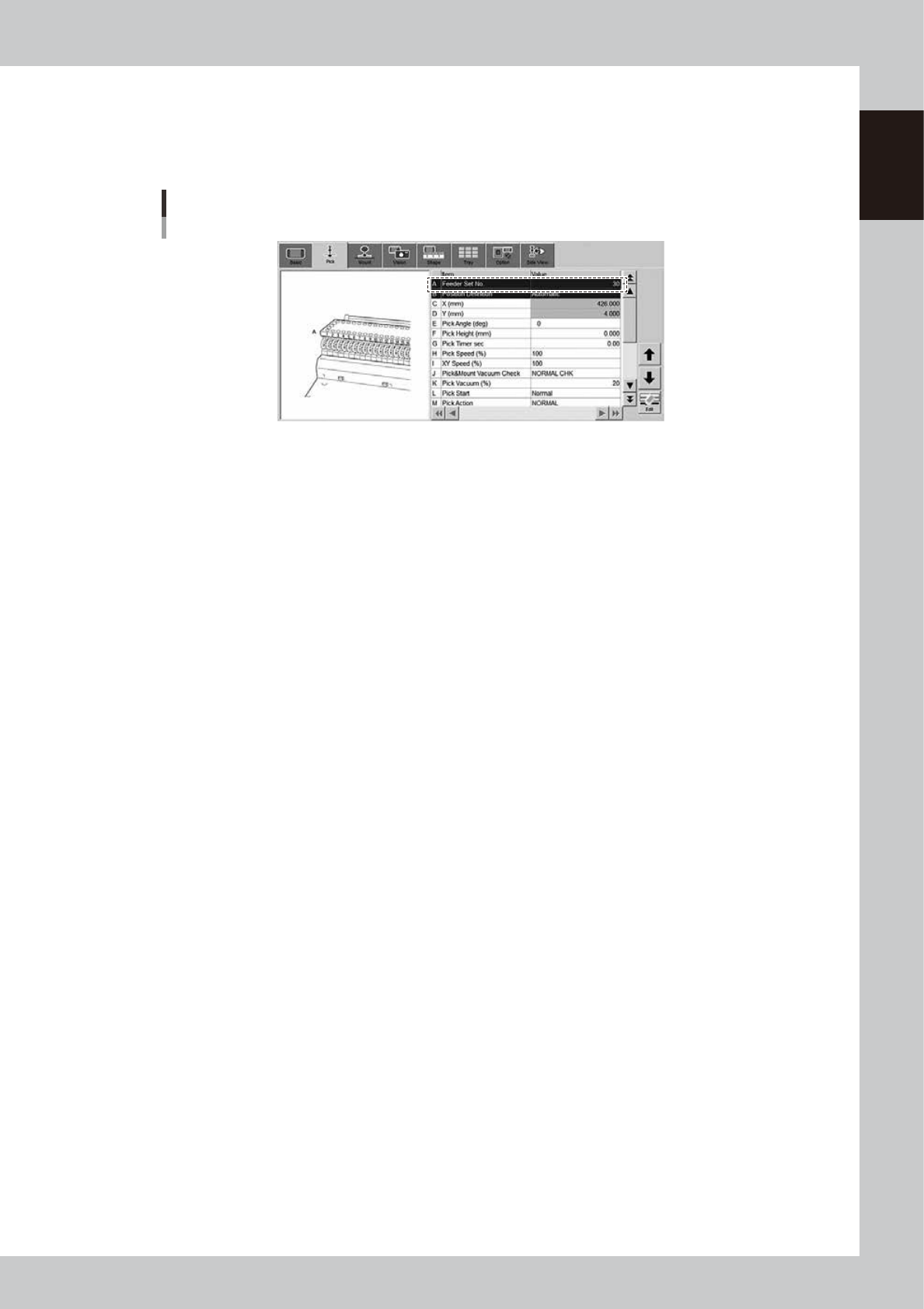
Enter Feeder Set No. of the copied component.
1. Press the [Assistant] button again to return to the "Pick" tab.
2. Enter the desired number to "Feeder Set No." of the component copied in Step 3. The desired
number must not overlap the other feeder set position.
Entering Feeder Set No.
[Parts] - [Pick] tab
24117-KMK-00