YSM20R_YSM20WR_Ope_E.pdf - 第121页
2-18 2 Basic operation 11. [Board Clamp] button Raises or lowers the board clamp plate. Clamps the board by pushing up its edges from the bottom (underside). 12. [Push Up] button Press this button to call up the “Board t…
2-17
2
Basic operation
n
Manual conveyor operation 2
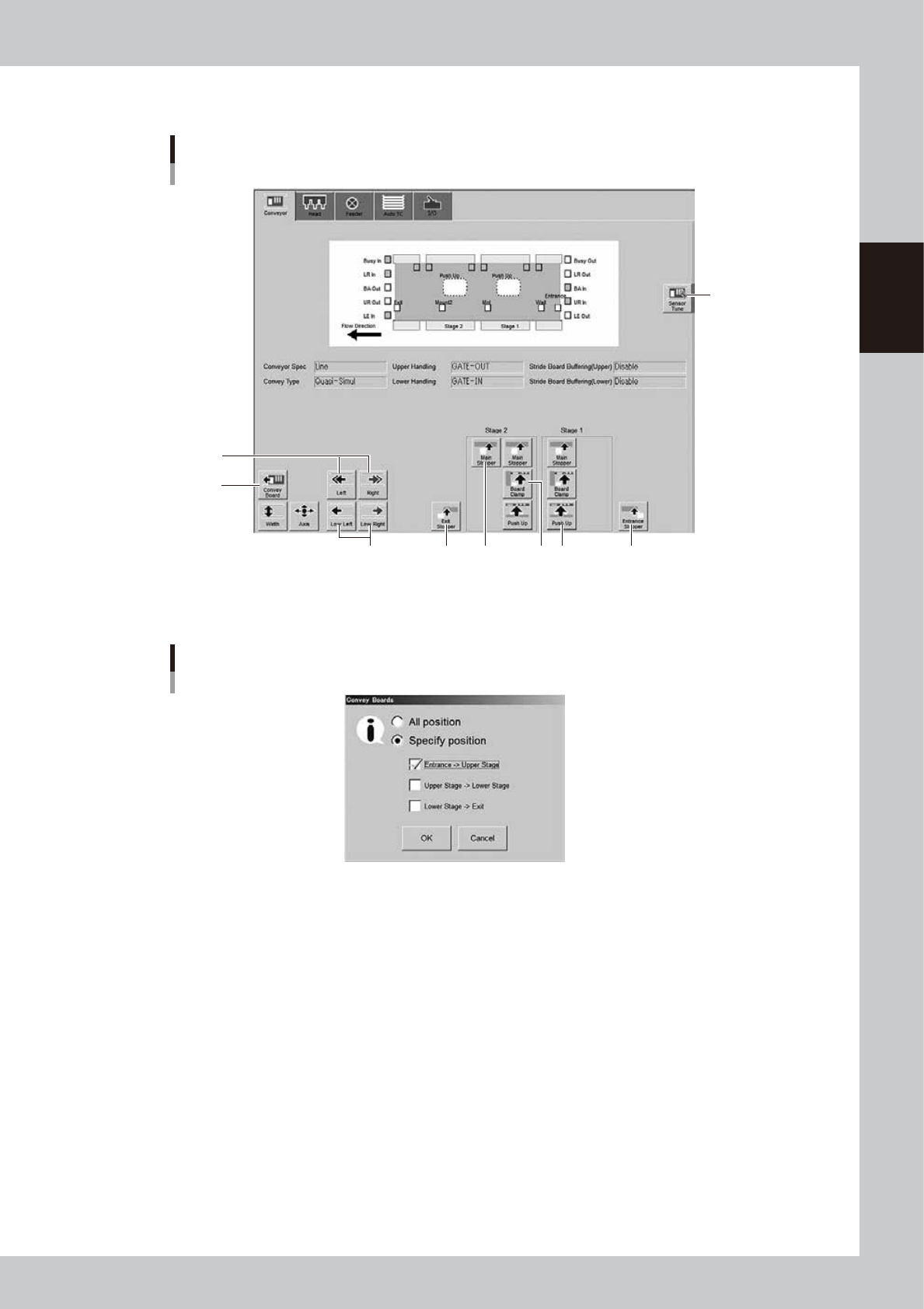
[Unit] - [Conveyor] screen
Conveyor manual buttons : YSM20R Dual-stage screen
6
7
14
8
9 10 11 12 13
24207-KMK-00
6. [Convey Board] button (Dual-stage)
When pressing the [Convey Board] button, the following dialog box will appear.
"Convey Boards" dialog box
24208-KMK-00
· All position
When selecting [All position], the board is transferred "entrance
→
stage on the upstream side", "stage on the upstream
side
→
stage on the downstream side", and "stage on the downstream side
→
exit".
· Specify position
Transfers the board only the route specified in the check box. When all selections are checked on, the operation becomes
the same as that when [All position] is checked on.
7. [Left] button, [Right] button
Rotates the conveyor motor in the left or right direction at high speeds.
8. [Low Left] button, [Low Right] button
Rotates the conveyor motor in the left or right direction at low speeds.
9. [Exit Stopper] button
Raises or lowers the exit stopper.
Raises or lowers the exit stopper that stops a board at the conveyor exit.
10.[Main Stopper] button
Raises or lowers the main stopper.
Use this button to stop the board transferred onto the conveyor at the mounting position.

2-18
2
Basic operation
11.[Board Clamp] button
Raises or lowers the board clamp plate.
Clamps the board by pushing up its edges from the bottom (underside).
12. [Push Up] button
Press this button to call up the “Board thickness” screen. Enter the data in the parameters on the screen. Press the [OK]
button. Then, the push-up stage goes up to clamp the board from behind (back face).
13. [Entrance Stopper] button
Raises or lowers the entrance stopper.
Use this button to stop the incoming board at the standby position.
14. [Sensor Tune] button
Tunes the conveyor sensor automatically. It is not required to perform auto tuning during normal operation. However, it
is used in the case where the conveyor width is changed manually or that the board cannot be detected correctly due to
the conveyor sensor malfunction.
c
CAUTION
Make sure that no board is on the conveyor before tuning the conveyor sensor. See the maintenance manual,
chapter 3, " 2.3.1 Checking conveyor sensor condition and operation”.
2-19
2
Basic operation
n
Manual head operation
1
2
3
4
5
6
8
7
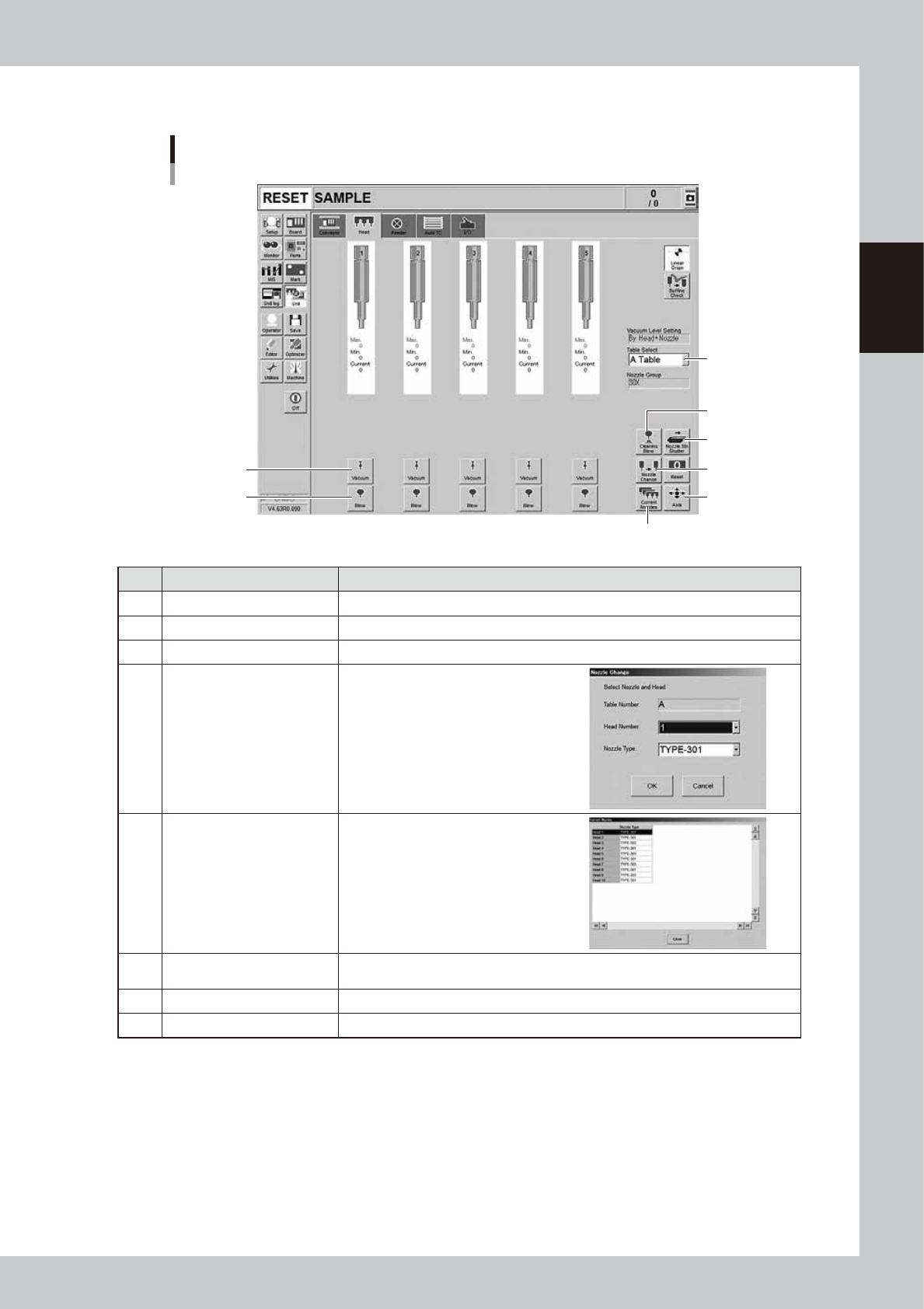
[Unit] – [Head] screen
24209-KMK-00
Button name Function
1 Vacuum Turns the vacuum of each head on or off.
2 Blow Turns the air blow in each head on or off.
3 Nozzle STN Shutter Opens or closes the nozzle station shutter.
4 Nozzle Change
Opens the "Nozzle Change" screen.
Specify the head and nozzle type to
perform nozzle change.
5 Current Nozzles
Shows a list of nozzle types currently
attached to each head.
6 Axis
Opens the "Move Axis" screen. This is the same as the [Axis] button on the [Unit] -
[Conveyor] screen.
7 Cleaning Blow Displays the "Execution Nozzle Cleaning Blow" screen.
8 Table Select Switches the table display.