EUKYX-199-3100_G5S2_Instruction_Vol3_E.pdf - 第108页
EUKYX 1-59 199-3100 5.20 Slit Pos offset 5.20 Slit Pos o f fset T each the s l it positi on of back up base. Graphic Development F3A50
EUKYX
1-58199-3100
5.19 Self Calibration
• Teaching Procedures for self calibration
(1) Prepare the following items before self calibration teaching.
NO. Name Qty
1 BARON glass board 1
2 BARON double sided tape 1
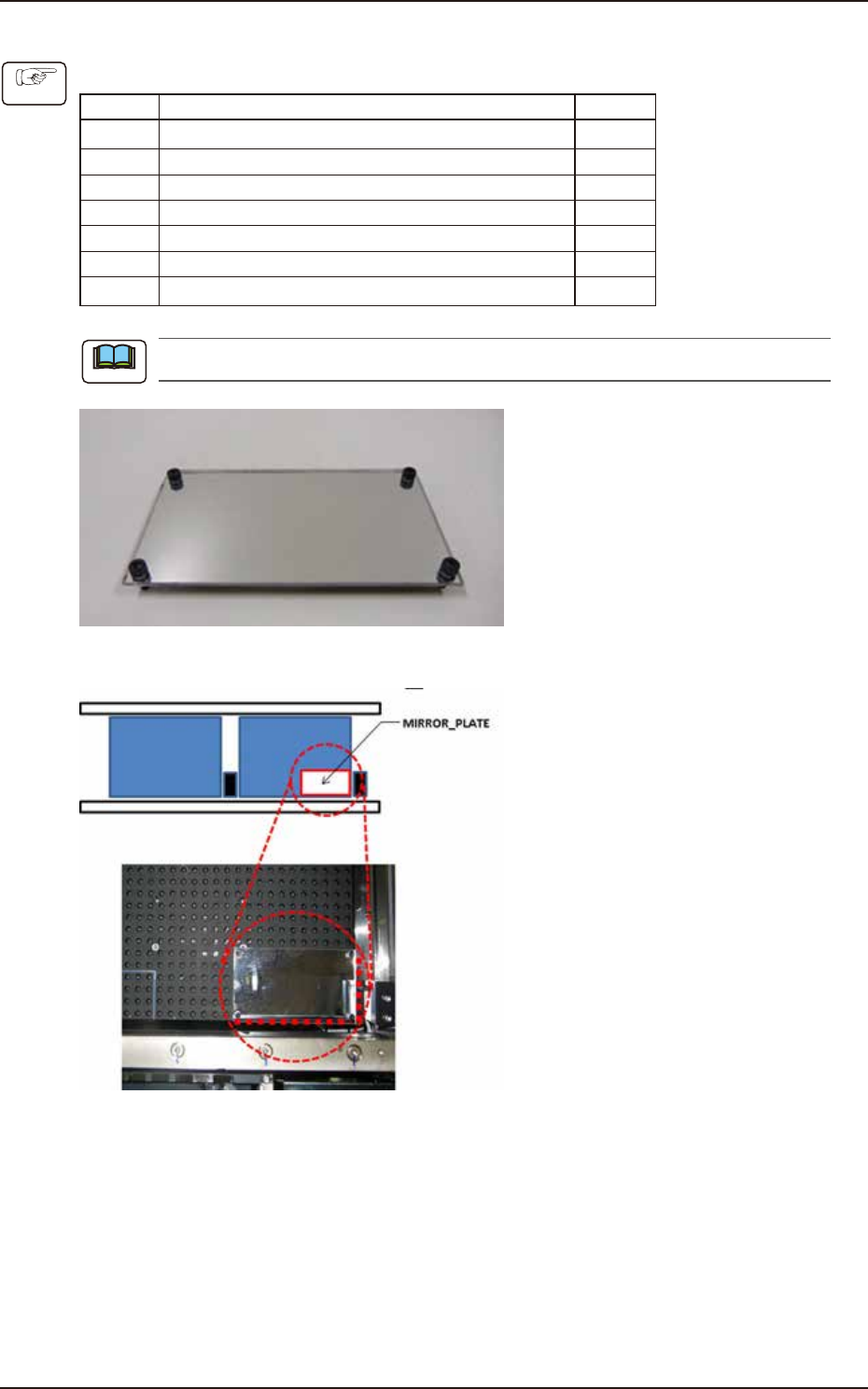
3 MIRROR_PLATE 1
4 0603 master tape 2
5 Nozzle for 0603 (HG33C) 30
6 8 mm wide feeder (GD-38080 or equivalent) 2
7 CPK 1
Prepare the items as needed.
F3A99
• Set the MIRROR_PLATE pins in the holes of backup base.
F3A100
• Set the operation mode.
1. Select [Product] - [Operation] - “Opr. Mode” - [Speed]. Select “Not Designated” for “Mode”.
2. Select [Product] - [Operation] - “Test Mode”. Select “Disable” for “TEST PATTERN”.
(2) Press the [Teach Start] button on Teach Mode.
(3) Press the [Setup] button. Perform teaching for CNVR Set-up, Noz.Chg., and Fdr P-u Tch.
(4) Set the BARON glass board on the transfer position.
(5) Press the [Teach Start] button in the teaching procedures section.
(6) Press the [END] button in the teaching procedures section.
Procedure
Note
EUKYX
1-59199-3100
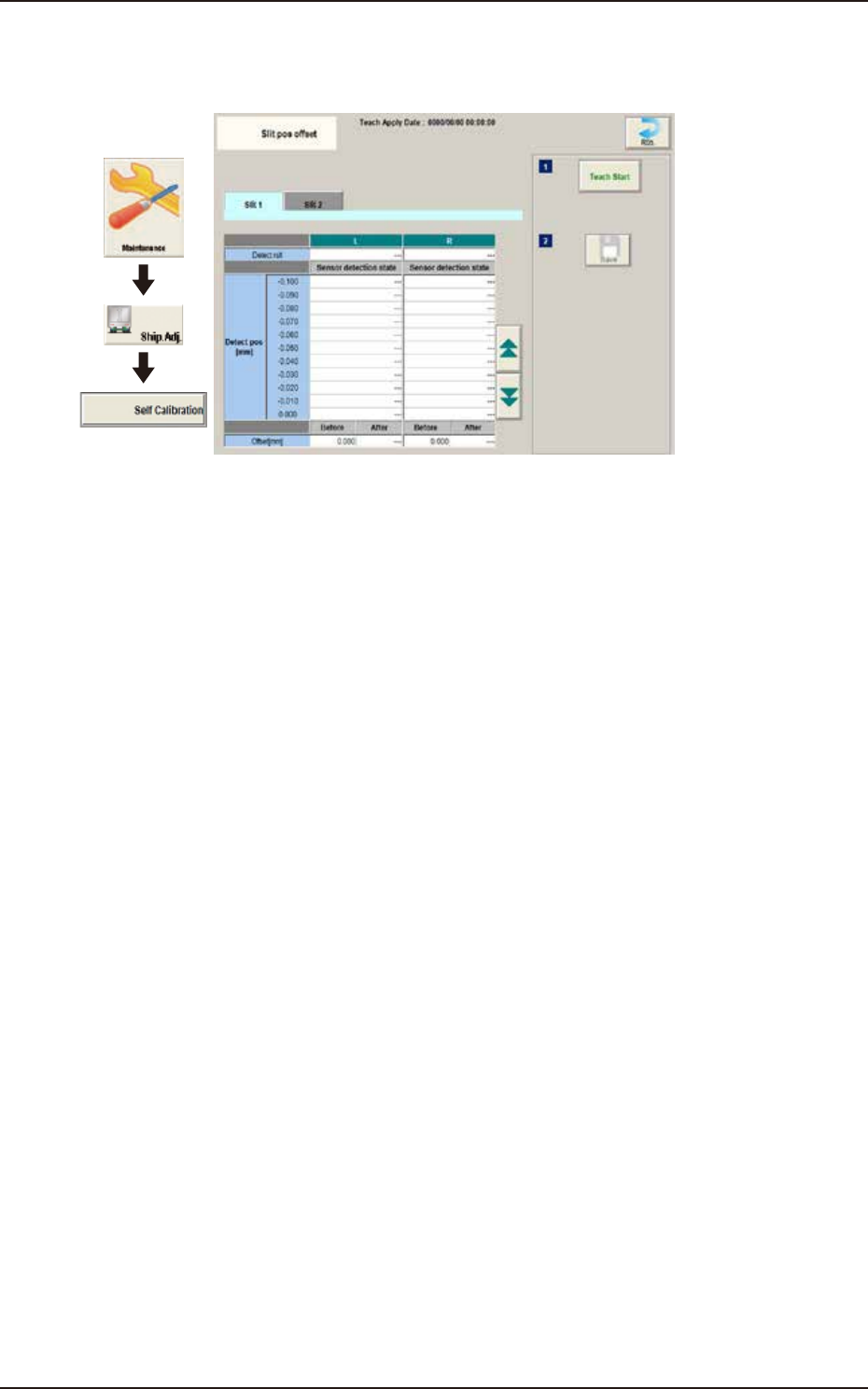
5.20 Slit Pos offset
5.20 Slit Pos offset
Teach the slit position of back up base.
Graphic
Development
F3A50
EUKYX
1-60199-3100
6. DVC Check
6. DVC Check
The corresponding window enables you to check the I/O signals and view the status of each
section.
Cover
Graphic
Development
F3A48
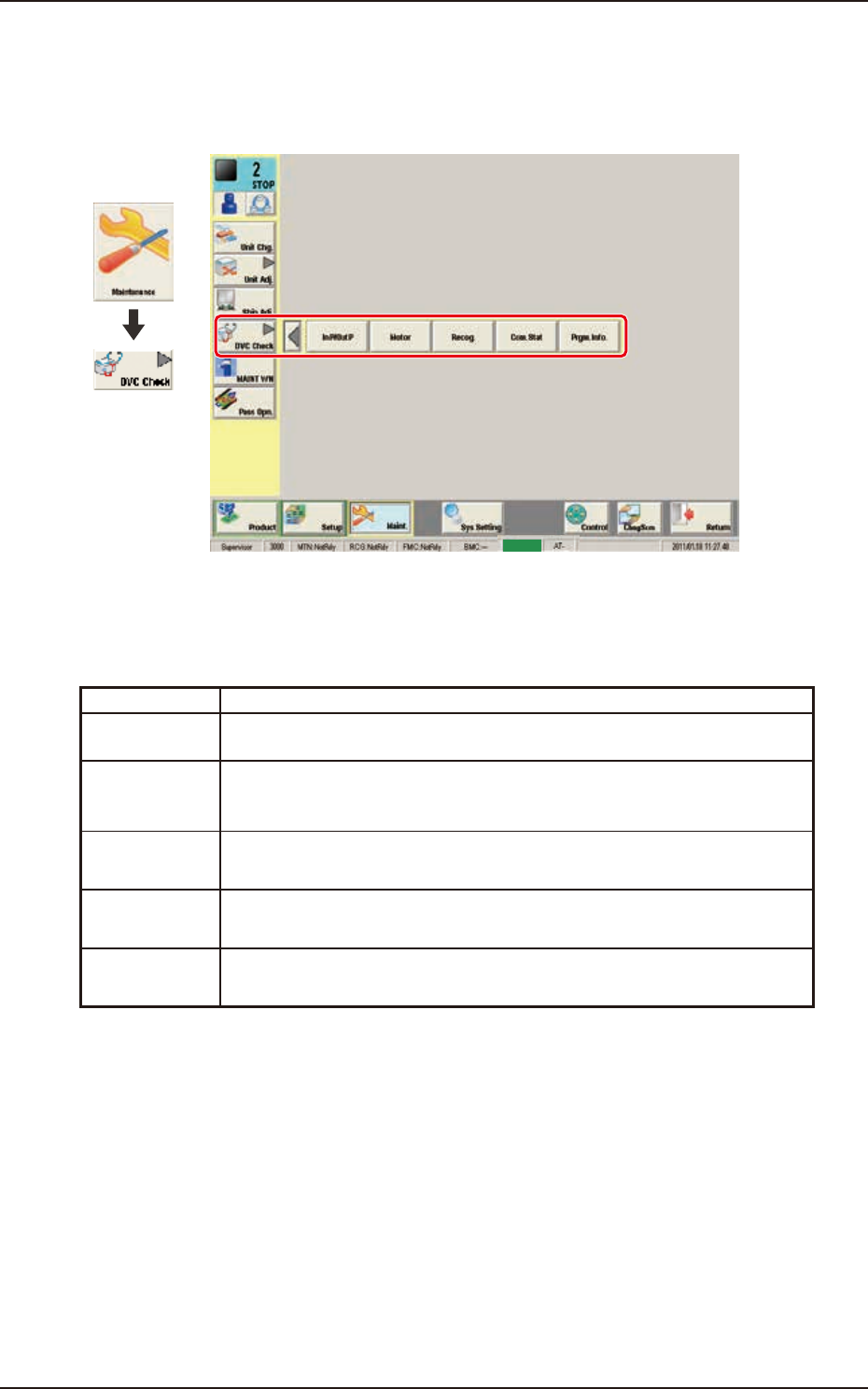
[1] "DVC Check" Submenu
The following buttons are arranged to display the operation windows for executing each function
for the device check.
Button Description
In P/Out P When pressed, the "INP / OUT" window opens, enabling you to check the I/O
status of each section.
Motor When pressed, the "MOTOR" window opens, enabling you to perform a
manual operation (inching) of each unit and view the current system
information.
Recog. When pressed, the "RECOG" window opens, enabling you to check the I/O
signals for the component and PEC recognition operations.
Com.Stat When pressed, the "COM.STAT" window opens, enabling you to check the
communication status of each section.
Prgm.Info. When pressed, the "PRGM.INFO." window opens, enabling you to view the
current program information and setup logs used for the machine.