EUKYX-199-3100_G5S2_Instruction_Vol3_E.pdf - 第60页
EUKYX 1-1 1 199-3100 4. Unit Adj. 4. U nit Adj. Graphic Development F3A13A "Un it Ad j. " submenu The fol lowi ng buttons are arra nged on thi s submenu ba r and can be used to dis pl a y the operation wi ndows…
EUKYX
1-10199-3100
3.3 Feeder Unit
[3] Teach
[Traverse Axis Draw] Button
Using this button, the traverse drawing operation offset teaching for each machine is performed by
teaching the mark position located on the traverse chuck claw section.
For this operation, the traverse drawing teaching pin is required separately.
[Tray Transfer Tch] Button
Using this button, the tray pallet delivery teaching is performed. After attaching the multi-layer tray
feeder to the main machine, select the delivery teaching. If this teaching operation is not performed,
the pallet will not be delivered correctly to the traverse cart.
Refer to "Chapter 3: Maintenance Menu" in "GS-FP600 Multi-Layer Tray Feeder" for details.
Note
Reference
EUKYX
1-11199-3100
4. Unit Adj.
4. Unit Adj.
Graphic
Development
F3A13A
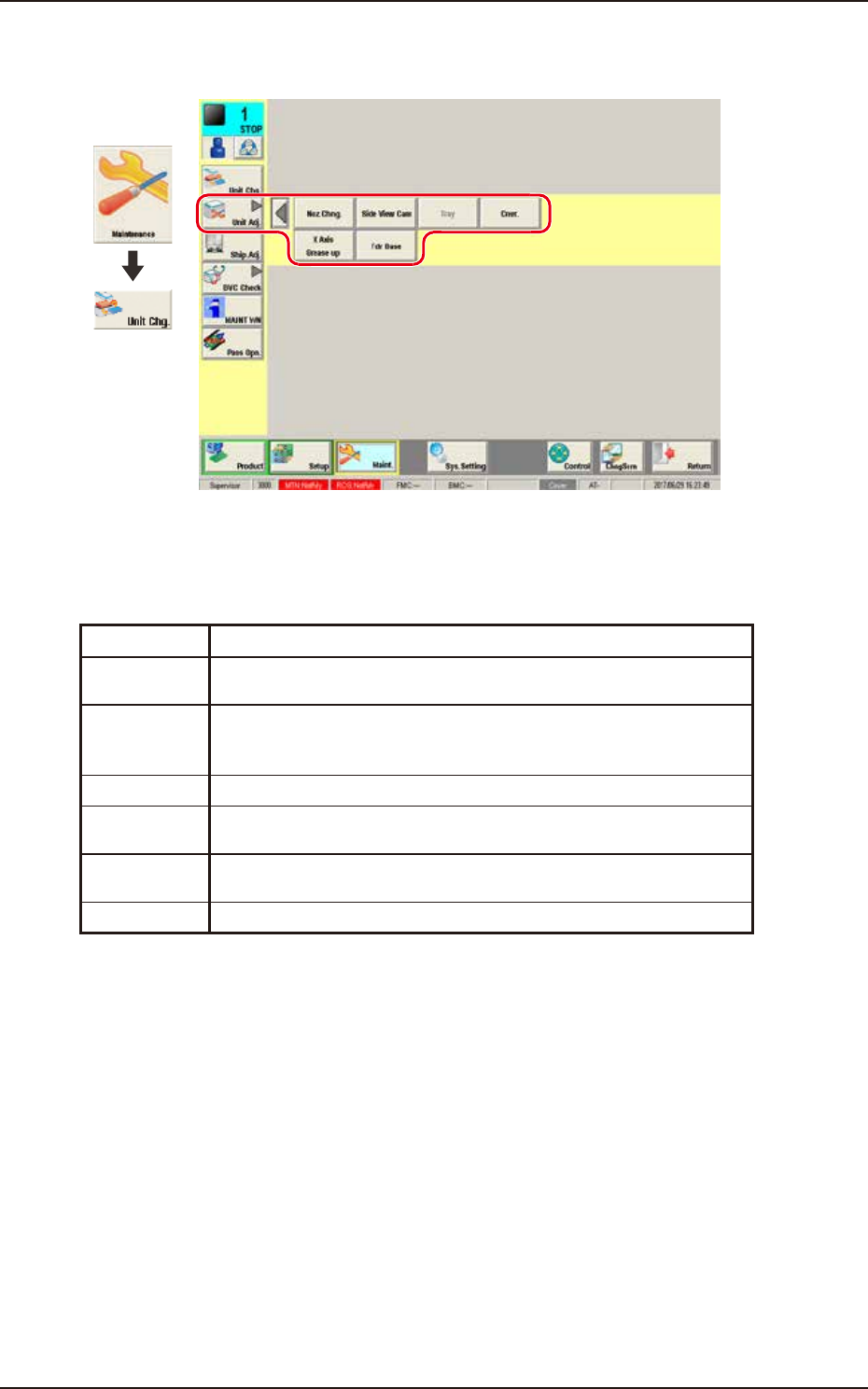
"Unit Adj." submenu
The following buttons are arranged on this submenu bar and can be used to display the operation
windows for execution of each unit adjustment function.
Button Description
Noz Chng. This button opens the "NOZ. CHNG." window to manually perform a
cycle of the vacuum nozzle attachment and storage operation.
Side View
Cam
This button performs the nozzle detection test with the side view camera
attached to each placement head to display the measurement value and
the measurement image.
Tray This button is used when the tray feeder (option) is adjusted.
Cnvr. This button is used to adjust the conveyor width overall setup or manual
setup.
X Axis
Grease up
This button is used when applying grease to the X-axis.
Fdr Base This button displays the connection status of the feeder base.
EUKYX
1-12199-3100
4.1 NOZ. CHNG.
4.1 NOZ. CHNG.
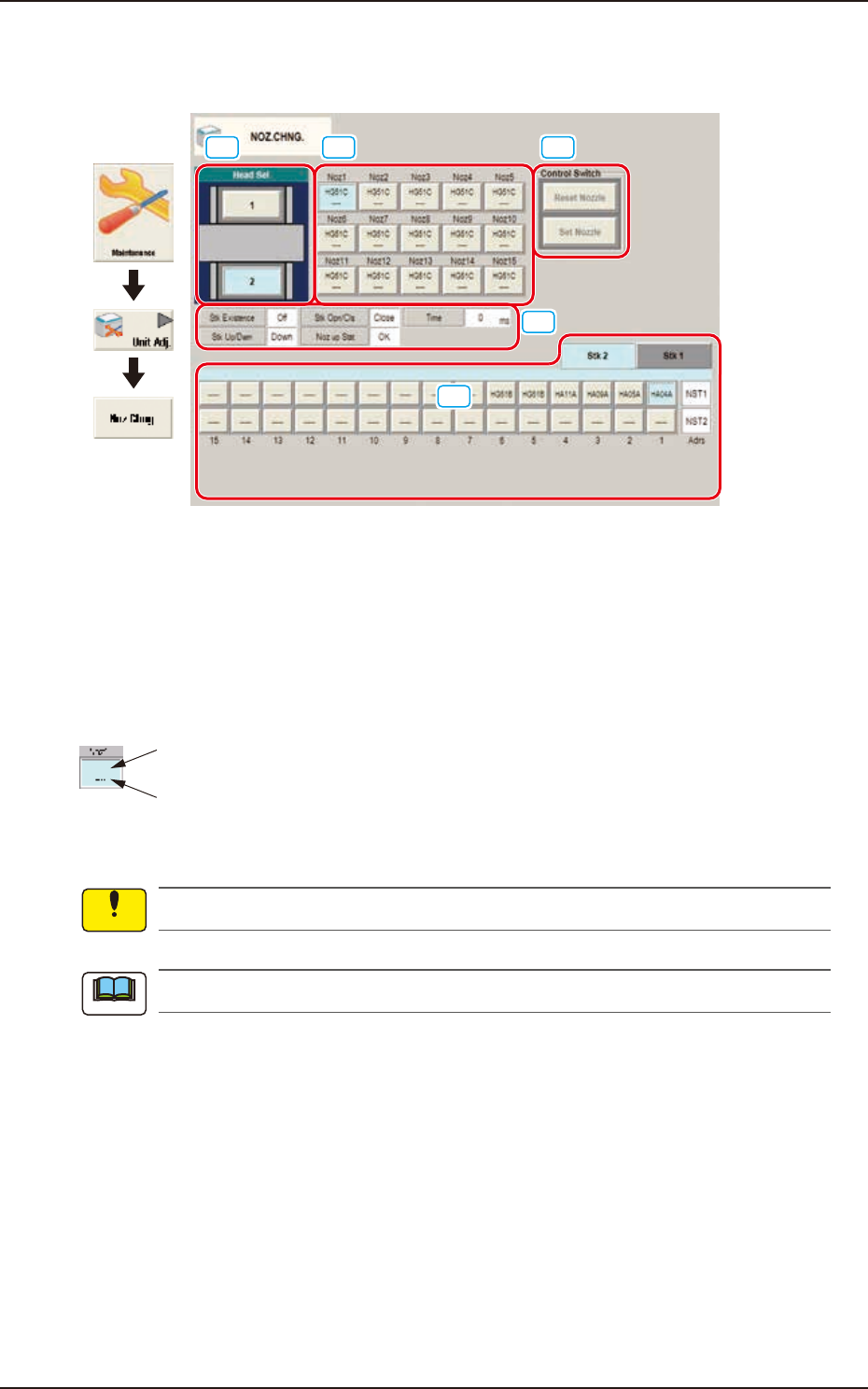
The nozzle attachment and housing can be performed manually.
[1] [2] [4]
[5]
[3]
Graphic
Development
F3A14
[1] Head Sel
When a button is pressed, the corresponding head is selected as an object one for nozzle change
operation.
[2] Nozzle Allocation No. Selection Buttons
When a button is pressed, the corresponding nozzle to be changed is selected.
The background color of the button turns light blue.
ID of Attached Vacuum Nozzle
Nozzle Stocker Address
(Home Address for Attached Nozzle)
F3A18
No nozzles can be allocated to both sides of the middle-size odd shaped nozzle if attached.
The indications on the window vary depending on the selected head.
[3] Status Indication
Displayed is the condition of the currently selected head.
Notice
Note