EUKYX-199-3100_G5S2_Instruction_Vol3_E.pdf - 第113页
EUKYX 1-64 199-3100 6.1 INP / OUT 6. 1 .3 List Dsp Pressi ng the [List Dsp] but ton on the "INP/ OUT" window di spla ys t he fol lowi ng window . Check the senso r I / O st atus. Graphic Development F3A52A Stat…
EUKYX
1-63199-3100
6.1 INP / OUT
6.1.2 OutP Chk
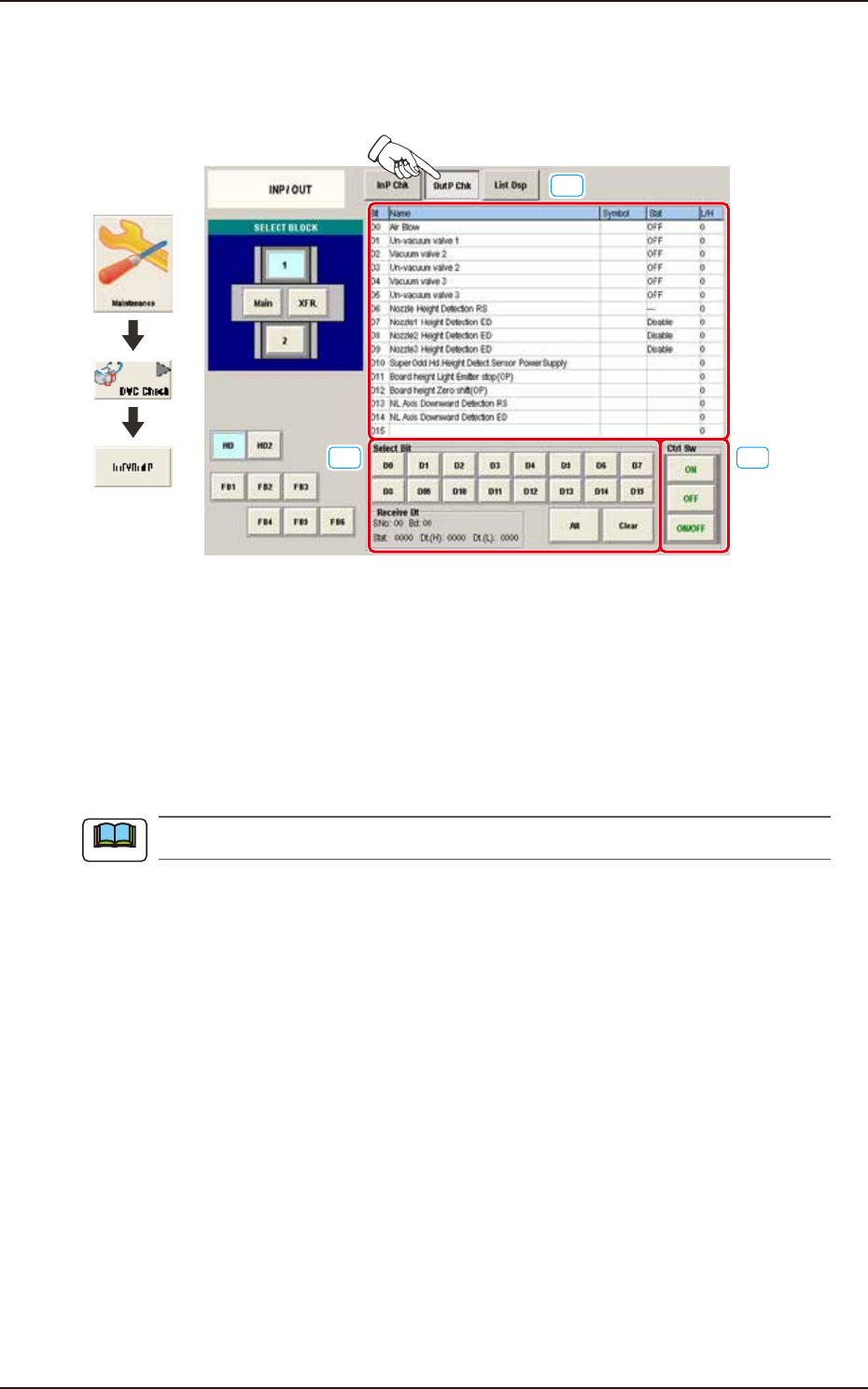
Pressing the [OutP Chk] button on the "INP/OUT" window displays the following window. Check
the sensor output status.
[1]
[2] [3]
Graphic
Development
F3A51A
[1] Status Indicator
Displayed is the status of each section.
Bit : Displayed are the satellite Nos.
Name : Displayed are the satellite names.
Symbol
: Displayed are the satellite symbols.
Stat : Displayed are the satellite statuses.
L/H : Displayed are the satellite logics.
The unused optional functions are not to be displayed.
[2] Select Bit Buttons
Select the button of the satellite for which the output status should be checked. When the desired
button is pressed, the line of the corresponding satellite turns red in the status indicator.
[3] Ctrl Sw
The buttons in this group box are used to turn on or off the satellites.
Note
EUKYX
1-64199-3100
6.1 INP / OUT
6.1.3 List Dsp
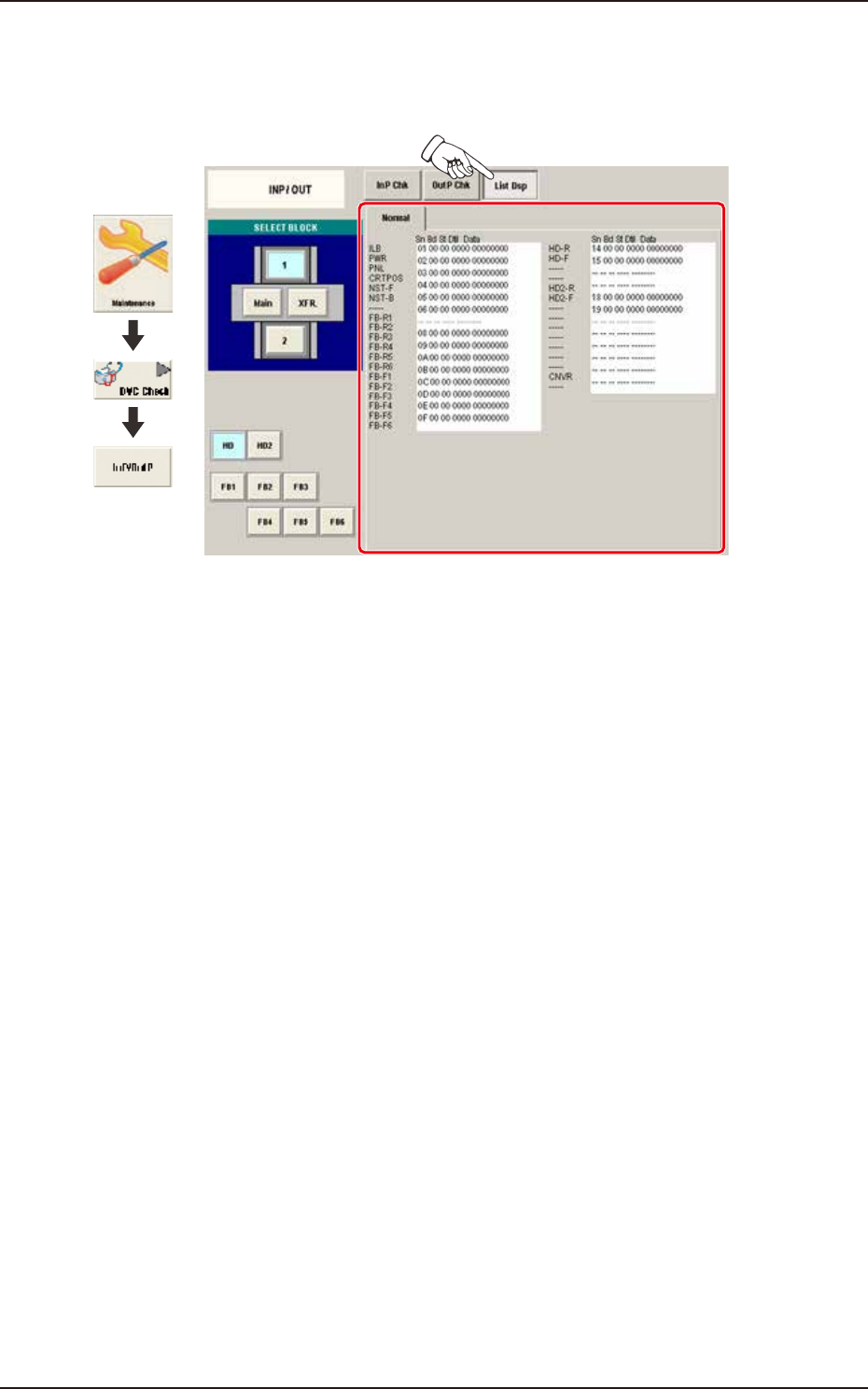
Pressing the [List Dsp] button on the "INP/OUT" window displays the following window. Check the
sensor I/O status.
Graphic
Development
F3A52A
Status Indicator
Displayed is the status of each section.
EUKYX
1-65199-3100
6.2 MOTOR
6.2 MOTOR
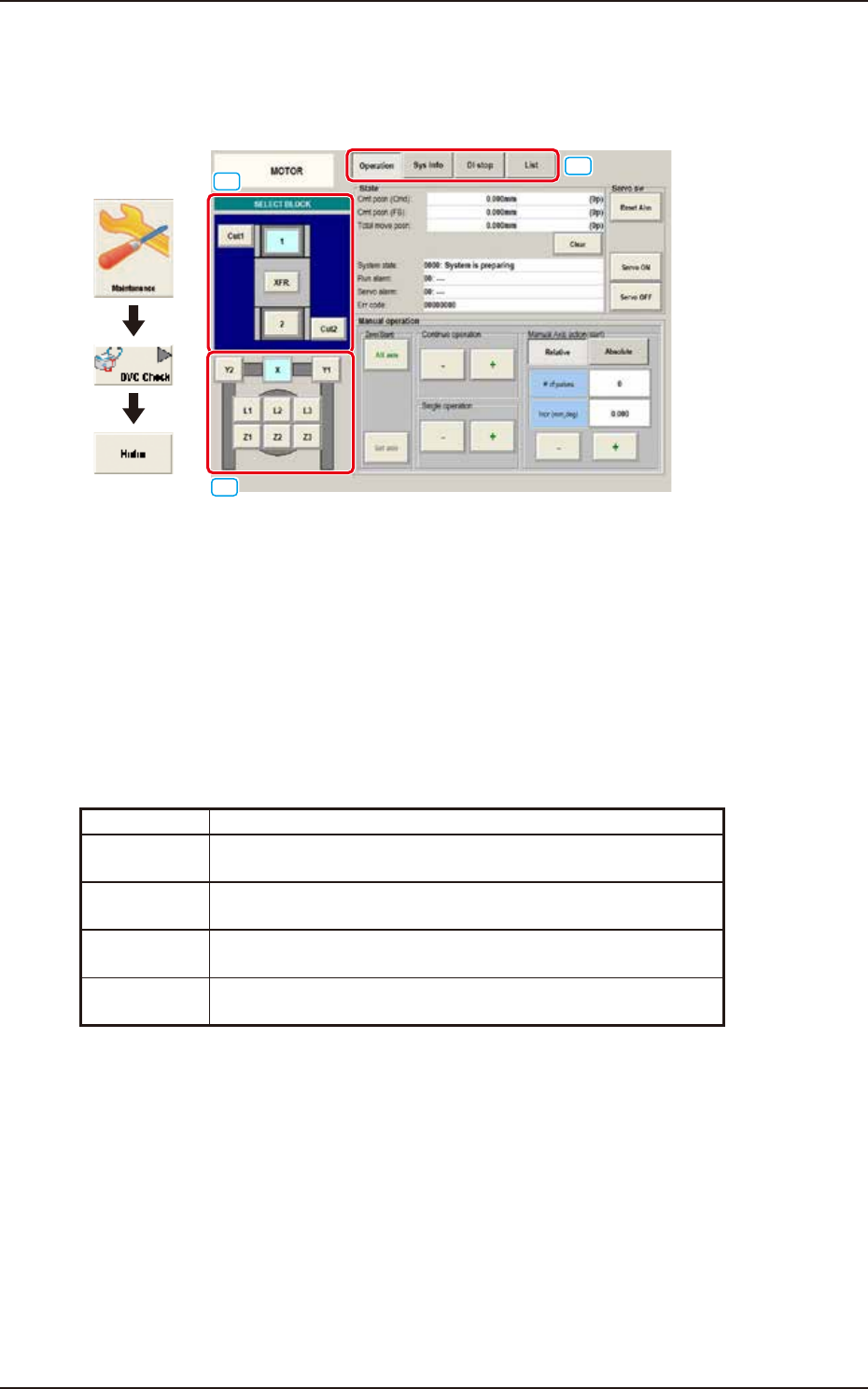
This window enables you to perform a manual operation (inching) of each unit and view the current
system information.
Graphic
Development
[1]
[2]
[3]
F3A53A
[1] SELECT BLOCK Buttons
Press 1 or 2 button to display the desired block.
The indication of the "[2] Unit Select Buttons" varies depending on the selected block.
[2] Unit Selection Buttons
Arranged are the unit buttons for the block selected with a block selection button. When a button
is pressed, the corresponding unit is selected.
[3] Display Change Buttons
Pressing any of these buttons, displays the corresponding window.
The description of each window is as follows.
Button Description
Operation The corresponding window enables you to perform a manual
operation (inching) of each unit.
Sys Info The corresponding window enables you to view the current system
information of the machine.
DI stop The corresponding window enables you to view the machine
monitor and parameters.
List The corresponding window enables you to view the status of each
section.