EUKYX-199-3100_G5S2_Instruction_Vol3_E.pdf - 第195页
EUKYX 2-47 199-3100 2.8 PCB Recog Mag. X (Ho rizontal) and Y (Vertical) [0 .0 1 µm/ pixel] Set how man y mi crometers shou ld be equiv alent to one p ix el to specify t he magn ification of the PEC reco gnition camera. T…
EUKYX
2-46199-3100
2.8 PCB Recog
2.8 PCB Recog
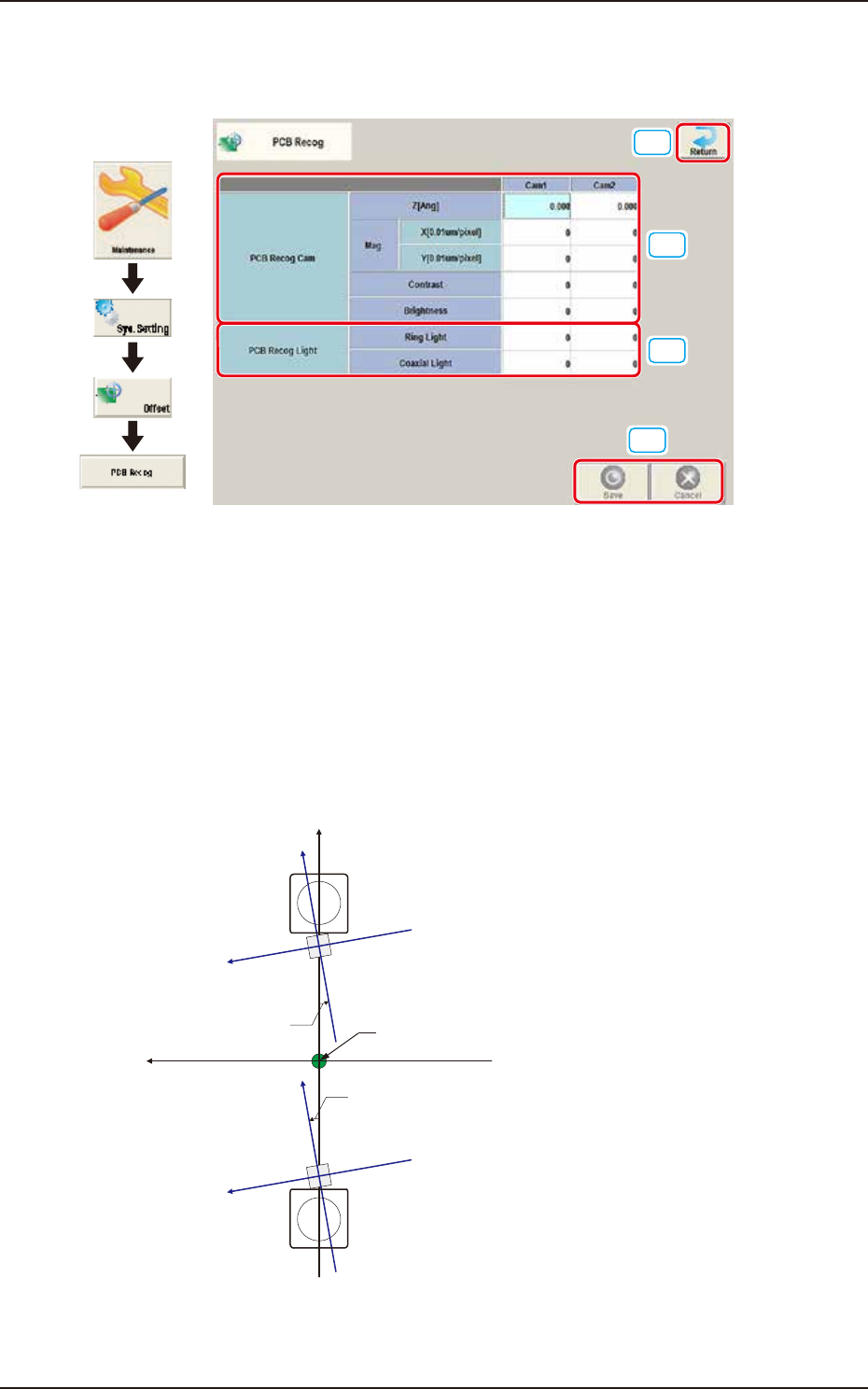
Pressing the [PCB Recog] button on the "Offset Data" window displays the following window.
[1]
[2]
[4]
[3]
Graphic
Development
F3B59
Set the following offset values for each camera.
[1] PCB Recog Cam
The set parameters are used to adjust the horizontal tilt of PEC recognition camera.
Z (Angle) [deg]
Set the parameters representing the angular deviations in the scanning coordinates of the
PEC recognition cameras based on the machine reference X/Y coordinates (Xm-Ym). When
the camera scanning coordinates are shifted counterclockwise to the machine reference X/Y
coordinate system, a plus sign must be affixed to each offset data.
Xm(+)
Ym(+)
Yc(+)
Xc(+)
Yc(+)
Xc(+)
Angle of PEC Recognition Camera
Xm-Ym
Xc-Yc
Angle of PEC Recognition Camera
Pm. Machine Reference
Coordinate Origin
: Machine Reference
Coordinate System
: PEC Recognition
Coordinate System
F3B60

EUKYX
2-47199-3100
2.8 PCB Recog
Mag. X (Horizontal) and Y (Vertical) [0.01 µm/pixel]
Set how many micrometers should be equivalent to one pixel to specify the magnification of the
PEC recognition camera.
The parameters are automatically calculated through teaching operations performed using the
magnification measurement jig.
• Default : 2500
Contrast and Brightness
The brightness of the image captured by the PEC recognition camera can be adjusted.
• Defaults
Contrast : 102
Brightness : 128
(a) The larger the value for "Contrast" is, the stronger the chromaticness becomes.
(b) The larger the value for "Brightness" is, the brighter the whole view becomes.
[2] PCB Recog Light
Ring Light, Coaxial Light
Set the light level for PCB Recog Light.
• Defaults
Ring Light : 20
Coaxial Light : 30
[3] [Return] button
When this button is pressed, the window returns to the “Offset Data” window.
[4] [Save] button
When this button is pressed, the input data is saved.
[Cancel] button
When this button is pressed the input data is cancelled and the window returns to the saved data.
Note
EUKYX
2-48199-3100
2.9 Comp. Recog
2.9 Comp. Recog
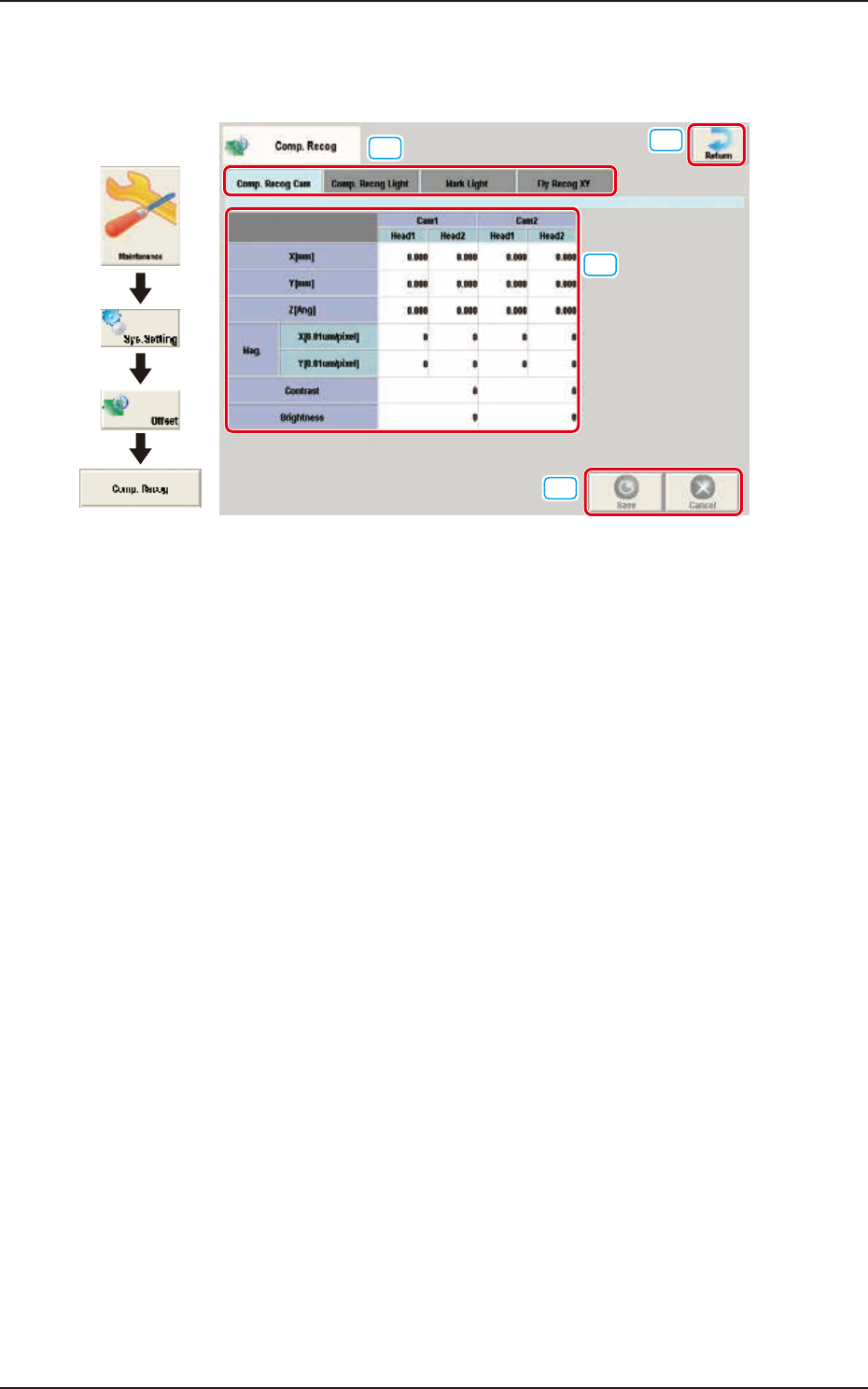
Pressing the [Comp. Recog] button on the "Offset Data" window displays the following window.
[1]
[2]
[3]
[4]
Graphic
Development
F3B61
[1] Offset select tab
When this button is pressed, the offset data for the selected tab is displayed.
[2] Offset Data Display Section
In this section, the offset data selected in step [1] is displayed.
[3] [Return] button
When this button is pressed, the window returns to the “Offset Data” window.
[4] [Save] button
When this button is pressed, the input data is saved.
[Cancel] button
When this button is pressed the input data is cancelled and the window returns to the saved data.