EUKYX-199-3100_G5S2_Instruction_Vol3_E.pdf - 第109页
EUKYX 1-60 199-3100 6. DVC Check 6 . D V C Check The correspondin g wi ndow enab les you t o check the I / O sign als and vi ew t he status of each se c tio n. Cover Graphic Development F3A48 [ 1 ] "D VC Check"…
EUKYX
1-59199-3100
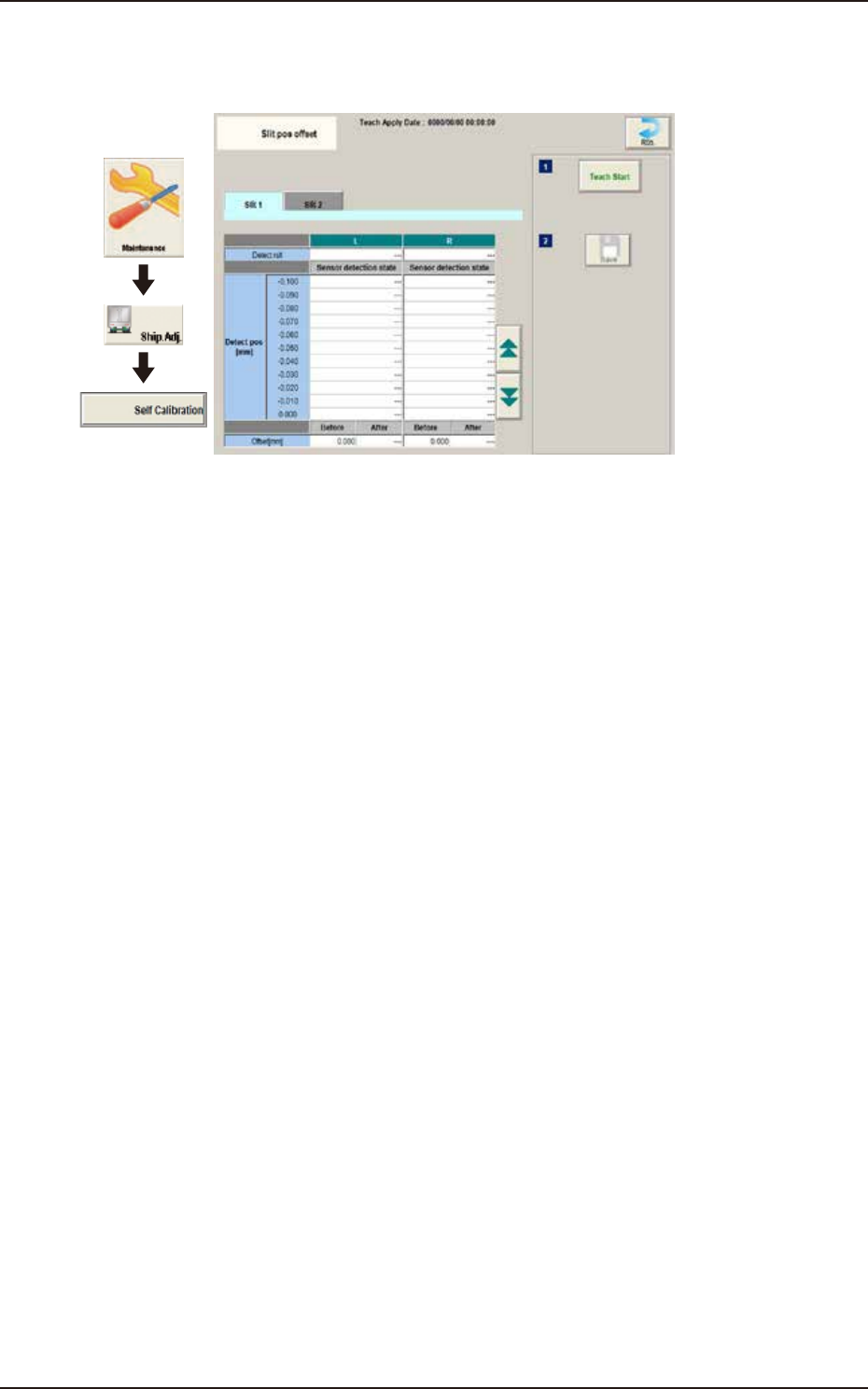
5.20 Slit Pos offset
5.20 Slit Pos offset
Teach the slit position of back up base.
Graphic
Development
F3A50
EUKYX
1-60199-3100
6. DVC Check
6. DVC Check
The corresponding window enables you to check the I/O signals and view the status of each
section.
Cover
Graphic
Development
F3A48
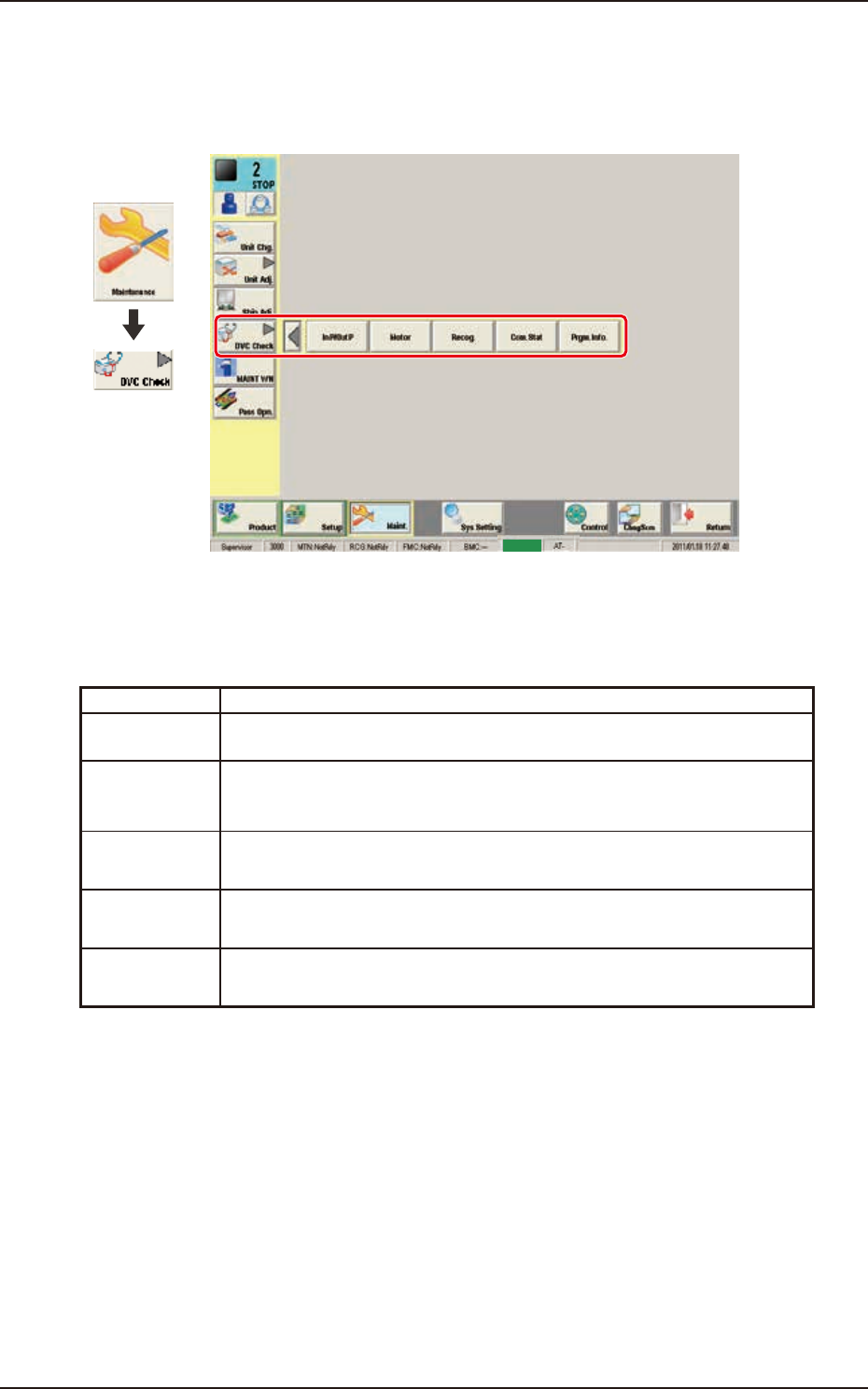
[1] "DVC Check" Submenu
The following buttons are arranged to display the operation windows for executing each function
for the device check.
Button Description
In P/Out P When pressed, the "INP / OUT" window opens, enabling you to check the I/O
status of each section.
Motor When pressed, the "MOTOR" window opens, enabling you to perform a
manual operation (inching) of each unit and view the current system
information.
Recog. When pressed, the "RECOG" window opens, enabling you to check the I/O
signals for the component and PEC recognition operations.
Com.Stat When pressed, the "COM.STAT" window opens, enabling you to check the
communication status of each section.
Prgm.Info. When pressed, the "PRGM.INFO." window opens, enabling you to view the
current program information and setup logs used for the machine.
EUKYX
1-61199-3100
6.1 INP / OUT
6.1 INP / OUT
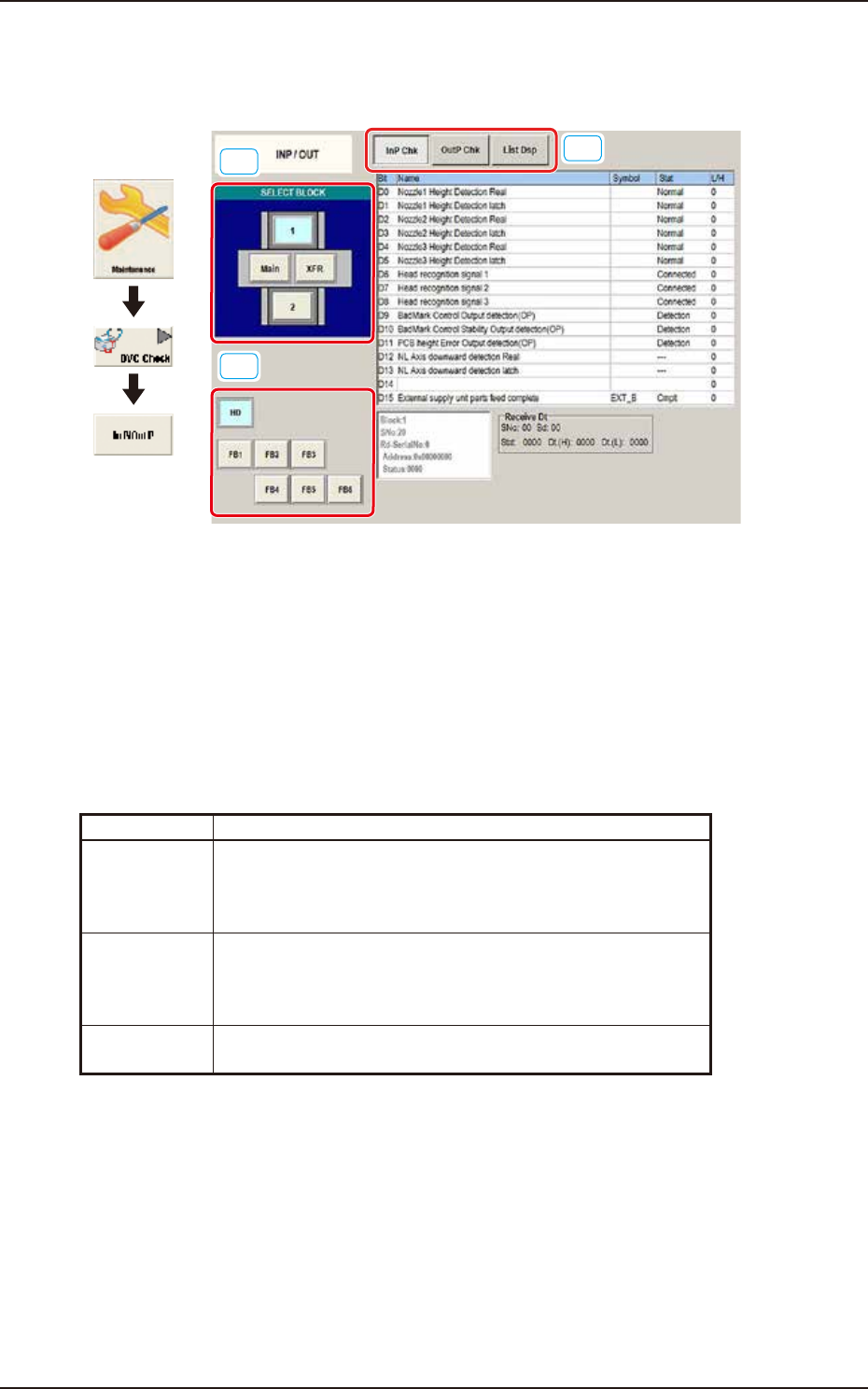
This window enables you to check the INP/OUT status of each section.
[1]
[2]
[3]
Graphic
Development
F3A49A
[1] SELECT BLOCK Buttons
Press the button to select the block whose I/O status is checked.
[2] Unit Selection Buttons
Arranged are the unit buttons for the block selected with a block selection button. Select the unit
whose I/O status is checked.
[3] Display Change Buttons
Pressing any of these buttons, displays the corresponding window.
The description of each window is as follows.
Button Description
InP Chk When this button is selected, the corresponding window appears,
enabling you to view the input status for the unit selected with
block and unit selection buttons (located on the left side of the
window).
OutP Chk When this button is selected, the corresponding window appears,
enabling you to view the output status for the unit selected with
block and unit selection buttons (located on the left side of the
window).
List Dsp When this button is selected, the corresponding window appears,
enabling you to view the I/O status of each unit.