EUKYX-199-3100_G5S2_Instruction_Vol3_E.pdf - 第222页
EUKYX 2-74 199-3100 4.2 Line Config. [ 5] Line Mac hine Data Displ ay Se ction Dis pl a yed is the da ta of li ne mac hine. M c Name The mac hi ne name or IP address is set i n this d ata box. M c Ty p e The mac hi ne t y…
EUKYX
2-73199-3100
4.2 Line Config.
4.2 Line Config.
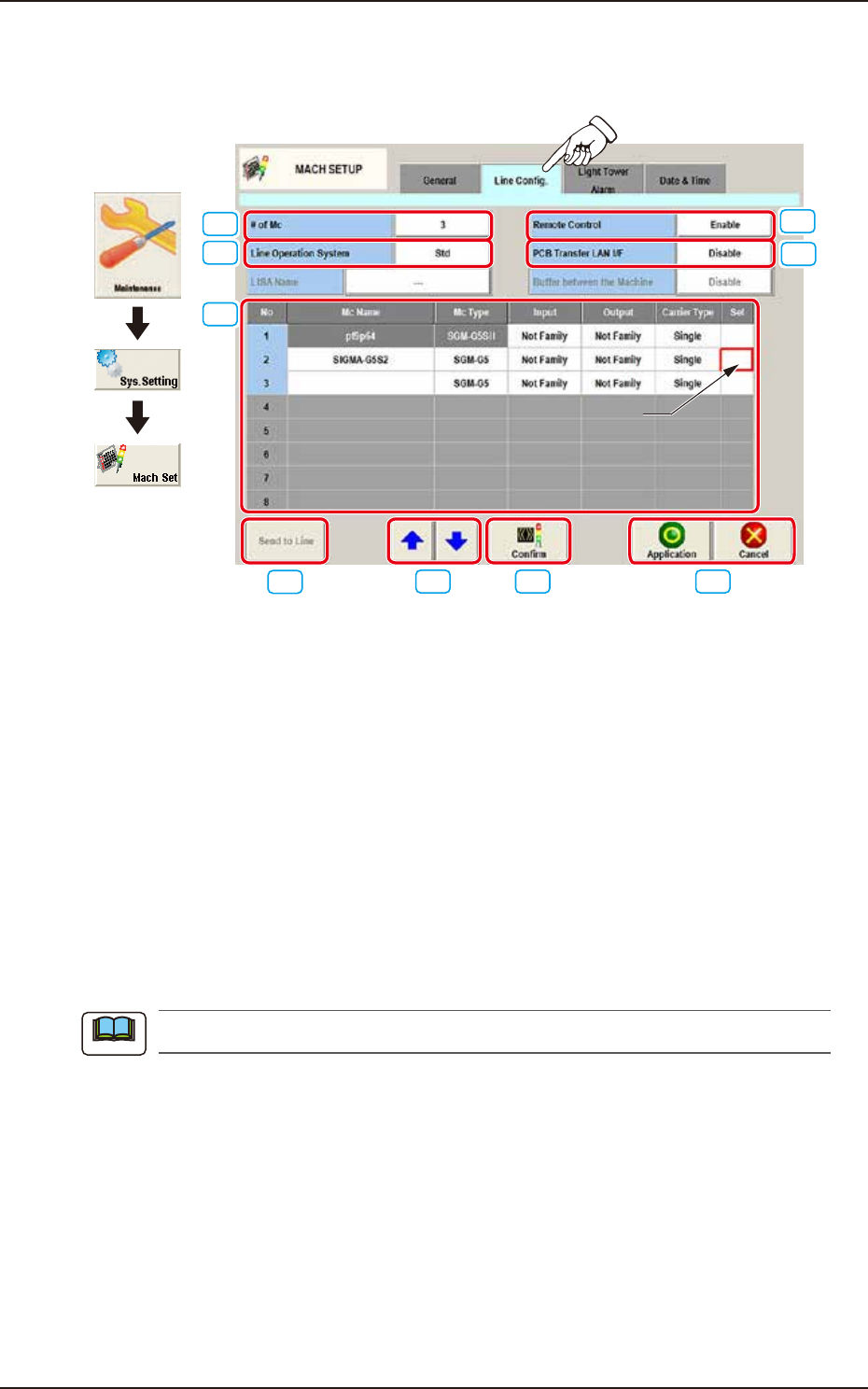
Pressing the [Line Config.] tab on the "MACH SETUP" window displays the following window.
[3]
[1]
[2]
[6]
[7] [8] [9]
Moving Cell
[4]
[5]
Graphic
Development
F3B80A
[1] # of Mc
The number of machines in the line is set in this text box.
[2] Line Operation System
The operation system in the line is selected from the following items and setup.
Std : Usually, this is selected.
LISA : When the NA02001 LISA System Software SIGMA Series (Option) is purchased
and used, this is selected.
[3] Remote Control
“Enable” or “Disable” is set for the remote control operation from a machine in the line.
Enable : When selected, the remote control is enabled.
Disable
: When selected, the remote control (line start, transferring PCB between machines,
etc.) is disabled from a machine in the line.
The PCB discharge operation, etc., is enabled.
[4] PCB Transfer LAN I/F
Whether or not the LAN is to be used, is set up in this data box.
Enable : When selected, LAN is enabled.
Disable
: When selected, LAN is disabled.
Note

EUKYX
2-74199-3100
4.2 Line Config.
[5] Line Machine Data Display Section
Displayed is the data of line machine.
Mc Name
The machine name or IP address is set in this data box.
Mc Type
The machine type is selected in this selection box.
Input, Output
Whether the input machine and output machine are the associated machines (SIGMA series)
or non-associated machines, is selected in this selection box.
Carrier Type
Select “Single“ or “Dual“ for Carrier Type.
Sel
The machine to be re-arranged is selected in this selection box.
[6] [Send to Line] Button
When this button is pressed, the line configuration setup data is sent to the machines in the line.
[7] Rearrangement Button
When this button is pressed, the machine arrangement order is changed.
After selecting the moving cell for the subject machine, re-arrange the machine location using the [
] or [ ] button.
[8] [Confirm] Button
When this button is pressed, the machine selected in "[5] Line Machine Data Display Section" is
confirmed. When pressed, the tower lamp is turned ON in the selected machine and buzzer
sounds.
[9] [Application] Button
Using this button, the entered value is applied.
[Cancel] Button
When this button is pressed, the input data is cancelled and window returns to the saved data.
EUKYX
2-75199-3100
4.3 Light Tower Alarm
4.3 Light Tower Alarm
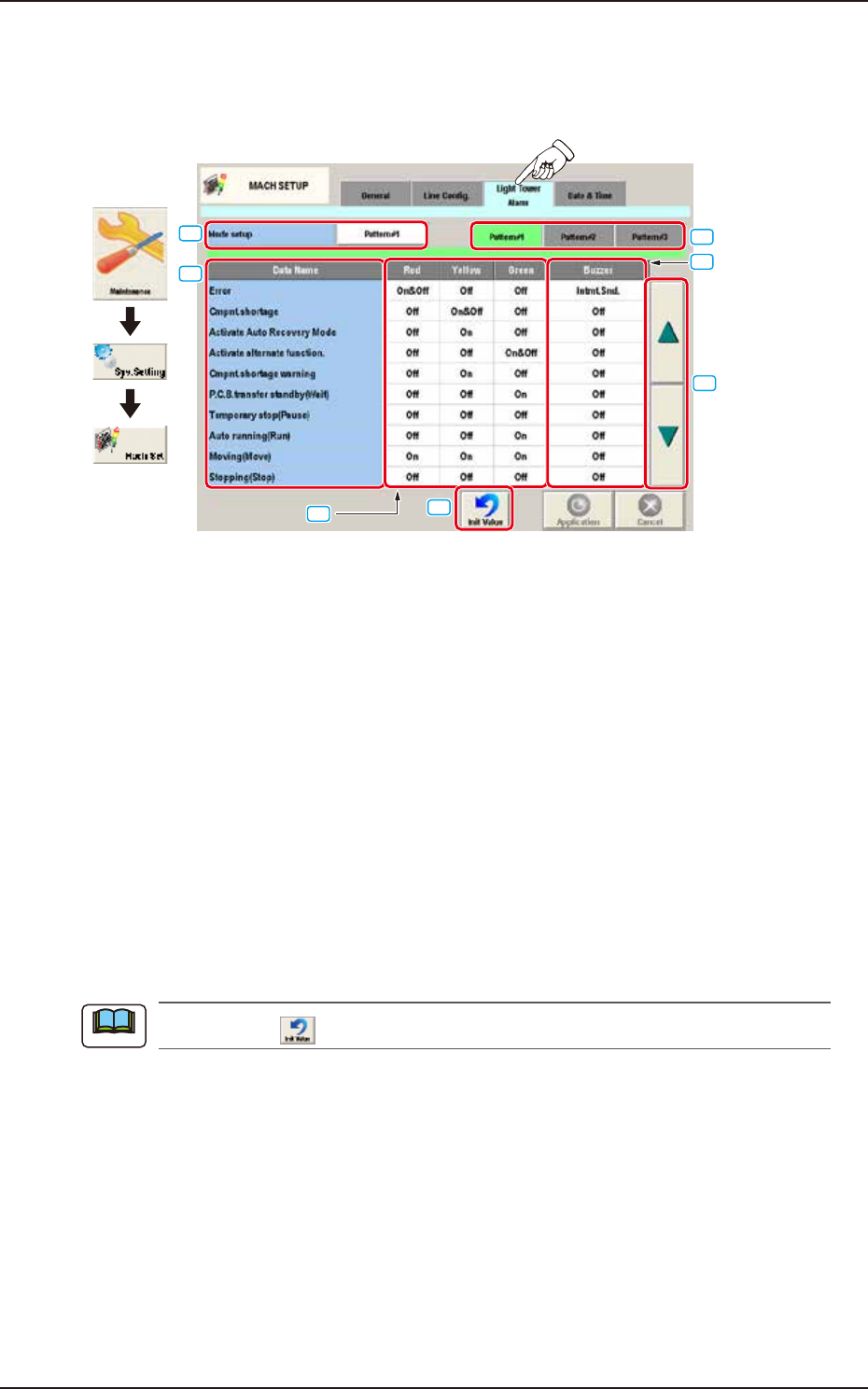
Pressing the [Light Tower Alarm] tab on the "MACH SETUP" window displays the following window.
Set the color of tower light and buzzer sound.
Graphic
Development
[1]
[2]
[3]
[4]
[5]
[6]
[7]
F3B81A
[1] Mode setup
The patterns are changed over.
[2] Tower Light Selection Buttons
[Pattern #1], [Pattern #2], and [Pattern #3] display buttons
These buttons can be used to save the setting of each tower light.
When one of these buttons is selected, the corresponding lighting pattern appears, enabling you to
change the settings.
[3] Data Name
Displayed are the items for which the colors (red, yellow, and green) of the tower lights and the
types of alarm sounds should be specified.
[4] Red, Yellow, Green
Set "On", "On&Off", or "Off" for the tower lights (red, yellow, and green).
[5] Buzzer
Set "Off" or "Intmt. Snd." in each text box to specify the types of alarm sounds.
When the icon (
) is pressed, the standard settings (defaults) resume.
Note