EUKYX-199-3100_G5S2_Instruction_Vol3_E.pdf - 第90页
EUKYX 1-41 199-3100 5.9 Cmp Recog Pos • Compone nt Recognition Came ra Of fset Teaching Jig For the component recogniti on camera offs et teach ing, the fol low in g j ig i s used. Before the teac hi ng op erati on, p l …
EUKYX
1-40199-3100
5.9 Cmp Recog Pos
5.9 Cmp Recog Pos
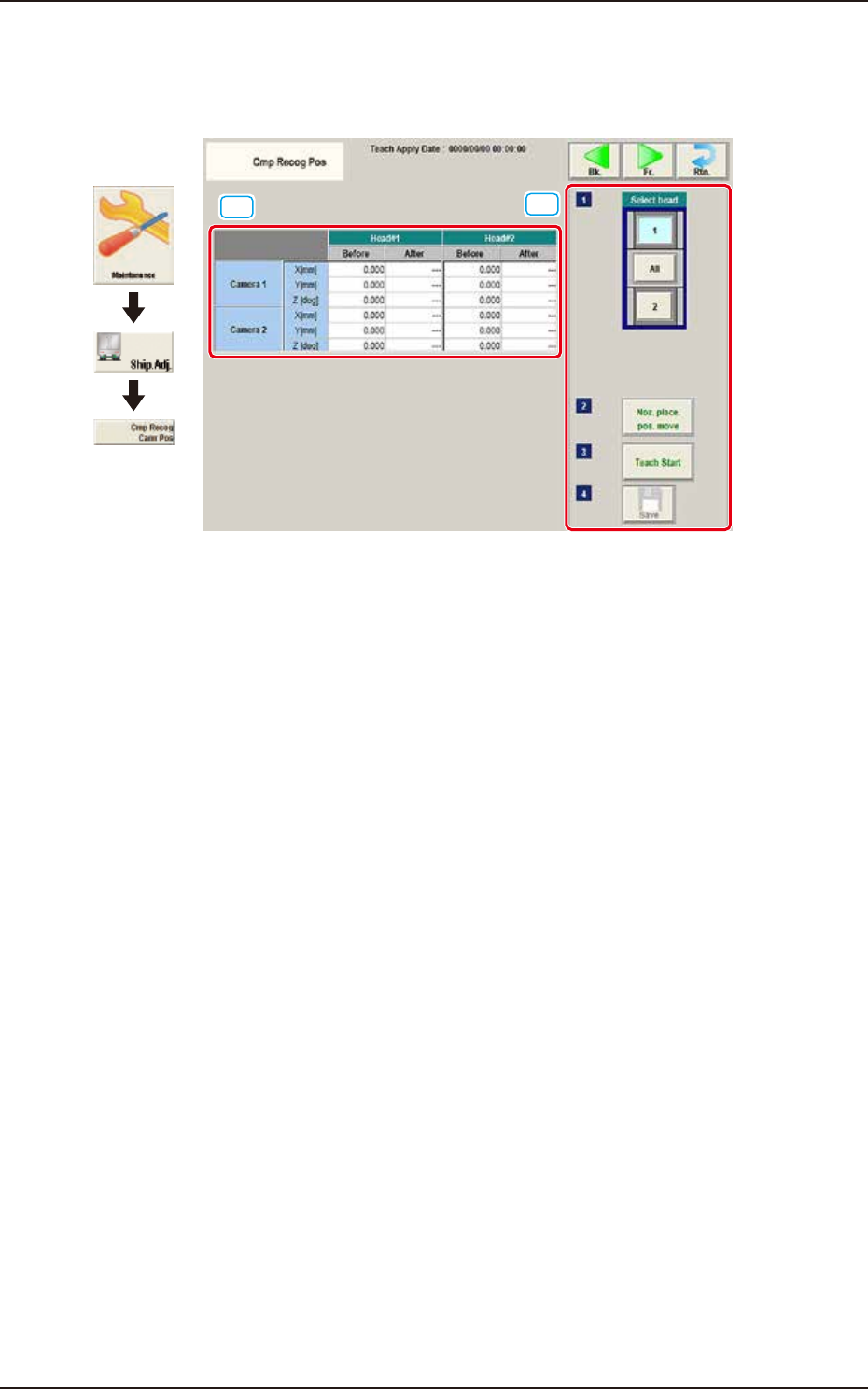
This window performs a teaching operation on the component recognition camera offsets (X (mm)
Horizontal, Y (mm) Vertical, and Z (deg) Angle).
[1]
[2]
Graphic
Development
F3A36
[1] Teaching Data Display Section
Displayed are the each offset data items for the designated camera and head.
[2] Teaching procedures section
The following buttons are arranged in teaching procedures section.
Select head
Selects the head whose component recognition camera is taught.
[Noz. Place. Pos. move] Button
The head is moved to the position where the nozzle to be used for the teaching can be
attached easily.
[Teach Start] button
Starts the teaching.
[Save] button
The teaching results are saved.
EUKYX
1-41199-3100
5.9 Cmp Recog Pos
• Component Recognition Camera Offset Teaching Jig
For the component recognition camera offset teaching, the following jig is used.
Before the teaching operation, place the jig at its setup position and when the teaching is
completed, remove it.
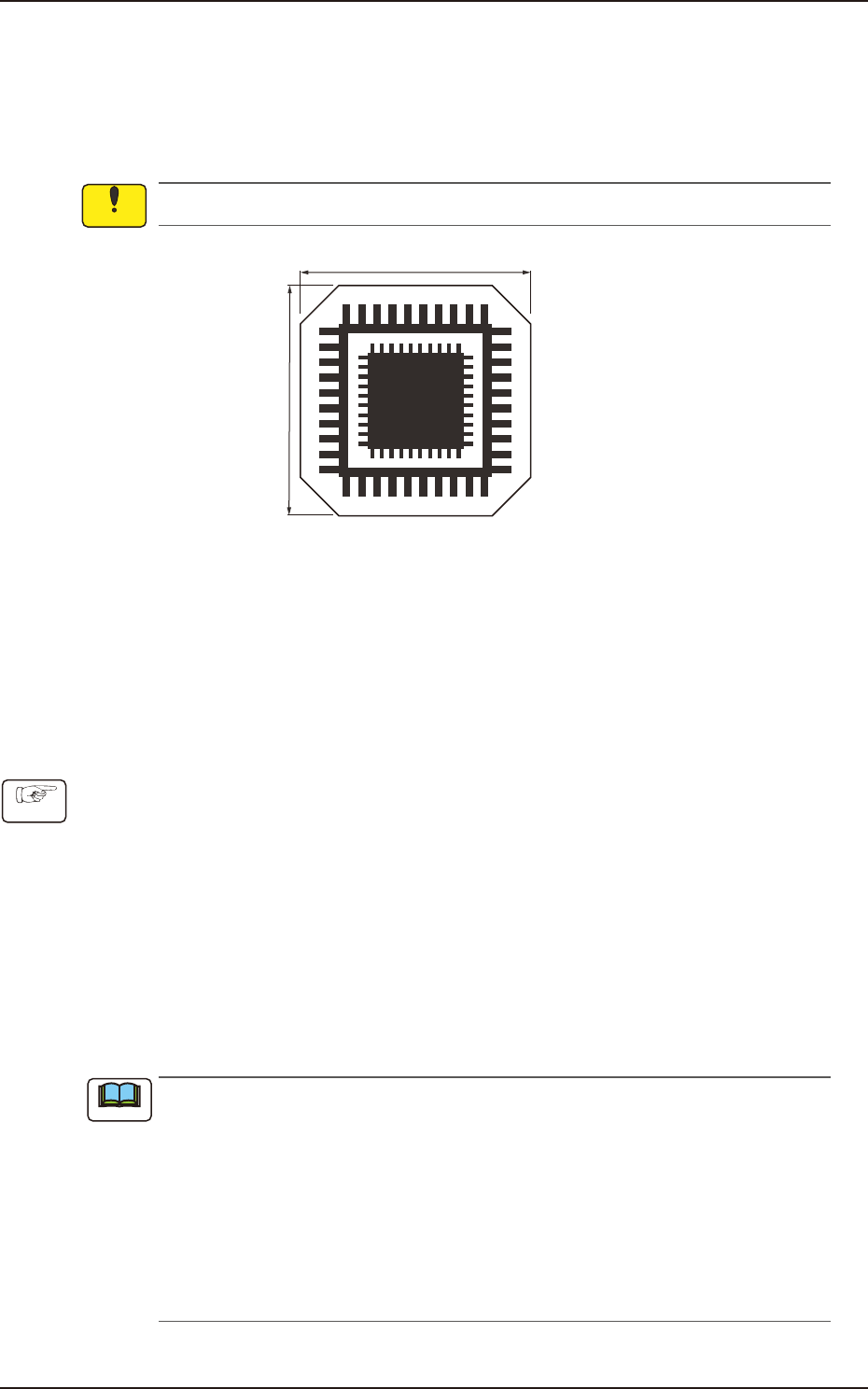
QFP Glass Jig JG-0188 (KYB-M381P-00, Standard Equipment)
This jig is fragile, so take the greatest care to handle it.
12 mm
12 mm
On the glass, the two patterns for the positional calculation are vapor-deposited.
F3A37
• Jig Pick-up Nozzle
For the pick-up of the QFP glass jig, the jig nozzle (standard equipment) or the normal vacuum
nozzle HV19C is used.
Before the teaching operation, change the nozzle in the "NOZ.CHNG." window (Operation
Sequence: Select [Unit Adj.] button in the Menus for Maintenance
→
Select [Noz Chng.] button).
• Component Recognition Camera Offset Teaching Procedure
(1) Before the teaching operation, place the QFP glass jig at its setup position with the vapor-
deposited surface turned down.
(2) Press the [Noz. Place. Pos. move] button. (Move the head to the position where the nozzle
to be used for teaching can be attached easily.)
(3) Press the [Teach Start] button. (The component recognition camera offset (X (Horizontal), Y
(Vertical) and Z (Angle)) teaching will be executed.)
• The beam selected in the position setting operation is move to the jig setup position and the
glass jig is recognized using the PEC recognition camera.
After that, the jig in the jig setup position is picked up and moved to the position above the
component recognition camera. The nozzle is lowered to the focus point of the jig and the
recognition is performed. Then, the camera offset is calculated.
•
When any recognition error occurs during the teaching operation or the
[STOP] button is pressed on the operation penal, the machine is stopped
temporarily. In this case, re-start is available.
•
During this temporary stop mode, the selection of any other menu item is unavailable.
When the offset teaching is completed, the jig is returned to the specified jib setup
position and the designated head returns to the home position automatically.
The teaching results and mark recognition results during the teaching (XY Angles) are
displayed in the “X (Horizontal) (mm)”, “Y (Vertical) (mm)”, and “Angle Z (
°
)” data boxes
in the “PEC Recognition Camera & Beam Offset” window.
(4) Press the [Save] button. (The teaching results are saved.)
Notice
Procedure
Note
EUKYX
1-42199-3100
5.10 Head Rotate Axis
5.10 Head Rotate Axis
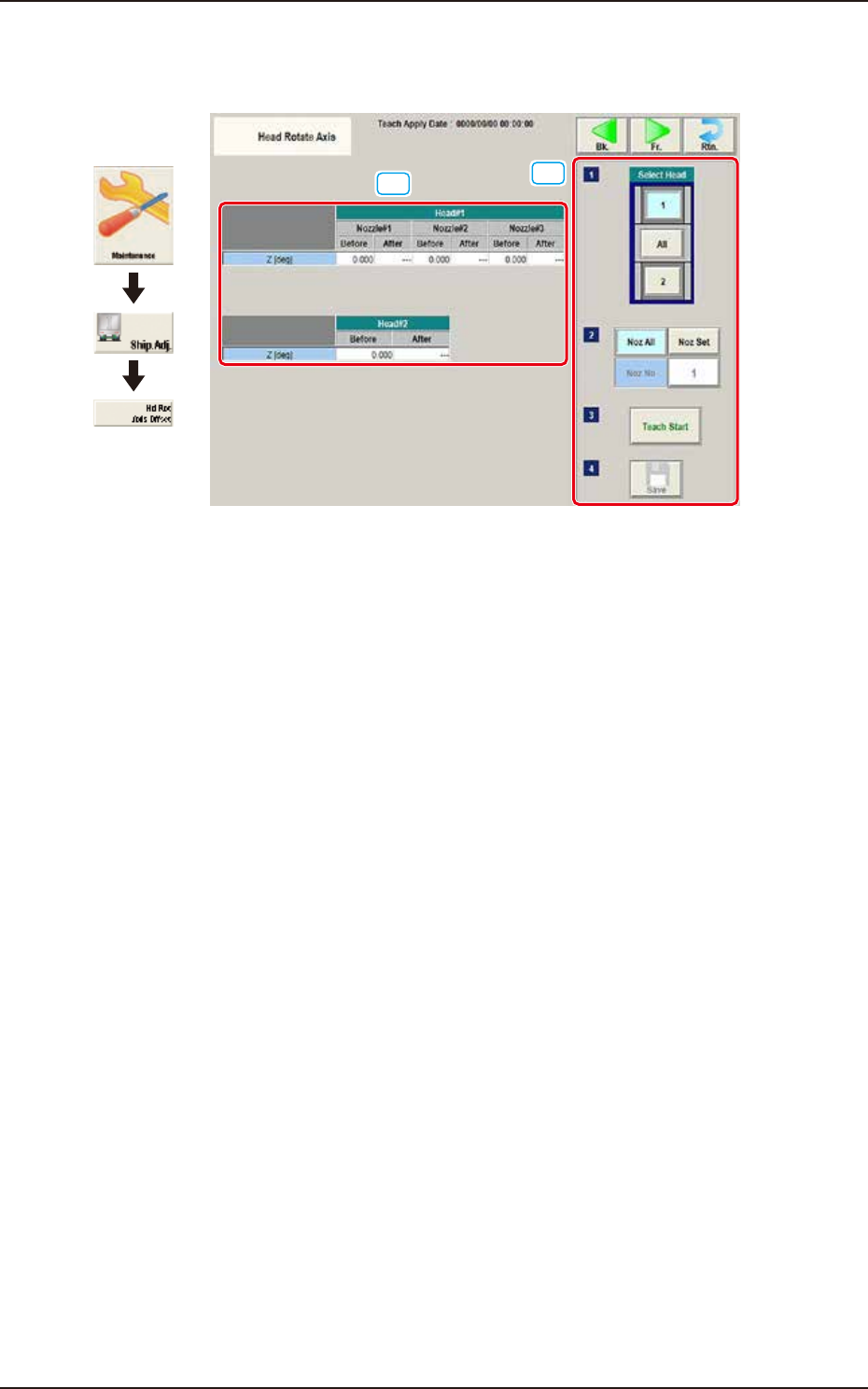
These offsets are used to correct the deviations for the head movement to the camera.
[1]
[2]
Graphic
Development
F3A38
[1] Teaching Data Display Section
Displayed are the offset data items for the designated head.
[2] Teaching procedures section
The following buttons are arranged in teaching procedures section.
Select head
Selects the head to be taught.
[Noz All] button
Teaches the all nozzles.
[Noz Set] button
The nozzle to be taught is designated. Pressing this button displays the parameter input
window.
[Teach Start] button
Starts the teaching.
[Save] button
The teaching results are saved.