PathMaster-REV-L-4.5-1.pdf - 第104页
Machine Operati on Manual Revision L / February 2020 Page 104 of 200 17. Select the Spray Pattern . Thi s is the dire ction the tool will go when this Fa stMask™ pattern i s used. Figure 124 : FastM ask Brush Stroke Pa t…
Machine Operation Manual
Revision L /
February 2020
Page 103 of 200
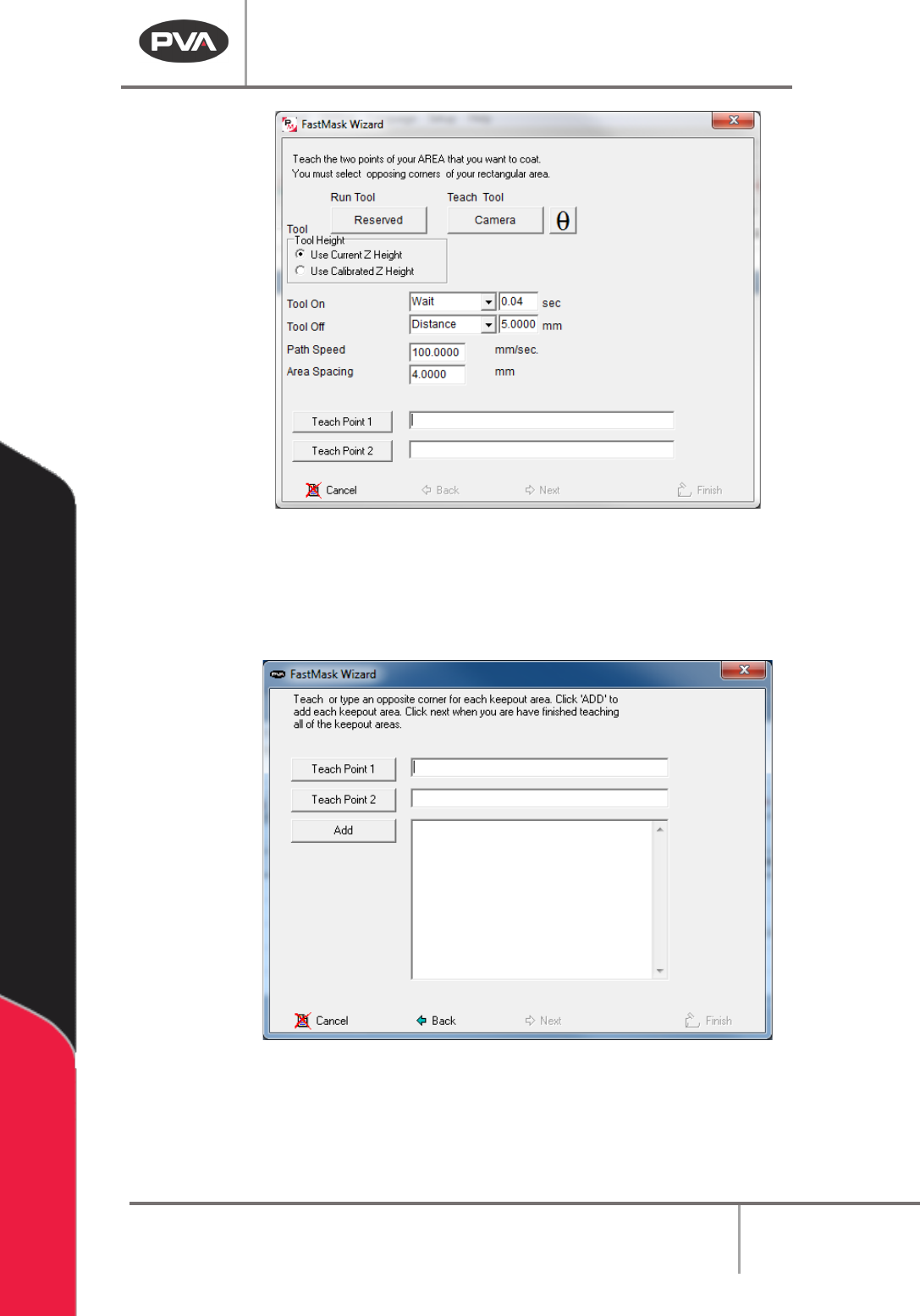
Figure 122: FastMask Area Teach
12. Select the “Next” button.
13. Teach the opposite corners of the first keep out area.
14. Select the “Add” button to add the keep out to the FastMask™ list.
Figure 123: Keep Out Teach Menu
15. Continue to add keep out areas (up to 99 keep outs) until all non-coat areas have
been included in the FastMask™ list.
16. Select the “Next” button.
Machine Operation Manual
Revision L /
February 2020
Page 104 of 200
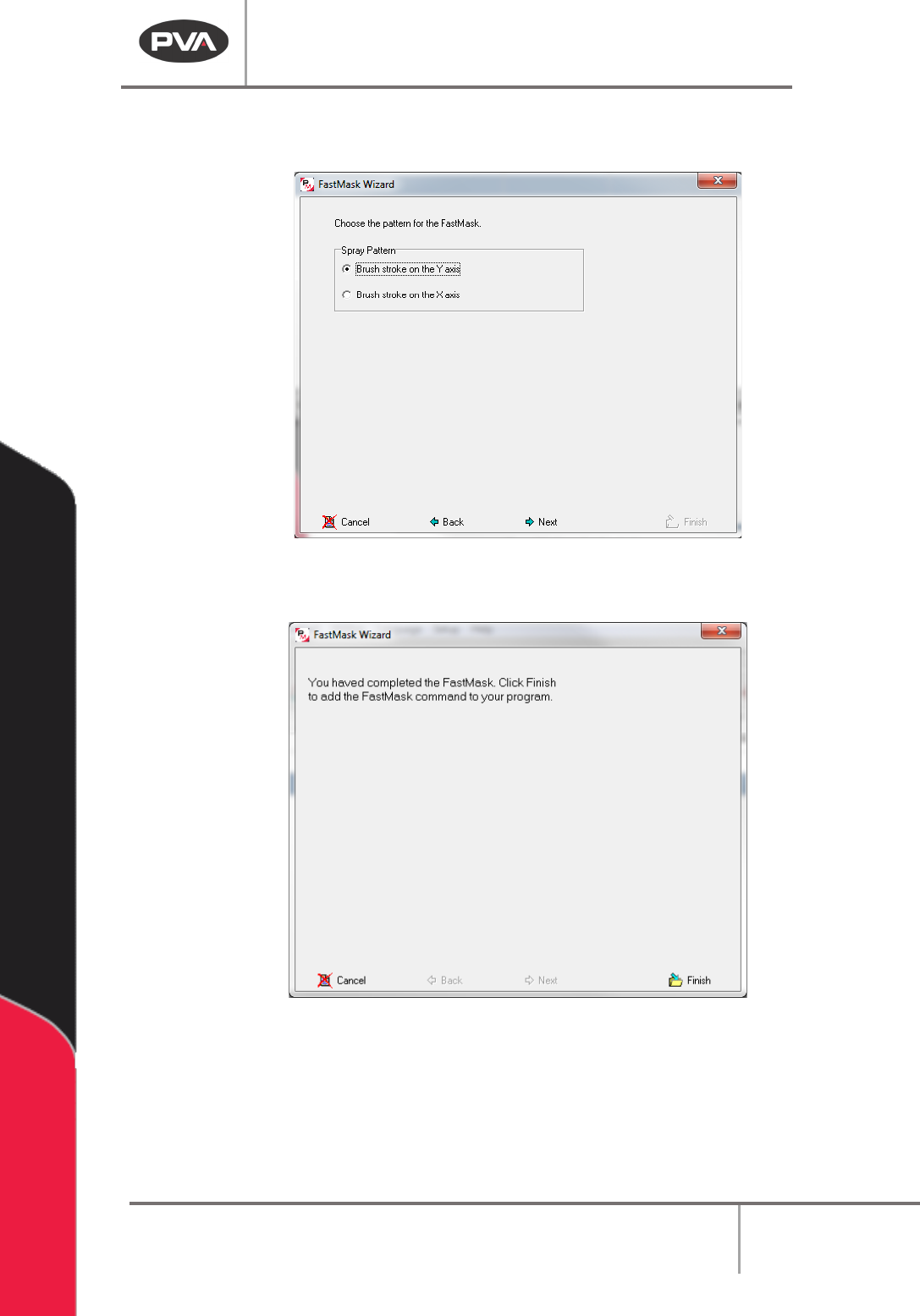
17. Select the Spray Pattern. This is the direction the tool will go when this FastMask™
pattern is used.
Figure 124: FastMask Brush Stroke Pattern
18. Select the “Next” button.
Figure 125: FastMask Complete
19. Select the “Finish” button.
The FastMask™ pattern will always start at the point taught closest to the origin of the
gantry (the smallest coordinate in the pattern).
20. To edit a FastMask, double click on the path and change the command in the edit
window. Refer to Section 7.5.
Machine Operation Manual
Revision L /
February 2020
Page 105 of 200
Rectangular Spiral
This creates a square spiral pattern with an area defined by the user. This is one continuous
dispense and is used when a material is unable to be equally spaced with the area
command. There are 3 points, the 1st point is the start, the 2nd point is direction, and the
3rd point gives the size. The Z-axis does not change position in this path.
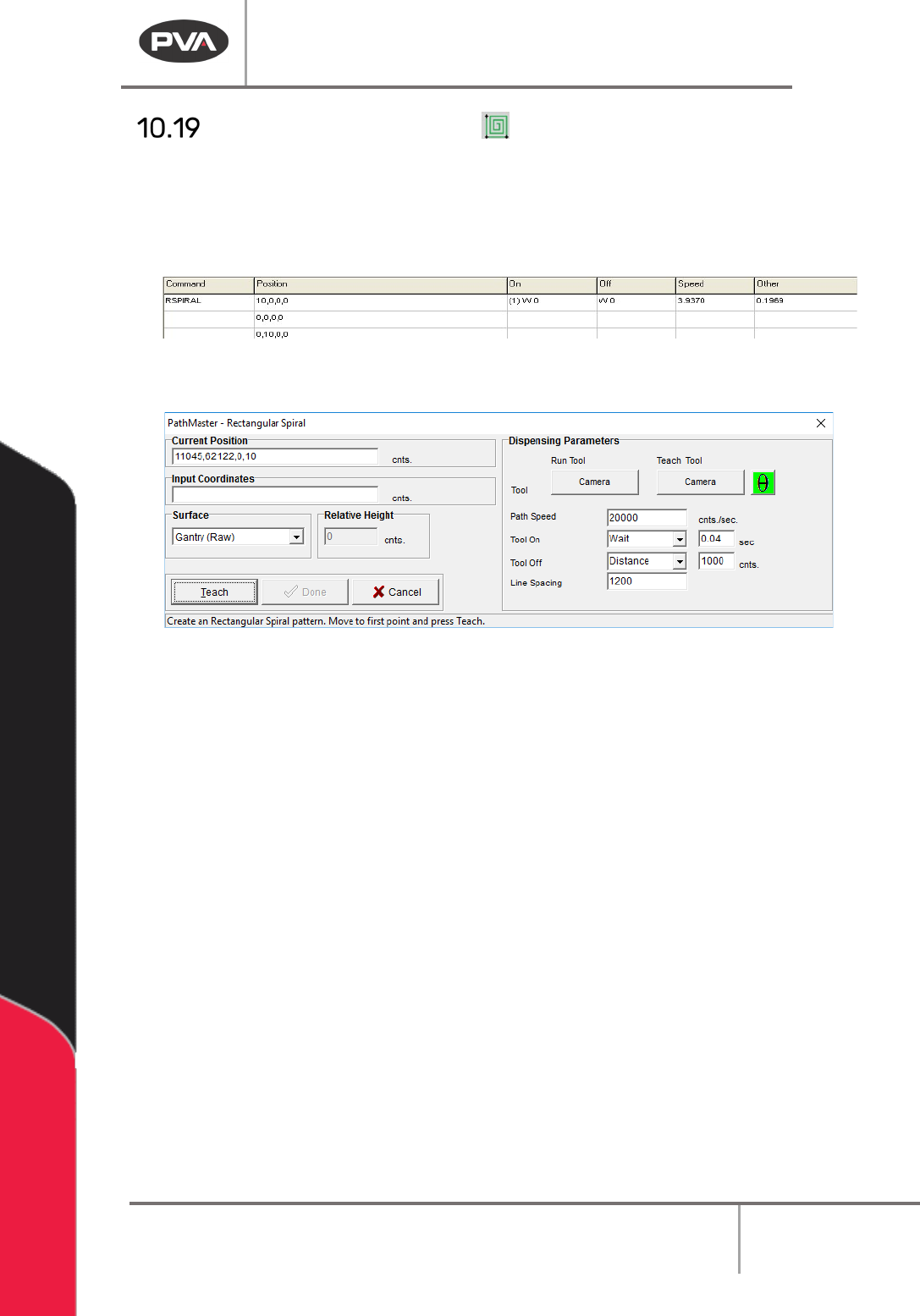
Figure 126: Rectangular Spiral Programmed
1. Open the Rectangular Spiral function.
Figure 127: Teach Rectangular Spiral
2. Select the Run Tool. Select (double click) the necessary tool from the Tool Selection
window. Refer to
Figure 68.
3. Select the Teach Tool if necessary. Select (double click) the necessary tool from the
Tool Selection window. Refer to
Figure 68.
4. Select “θ” to move the selected tool to the calibrated W-axis position (theta).
NOTE: The “θ” button will only be available on 4-axis machines. When you use the “Teach
Tool” (virtual tool 0) it is not necessary to select this button.
5. Select the Surface from the drop-down menu. In some units, you can set the
Relative Height.
6. Put the necessary value in the Path Speed box.
7. Teach the points. Point 1 is where the path starts. Point 2 is the direction of the
path. Point 3 uses the diagonal distance between 1 and 3 to find the size.
8. Set the Tool On and Tool Off to “Wait” or “Distance” and set the time or distance in
the box.
9. Set the Line Spacing.
10. Select “Done” to save the changes or “Cancel” to exit and not save changes.
11. To edit, double click on the path and use the edit window. Refer to Section 7.5.