PathMaster-REV-L-4.5-1.pdf - 第74页
Machine Operati on Manual Revision L / February 2020 Page 74 of 200 Figure 72 : Correct ed Space Teaching Fiducial s 1. Select the F iducial func tion. 2. Select the ne cessary I nspecti on and L ight. 3. Select the Fidu…
Machine Operation Manual
Revision L /
February 2020
Page 73 of 200
Corrected Space
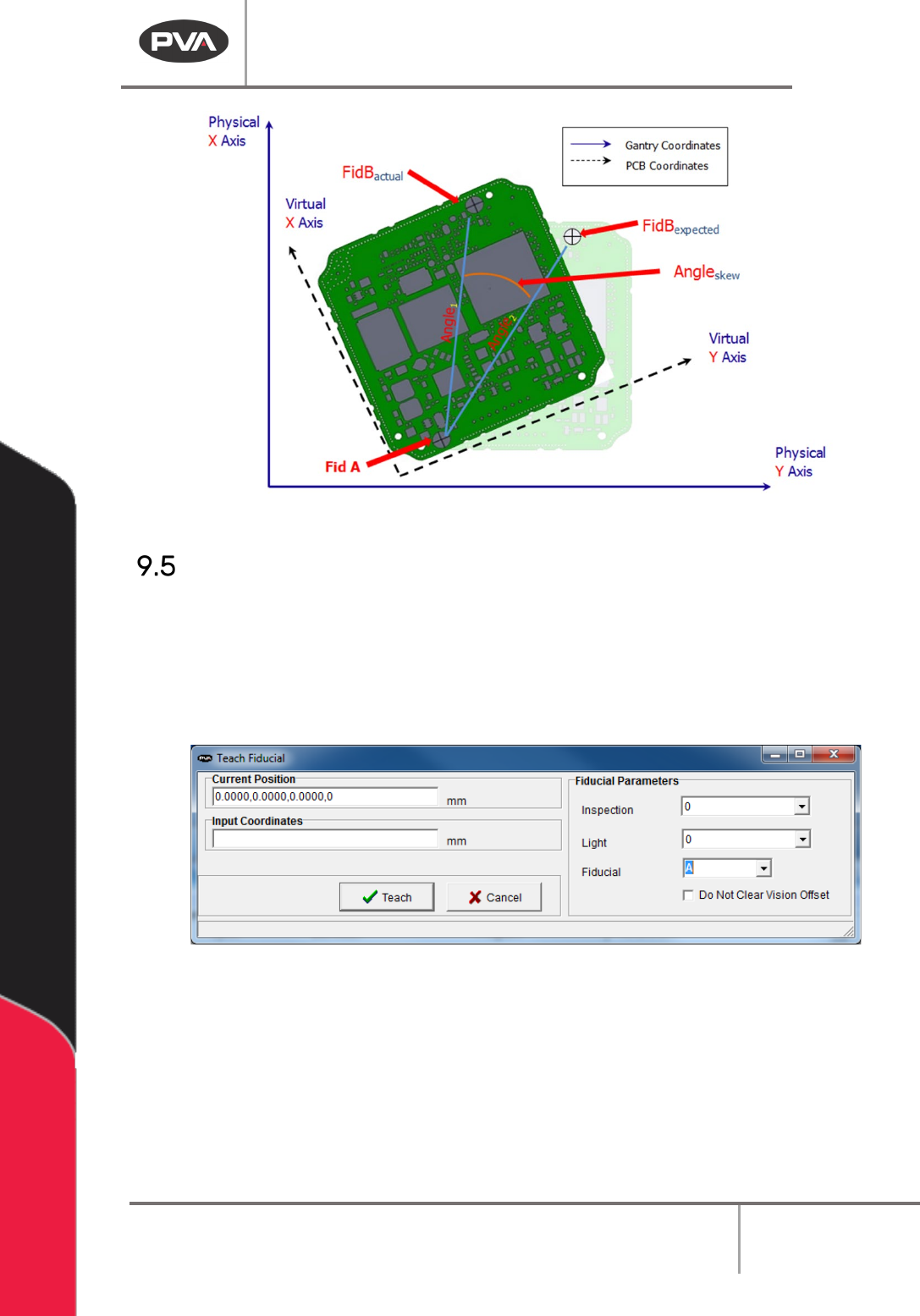
Corrected space is a virtual coordinate system used by PathMaster® to adjust for
rotational correction. The virtual coordinate system (or PCB coordinate system) rotates the
XY gantry coordinate system by the skew angle. The coordinates are rotated around
fiducial A, as related to the current PathMaster® tool. The virtual coordinate system is used
to run, playback, or teach a path program that is skewed relative to the machine coordinate
system. PathMaster® enters corrected space automatically when Fiducial A and B
functions are run. The fiducial icon illuminates to show you are in corrected space.
PathMaster® shows the virtual coordinates (PCB coordinates) when in corrected space,
not the gantry coordinates. You can teach and edit in PathMaster® while in corrected
space. When you teach or edit a path in corrected space the coordinates recorded in the
program table are different from the coordinates that you taught on the part. PathMaster®
automatically teaches the path in normal, “uncorrected” space. If you move to a position in
the path while in corrected space, the tool will be in the correct position on the part, but
the coordinates may not match the coordinates that you moved to. This is because
PathMaster® automatically adjusts for translational and rotational offset. With this
adjustment you can run the path on a part that has been placed correctly in the system
and does not need fiducial correction. If you open or change a program, edit a fiducial,
select the Clear Fiducial function from the Main menu, or enter Tool Offset Setup menu you
will exit corrected space.
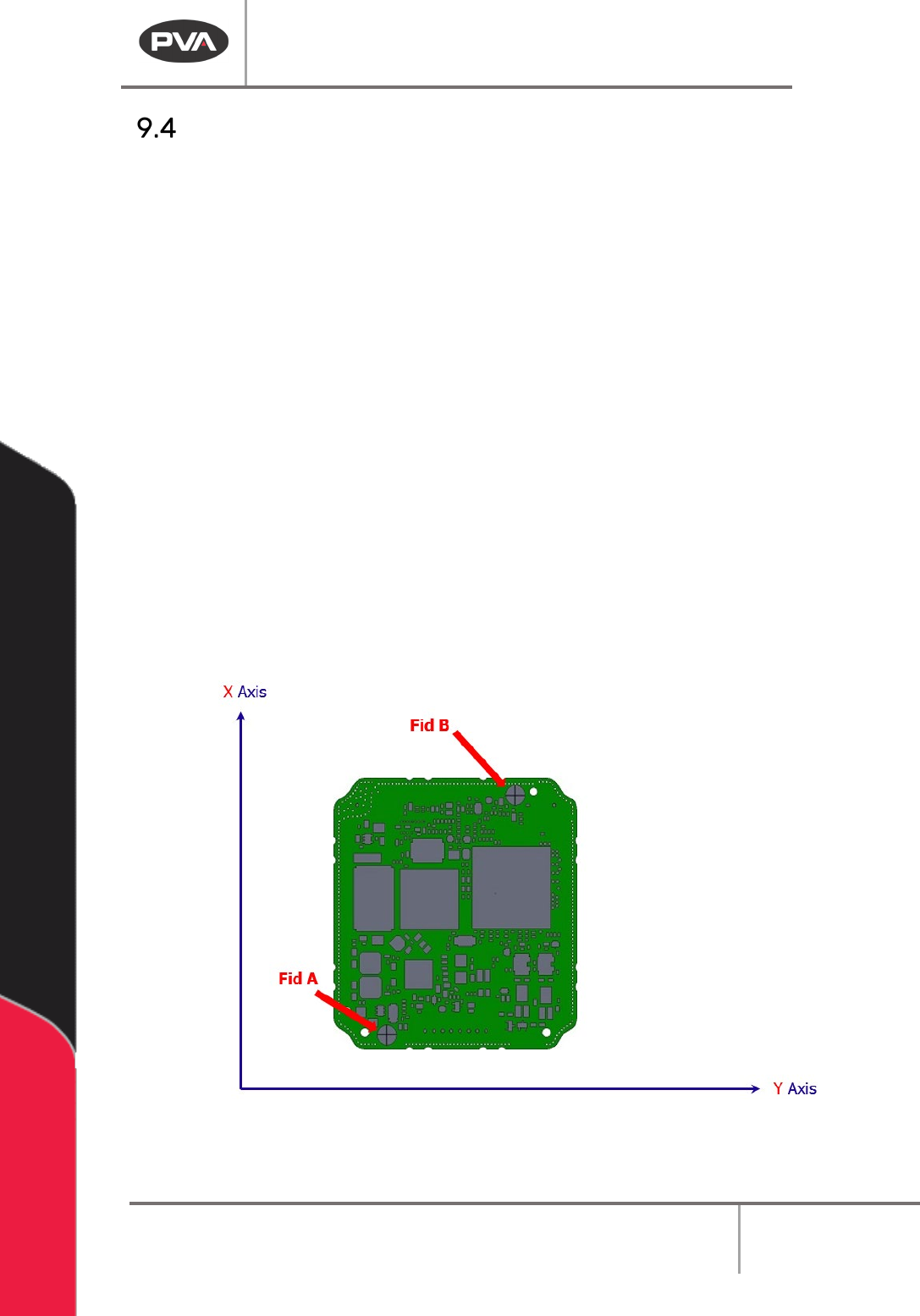
Figure 71: Normal Space
Machine Operation Manual
Revision L /
February 2020
Page 74 of 200
Figure 72: Corrected Space
Teaching Fiducials
1. Select the Fiducial function.
2. Select the necessary Inspection and Light.
3. Select the Fiducial. Fiducial A must be programmed first.
4. Teach Fiducial A.
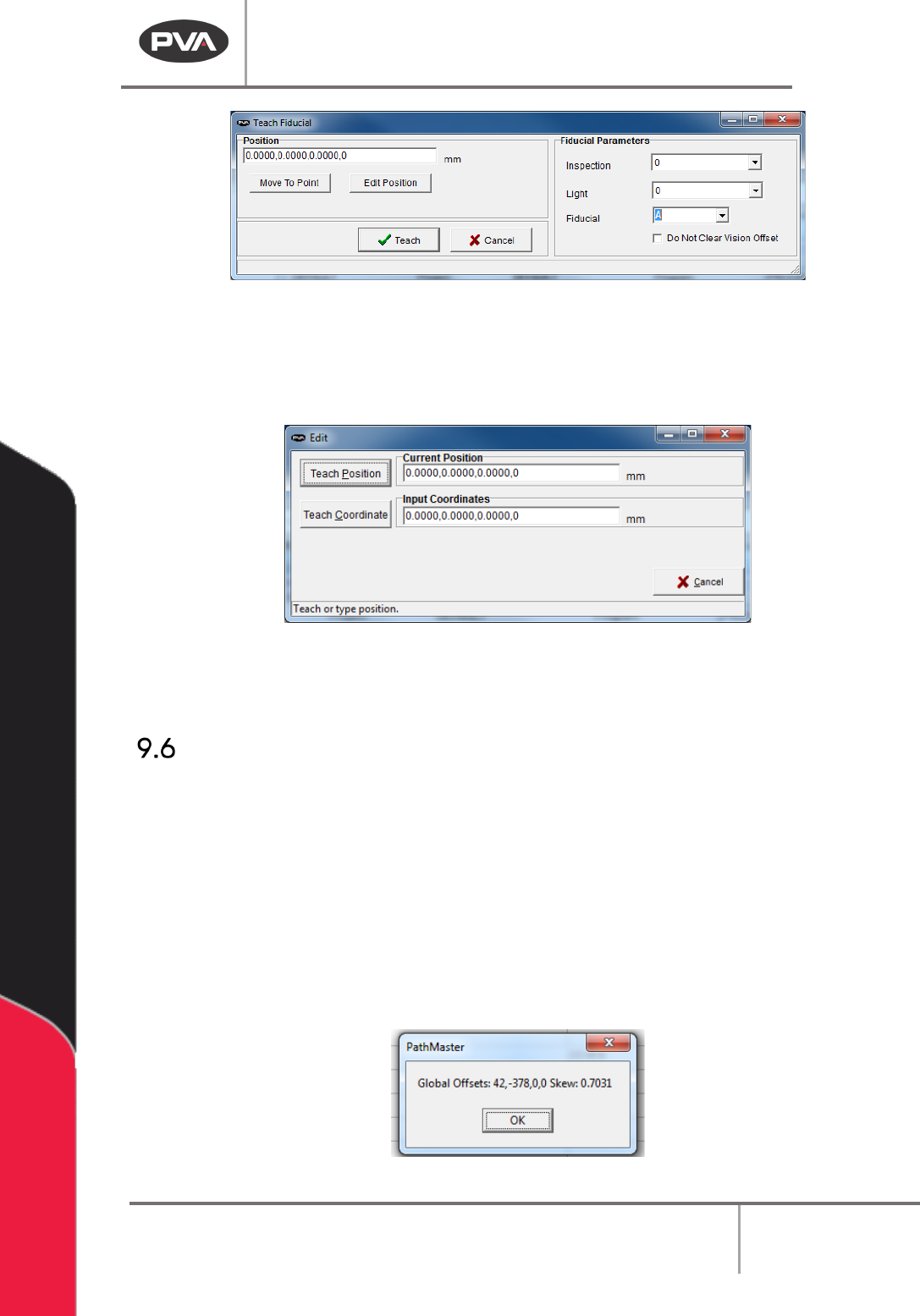
Figure 73: Teach Fiducials
The fiducials will show on the edit screen in blue.
5. Double click on the fiducial function to edit the fiducial.
6. Select “Teach” to save changes made under Fiducial Parameters.
Machine Operation Manual
Revision L /
February 2020
Page 75 of 200
Figure 74: Fiducial Window
7. Select “Edit Position” to change the position of the fiducial.
8. Select “Teach Position” to teach the location of the end effector, or put the
coordinates in the
Teach Coordinate box and select “Teach Coordinate”.
Figure 75: Edit Fiducial
9. Select “Teach” when you are done to exit and save the changes you have made, or
select “
Cancel” to exit and not save changes.
Run Fiducials
Run fiducials before any online programming.
1. Select Run Fiducials from the programming toolbar.
2. The status will show in a window, either pass or fail.
NOTE: If the fiducials have not been run and an online programming tool is selected, you
will be asked if you want to continue without the fiducials run, paths that contain a fiducial
that has not been run will not allow surface editing.
3. Double click on the Position section of the Lower Status Bar to see the current XY
offset and skew angle.
Figure 76: Global Offset and Skew