PathMaster-REV-L-4.5-1.pdf - 第33页
Machine Operati on Manual Revision L / February 2020 Page 33 of 200 Exporting a Transfer File 1. To expo rt a Transfer Fi le, sel ect File - > Export - > Machine - > Transfer from the main menu. Figure 18 : Expo…
Machine Operation Manual
Revision L /
February 2020
Page 32 of 200
Machine Program Transport
PathMaster 4.4 can import data from previous versions of PathMaster, but previous
versions of PathMaster cannot import data from PathMaster 4.4 or newer. This includes all
types of data imports (Machine, Program, Project, Subroutine).
WARNING: Tool Offsets and Workspace Reference positions must be correctly configured
on both the source and destination machine before a Machine Program Transport is done.
Refer to sections 6.4.7 and 6.6.5 for more information.
A machine program transport requires a transfer file (.tfr) from the source machine to be
imported onto the destination machine.
The Transfer file contains program data, Workspace Reference Position and the Z
component of Tool Offsets. The Import Machine Transfer function compares the source
machine Workspace Reference position (X,Y only) to the destination machine Workspace
Reference position (X,Y) and finds an appropriate global offset for the destination machine
programs. The Z component of tool offsets are also compared to find an appropriate Z
offset for each tool on the destination machine.
NOTE: When the configuration of systems is planned for Machine Program Transport, the
systems should be matched mechanically as much as possible. The Tool ID’s should also be
the same from one system to another. For example, if a dispense valve on the source
machine is the first virtual tool (TL_ID 1) and a spray valve is the second virtual tool (TL_ID
2), the destination machine must have the same tool relationship (1st tool = TL_ID 1, 2nd
tool = TL_ID 2), etc.
Machine Operation Manual
Revision L /
February 2020
Page 33 of 200
Exporting a Transfer File
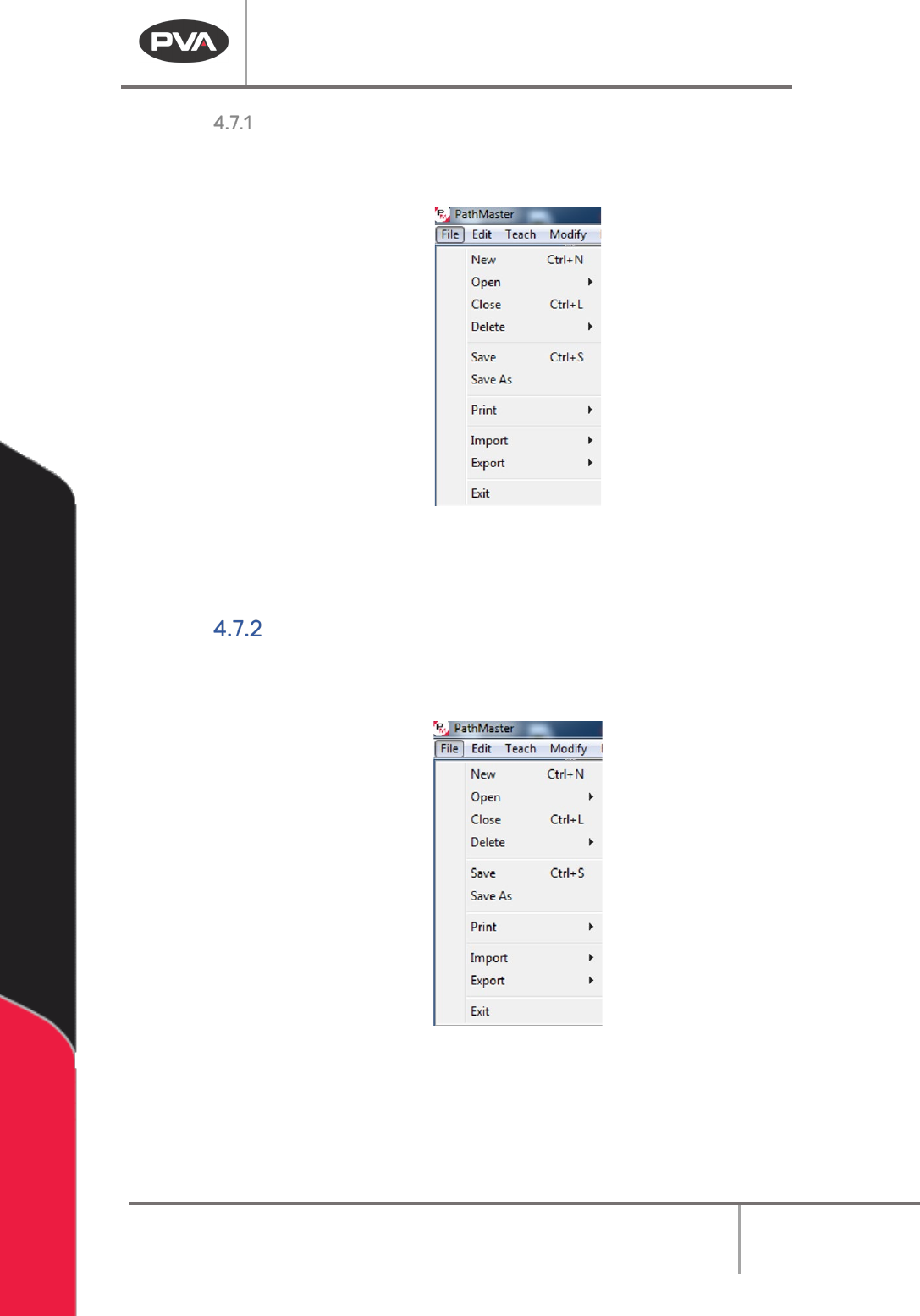
1. To export a Transfer File, select File -> Export -> Machine -> Transfer from the main
menu.
Figure 18: Export Machine Transfer
2. A prompt will ask for a file name and destination. Name the file. The Transfer File will
have a ‘.tfr’ extension. The transfer file can be imported onto a destination machine.
Importing a Transfer File
1. To import a Transfer File, select File -> Import -> Machine -> Transfer from the main
menu.
Figure 19: Import Machine Transfer
2. A prompt will ask for a transfer file name. Select the necessary file. The transfer file
will have a ‘.tfr’ extension.
Machine Operation Manual
Revision L /
February 2020
Page 34 of 200
Machine Transport Errors
When a machine transfer file is exported, PathMaster® makes sure that all tools that are
referenced have an associated virtual tool configured. When a machine transfer file is
imported, PathMaster® makes sure that all tools referenced by a path in the transfer file
are configured on the destination machine, and that the destination machine has the same
name as the source machine. If there is a machine name or tool configuration mismatch,
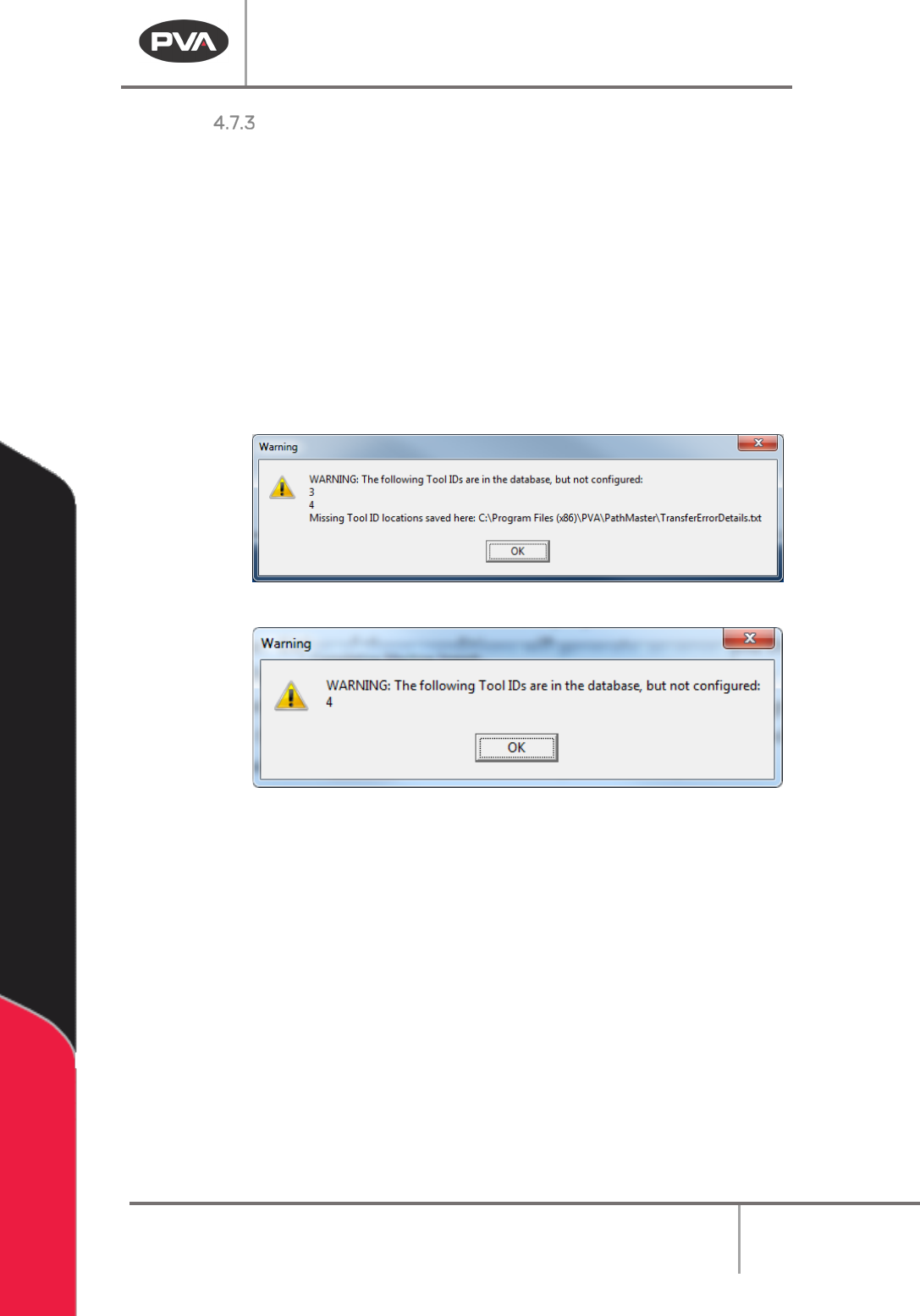
PathMaster® will show an error and the import or export will be canceled, and a transfer
error detail file (‘TransferErrorDetails.txt’) will be written to the \PathMaster\Logs folder.
The transfer error detail file will outline the machine, project, program #, line # and tool that
had the issue. Having more tools configured than are used is allowed, but if a tool is
referenced in the source machine, it must exist on the destination machine.
Figure 20: Example Export Error
Figure 21: Example Import Error
Example TransferErrorDetail.txt
Project,Program,Line#,ToolID
DEFAULT,PROGRAM1,7,3
FASTPATH_SAMPLE,PROGRAM1,25,3
FASTPATH_SAMPLE,PROGRAM1,28,3
FASTPATH_SAMPLE,PROGRAM1,31,3
FASTPATH_SAMPLE,PROGRAM1,34,3
FASTPATH_SAMPLE,PROGRAM1,37,3
FASTPATH_SAMPLE,PROGRAM1,40,3