PathMaster-REV-L-4.5-1.pdf - 第130页
Machine Operati on Manual Revision L / February 2020 Page 130 of 200 The follo wing functi ons are used in offl ine prog ramming the same way they are used in online progra mmin g: NOTE: Each path seg ment ta ught corres…
Machine Operation Manual
Revision L /
February 2020
Page 129 of 200
Tool Selection
With Tool Selection the tool for path segments in FastPath™ can be selected. Tool selection
is important because tool offsets are applied.
The tool offsets must be setup before FastPath™ is used, for the path program to run
correctly. Select the necessary tool before you select a programming tool. You can change
the tool, but it must be selected before the path segment is completed.
For example: If the first two coordinates of an area are taught with tool 2 and tool 3 is
selected to complete the third point, the path segment will use tool 3.
Drawing a Program
1. Select the FastPath™ icon on the programming toolbar to open the FastPath™
window.
2. Use the “Zoom-In” and “Zoom-Out” buttons to adjust the image size.
3. Select a tool to make a path segment.
4. Teach the necessary functions for the tool selected.
5. Close the FastPath™ window and to return to the PathMaster® window.
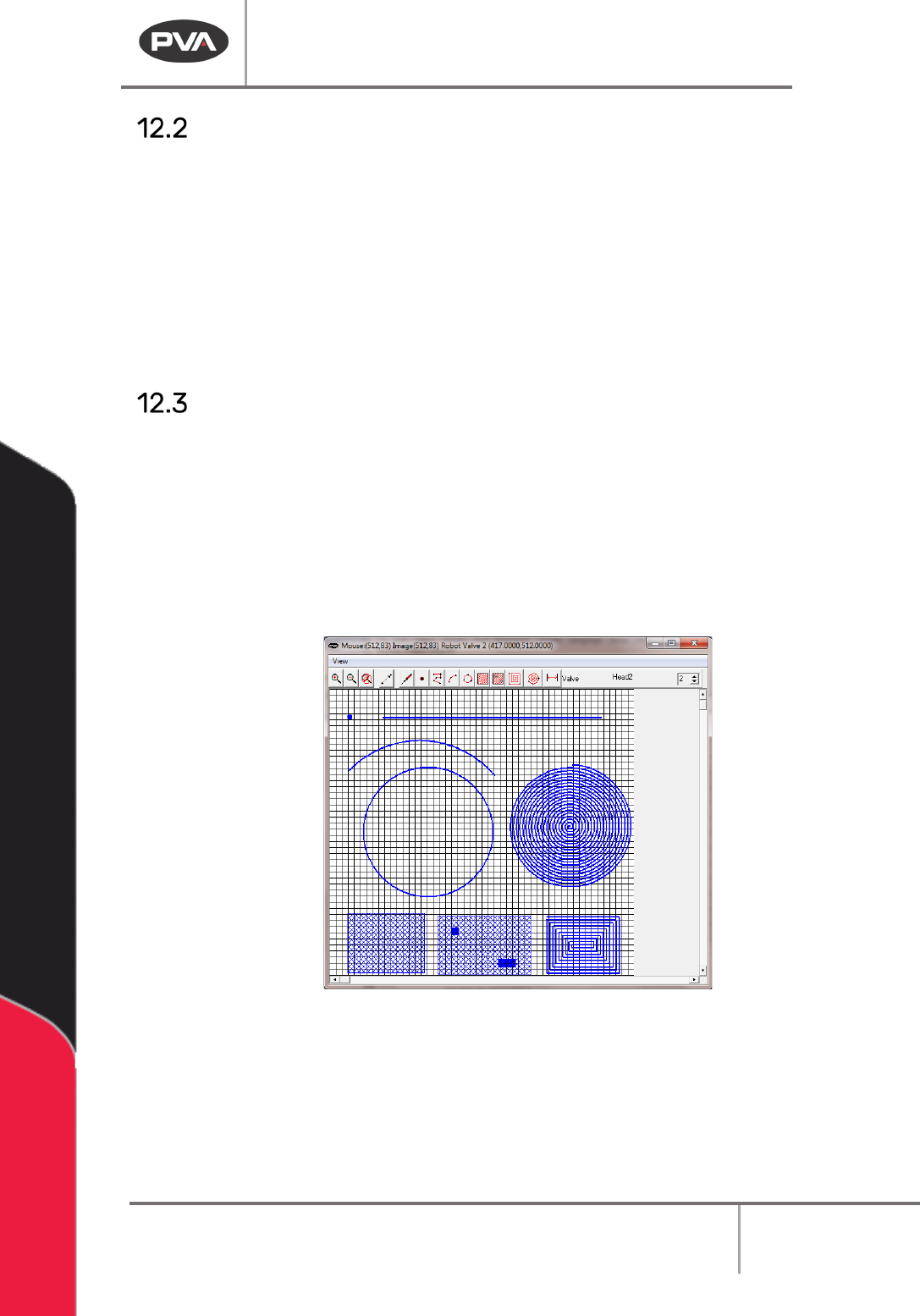
Figure 161: FastPath
Most PathMaster® programming functions are available when in FastPath™. Programming
functions are used in FastPath™ similar to the way they are used for regular programming.
The FastPath™ points are taught on the board image in the FastPath™ window with the
corresponding tool selected, instead of with the teach pendent.
6. To modify or edit an object, double click on the function.
Machine Operation Manual
Revision L /
February 2020
Page 130 of 200
The following functions are used in offline programming the same way they are used in
online programming:
NOTE: Each path segment taught corresponds to the tool selected in the FastPath™
toolbar.
• Move
• Tool
• Area
• Spiral
• Rectangular Spiral
• FastMask™
NOTE: The FastMask™ will be shown on the board image as a blue coating area with red
keep outs.
• Dot
The following functions are different in FastPath offline programming, their uses are
described below.
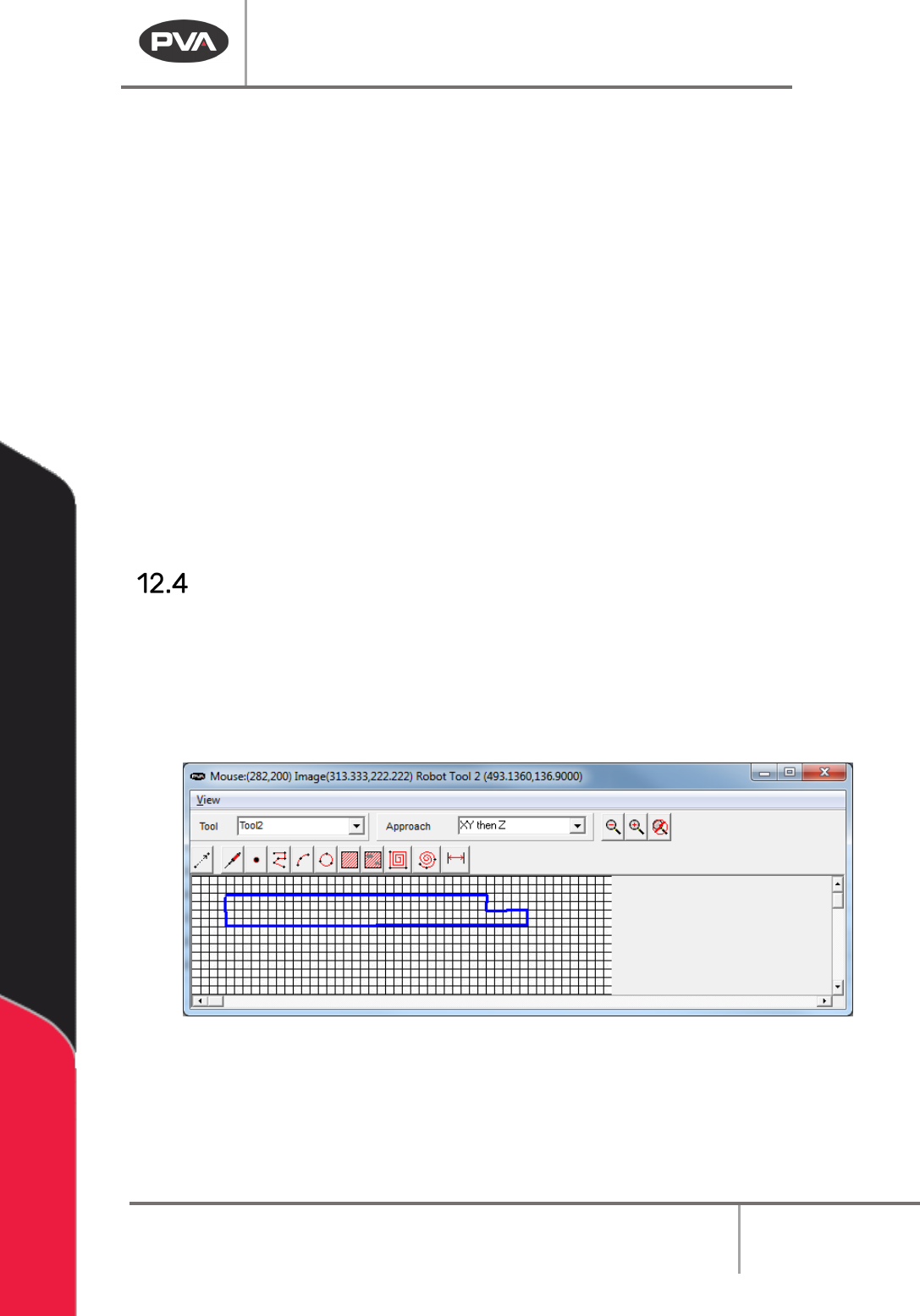
2D Line
The 2D Line function makes a line up to 2047 points.
1. Select the 2D Line button.
2. Select all the points of the line on the image.
3. When you have taught all points, right click the mouse to complete the 2D Line.
Figure 162: FastPath 2D Line
The line on the board image will have a dispense width equal to the area spacing parameter
of the selected tool (Setup-> Machine Parameters->”
Tool Parameters” -> Line Spacing).
The 2D line can be edited graphically.
Machine Operation Manual
Revision L /
February 2020
Page 131 of 200
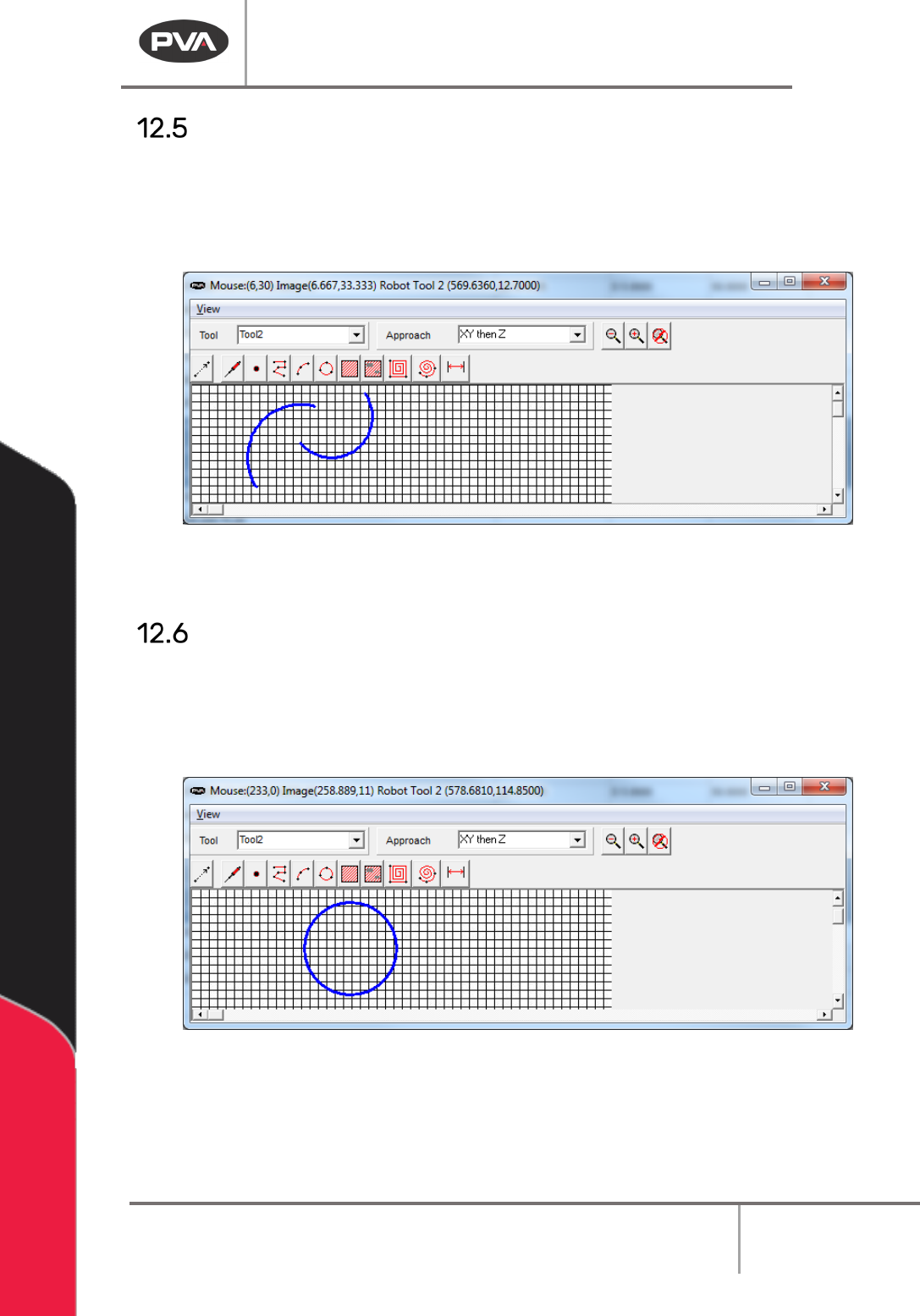
Arc
The Arc function has two endpoints and a mid-point.
1. Select the Arc function.
2. Teach the three points.
Figure 163: FastPath Arc
Double click on the arc to open the edit screen.
Circle
The center point is displayed for reference and cannot be moved.
1. Select the Circle function.
2. Teach the three points.
Figure 164: FastPath Circle
Drag any point of the circle to a new location to edit it. This will change the radius and
location of the entire circle.