PathMaster-REV-L-4.5-1.pdf - 第151页
Machine Operati on Manual Revision L / February 2020 Page 151 of 200 Path Previ ew The path pre view will gi ve a gra phic repre sentati on of the path p rogra m or segme nts. 1. Highlight all path s egments to be displa…
Machine Operation Manual
Revision L /
February 2020
Page 150 of 200
Refresh Communication
If PathMaster® loses communication with the workcell the communication must be
refreshed.
• Select
Utilities -> Refresh Communications
from the main menu. If communication
is not reestablished, check cables and communication settings.
Jog Toolbar
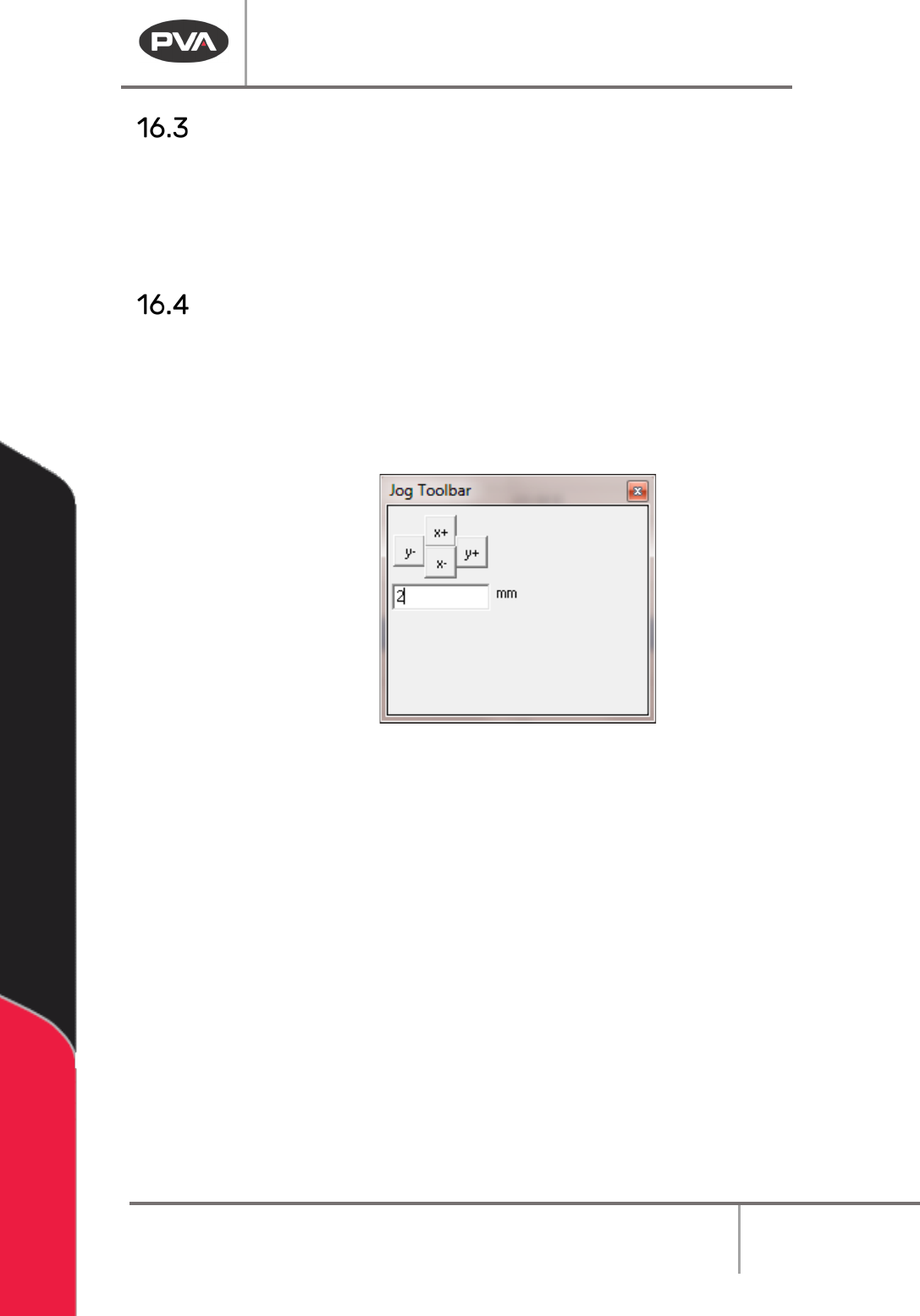
The jog toolbar can be used to jog the X or Y axis a specified distance.
1. Select
Utilities -> Jog Toolbar
from the main menu.
2. Enter the distance to jog, and select the button with the necessary axis and
direction.
Figure 183: Jog Toolbar
Machine Operation Manual
Revision L /
February 2020
Page 151 of 200
Path Preview
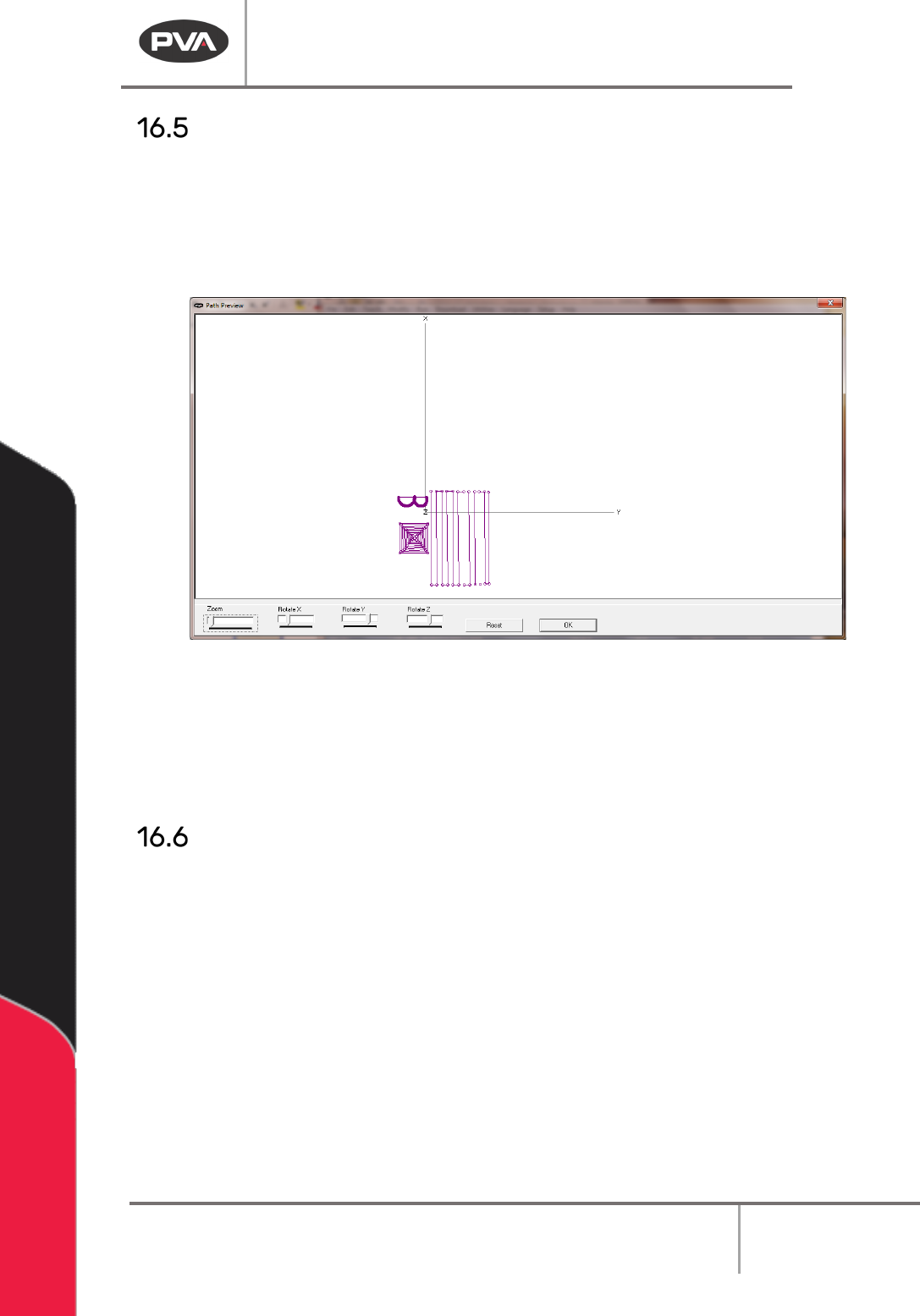
The path preview will give a graphic representation of the path program or segments.
1. Highlight all path segments to be displayed in the preview.
2. Select the
Utilities -> Path Preview
option from the main menu. The path preview
window will display.
Figure 184: Path Preview
3. Right click the path preview window to see a zoom, pan, rotate, coordinate info
menu.
4. Select “Reset” to return the preview to default display.
5. Select “Ok” when you are done.
Recover Main and Recover Project
With the Recover Main and Recover Project features the user can upload the compressed
main or compressed project from the controller.
1. Select
Utilities-> Recover MAIN
or
Utilities ->Recover Project
from the main menu.
2. When the dialog box appears, select a file folder location.
3. Select “Save”.
NOTE: The files will be compressed and in DMC, so the files will not be easy to change.
Machine Operation Manual
Revision L /
February 2020
Page 152 of 200
Show Code and Show Code with Surfaces
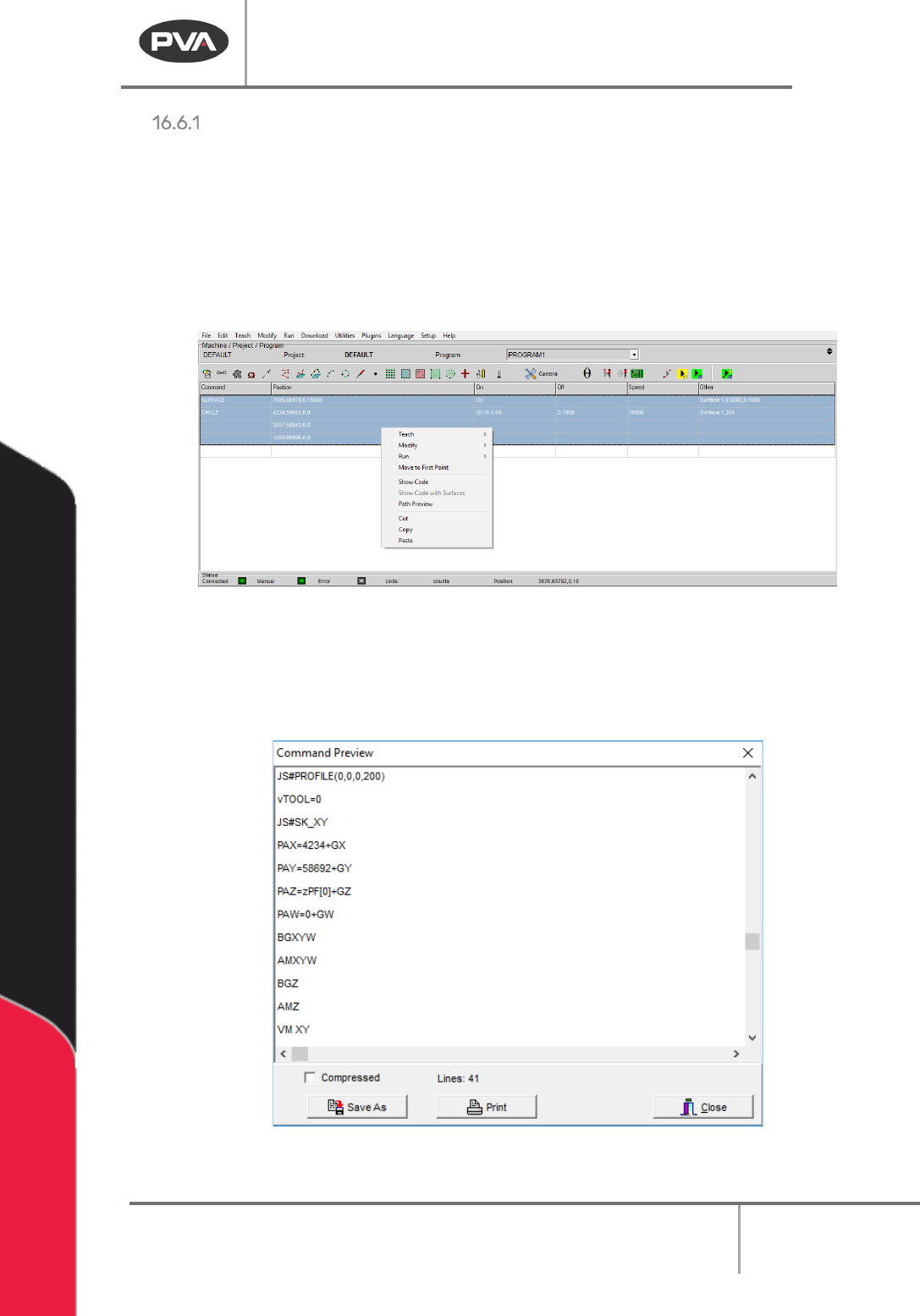
The show code option will show the compiled machine code for the selected segments.
Show Code with Surfaces is used as a debug tool, if necessary, and replaces all of the
variables with values used.
1. Highlight the path segments.
2. Select
Utilities -> Show Code
from the main menu, or right click and select Show
Code from the menu.
Figure 185: Show Code
A window will open with the machine code from the selected segments.
3. Select “Save As” to save the code as a text file.
4. Select “Print” to print the code.
Figure 186: Show Code, Command Preview