PathMaster-REV-L-4.5-1.pdf - 第63页
Machine Operati on Manual Revision L / February 2020 Page 63 of 20 0 Auxilia ry The machine auxili ary feature is used to ha rdcode custom sof tware o ptions into the machine so ftware . This functi on is prog ramme d by…
Machine Operation Manual
Revision L /
February 2020
Page 62 of 200
3. Select the “OK” button.
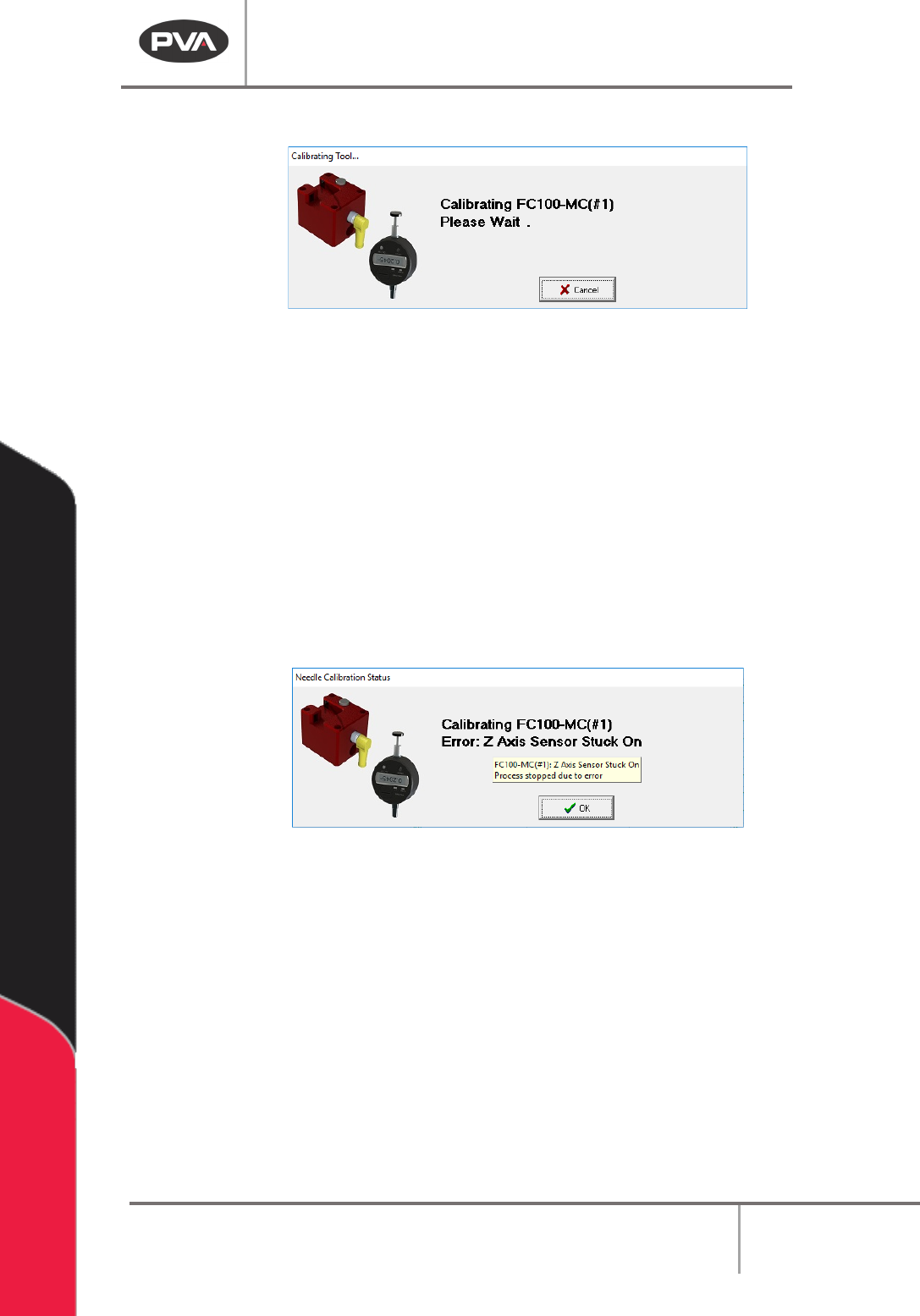
Figure 60: Calibration Wait Screen
4. When the Tool Calibration is done, changes are saved and offsets are applied to the
path programs for the related tool(s), if Needle Calibration was run.
5. For multi-tool calibration, all applied calibration operations run for each tool, in any
combination of Needle Calibration and Profile Calibration. Any changes to
Tool
Offsets or Profile Offsets are saved and offsets are applied to tools individually, if
the calibration was successful.
6. If any of the selected tools fail, the sequence is stopped. Any tools that were
completed before the failed tool will have
Tool Offsets and/or Profile Offsets
applied. If a multi-tool calibration fails, move the mouse over the failed message to
show a pop up with the status of each tool. The popup window must have focus to
show the popup hint.
Figure 61: Calibration Status Screen
7. Use the “Cancel” button to stop the sequence. For multi-tool calibration, the current
tool will finish calibrating and changes will be saved for all of the tools that complete
calibration before the calibration was canceled.
Machine Operation Manual
Revision L /
February 2020
Page 63 of 200
Auxiliary
The machine auxiliary feature is used to hardcode custom software options into the
machine software. This function is programmed by PVA and instructions on how to use it
are supplied if necessary.
1. Select
Setup->Machine Parameters
from the Main menu to open the Machine
Parameters window.
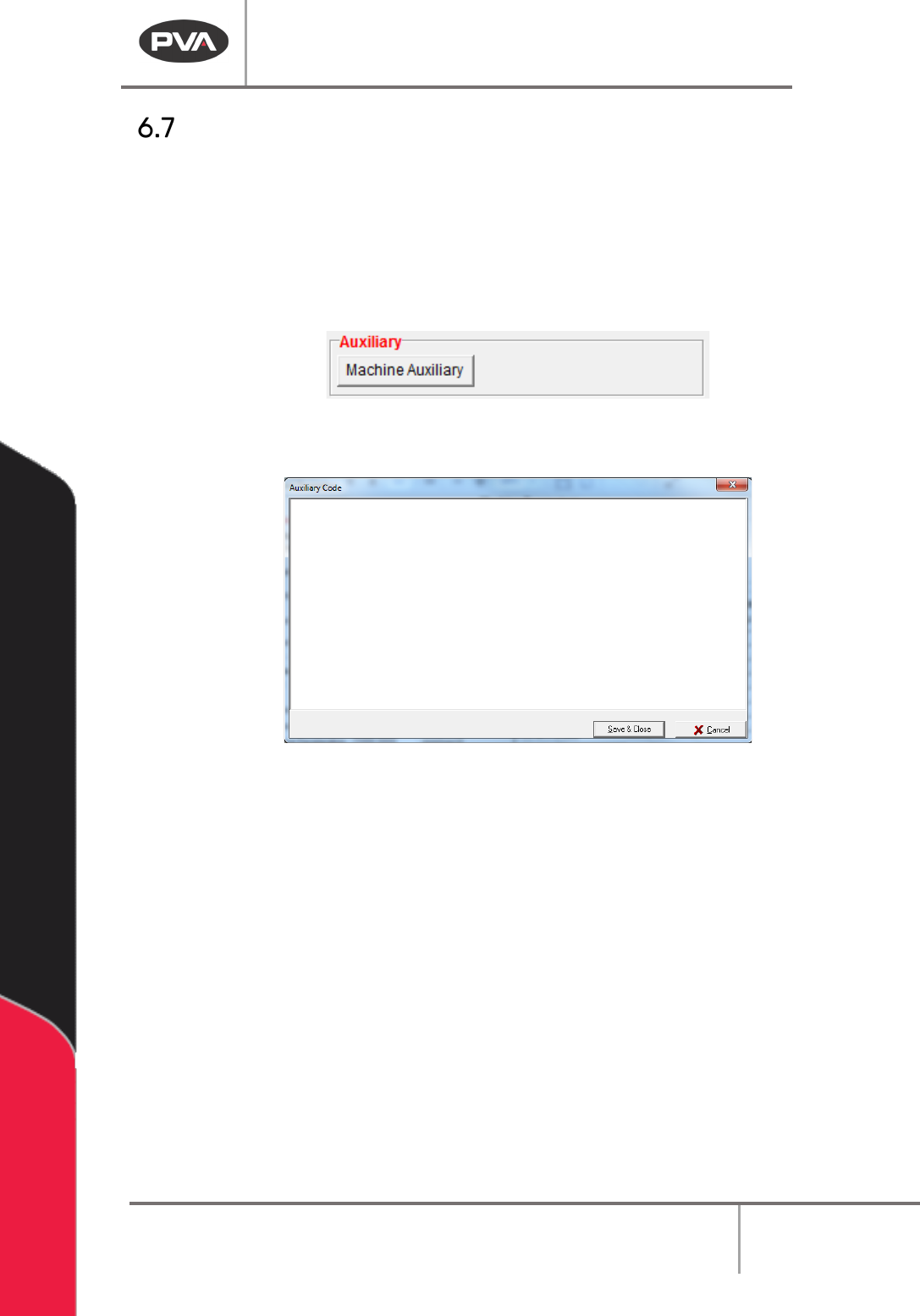
2. If necessary, select the “Machine Auxiliary” button.
Figure 62: Machine Auxiliary
3. Make the necessary changes in the Auxiliary Code window.
Figure 63: Auxiliary Code
4. Select “Save & Close” to keep the changes.
5. Select “Cancel” to exit and not save changes.
Machine Operation Manual
Revision L /
February 2020
Page 64 of 200
Communications
This feature is used to configure the RS-232 communication or Ethernet settings between
the computer and the workcell. PathMaster® uses control handles to store all
communication settings for a machine. The information in the control handles is stored in
the Windows® registry. PathMaster® can have multiple control handles configured, but
only one control handle can be selected at a time. When PathMaster is installed it creates
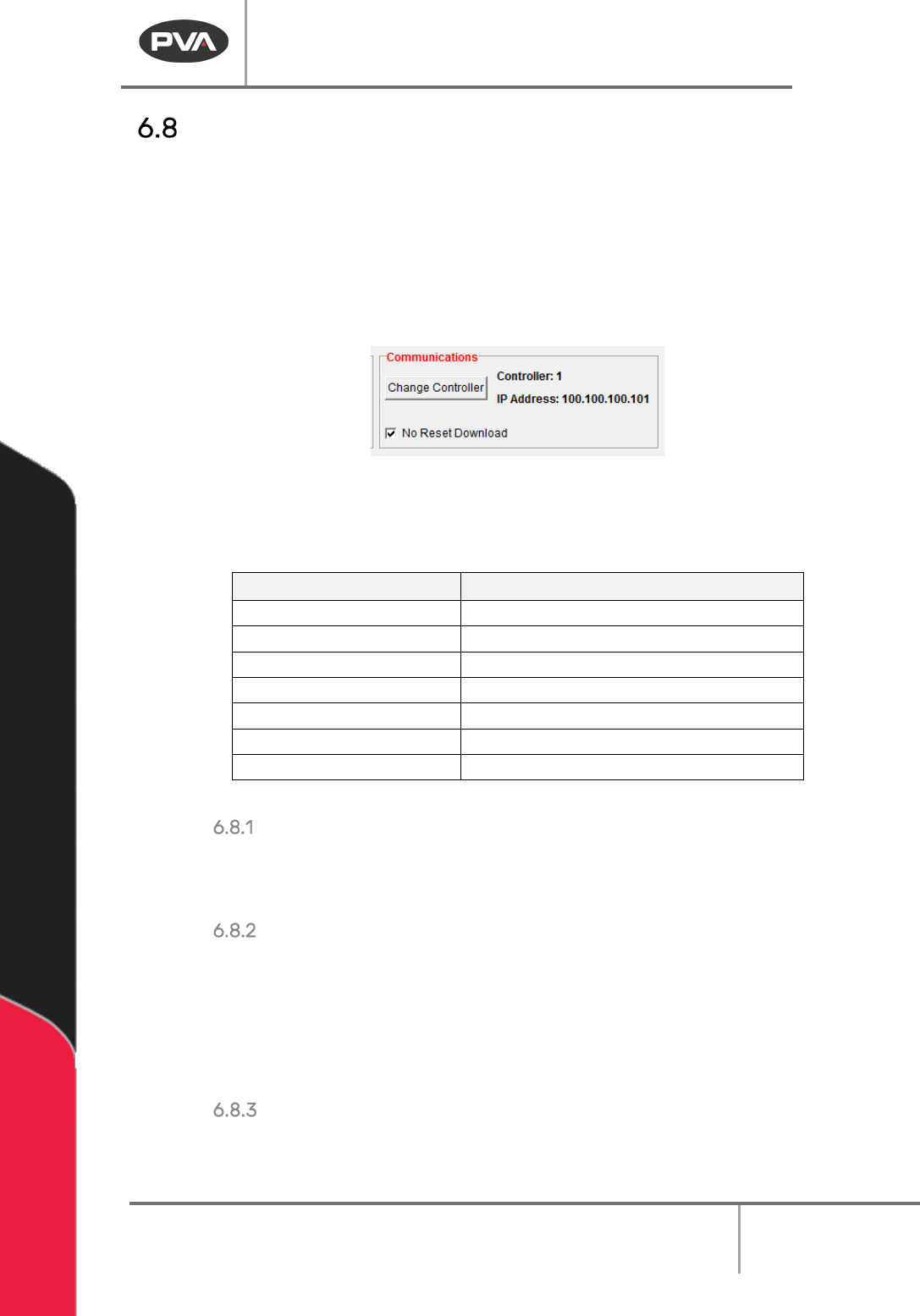
controller 1 as an Ethernet controller with an IP address of 100.100.100.101 as a default.
These settings are found in the Machine Parameters window.
Figure 64: Communications
The table below has the list of IP Addresses referenced directly by PathMaster® or its
underlying architecture.
IP Address
Description
100.100.100.101
Motion Controller 1 (Default)
100.100.100.102
Motion Controller 2
100.100.100.103
Motion Controller 3
100.100.100.104
Motion Controller 4
100.100.100.105
Motion Controller 5
100.100.100.106
Motion Controller 6
100.100.100.110*
Remote I/O
Table 4: PathMaster IP Addresses
Change Controller
Select “Change Controller” to select from any pre-configured controller handles stored in
the Windows® registry.
No Reset Download
If you select this feature the workcell will not reset when the project is downloaded. The
DMC Motion Controller must have the latest firmware revision (D220S36N or higher) to use
this feature. The main program of the machine must be programmed for this feature. If the
main program has not been changed, the workcell will show a command error. Refer to the
Troubleshooting document for more information.
Saving Machine Parameters
When all machine parameters have been set, select the “Save & Close” button to save the
parameters and return to the main PathMaster® window.