PathMaster-REV-L-4.5-1.pdf - 第110页
Machine Operati on Manual Revision L / February 2020 Page 110 of 2 00 Z- A xis Heigh t NOTE: The “Use C urrent Z Height” and “Use C alibrate d Z Height” check boxe s are only shown when the Te ach Tool is enabl ed. The T…
Machine Operation Manual
Revision L /
February 2020
Page 109 of 200
Run Selection / Sequence
The Run Selection function will play back the selected path segments in Wet, Dry or
Camera mode. Run Sequence always plays the entirety of the Path Program.
1. Select one or more commands.
2. Select the Run Selection function to play the highlighted commands or Run
Sequence to play all of the current Path Program.
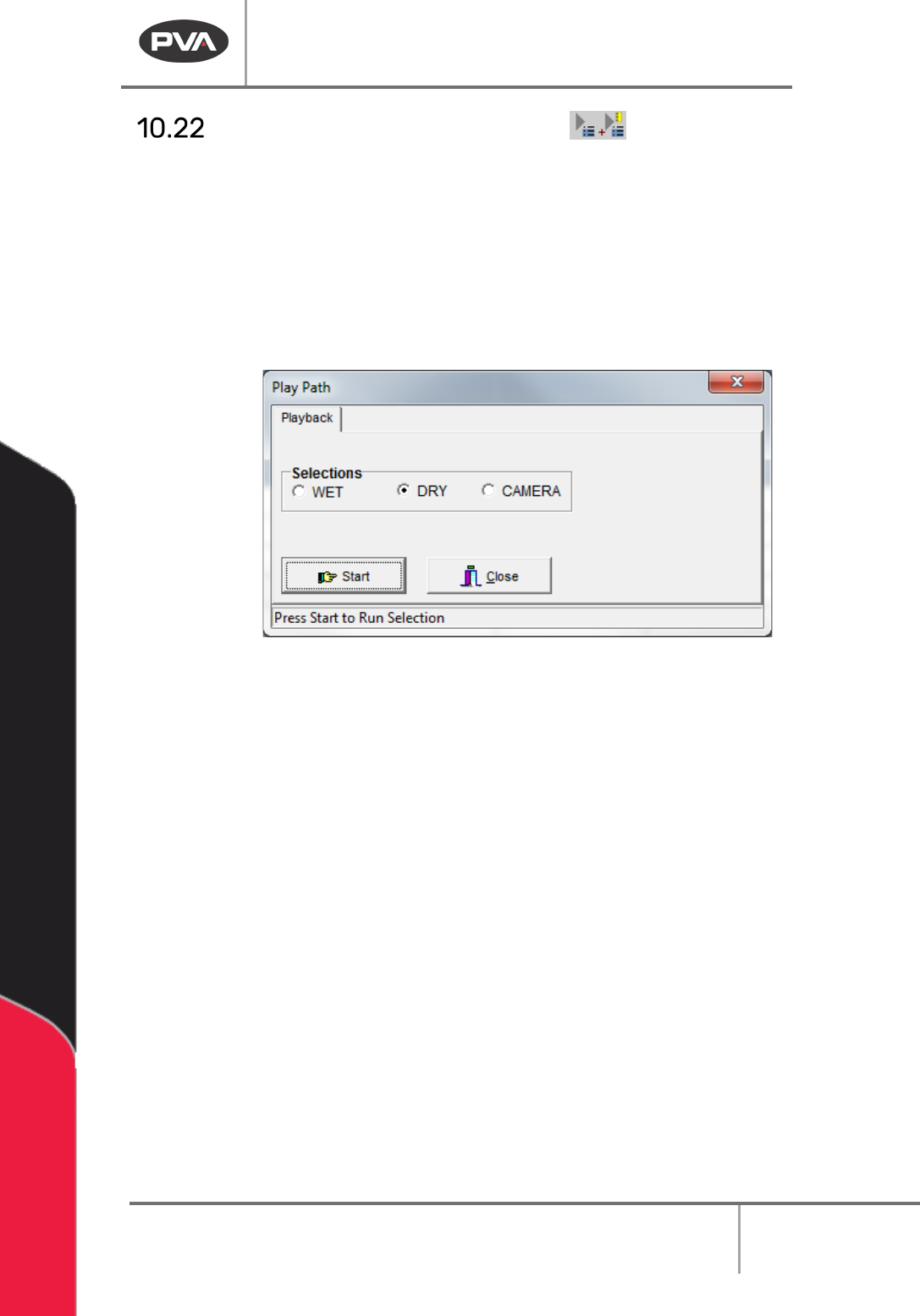
6. Select “Wet”, “Dry”, or “Virtual Tool 0”. The name for the third option will be the
name of Virtual Tool 0.
Figure 132: Playback
3. Select “Start” to play the highlighted commands.
4. Select “Close” to exit and not play the path.
Machine Operation Manual
Revision L /
February 2020
Page 110 of 200
Z-Axis Height
NOTE: The “Use Current Z Height” and “Use Calibrated Z Height” checkboxes are only
shown when the Teach Tool is enabled. The Tool Offset table and Tool Parameters must be
correctly configured before use.
The teach tool can be used to make paths on the workcell. After a path segment is taught
with the teach tool, the tool can be changed to any other tool and the offset is set by
PathMaster.
The Z-axis (height) position is set by the user when path segments are taught, the teach
tool’s current Z-coordinate or a pre-calculated value, called the Calibrated Tool Height, can
be used. If the calibrated tool height is used, it will not be necessary to change the path
after it is complete, and when tool changes or needle calibrations are done, the offsets are
update for the path programs.
Tool Offset Height: The distance traveled by a specific tool from the Z-axis home position
to the workpiece.
Relative Height: The Z distance from the position taught as the tool offset reference
position on the calibration plate that the tool will operate at, set in the Tool Configuration
window. Also called
Gantry (Relative) in the Surface menu. Not available for 2D Line, 3D
Line, Area, Arc, Circle, Dot, Dot Array, Rectangular Spiral, and Spiral. Functions slightly
differently when used in the Move command.
Calibrated Z Height: The difference between a tool offset and the tool’s Relative Height is
the Calibrated Z Height for a tool. Also called
Calibrated Z, in the Surface menu.
Calibrated Z Height = Tool Offset Height – Relative Height
Additional Options in the Surface Menu:
Gantry (Raw) uses the Z coordinate exactly as it was taught.
Use Last uses the Z height of the previous Surface used in the Polyline. Not available for 2D
Line, 3D Line, Area, Arc, Circle, Dot, Dot Array, Rectangular Spiral, Spiral, and Move.
Custom Surface uses the XY coordinates of the Surface command that shares the same
name and uses the Z height and the current run tool’s “
Calibrated Z” to set the dispense Z
height.
NOTE: The available Z-height options depend on the workcell configuration and the
function being used.
Machine Operation Manual
Revision L /
February 2020
Page 111 of 200
Offset Details
The offset height is shown in PathMaster’s Tool Configuration window and set in the
Camera Offset Training window. Refer to Section 6.6.5 for more information.
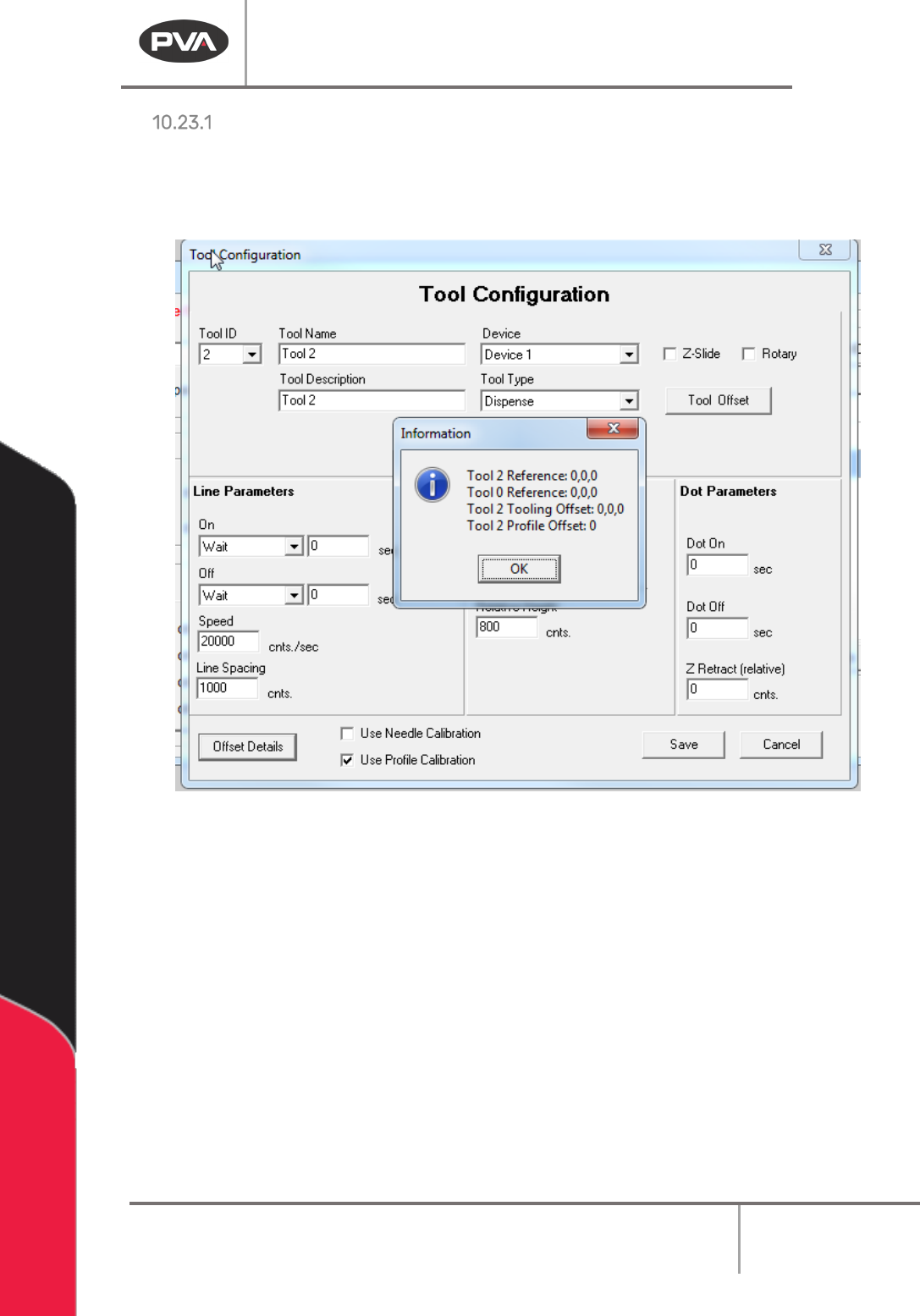
• Select the Offset Details button to be shown the related tool offset.
Figure 133: Example Tool Offset
Run Tool Reference – This is the absolute position where the Run Tool is positioned to
calculate the tool offset.
Teach Tool Reference – This is the absolute position where the Teach Tool is positioned to
calculate the Tool Offset.
Run Tooling Offsets – This is the difference in position between the Teach Tool and the Run
Tool (Tool Offset).
Tool Profile Offset – This is the difference between the Profile Z Common reference and
the tip of the Run Tool (Profile Offset).