PathMaster-REV-L-4.5-1.pdf - 第121页
Machine Operati on Manual Revision L / February 2020 Page 121 of 20 0 I/O (Input /Outp ut) The opera tor can con trol outp uts or wait fo r an input to be in a set stat e. Only ope rators who under stand disc rete I/O an…
Machine Operation Manual
Revision L /
February 2020
Page 120 of 200
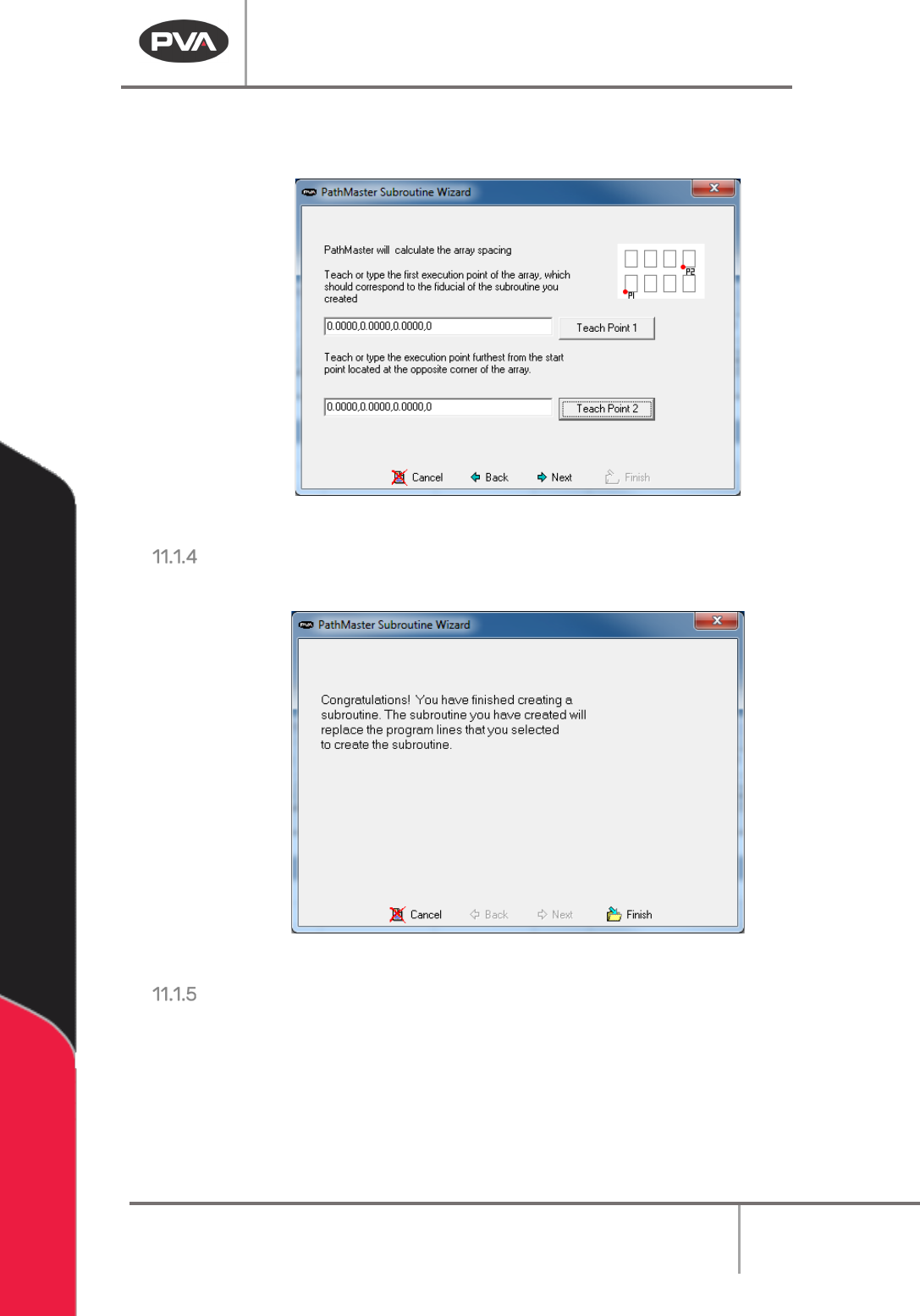
12. Teach the first and last points. The coordinates entered are relative to the point of
origin taught before. PathMaster® calculates the distance for X and Y spacing.
Figure 148: Teach First and Last Points
Finish
13. Select “Finish” to save the subroutine, or “Cancel” to exit and not save changes.
Figure 149: Finish Window
Edit the Subroutine
1. Save the current project.
2. Select
File -> Open -> Subroutine
and choose the subroutine from the list.
3. Edit the routine as necessary.
4. Save the subroutine and open the current project again.
Machine Operation Manual
Revision L /
February 2020
Page 121 of 200
I/O (Input/Output)
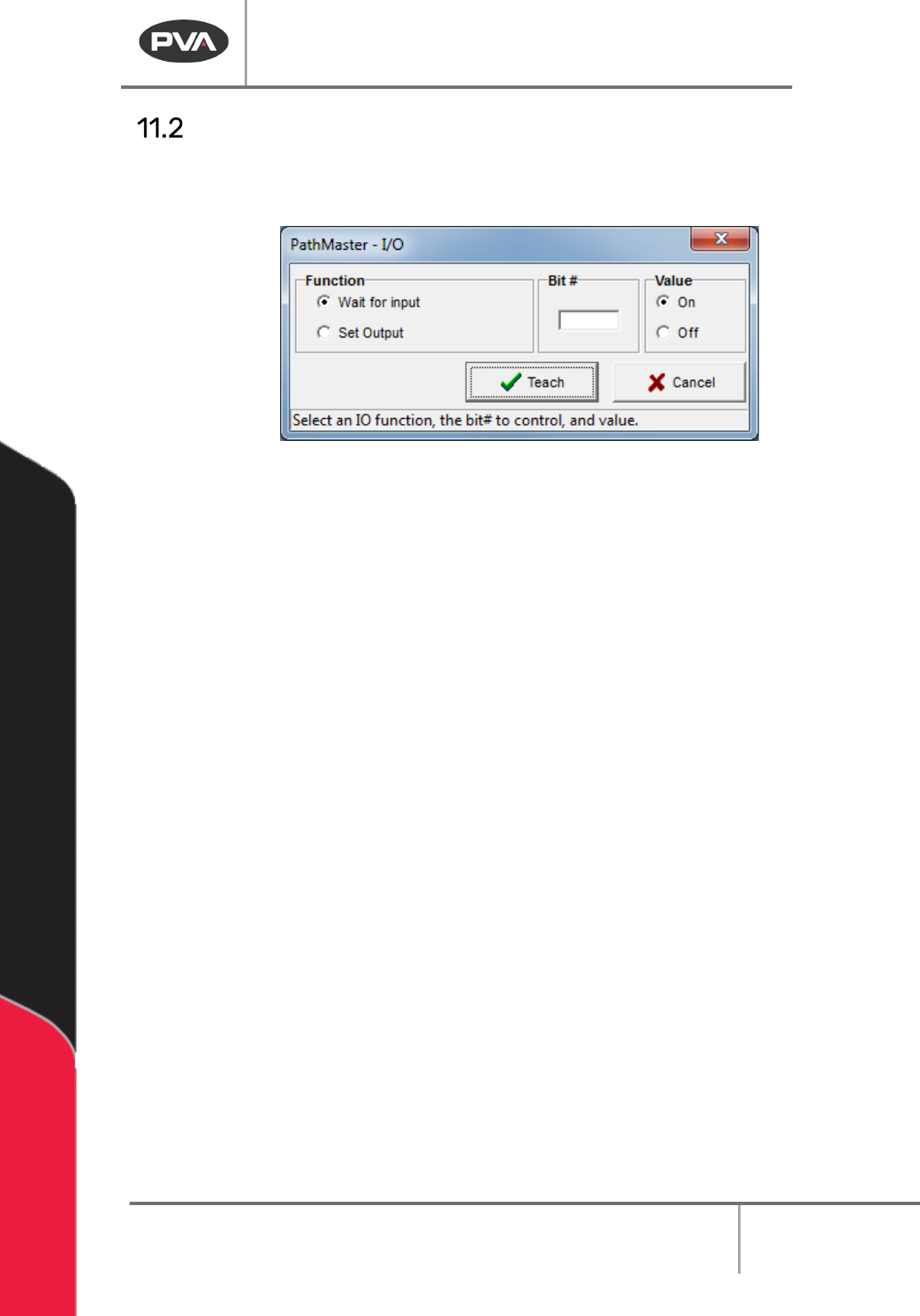
The operator can control outputs or wait for an input to be in a set state. Only operators
who understand discrete I/O and its use should use this tool.
Figure 150 Teach I/O
1. Select
Teach->I/O
from the main menu.
2. Select the necessary function.
3. Select “Wait for input” to hold the program until an input is in the set state. Select
“
Set Output” to turn a discrete output on or off.
4. Put the necessary value in the Bit # box. This is the location of the discrete I/O bit
referenced.
5. Select the necessary Value, “ON” or “OFF”.
6. Select “Teach” to add your selections to the program or “Cancel” to exit and not
save changes.
Machine Operation Manual
Revision L /
February 2020
Page 122 of 200
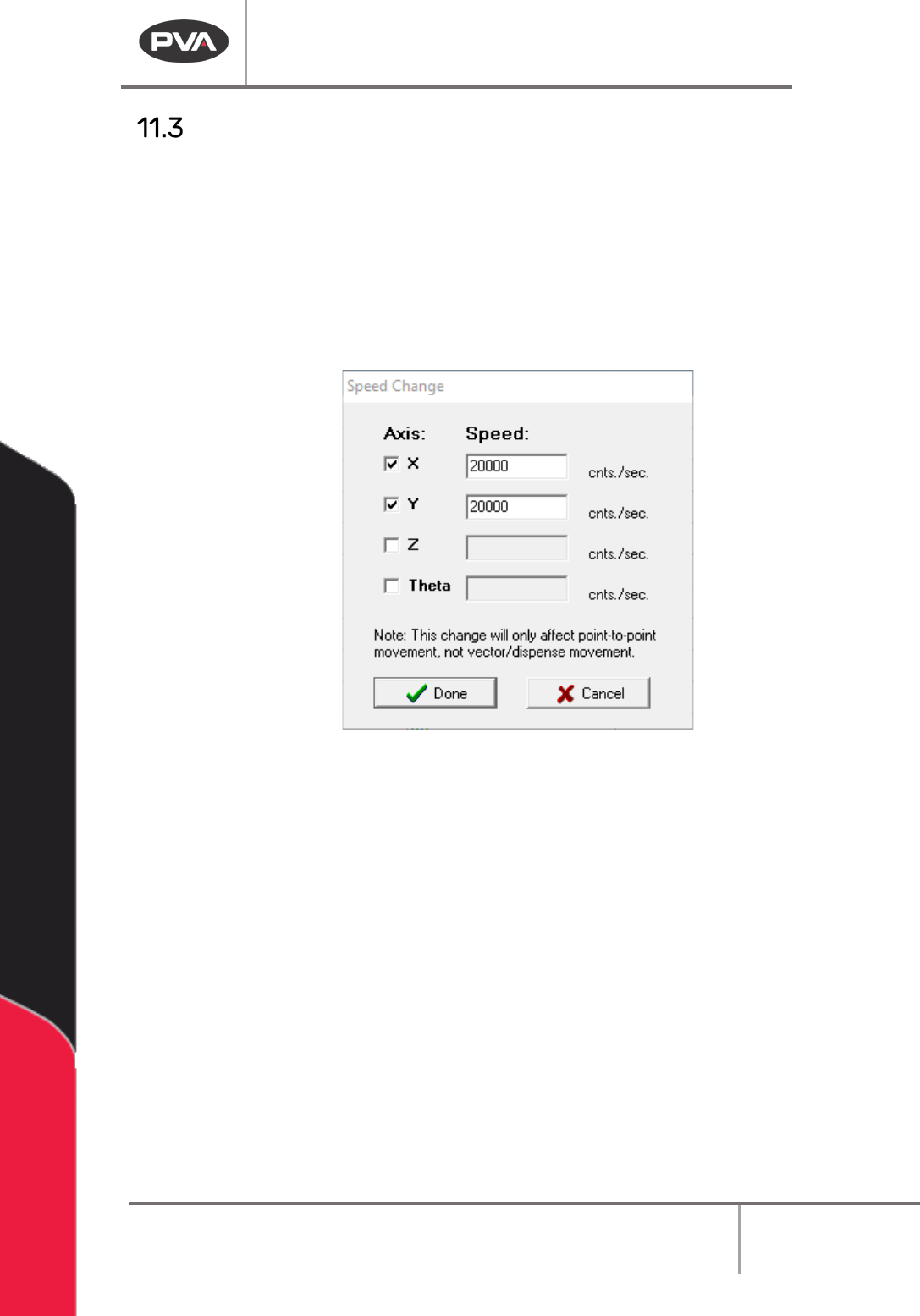
Move Speed Change Command
The Move Speed Change command is used to change the speed of independent axis
movements between dispense points. This command does not change the speed at which
the gantry moves when dispensing. All movements between dispenses are changed by this
command. This may be utilized multiple times in a path to change the rate of motion at any
time.
To access the Move Speed Change command, click
Teach > Move Speed
from the main
menu.
Figure 151: Move Speed Change Window