PathMaster-REV-L-4.5-1.pdf - 第42页
Machine Operati on Manual Revision L / February 2020 Page 42 of 20 0 Teach Tool When the Tea ch Tool fu nction in PathMaster ® is enabled, the first virtual tool ( Tool ID 0) will be the teach t ool by default and will b…
Machine Operation Manual
Revision L /
February 2020
Page 41 of 200
Motion Options
PathMaster® can have up to 14 devices configured. All Devices are physical tools in the
system. Devices are used to relate a Virtual Tool to a physical tool. These settings are found
in the Machine Parameters window.
• Select
Setup->Machine Parameters
from the Main menu to open the Machine
Parameters window.
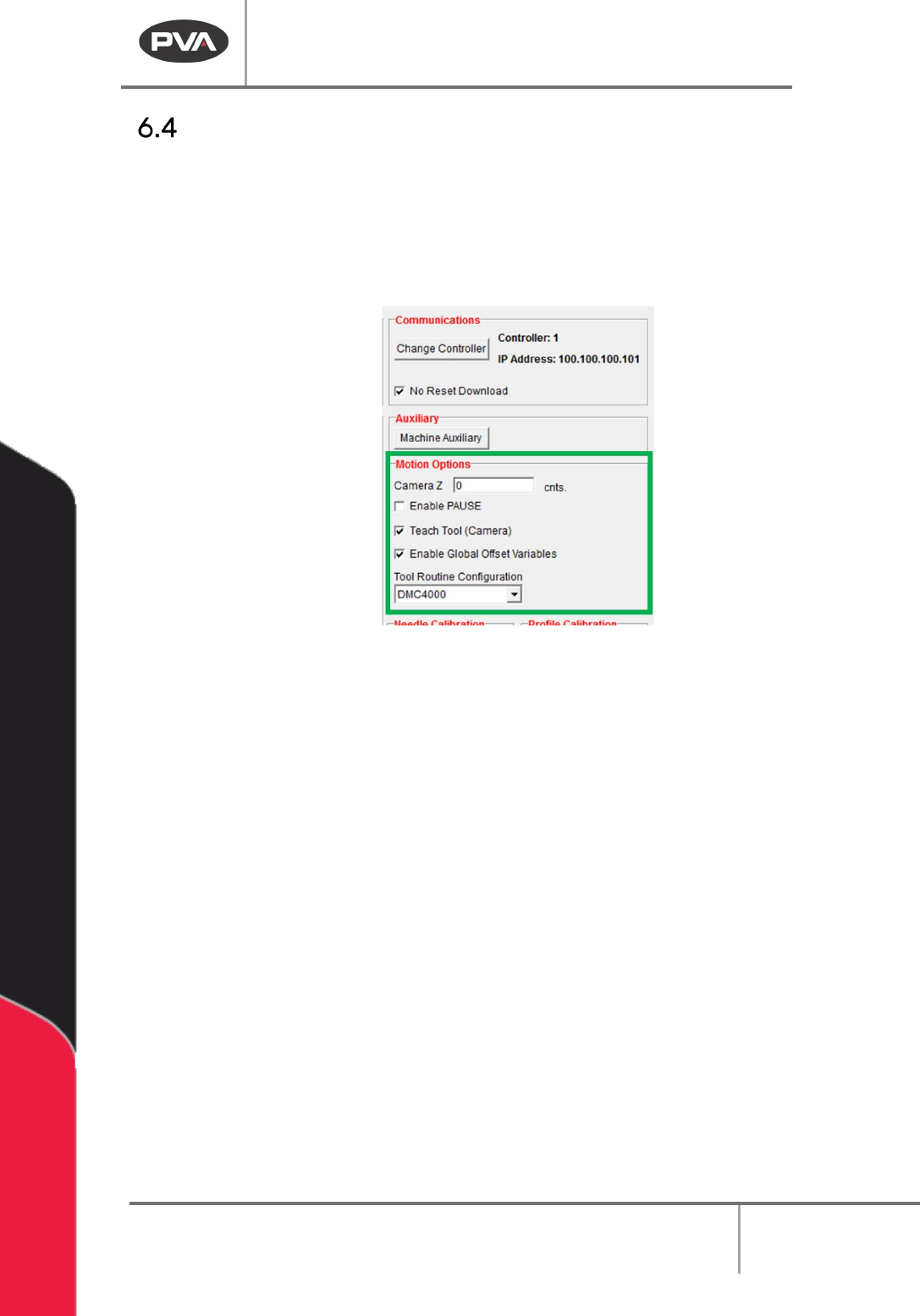
Figure 30: Changes in Options When the Teach Tool Box is Selected
• Some options shown in this manual are only available when the Teach Tool box is selected.
NOTE: You must a use a local copy of the software for the teach tool to work correctly.
Machine Operation Manual
Revision L /
February 2020
Page 42 of 200
Teach Tool
When the Teach Tool function in PathMaster® is enabled, the first virtual tool (Tool ID 0)
will be the teach tool by default and will be related to the first Device (Device ID 0). If a
workcell does not have a teach tool, the first tool spot will be reserved. If a teach tool is
added on the workcell later, the reserved first tool will become the teach tool.
Also, when the Teach Tool is enabled, PathMaster® shows the options for the teach tool.
The box should be checked if there is a teach tool installed.
• When the Teach Tool box is selected, Pathmaster® shows the options for the teach
tool. The box should be checked if there is a teach tool installed.
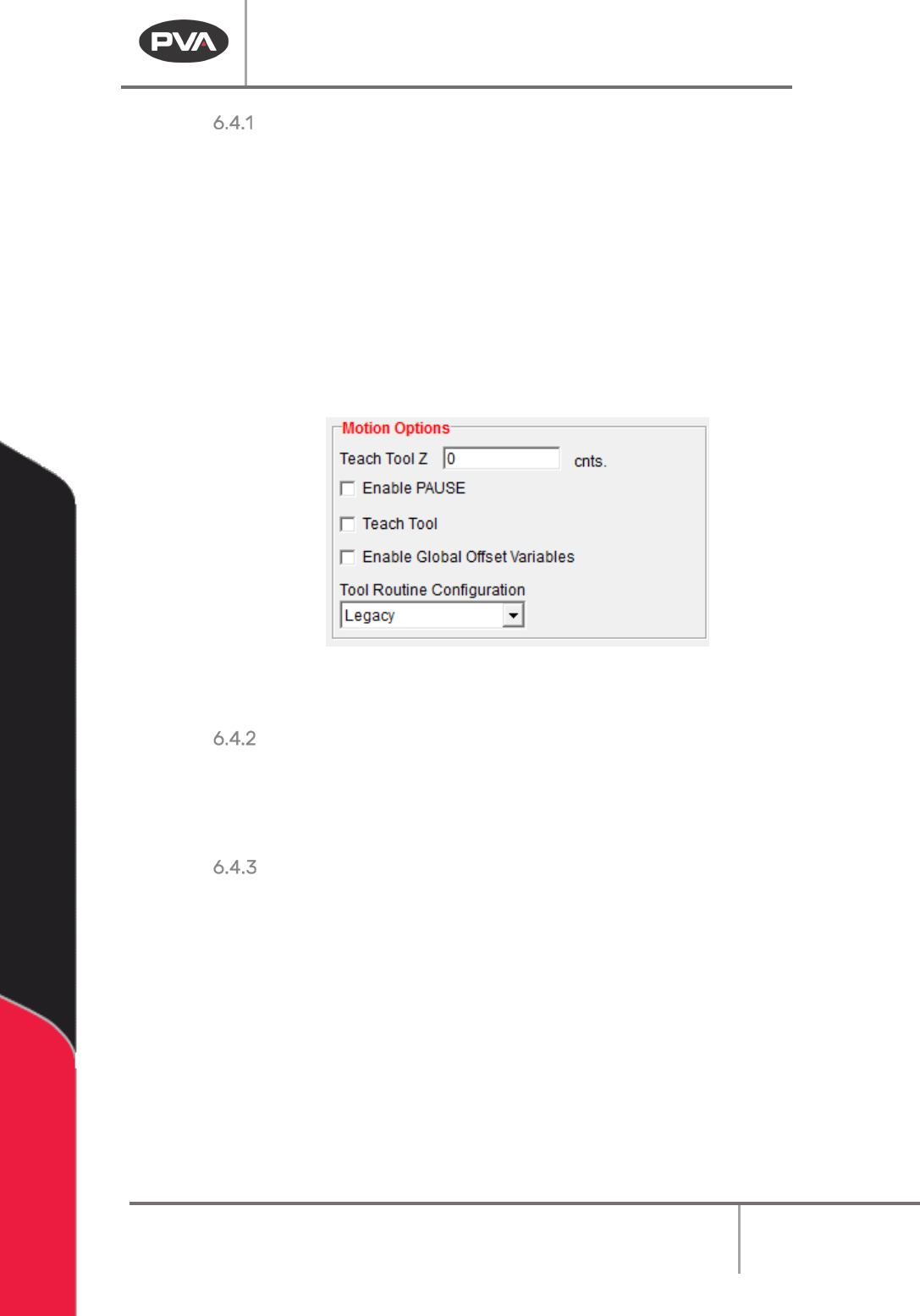
Figure 31: Changes in Options When the Teach Tool Box is Selected
Some options shown in this manual are only available when the Teach Tool box is selected.
Camera Z Position
The value in the Camera Z Position box is the Z height used when the “Move to Camera Height”
function in the toolbar is selected. The machine must be in manual mode and this height should be
where the camera is in focus with the product to be observed.
Enable Global Offset Variables
If you select this feature, offset variables can be used in a workcell so that the same
program can be used in more than one workcell. The main program of the machine must be
programmed for this feature. If the main program has not been changed, the workcell will
show a Command Error (refer to the Troubleshooting manual).
Machine Operation Manual
Revision L /
February 2020
Page 43 of 200
Enable Pause
If you select this feature a program can be stopped and then restarted mid-cycle in
automatic production. The main program of the machine must be programmed for this
feature. If the main program has not been changed, the workcell will show a Command
Error (refer to the Troubleshooting manual).
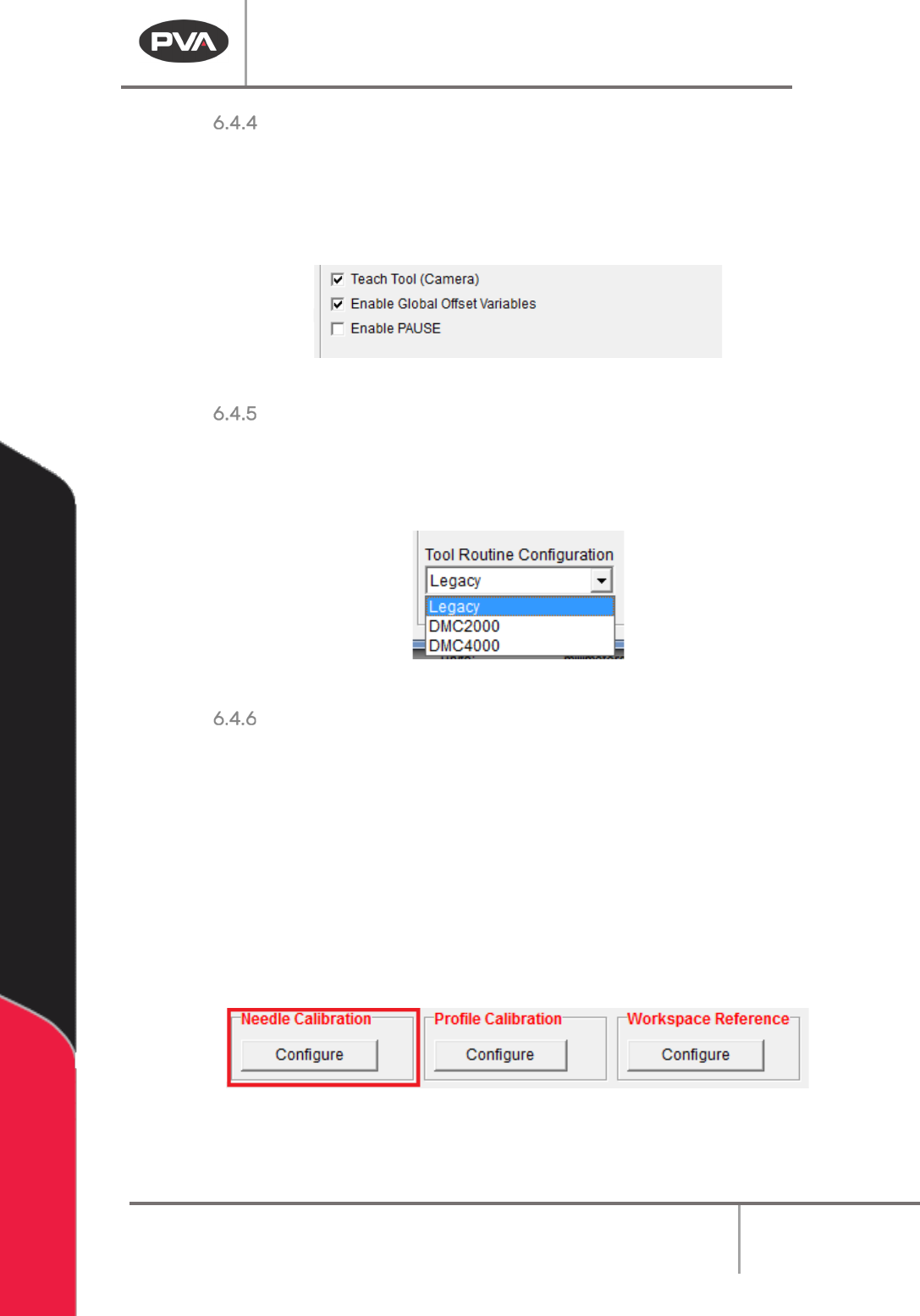
Figure 32: Machine Parameters, Tools Section Options
Tool Routine Configuration
The Tool Routine Configuration drop down menu will come set from the factory or will be
selected as “Legacy” if PathMaster has been updated. If you change this setting, Main
program changes will be necessary or you will have program errors.
Figure 33: Tool Routine Configuration
Needle Calibration
The Needle Calibration Reference Position defines where the needle calibration unit is
physically located in the system. The needle calibration setup is a two-part setup. First, the
needle calibration reference position is set, then, the needle calibration sensor locate
sequence runs.
WARNING: The tool offsets must be configured before the needle calibration is set up. If
Tool Offsets are not configured correctly when the Sensor Locate Sequence is run, the
system could be damaged.
1. Select the “Configure” button to set the Needle Calibration Reference position and
run the sequence.
Figure 34: Needle Calibration
2. To set the Needle Calibration Reference Position, line the teach tool up with the
cross hair on the needle calibration unit and select the “
Teach” button.