PathMaster-REV-L-4.5-1.pdf - 第141页
Machine Operati on Manual Revision L / February 2020 Page 141 of 200 Modify PathMa ster® ha s functions to hel p chang e compl eted path s. These fu nctions ca n be foun d in the Modify menu. Program Select this op tion …
Machine Operation Manual
Revision L /
February 2020
Page 140 of 200
Subroutine
A correctly formatted subroutine can be imported into PathMaster® with the import
subroutine option. PathMaster® can also export subroutines.
To Import
1. Select
File -> Import -> Subroutine -> Text File
option from the main PathMaster®
menu or the
File -> Import subroutine
option from the subroutine edit window
menu.
2. Select the location and name of the subroutine.
3. Select “Open”.
NOTE: You may need to change the file filter (type) to *.txt to see the project file in the
dialog box.
When the import is complete, the subroutine edit window will open. Refer to Section 7.5.
To Export
1. Select
File -> Export -> Subroutine -> Text File
option from the main PathMaster®
menu or the
File -> Export Subroutine
option from the subroutine edit window
menu.
2. Select the location and name of the subroutine.
3. Select “Save”.
Machine Operation Manual
Revision L /
February 2020
Page 141 of 200
Modify
PathMaster® has functions to help change completed paths. These functions can be found
in the Modify menu.
Program
Select this option to offset or mirror the entire program.
Selection
Select this option to make changes to only the blue highlighted portion of the program.
Properties
Select
Modify -> Properties
to open the selected commands edit window. Refer to Section
10 for more information on specific programming functions.
Machine Operation Manual
Revision L /
February 2020
Page 142 of 200
Offset
Select
Modify -> Offset
to see the options
Program
and
Selection
.
Offsetting a Path
1. Select
Modify -> Offset.
2. Select either
Program
or
Selection.
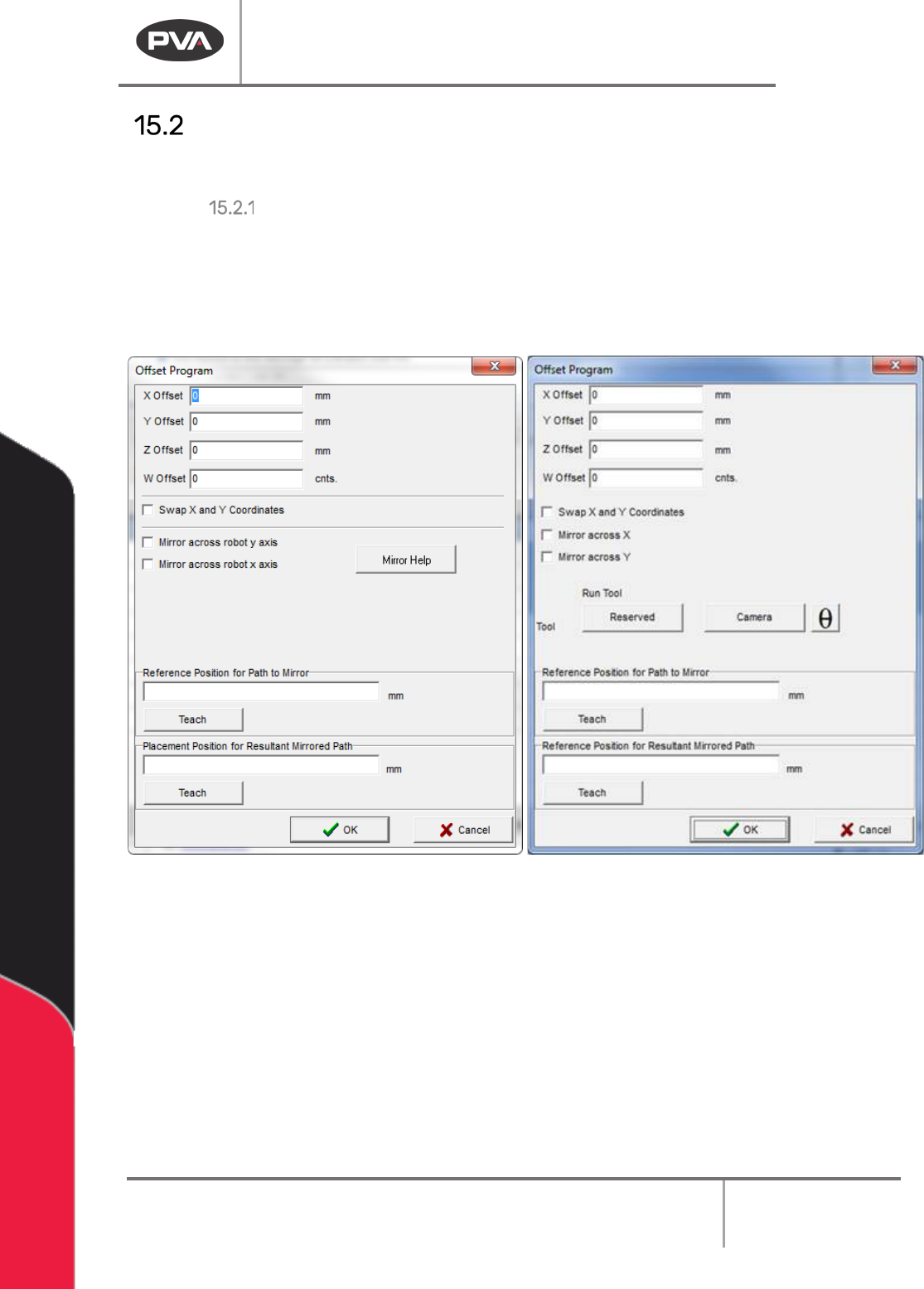
3. In the boxes for ‘X Offset’, ‘Y Offset’, ‘Z Offset’, and ‘W Offset’, enter the desired
offset in the units shown.
Figure 175: Offset Program Window Without and With Teach Tool Enabled
4. Click ‘OK’.
Your program/selection has been correctly offset.
NOTE: If you Offset W you could cause unintended consequences, and will override existing
offsets when the teach tool is enabled. Re-teaching a selected command will reset the W
to the pre-taught offsets.