PathMaster-REV-L-4.5-1.pdf - 第184页
Machine Operati on Manual Revision L / February 2020 Page 184 of 200 Figure 196 : Setup Plugins NOTE: Plugin s must be done i n numerical order , as shown. If done out o f order, the setup window for the pl ugin will clo…
Machine Operation Manual
Revision L /
February 2020
Page 183 of 200
Setup Plugins
You must set the reference positions before you can create a bond routine. The Setup
Plugins have the four main steps that you must complete to have a succesful routine. The
setup plugins must be done in numerical order (1-4).
Offset values should be taught to the bare datum and pick tool. The part values you set will
calculate the correct distance off of the datum and pick tool.
NOTE: The setup plugins are used to calculate the bonding reference position. Setup
plugins are accessed through the PM machine setup menu and have a global effect.
1. Select
Setup->Machine Parameters
from the Main menu to open the Machine
Parameters window.
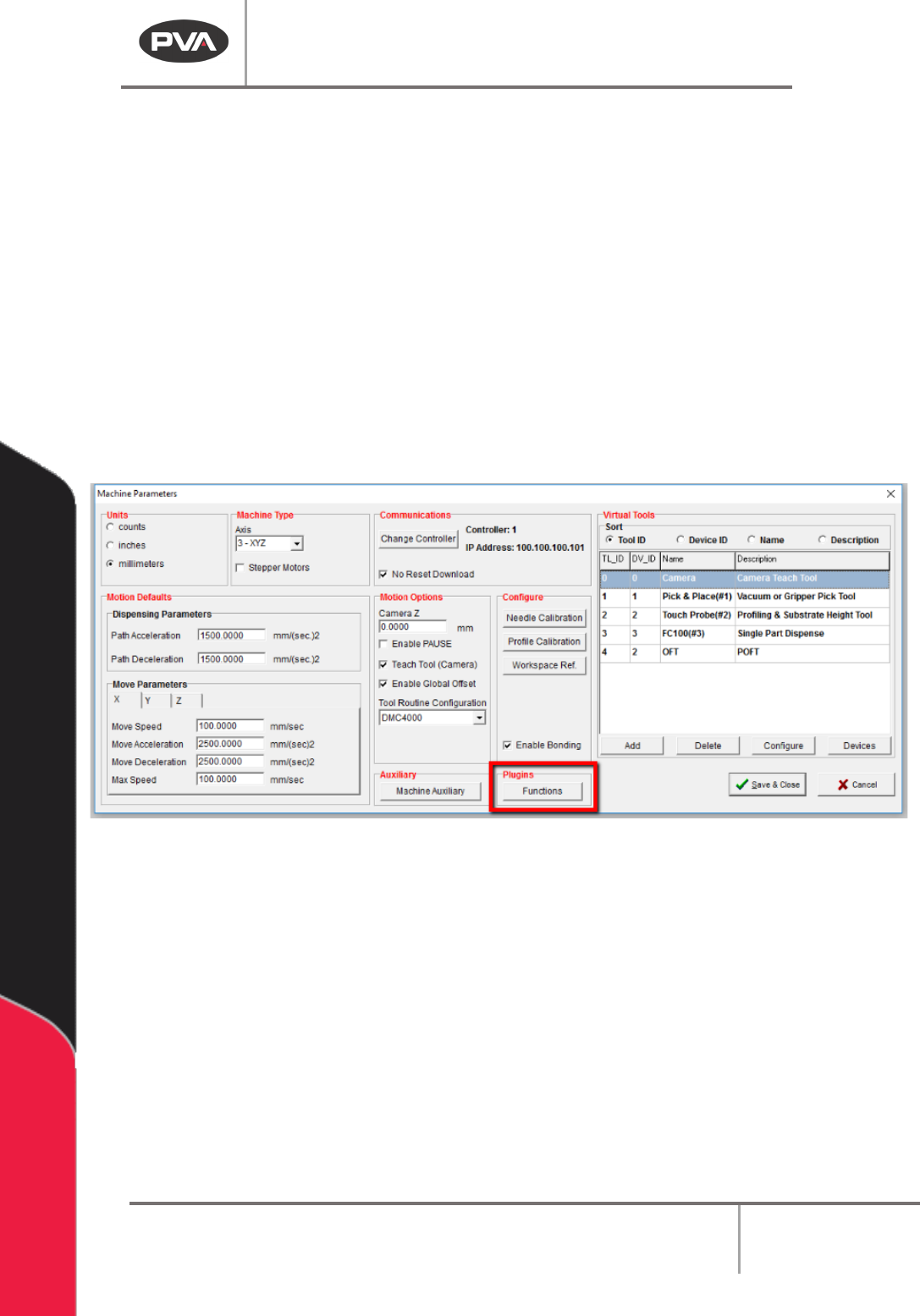
2. Select the “Functions” button form the Plugins section of the screen.
Figure 195: Plugins, Functions
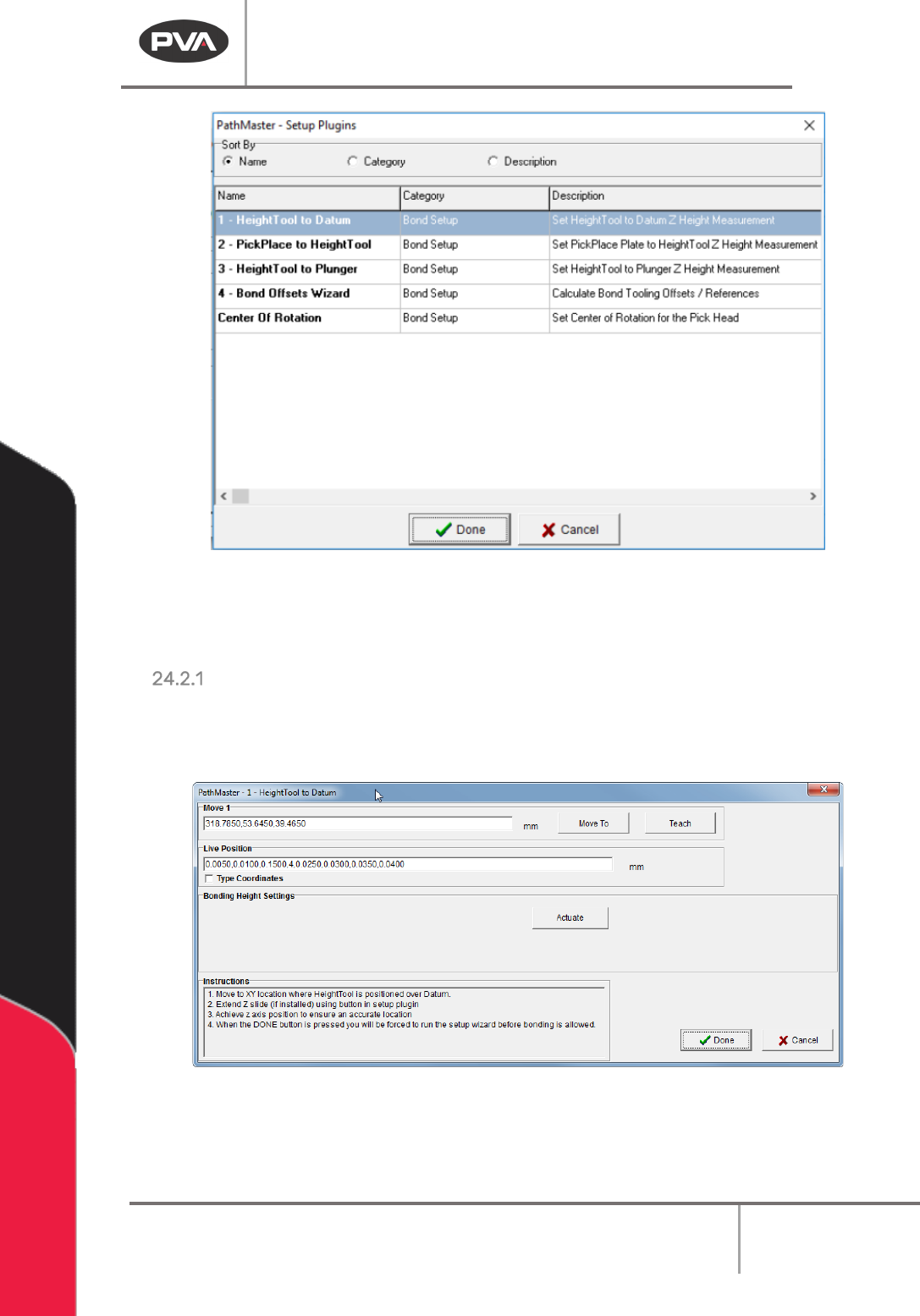
3. The Setup Plugins screen will open. Use the radial Sort By buttons to sort by
Category.
4. Do the four “Bond Setup” plugins in order.
Machine Operation Manual
Revision L /
February 2020
Page 184 of 200
Figure 196: Setup Plugins
NOTE: Plugins must be done in numerical order, as shown. If done out of order, the setup
window for the plugin will close and you will return to the previous screen.
HeightTool to Datum
1. In the Bond Setup category, select 1-HeightTool to Datum.
The HeightTool to Datum window will open.
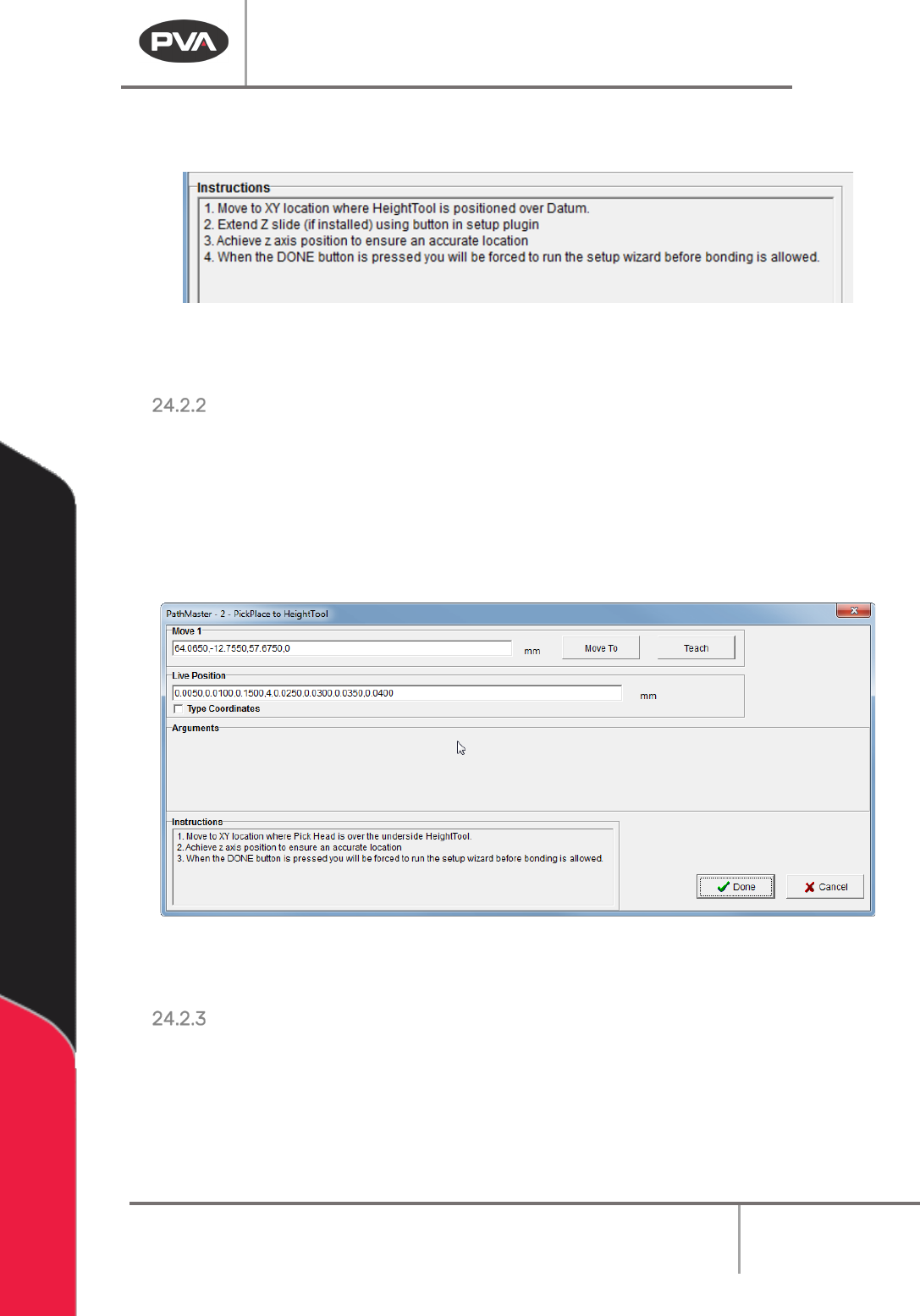
Figure 197: HeightTool to Datum
2. Refer to the instructions in the window to set the correct position.
Machine Operation Manual
Revision L /
February 2020
Page 185 of 200
3. Use the teach pendant to teach the value; push the “Teach” button and release the
button to record the value.
Figure 198: HeightTool to Datum Instructions
4. Select “Done” to save the values and return to the Setup Plugins window.
PickPlace to HeightTool
1. After the HeightTool Datum, select plugin 2-PickPlace to HeightTool.
The PickPlace to HeightTool window will open.
2. Refer to the instructions in the window to set the correct position.
3. Use the teach pendant to teach the value; push the “Teach” button and release the
button to record the value.
Figure 199: PickPlace to HeightTool
4. Select “Done” to save the values and return to the Setup Plugins window.
HeightTool to Plunger
1. After PickPlace to HeightTool, select plugin 3- HeightTool to Plunger.
The HeightTool to Plunger window will open.
2. Refer to the instructions in the window to set the correct position.