PathMaster-REV-L-4.5-1.pdf - 第153页
Machine Operati on Manual Revision L / February 2020 Page 153 of 200 5. If the sele cted segme nt uses surface s, run the surfa ce, the text will be green when it has passed. 6. Highligh t the nece ssary path segme nts a…
Machine Operation Manual
Revision L /
February 2020
Page 152 of 200
Show Code and Show Code with Surfaces
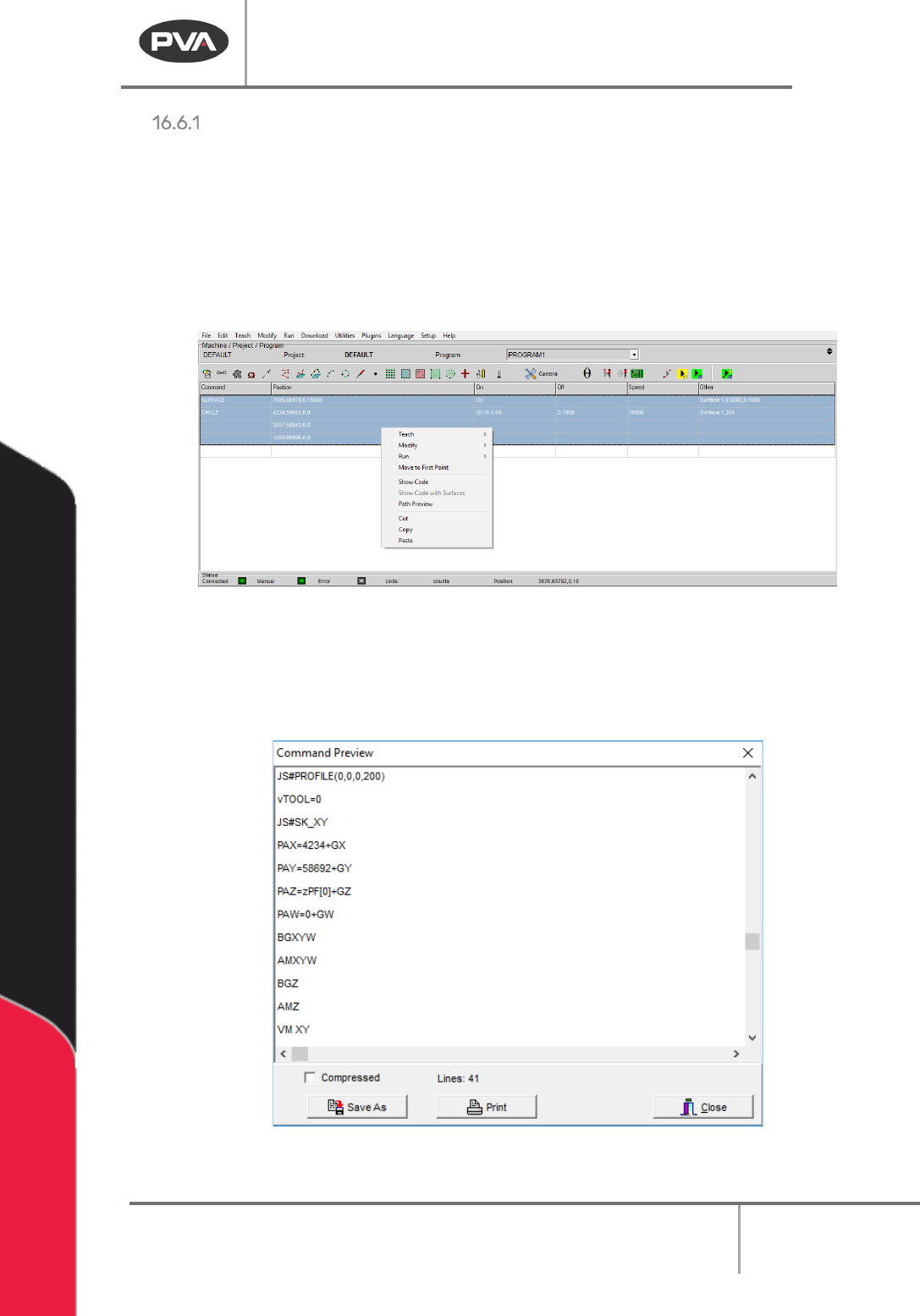
The show code option will show the compiled machine code for the selected segments.
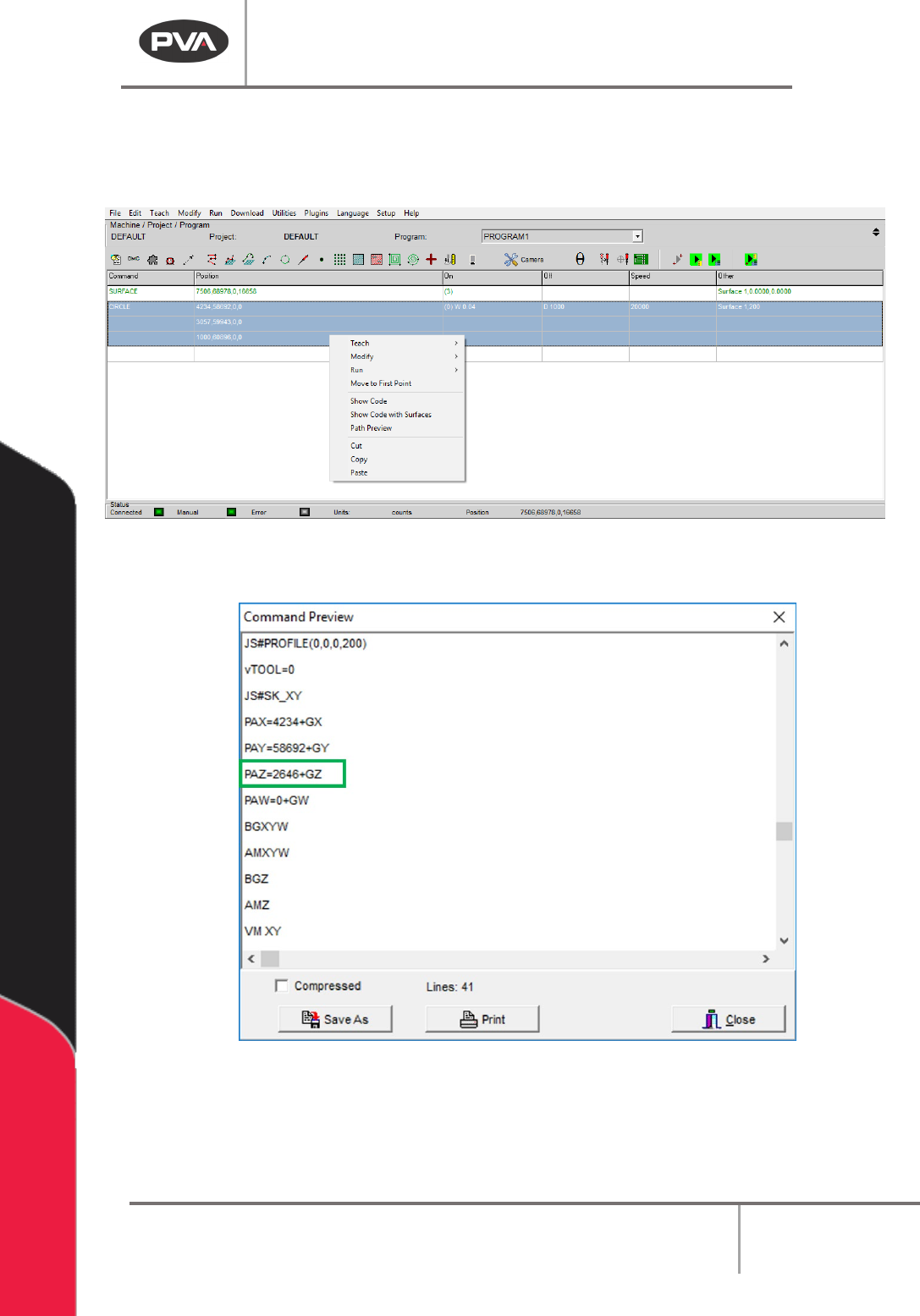
Show Code with Surfaces is used as a debug tool, if necessary, and replaces all of the
variables with values used.
1. Highlight the path segments.
2. Select
Utilities -> Show Code
from the main menu, or right click and select Show
Code from the menu.
Figure 185: Show Code
A window will open with the machine code from the selected segments.
3. Select “Save As” to save the code as a text file.
4. Select “Print” to print the code.
Figure 186: Show Code, Command Preview
Machine Operation Manual
Revision L /
February 2020
Page 153 of 200
5. If the selected segment uses surfaces, run the surface, the text will be green when
it has passed.
6. Highlight the necessary path segments and select Show Code from the menu.
Figure 187: Show Code with Surfaces Menu
A window will open with the machine code from the selected segments.
Figure 188: Show Code with Surfaces, Command Preview
7. Use the necessary buttons to “Save As” or “Print”.
8. When you are done select “Done”.
Machine Operation Manual
Revision L /
February 2020
Page 154 of 200
Line Check
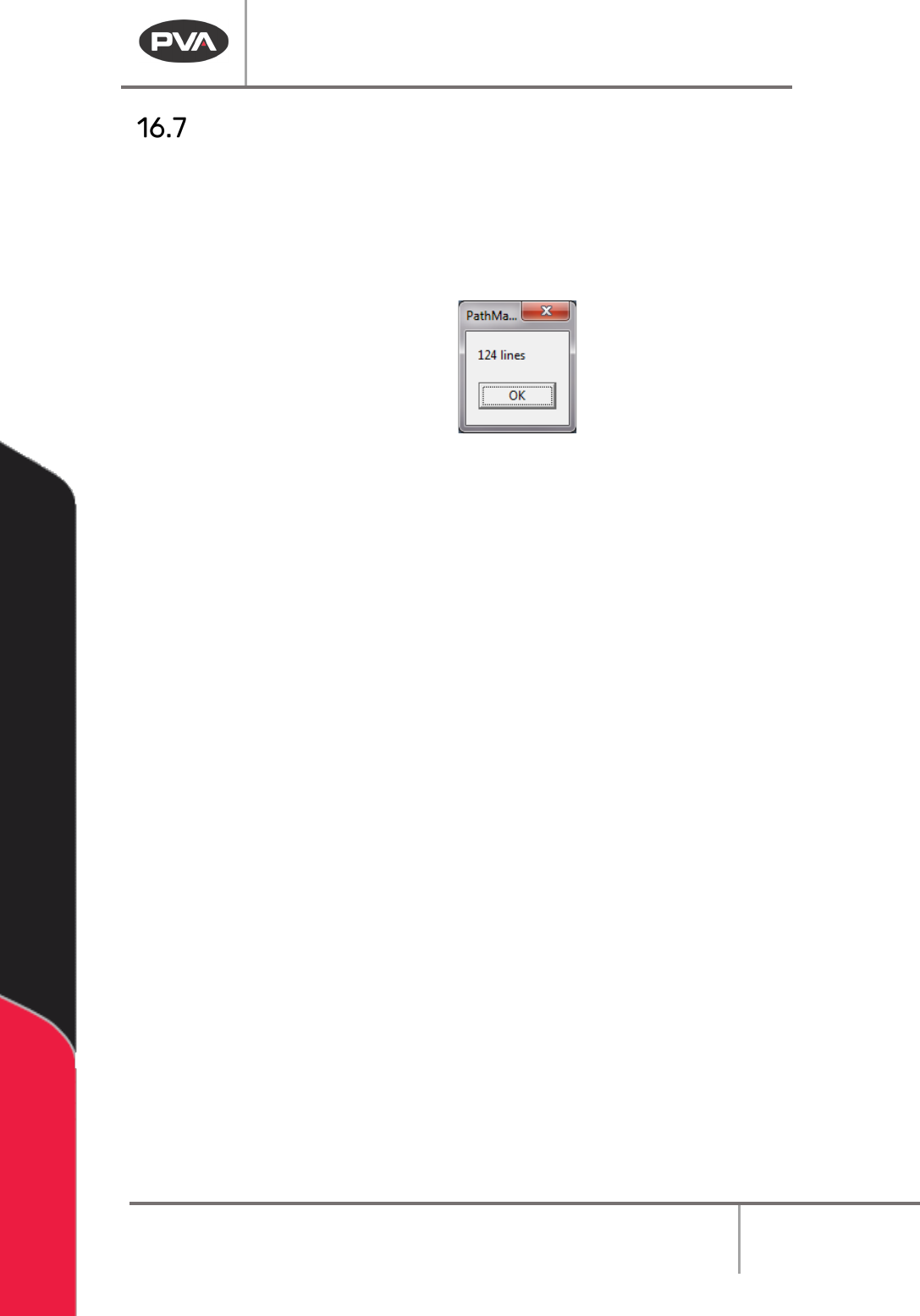
Use this function to see how many lines of compressed DMC code the current program will
occupy.
1. Select
Utilities -> Line Check
from the main menu.
A window will open with the number of lines.
Figure 189: Line Check
2. Select “OK” when you are finished.