PathMaster-REV-L-4.5-1.pdf - 第117页
Machine Operati on Manual Revision L / February 2020 Page 117 of 200 Additional Fu nctio ns There are other functi ons tha t are not in the p rogrammi ng functions toolbar. Their locations an d infor mati on on how to u …
Machine Operation Manual
Revision L /
February 2020
Page 116 of 200
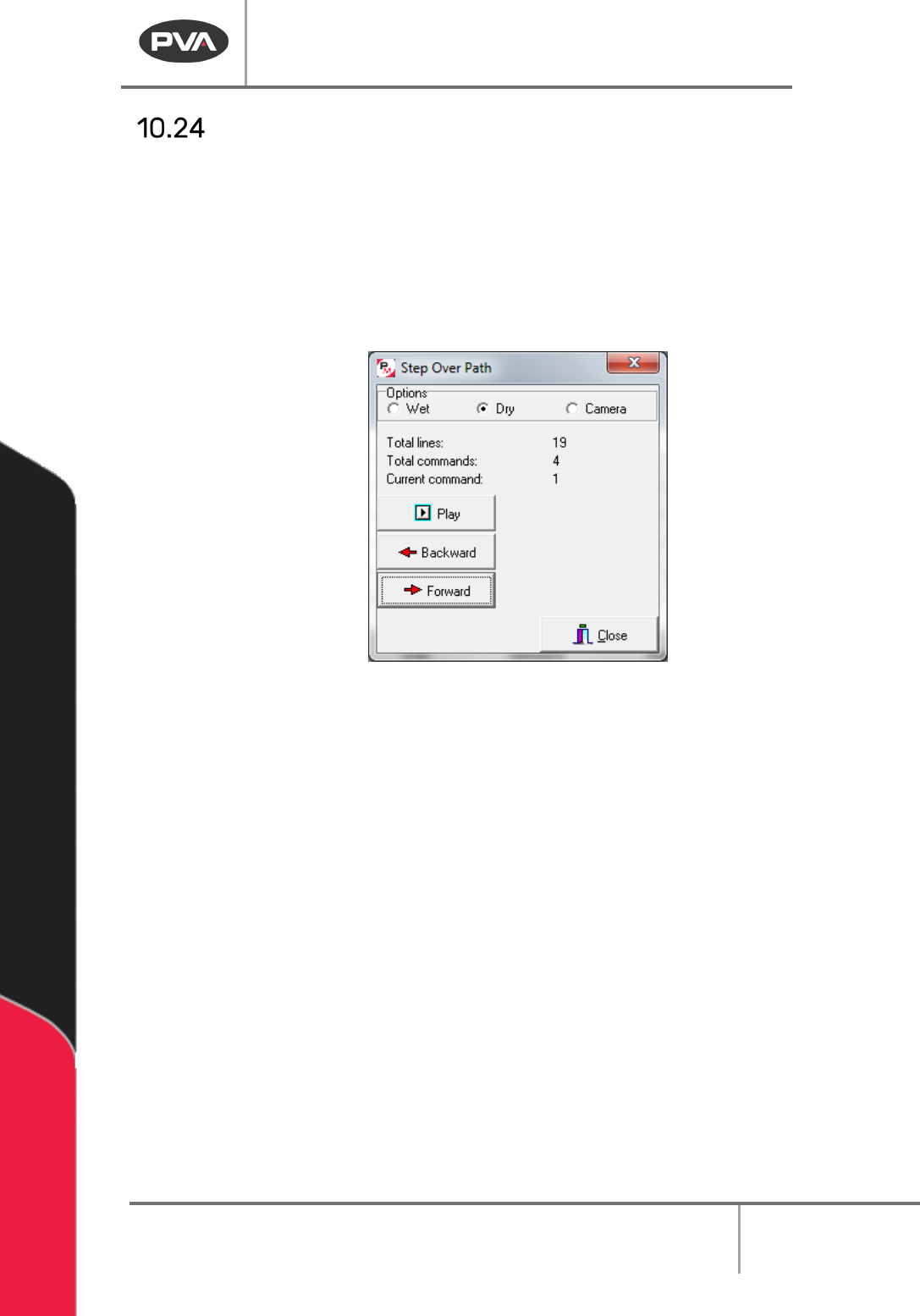
Step Over
The Step Over function allows playback of previous or next path segment to be executed
one step at a time as well as playback wet or dry.
1. Select the Step Over function, select
Main Menu > Utilities > Step Over Path
.
2. Select the correct Option Wet, Dry, or Teach Tool.
3. Select the Command you want to play with the “Backward” and “Forward” buttons.
The highlighted command in the edit window is the command that will play.
Figure 140: Step Over Path
4. Select “Play” to operate the path segment as selected.
5. Select “Close” to exit and not play a path.
Machine Operation Manual
Revision L /
February 2020
Page 117 of 200
Additional Functions
There are other functions that are not in the programming functions toolbar. Their
locations and information on how to use them are in this section.
Subroutine
With this function the operator can use a command line element in an array sequence or in
random placement. Individual subroutines can be put in the program with the Insert option.
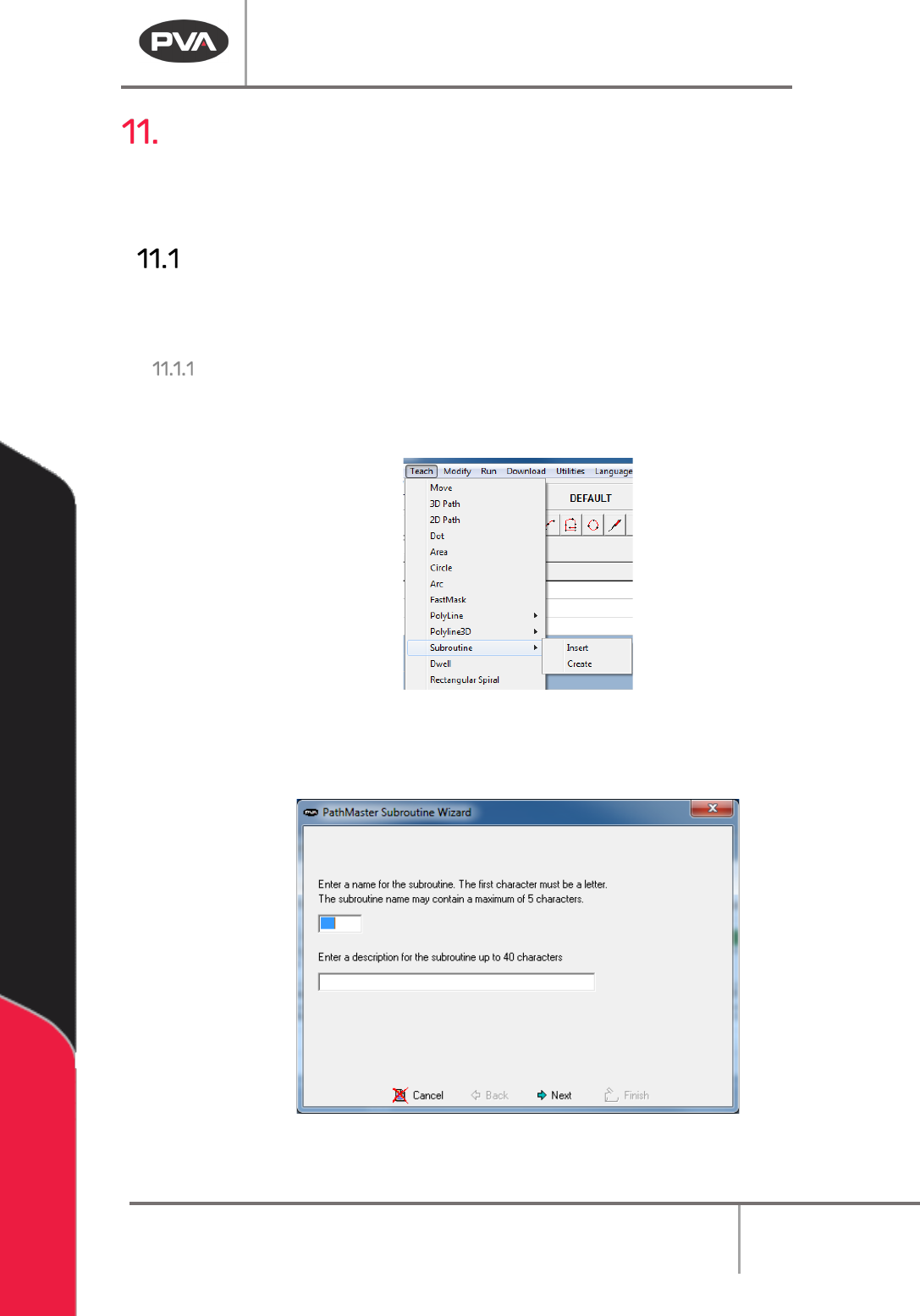
To Create
1. Highlight the commands to be included in the subroutine.
2. Select the
Teach -> Subroutine -> Create
option from the main menu.
Figure 141: Subroutine Menu
3. Choose a name and description for the subroutine. The description helps the
operator to select the correct subroutine.
Figure 142: Name the Subroutine
Machine Operation Manual
Revision L /
February 2020
Page 118 of 200
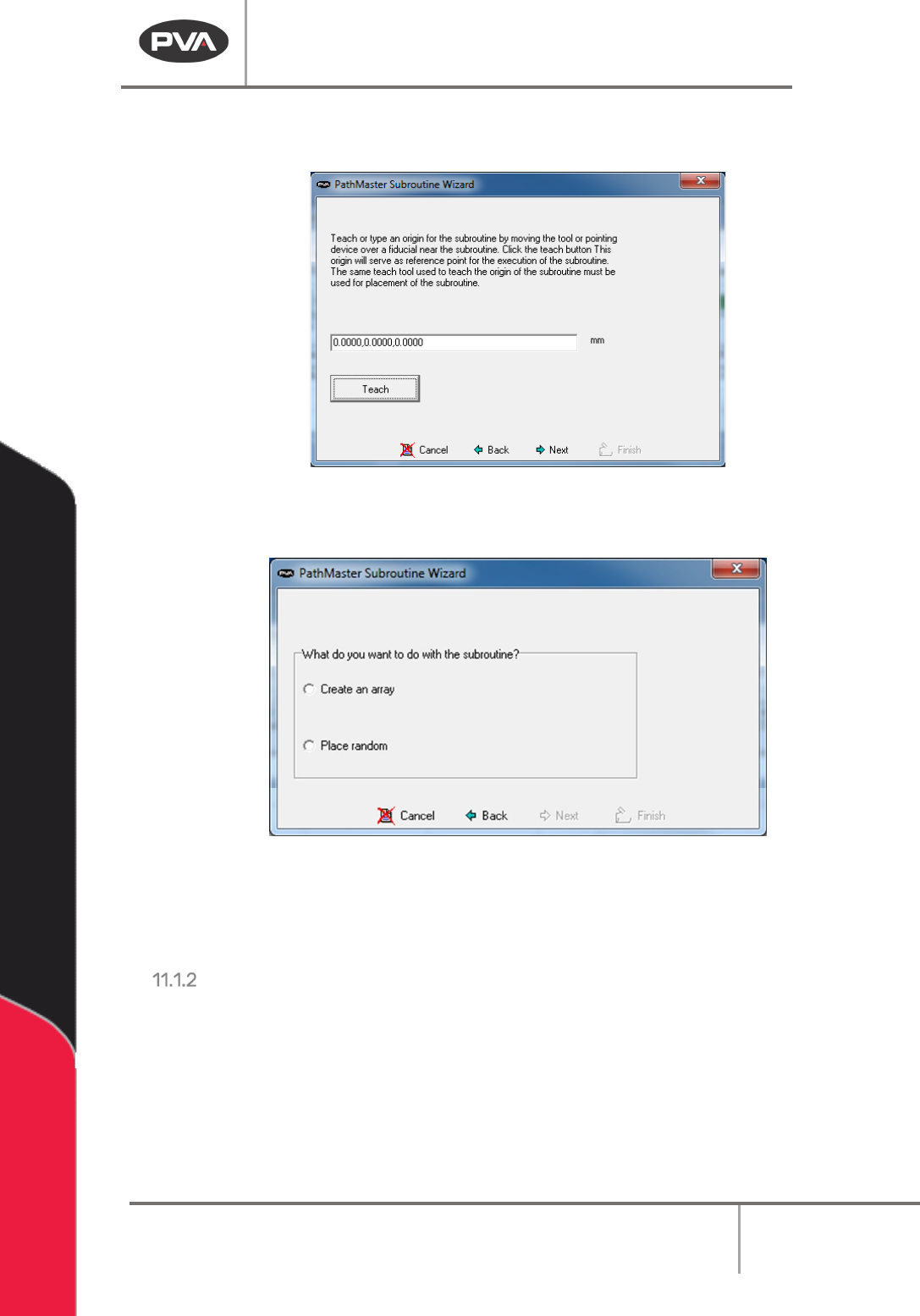
4. Teach a reference point on the part to group the command line sequences. Each
subroutine, arrayed or random placed, will be referenced from this point.
Figure 143: Teach a Reference Point
5. Select Create an array or Place random for the subroutine.
Figure 144: Subroutine Type
6. Select “Next”.
For place random, continue to step 7. For create an array continue to step 10.
Place Random
7. Select the “Teach Position” button for PathMaster® to record the current location
of the end effector as an execution point. Or, enter the necessary coordinates in the
Teach Coordinates box and select “
Teach Coordinates”.