PathMaster-REV-L-4.5-1.pdf - 第35页
Machine Operati on Manual Revision L / February 2020 Page 35 of 200 Operation S tart Pa thMas ter It is necessa ry to confi gure PathM aste r® to run correctly wi th the work cell w hen it is initially setup. 1. Double -…
Machine Operation Manual
Revision L /
February 2020
Page 34 of 200
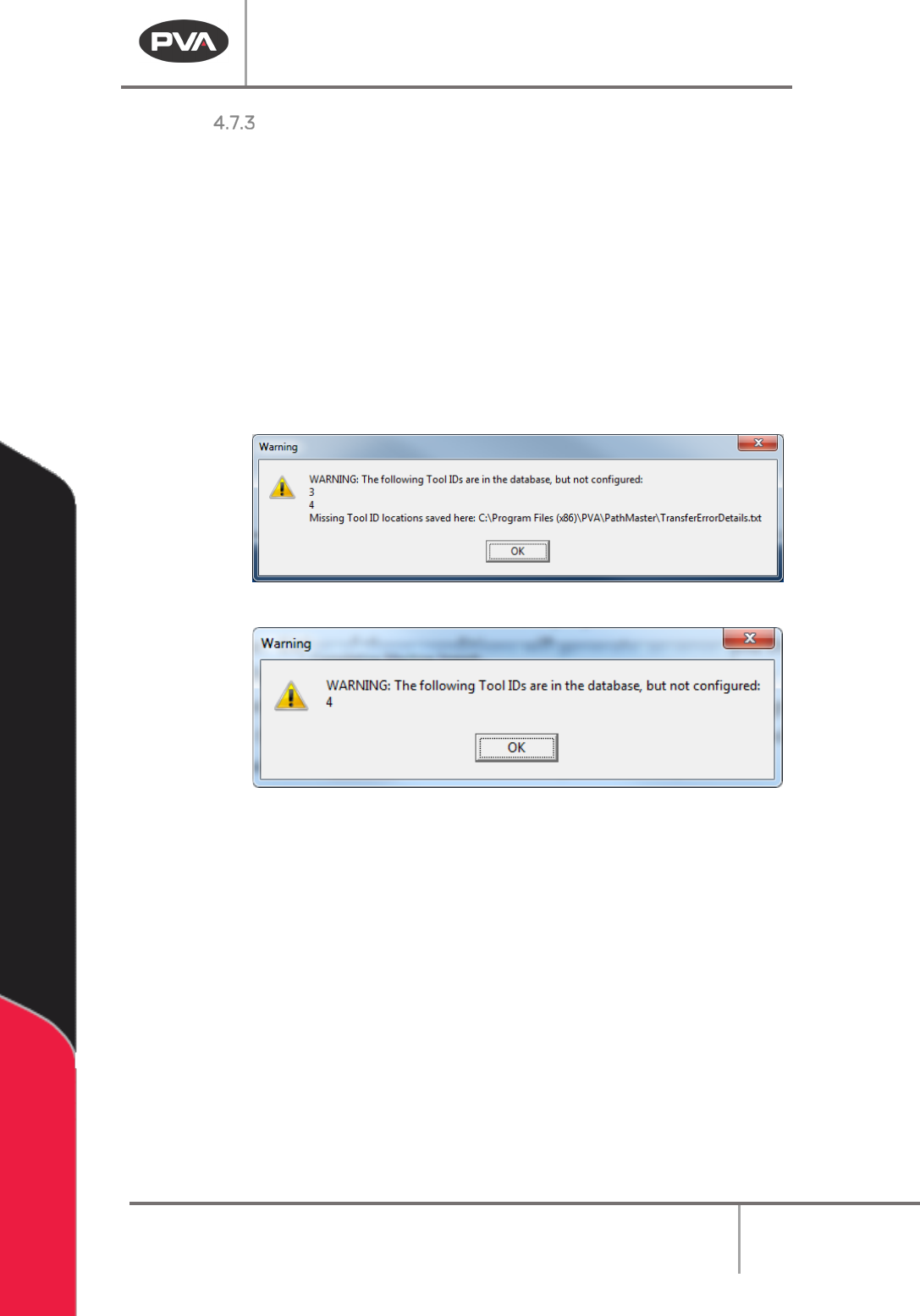
Machine Transport Errors
When a machine transfer file is exported, PathMaster® makes sure that all tools that are
referenced have an associated virtual tool configured. When a machine transfer file is
imported, PathMaster® makes sure that all tools referenced by a path in the transfer file
are configured on the destination machine, and that the destination machine has the same
name as the source machine. If there is a machine name or tool configuration mismatch,
PathMaster® will show an error and the import or export will be canceled, and a transfer
error detail file (‘TransferErrorDetails.txt’) will be written to the \PathMaster\Logs folder.
The transfer error detail file will outline the machine, project, program #, line # and tool that
had the issue. Having more tools configured than are used is allowed, but if a tool is
referenced in the source machine, it must exist on the destination machine.
Figure 20: Example Export Error
Figure 21: Example Import Error
Example TransferErrorDetail.txt
Project,Program,Line#,ToolID
DEFAULT,PROGRAM1,7,3
FASTPATH_SAMPLE,PROGRAM1,25,3
FASTPATH_SAMPLE,PROGRAM1,28,3
FASTPATH_SAMPLE,PROGRAM1,31,3
FASTPATH_SAMPLE,PROGRAM1,34,3
FASTPATH_SAMPLE,PROGRAM1,37,3
FASTPATH_SAMPLE,PROGRAM1,40,3
Machine Operation Manual
Revision L /
February 2020
Page 35 of 200
Operation
Start PathMaster
It is necessary to configure PathMaster® to run correctly with the workcell when it is
initially setup.
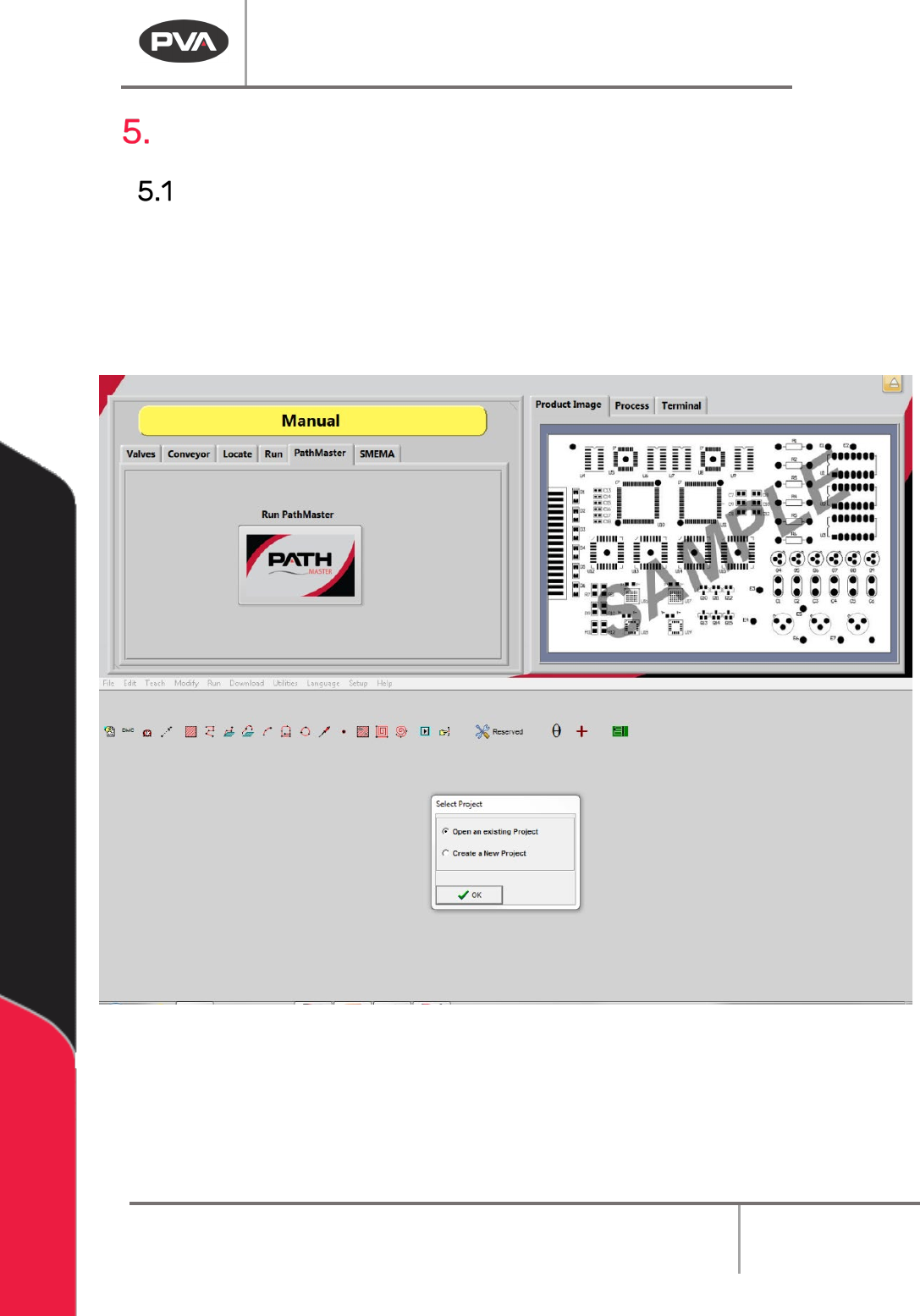
1. Double-click on the PathMaster® icon to start PathMaster®, or to start
PathMaster® from Portal, select Manual mode. Select the PathMaster® tab and
then select the PathMaster® button.
Figure 22: PathMaster® Opened through Portal
2. The Select Project dialog box will be shown.
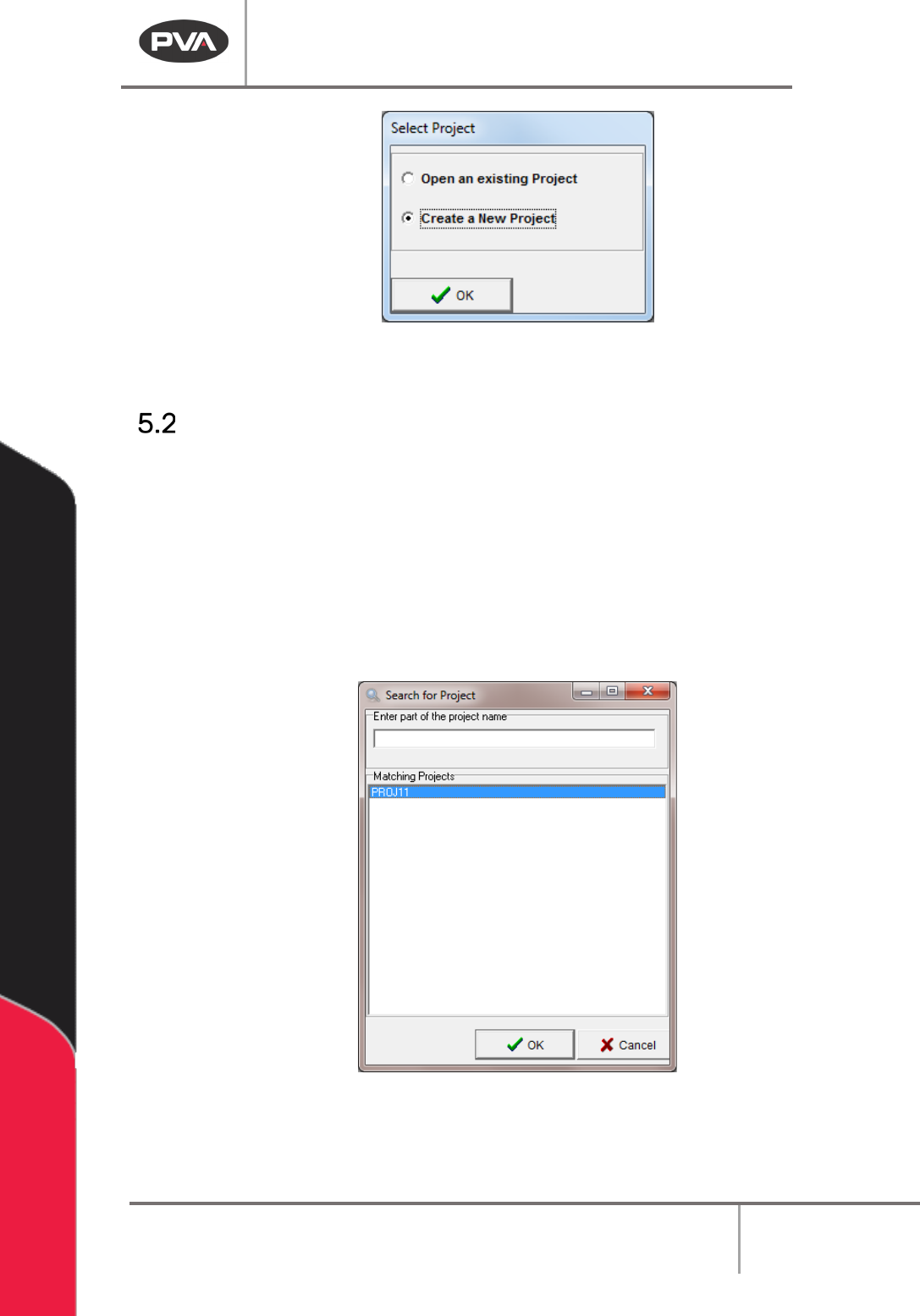
3. Select Create a New Project.
Machine Operation Manual
Revision L /
February 2020
Page 36 of 200
Figure 23: Select Project Window
4. Select “OK”.
Project Selection
You must select the correct project before you start to program. You can open an existing
project or create a new project. The Select Project window is shown at startup, when
PathMaster® changes the current machine setting, or if you open a different project.
1. Select the correct choice from the Select Project window.
2. Select the “OK” button.
3. Highlight the correct project.
4. Select the “OK” button to open the project.
Figure 24: Select a Project
5. Select the “Cancel” button to exit and make no changes.