PathMaster-REV-L-4.5-1.pdf - 第83页
Machine Operati on Manual Revision L / February 2020 Page 83 of 200 3D Pa th This functi on teache s 3D pa th segments . Refer to Section 10.1 for def initio ns of the tool functions . Figure 90 : Pro grammed 3D Line Com…
Machine Operation Manual
Revision L /
February 2020
Page 82 of 200
2D Path
This tool teaches 2D path segments. The Z-axis does not change its position in the path.
Refer to Section 10.1 for definitions of the tool functions.
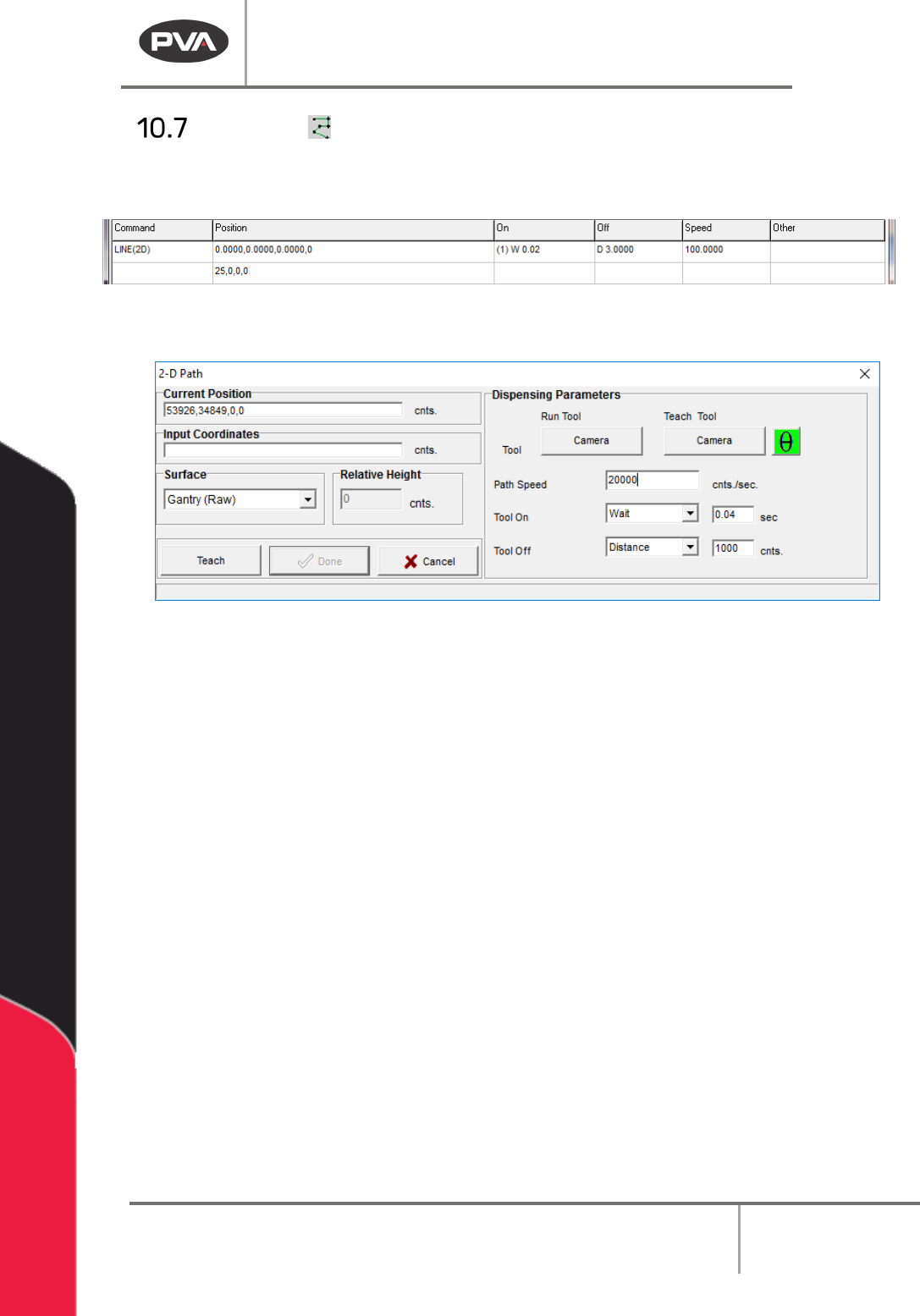
Figure 88: Programmed 2D Line Command
13. Select the 2D Path function.
Figure 89: Teach 2D Line
14. Select the Run Tool. Select (double click) the necessary tool from the Tool Selection
window. Refer to
Figure 68.
15. Select the Teach Tool if necessary. Select (double click) the necessary tool from the
Tool Selection window. Refer to
Figure 68.
16. Select “θ” to move the selected tool to the calibrated W-axis position (theta).
NOTE: The “θ” button will only be available on 4-axis machines. When you use the “Teach
Tool” (virtual tool 0) it is not necessary to select this button.
17. Select the Surface from the drop-down menu. In some units, you can set the
Relative Height.
18. Set the Path Speed.
19. Set the Tool On to “Wait” or “Distance” and set the time or distance in the box.
20. Set the Tool Off to “Wait” or “Distance” and set the time or distance in the box.
21. Select the “Teach” button or use the teach pendant to input the commands in the
Input Coordinates box.
22. Select “Done” to save the changes, or “Cancel” to exit and not save changes.
23. To edit a 2-D path, double click on the path and edit in the window shown. Refer to
Section 7.5.
Machine Operation Manual
Revision L /
February 2020
Page 83 of 200
3D Path
This function teaches 3D path segments. Refer to Section 10.1 for definitions of the tool
functions.
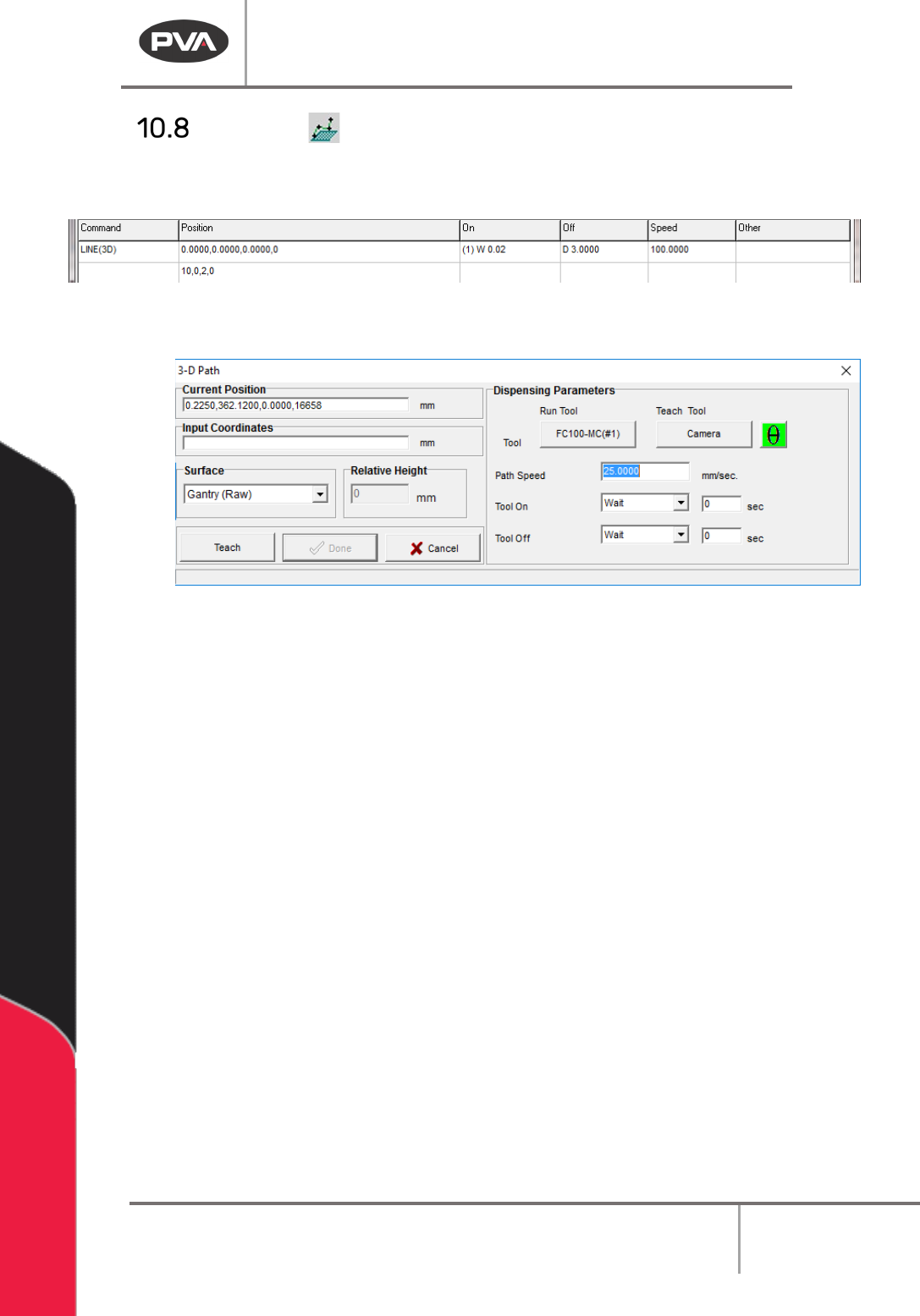
Figure 90: Programmed 3D Line Command
1. Select the 3D Path function.
Figure 91: Teach 3D Line
2. Select the Run Tool. Select (double click) the necessary tool from the Tool Selection
window. Refer to
Figure 68.
3. Select the Teach Tool if necessary. Select (double click) the necessary tool from the
Tool Selection window. Refer to
Figure 68.
4. Select “θ” to move the selected tool to the calibrated W-axis position (theta).
NOTE: The “θ” button will only be available on 4-axis machines. When you use the “Teach
Tool” (virtual tool 0) it is not necessary to select this button.
5. Select the Surface from the drop-down menu. In some units, you can set the
Relative Height.
6. Set the Path Speed.
7. Set the Tool On to “Wait” or Distance” and set the time or distance in the box.
8. Set the Tool Off to “Wait” or “Distance” and set the time or distance in the box.
9. Select the “Teach” button or use the Teach pendant to input the commands in the
Input Coordinates box.
10. Select “Done” to save the changes, or “Cancel” to exit and not save changes.
11. To edit a 3-D Path, double click on the path and change the command in the edit
window. Refer to Section 7.5.
Machine Operation Manual
Revision L /
February 2020
Page 84 of 200
PolyLine (DMC 4000)
A Polyline is a path made of lines and arcs. Polylines are used when it is necessary to
change direction quickly, at high speeds, during a dispense. Polyline, in Pathmaster® 4.3,
uses surface height readings (taught before a polyline is used). Surface Height readings
and the Calibrated Z Height of a tool (Section
Error! Reference source not found.), account
for differences in individual part height and paths are adjusted to dispense correctly.
New Polyline
1. Click on the Polyline or select Teach > Polyline > Create New from the Main Menu to
open the Polyline Teach Interface.
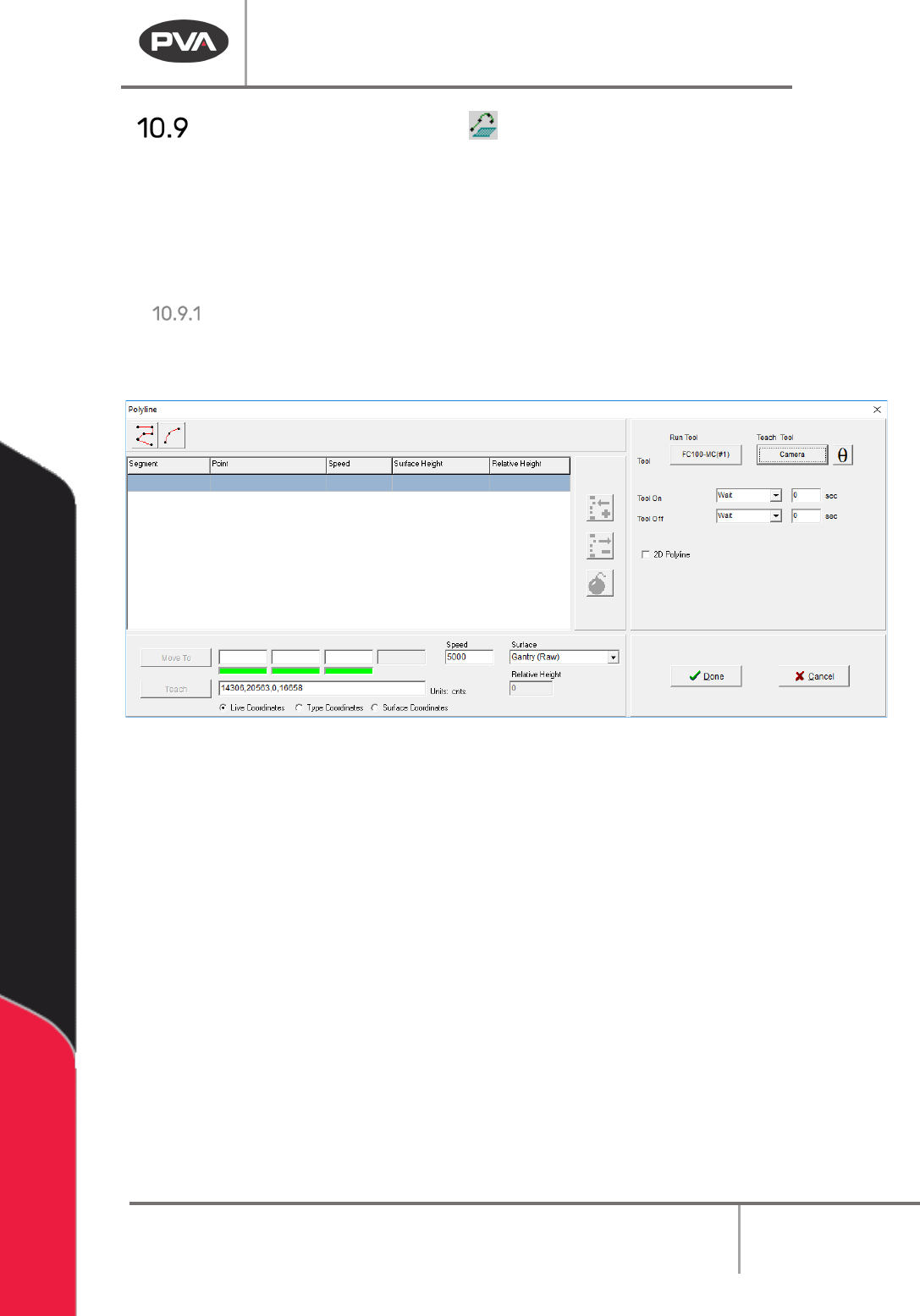
Figure 92:PolyLine Teach Window
2. The Bomb button ‘explodes the polyline’. All the taught segments and arcs move
into the main path program as separate segments. When a line is exploded, the
height profiling feature cannot be used.
3. When 2D Polyline is enabled, a single Z height is taught for all the polyline segments.
Select the “
2D Polyline” checkbox to use this option.
4. Select either a Polyline or Arc from the top of the Polyline teach window. Follow the
prompts to teach the points.