PathMaster-REV-L-4.5-1.pdf - 第66页
Machine Operati on Manual Revision L / February 2020 Page 66 of 200 How to R ea d a Pro gr am The PathMaster® program display is arranged in a tabl e format. Use th e chart be low to determine t he purpo se of the text t…
Machine Operation Manual
Revision L /
February 2020
Page 65 of 200
Program Details
Main Program Modifications
If it is sometimes necessary to make changes in the main program that runs the workcell.
You must correctly download the corrected main file to prevent any problems. Use a text
editor, such as Windows
®
Notepad or Winpad to open the
Main
program.
Common Main Program Changes
There are a few sets of points that regularly need to be changed, these include: standby
position, purge position, solvent cup position, and calibration position. In the main program
these settings are in the Machine Specific Information section (near the end of the file). An
example is shown below:
REM !!!! Machine-Specific Information !!!!
#IMACH;MT 1,1,1,1
CE 0,0,0,0;FSTX=20000;SLWX=10000;FSTY=20000;SLWY=10000
FSTZ=10000;SLWZ=5000;FSTW=10000;SLWW=5000
KNTOOL=3;A_TOOL[1]="FCS100";R_TOOL[1]=0
A_TOOL[2]="FC100 ";R_TOOL[2]=1
A_TOOL[3]="DISPSE";R_TOOL[3]=1
PT_APG[0]=80000;PT_APG[1]=65000;PT_APG[2]=0;PT_APG[3]=3000
PT_SOL[0]=80000;PT_SOL[1]=65000;PT_SOL[2]=0;PT_SOL[3]=3000
PT_CAL[0]=15000;PT_CAL[1]=15000;PT_CAL[2]=500;PT_CAL[3]=2000
PT_SBY[0]=25000;PT_SBY[1]=25000;PT_SBY[2]=250;PT_SBY[3]=3500
AP_EN=0;AP_LEN=2000;AP_TIME=30000;PNTO=4000;LT_EN=1;AC_TMR=1
SLP_TM=30000;SO_EN=0;LLA_EN=0;LLB_EN=0
#TUNE;AC*=325000;DC*=300000;SP*=120000;VA*=70000;VD*=70000
BL -4000,-4000,-1000,-1000
FL 83000,85000,15000,30000;TL*=9.9999
KD 67.99,82.43,76.09,50.00
KP 5.66,6.75,8.38,5.00
KI 0.25,0.19,0.34,0.50;EN
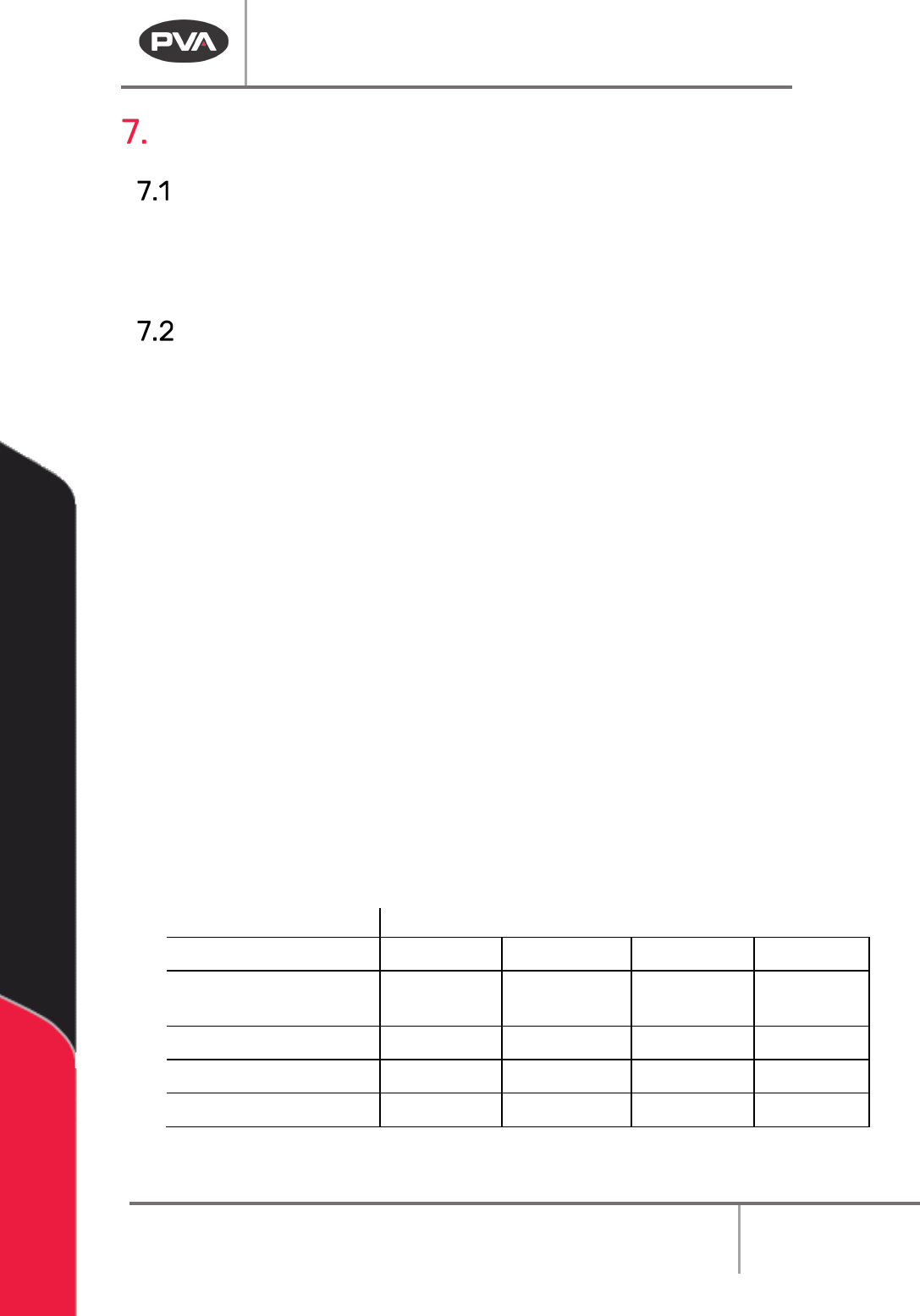
The following tables display the command variables that it may be necessary to change.
Table 5 – Coordinate System Locations
Axis
Locations
X
Y
Z
W
Auto Purge Location
PT_APG[0]
PT_APG[1]
PT_APG[2]
PT_APG[3
]
Solvent Cup Location
PT_SOL[0]
PT_SOL[1]
PT_SOL[2]
PT_SOL[3]
Calibration Location PT_CAL[0] PT_CAL[1] PT_CAL[2] PT_CAL[3]
Standby Location PT_SBY[0] PT_SBY[1] PT_SBY[2] PT_SBY[3]
When the main program has been changed, download the new program to the controller.
Use the PathMaster®
Download
->
Main function
.
Machine Operation Manual
Revision L /
February 2020
Page 66 of 200
How to Read a Program
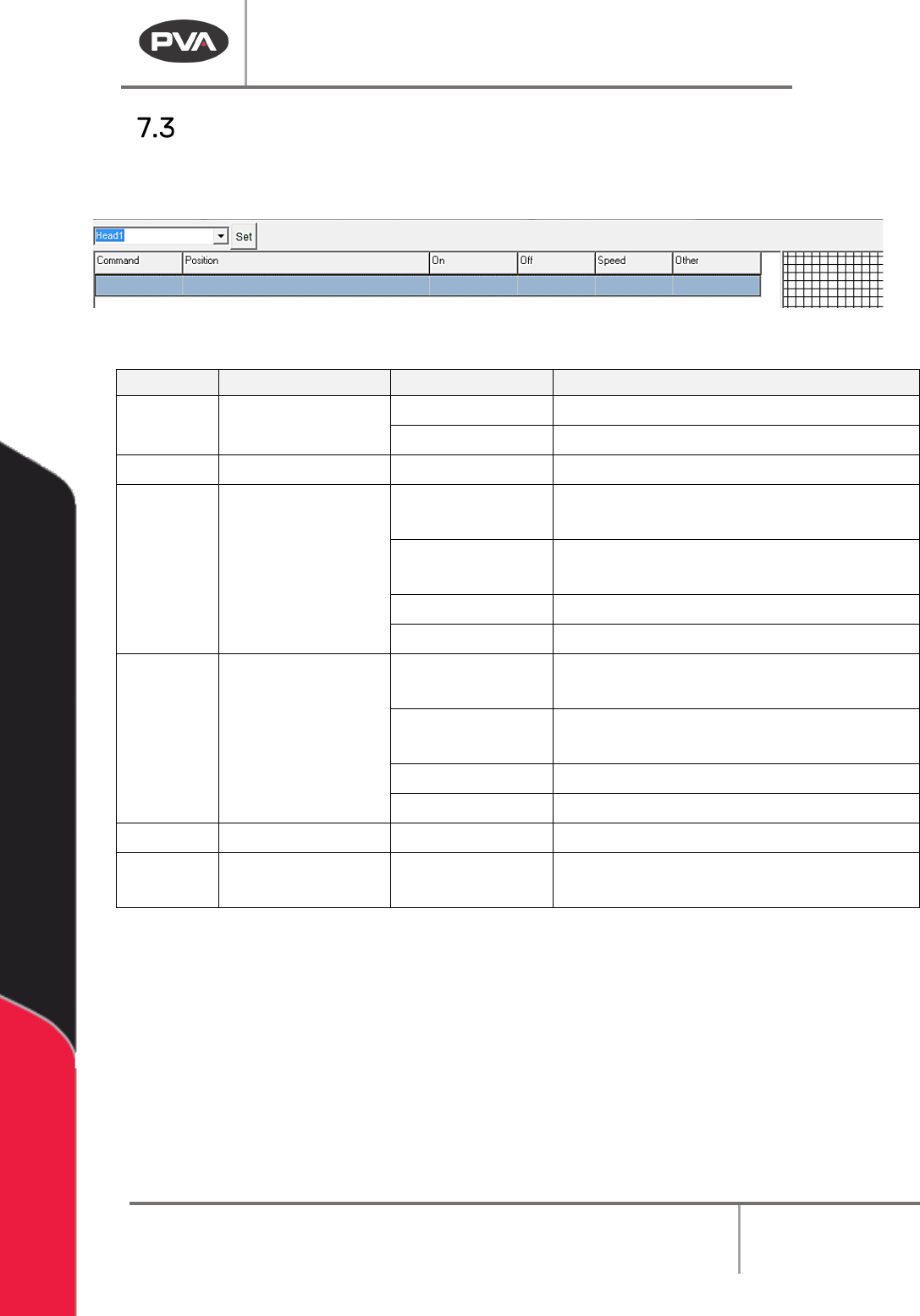
The PathMaster® program display is arranged in a table format. Use the chart below to
determine the purpose of the text that appears in each field.
Figure 65: Program Table
COLUMN
USE
EXAMPLE
EXPLANATION
Command
Programmed
Command
DOT
Dot Program
LINE(3D) 3D Line
Position
Coordinates
4555,3000,760
Cartesian coordinates for current point
On Tool or I/O on (1)W.5 Activate tool 1, tool on time of .5
seconds
(2)D300
Activate tool 2, tool on distance of 300
counts
I49 Wait for input 49 to be on
O32
Turn on output 32
Off Tool or I/O off W.75 Deactivate the path’s tool 1, tool off
time of .75 seconds
D500
Deactivate the path’s tool, tool off
distance of 500 counts
I51 Wait for input 51 to be off
O35
Turn off output 35
Speed Path speed 2000 Path speed of 2000 counts per second
Other
Varies according
to path
Z=250
Z-axis relative move of 250 counts
after completing a dot path
NOTE: A command uses all the lines below it until another command reference appears in
the Command column.
Machine Operation Manual
Revision L /
February 2020
Page 67 of 200
Playback
Paths can be played with PathMaster® or downloaded and run on the workcell.
To run an individual path
1. Highlight an individual path from the PathMaster® window.
2. Select
Run ->Selection
from the drop-down menu or the right-click menu.
To run an entire program
3. Select
Run ->Program
from the drop-down menu or the right-click menu.
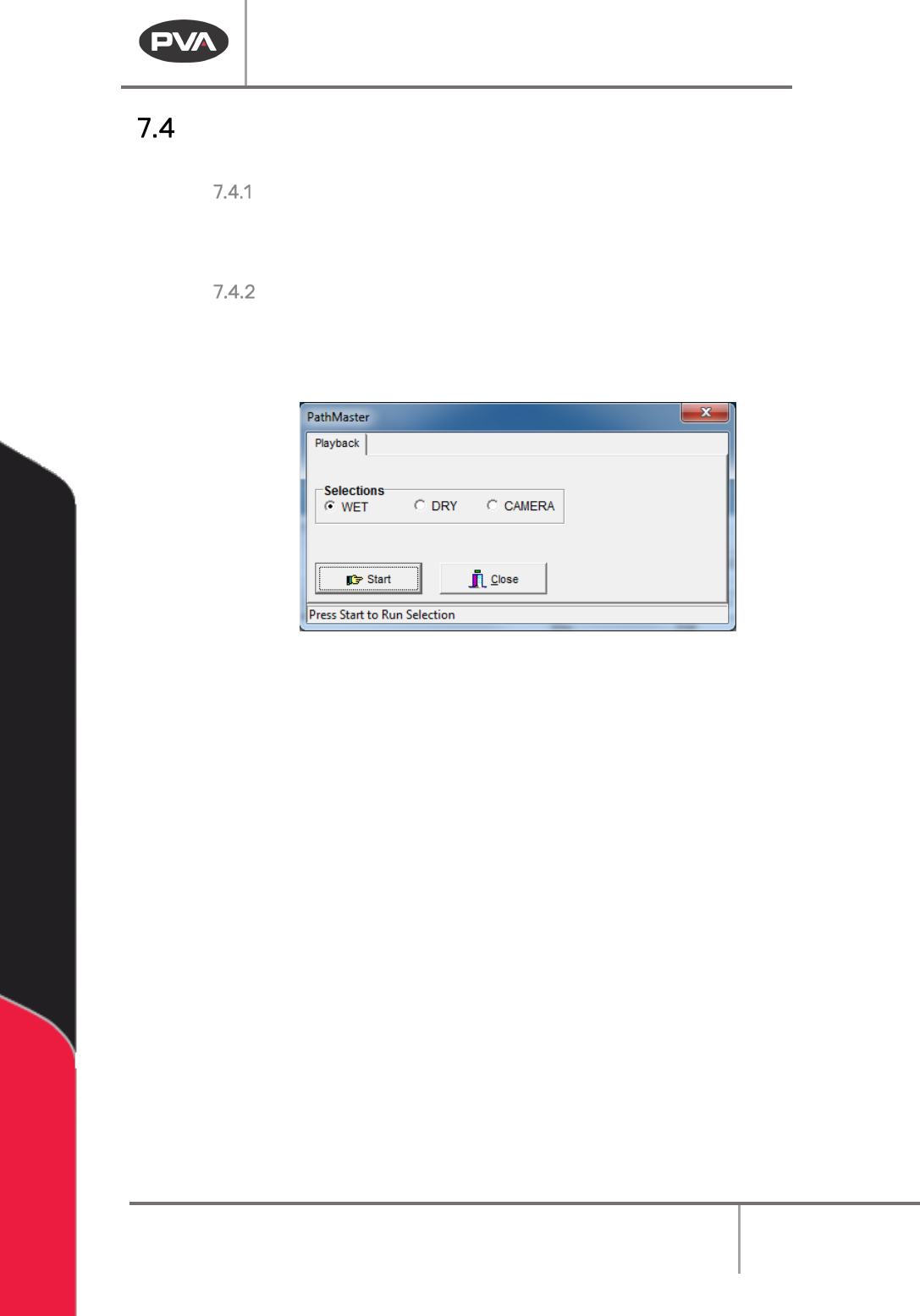
4. Before the path runs, the user must select “Wet”, “Dry” or “Virtual Tool 0”. The name
for the third option will be the name of Virtual Tool 0.
Figure 66: Playback
“Wet” playback activates the tool(s) and material will dispense. “Dry” playback does not
activate the tool(s). “
Virtual Tool 0” (replaced by the name of “Virtual Tool 0”) will run the
path with the teach tool at “
Virtual Tool 0” Z, as defined in Machine Parameters instead of
the run tool.
5. Select “Start” to run the path as selected or “Close” to exit without running the
path.