PathMaster-REV-L-4.5-1.pdf - 第154页
Machine Operati on Manual Revision L / February 2020 Page 154 of 200 Line Ch eck Use this functi on to see how many lines of com pressed DMC code the current p rogram wi ll occupy. 1. Select Utilities - > Line Chec k …
Machine Operation Manual
Revision L /
February 2020
Page 153 of 200
5. If the selected segment uses surfaces, run the surface, the text will be green when
it has passed.
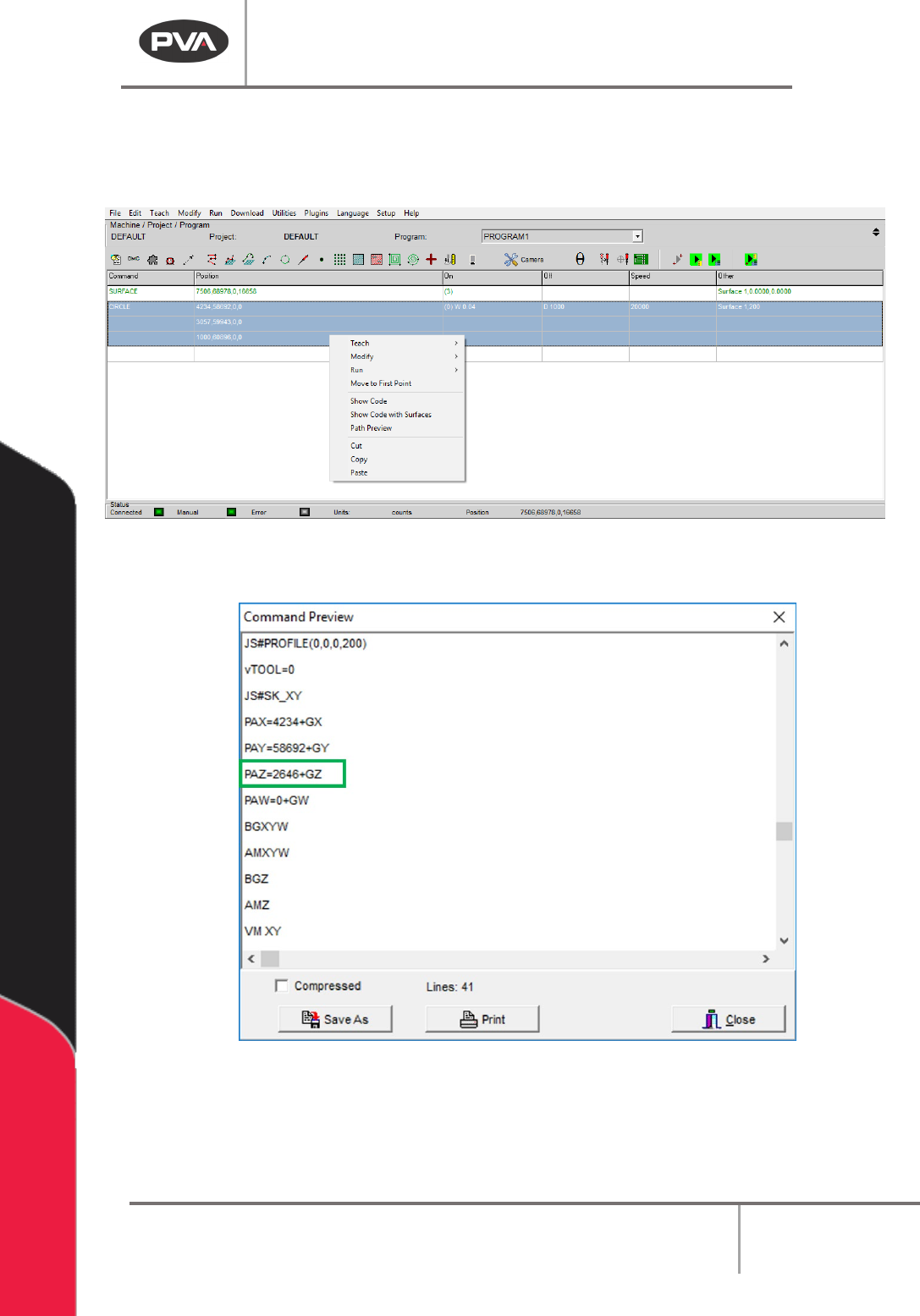
6. Highlight the necessary path segments and select Show Code from the menu.
Figure 187: Show Code with Surfaces Menu
A window will open with the machine code from the selected segments.
Figure 188: Show Code with Surfaces, Command Preview
7. Use the necessary buttons to “Save As” or “Print”.
8. When you are done select “Done”.
Machine Operation Manual
Revision L /
February 2020
Page 154 of 200
Line Check
Use this function to see how many lines of compressed DMC code the current program will
occupy.
1. Select
Utilities -> Line Check
from the main menu.
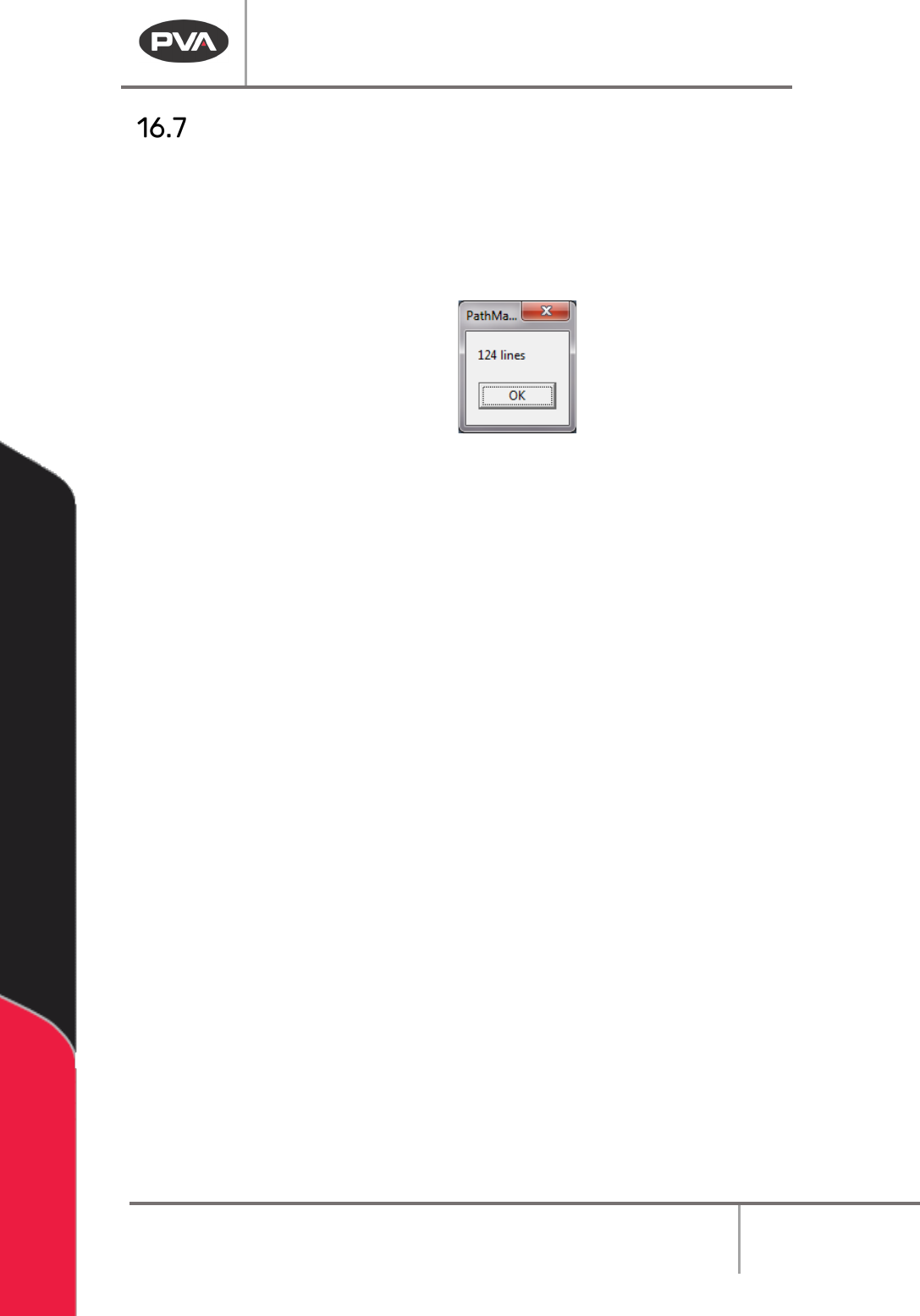
A window will open with the number of lines.
Figure 189: Line Check
2. Select “OK” when you are finished.
Machine Operation Manual
Revision L /
February 2020
Page 155 of 200
Machine Debugger
The machine debugger is an array of tools to aid in the debugging of the .
1. Select
Utilities -> Machine Debugger
from the main menu.
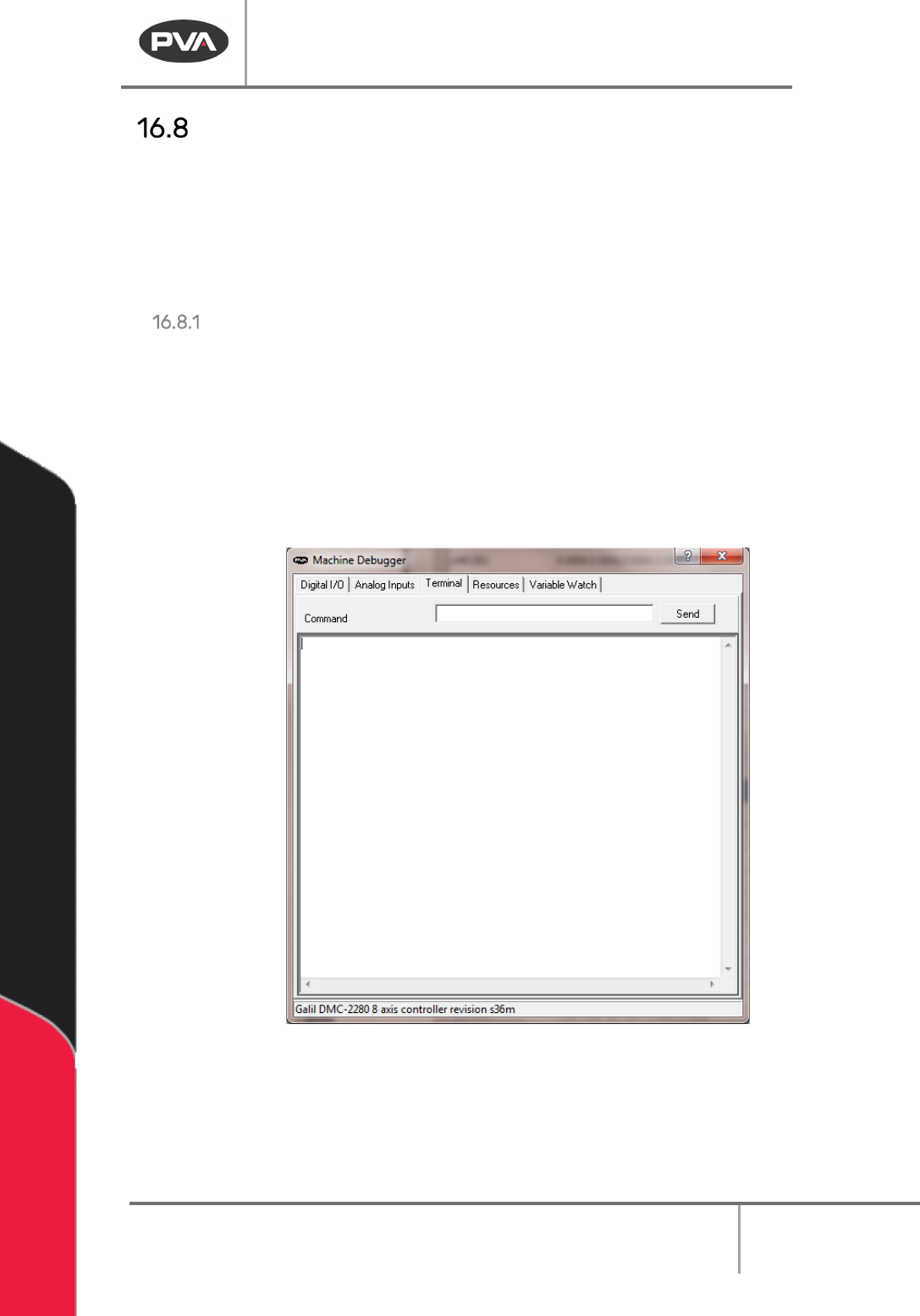
When the machine debugger opens, select the tab for the tool to be used each tab is
described below.
Terminal
The terminal lets the operator send commands directly to the controller. To send a
command to the controller, make sure the keyboard caps lock is on.
1. Type the command in the terminal window.
2. Push the
Enter
key.
A response from the controller will display under the command that was issued. If the
controller does not understand what it received, it will respond with a “?”.
Figure 190: Machine Debugger Terminal
For more information on how to use the terminal or how to work directly with controller,
refer to the online controller manual. Refer to the Troubleshooting manual for more
information on DMC code.