PathMaster-REV-L-4.5-1.pdf - 第132页
Machine Operati on Manual Revision L / February 2020 Page 132 of 2 00 Pass word Protection Password p rotectio n can be a dded to the do wnloa d and save fu nctions in PathMas ter® to prevent una uthorize d or ac cidenta…
Machine Operation Manual
Revision L /
February 2020
Page 131 of 200
Arc
The Arc function has two endpoints and a mid-point.
1. Select the Arc function.
2. Teach the three points.
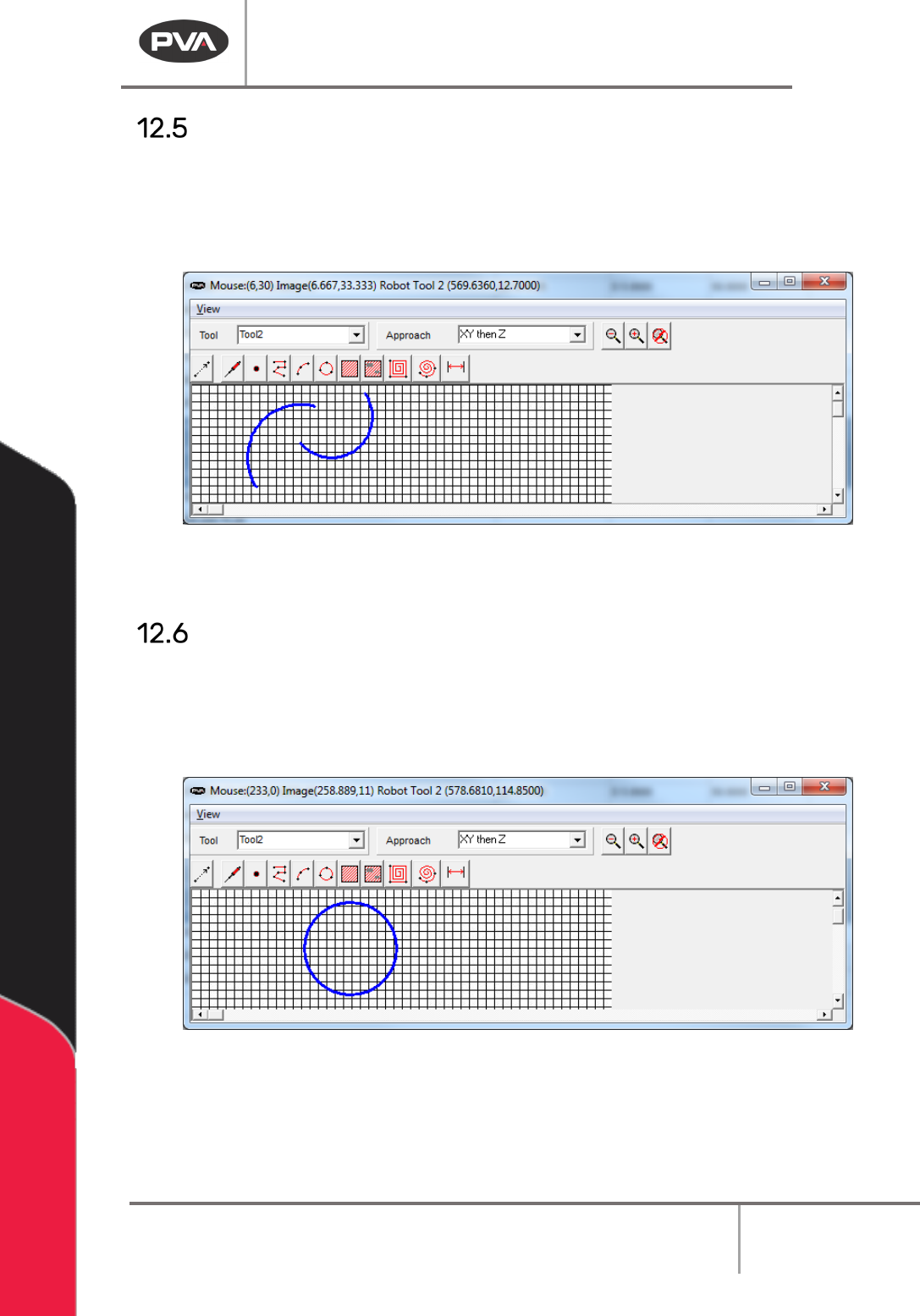
Figure 163: FastPath Arc
Double click on the arc to open the edit screen.
Circle
The center point is displayed for reference and cannot be moved.
1. Select the Circle function.
2. Teach the three points.
Figure 164: FastPath Circle
Drag any point of the circle to a new location to edit it. This will change the radius and
location of the entire circle.
Machine Operation Manual
Revision L /
February 2020
Page 132 of 200
Password Protection
Password protection can be added to the download and save functions in PathMaster® to
prevent unauthorized or accidental changes to project files.
Download Password
Password protection can be added to the download function in PathMaster®.
1. Select
Setup -> Password -> Set Download Password
from the main menu.
If no password exists, you will be asked if you would like to create one. If a previous
password exists, you must enter it correctly to continue.
2. Enter the new password.
3. Select “OK”.
4. Enter the password again.
5. Select “OK”.
The PathMaster® Download Project and Download Main functions are now password
protected. A password will be necessary to download with these functions. If the password
is entered incorrectly, the download is canceled.
Resetting Password
1. To reset the save or download password, do the procedure to set the download or
save password.
2. Enter a new password in the new and confirm password fields.
Machine Operation Manual
Revision L /
February 2020
Page 133 of 200
How to Import and Export Files
The PathMaster® can import and export programs, projects, and subroutines. It can also
import CAD files.
CAD Files
A 2-dimensional CAD drawing can be imported into PathMaster® as a path program.
There are several steps required for a successful import. These include:
• Create the path drawing in CAD.
• Add the PathMaster® codes to the CAD drawing.
• Turn the CAD drawing to the correct position as it relates to the workcell gantry.
• Export the CAD drawing to a *.dxf (Autodesk Drawing Exchange Format).
• Import the CAD drawing into PathMaster® with the CAD wizard.
• Prepare the CAD File.
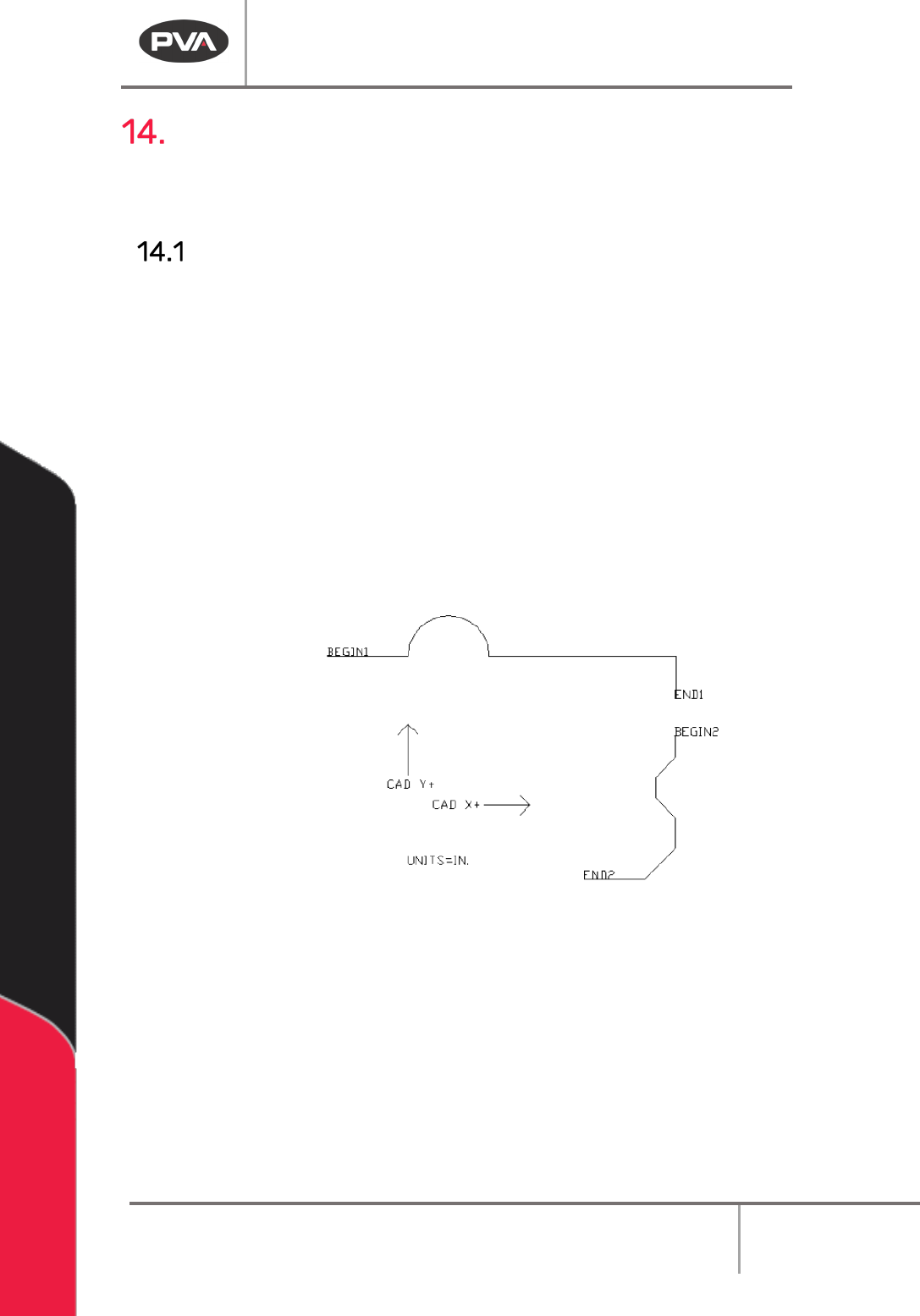
NOTE: The CAD X+ and CAD Y+ arrows are for reference only and are not necessary.
Figure 165: Original CAD Image
1. The start and end of each segment must be labeled as shown in the image above
and as described in the table below.
2. Put the units in the CAD drawing as shown.