PathMaster-REV-L-4.5-1.pdf - 第78页
Machine Operati on Manual Revision L / February 2020 Page 78 of 200 Plugin Se lect Plugin Sele ct is where the user ca n selec t which pl ugins are u sed. 1. Select the Pl ugin Selec t i con or select Plugins - >Plugi…
Machine Operation Manual
Revision L /
February 2020
Page 77 of 200
NOTE: Playback can only operate if the workcell is in Manual mode.
NOTE: When teaching a position on a 4-axis machine the last coordinate in the list (0.000,
0.000, 0.000, 0) is the theta value. Theta is measured in encoder counts and is always a
whole number.
NOTE: Teach tool selections only apply when the teach tool is used.
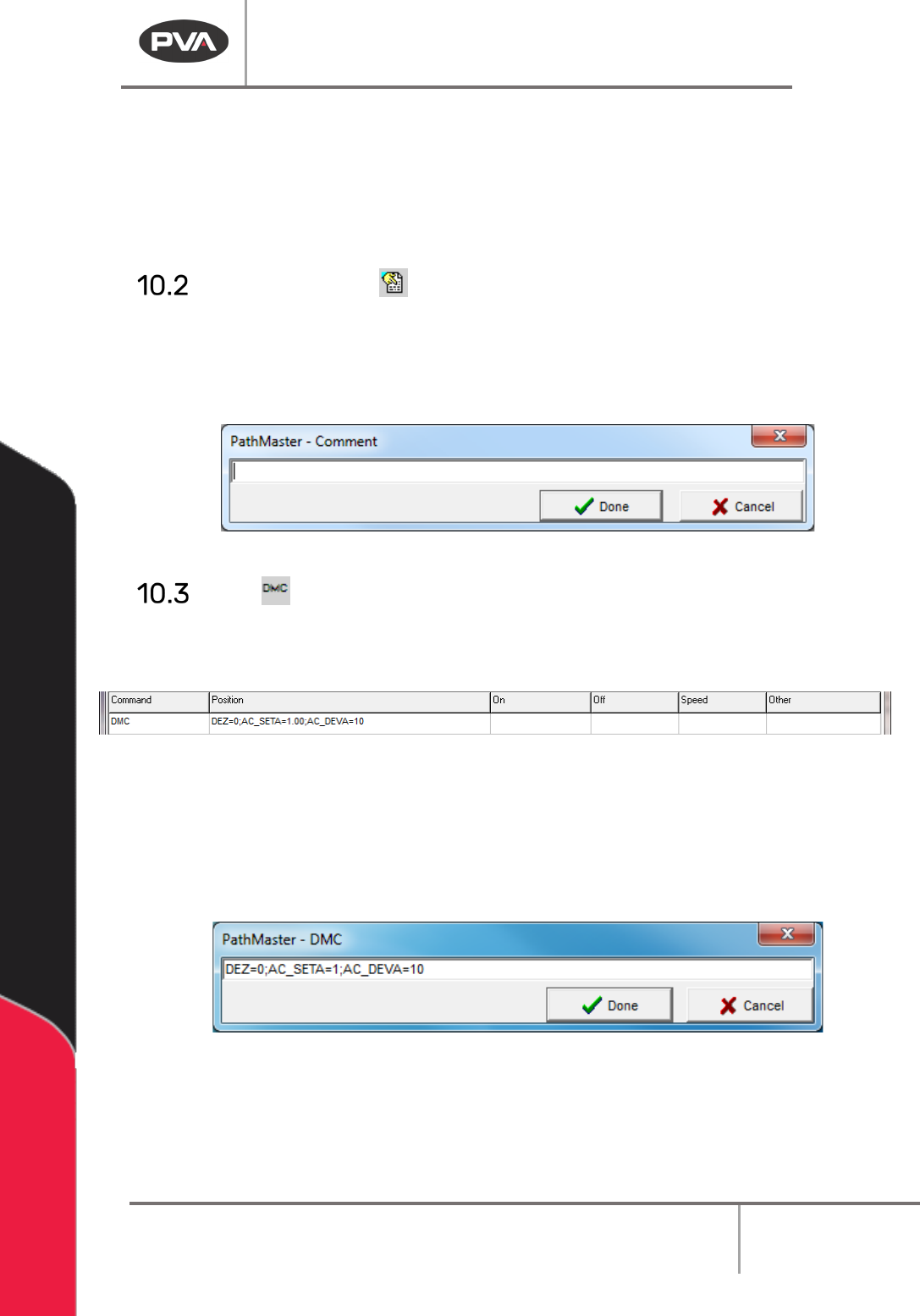
Add Comment
1. Select the add comments icon from the tool bars.
2. Add a comment to each path program so anyone who views the path program can
understand the program. All comments are removed from the program on
compilation and do not use any controller memory.
Figure 77: Comment
DMC
With this function the user can enter DMC code into the program. Only users who
understand the DMC language should use this.
Figure 78: DMC Command Programmed
1. Select the DMC function.
2. Enter the correct command into the Edit DMC window.
3. Select “Done” to save the changes.
4. Select “Cancel” to exit and not add a command.
Figure 79: Edit DMC
Machine Operation Manual
Revision L /
February 2020
Page 78 of 200
Plugin Select
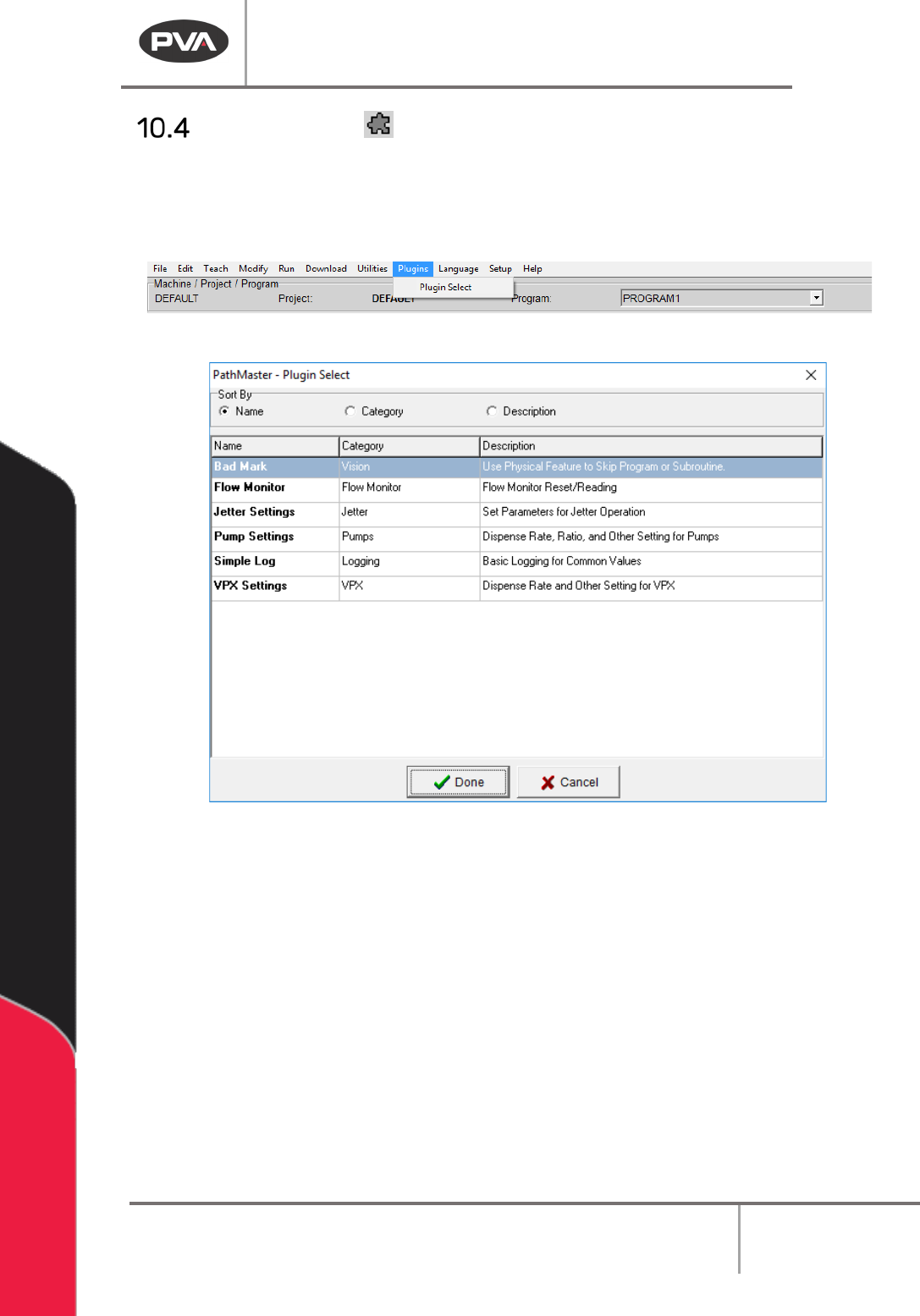
Plugin Select is where the user can select which plugins are used.
1. Select the Plugin Select icon or select
Plugins->Plugin Select
from the main menu
bar.
Figure 80: Plugin Select Menu
Figure 81: Plugin Select
2. Use the radial buttons to sort the plugins as necessary by Name, Category, or
Description.
3. Select necessary plugin so it is highlighted.
4. Select “Done”.
A plugin specific window will be shown. Refer to plugin specific documentation for more
information.
Machine Operation Manual
Revision L /
February 2020
Page 79 of 200
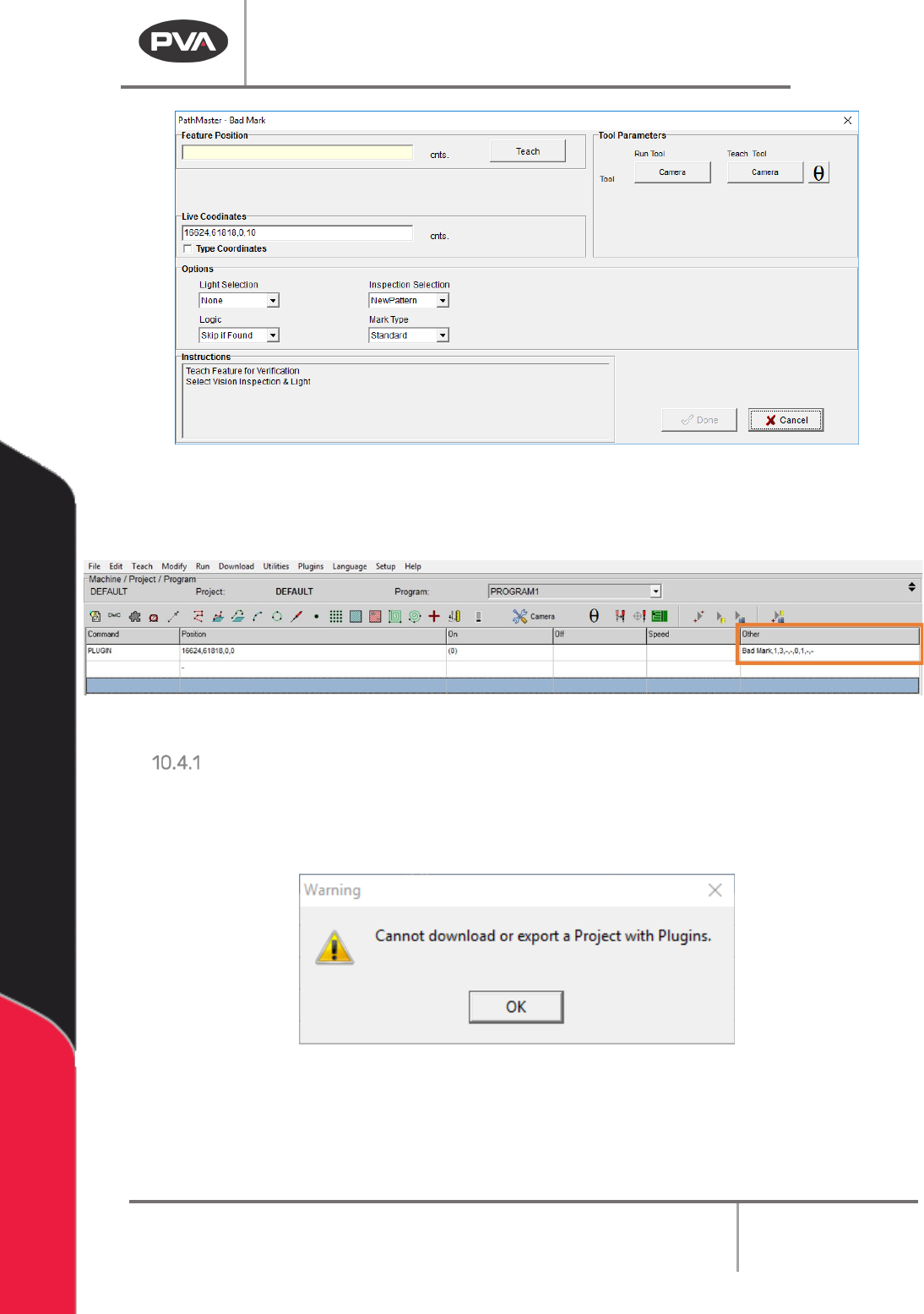
Figure 82: Example Plugin Window
Plugins will be shown on the program table with the Command as “PLUGIN” and the plugin
specific name shown in the
Other column.
Figure 83: Example Programming
Plugin Download Error
Plugins are not available to projects that are downloaded to the controller. Portal
PartManager must be used to select programs if plugins are used. If an attempt is made to
download or export a Project that contains plugins, an error will be shown.
Figure 84: Plugin Warning